
Last updated on February 11, 2026
The Geolocation Policy allows organizations to define how user authentication should behave depending on the country from which a user attempts to sign in. It provides three independent configuration options that can be used separately or combined within a single policy:
- Bypass MFA – users signing in from selected countries are allowed to authenticate without MFA.
- Enforce MFA – users signing in from selected countries must complete MFA, regardless of other policies that might normally bypass them (e.g., Remembered Devices, Authorized Networks).
- Deny Access – users signing in from selected countries are fully blocked from accessing the application.
These options can be used individually for simple scenarios or combined to create more advanced, layered access‑control rules.
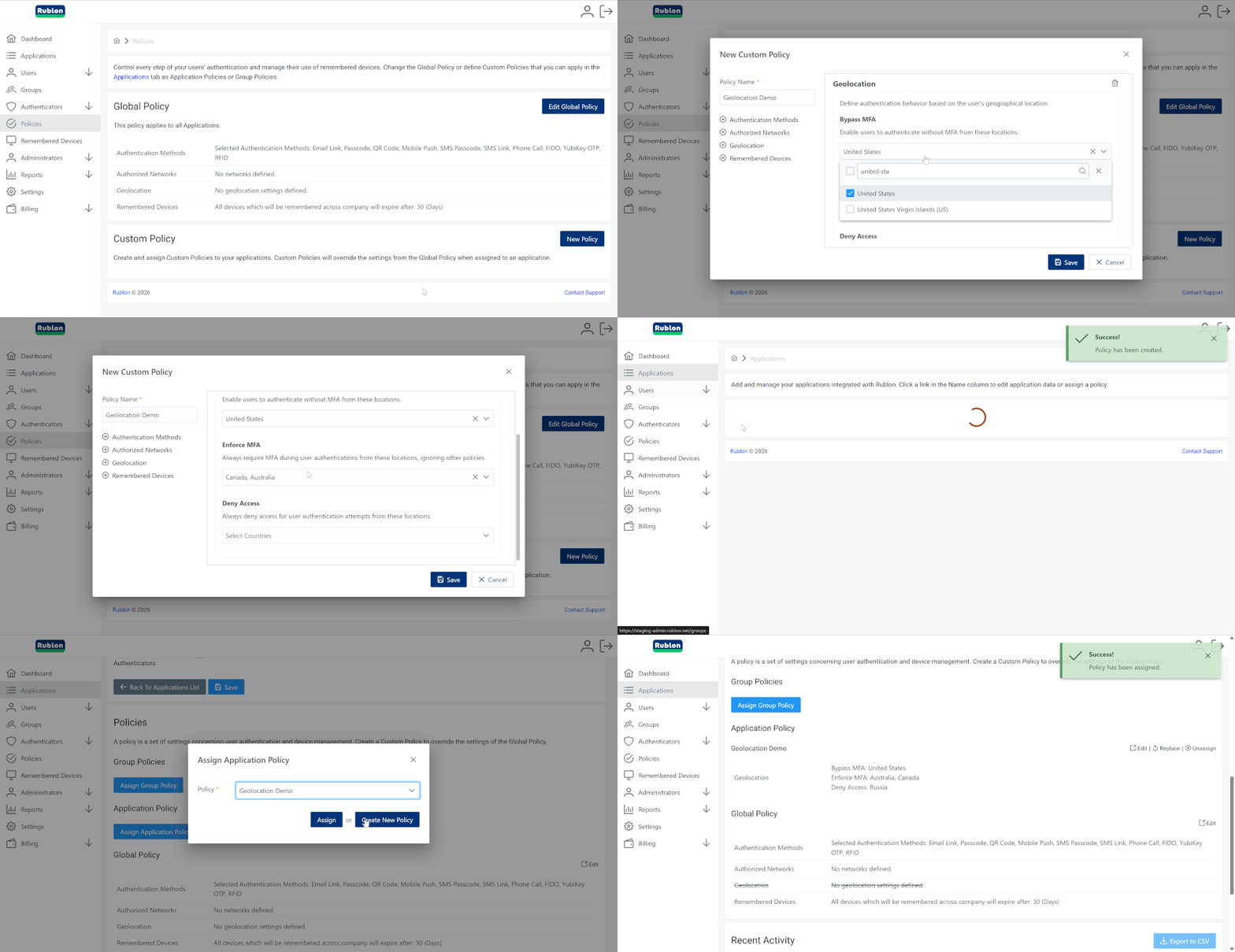
Authentication Decision Priority (Evaluation Order)
| Priority | What is evaluated | Description | Effect |
| 1 (highest) | Effective User Status (User + Group) | Determines whether the user is Active, Bypass, or Deny. This is always evaluated first. | – Deny → access blocked immediately, geolocation ignored. – Bypass → MFA skipped immediately, geolocation ignored. – Active → proceed to Geolocation Policy. |
| 2 | Geolocation Policy | Applies only to users whose status is Active. | – Bypass MFA → user skips MFA. – Enforce MFA → user must complete MFA. – Deny Access → user is blocked. |
| 3 (lowest) | Other Policies (e.g., Remembered Devices, Authorized Networks) | Additional authentication policies that are evaluated only if the user has not already been denied, bypassed, or explicitly required to complete MFA by earlier steps. | These policies apply only when no higher‑priority rule (User Status or Geolocation Policy: Deny, Bypass, or Enforce MFA) has already determined the authentication outcome. |
Using Geolocation Policy in Application vs. Group Policies
Geolocation settings can be applied in two ways:
- Application Policy – affects all users signing in to a specific application.
- Group Policy – affects only users who belong to a specific group (e.g., IT Admins, Contractors, Remote Workers).
Using Geolocation Policy inside a Group Policy allows organizations to apply location‑based rules only to selected users, enabling more granular and role‑specific access control.
For Application Policy examples, see the use cases listed on this page. For a Group Policy example, refer to Common Group Policy Use Cases.
Integration Details & Known Limitations
Rublon Authentication Proxy
In Short
Geolocation Policy enforcement through the Rublon Authentication Proxy is only reliable when the Auth Proxy operates in RADIUS Proxy mode and the integration sends Calling-Station-Id.
In all other cases (especially in LDAP Proxy mode), the Geolocation Policy will not function as intended due to the lack of real user IP information.
A Detailed Look
Rublon Authentication Proxy supports two integration modes: RADIUS Proxy and LDAP Proxy, and the way client IP information is forwarded differs significantly between them. This directly affects the behavior of the Geolocation Policy
- When operating as a RADIUS Proxy, the Rublon Auth Proxy forwards the user’s IP address based on the incoming RADIUS attributes:
- If the RADIUS request contains Calling-Station-Id, the Auth Proxy uses its value as the user’s IP address. This allows accurate geolocation, provided that the integrated application or device is configured to send this attribute.
- If Calling-Station-Id is missing, the Auth Proxy falls back to using the IP address of the system that sent the RADIUS request (the integration server).
- When operating as an LDAP Proxy, the Rublon Auth Proxy always forwards the IP address of the integration server, not the actual user’s IP. This limitation is inherent to LDAP itself: integrations do not send the user’s originating IP, so the Rublon Auth Proxy cannot extract or reconstruct it. As a result, accurate geolocation is not possible in this mode.
Rublon MFA for Linux SSH
In Rublon MFA for SSH, the real user IP address is available only during remote SSH connections from another host. In all other scenarios (such as SSH from localhost, sudo, or su), the operating system does not provide a remote user IP, so the connector reports the host’s IP address instead. This is expected behavior on Linux and not a limitation of Rublon MFA.
Launching a Remote Desktop (RDP) connection through Remote Desktop Gateway (RDG)
When an RDP connection is launched through RD Gateway, the real client IP address is not passed to the destination host, preventing both Authorized Networks and the Geolocation Policy from evaluating the user’s actual IP.
More information: Why don’t Rublon’s IP‑based policies (Authorized Networks and Geolocation Policy) work with RDP via RD Gateway?
Use Case: Bypass MFA for Users From Trusted Countries
Scenario
An organization wants to allow users signing in from selected trusted countries to access applications without going through the MFA process, to simplify login and reduce the number of authentication steps.
Challenge
Maintain a high level of security while reducing the number of MFA prompts for users signing in from predictable and low‑risk geographical locations.
Solution
Implement the Geolocation Policy and configure it so that selected countries are marked as Bypass MFA, allowing users signing in from those locations to skip the additional authentication step.
Benefits
- Simplified login experience for users in trusted countries.
- Reduced workload for the support team due to fewer MFA‑related inquiries.
- Improved convenience for users in selected countries without lowering the security level for others.
- Precise control over where MFA is required and where it can be safely bypassed.
Step-by-Step Configuration Guide
1. Sign in to the Rublon Admin Console.
2. In the Policies tab, create a policy called Bypass MFA for Trusted Countries where you enable the following settings in the Geolocation section:
- Bypass MFA: Select the countries for which MFA should always be bypassed
(See: How to create new policy and Geolocation)
Note: The Geolocation Policy does not override user statuses. If a user has a Deny or Bypass status resulting from settings applied at the user or group level, that status takes priority over the Geolocation Policy. The policy applies only to users with the Active status.
3. In the Applications tab, assign the Bypass MFA for Trusted Countries policy as an Application Policy to one or more applications. (See: How to assign Application Policy to application)
4. From now on, the Bypass MFA for Trusted Countries policy applies to the applications you assigned it to, ensuring that users logging in from selected trusted countries will be able to access the app without having to go through multi-factor authentication (MFA).
Use Case 2: Enforce MFA for Users From Selected Countries
Scenario
An organization wants to always enforce MFA for users logging in from selected countries, regardless of other policies in place (such as Authorized Networks or Remembered Devices).
Challenge
Ensure that users logging in from specific geographic locations always undergo MFA, even if other policies might bypass them.
Solution
Implement Rublon MFA’s Geolocation Policy and configure it to enforce MFA for selected countries, ignoring other policies to bypass MFA.
Benefits
- Enhanced account protection with mandatory MFA in high-risk regions.
- Increased resilience against attacks originating from locations where account takeovers are more common.
- Simplified security management with a single geolocation rule enforcing MFA for specified countries.
Step-by-Step Configuration Guide
1. Sign in to the Rublon Admin Console.
2. In the Policies tab, create a policy called Enforce MFA for Selected Countries where you enable the following settings in the Geolocation section:
- Enforce MFA: Select the countries for which MFA should always be required
(See: How to create new policy and Geolocation)
Note: The Geolocation Policy does not override user statuses. If a user has a Deny or Bypass status resulting from settings applied at the user or group level, that status takes priority over the Geolocation Policy. The policy applies only to users with the Active status.
3. In the Applications tab, assign the Enforce MFA for Selected Countries policy as an Application Policy to one or more applications. (See: How to assign Application Policy to application)
4. From now on, the Enforce MFA for Selected Countries policy applies to the applications you assigned it to, enforcing MFA for users logging in from selected countries, regardless of other policies.
Use Case 3: Block Access From Selected Countries
Scenario
An organization wants to prevent users from signing in from specific high‑risk countries while allowing authentication from all other locations.
Challenge
Block authentication attempts originating from selected countries while ensuring normal access for users in other regions.
Solution
Implement Rublon MFA’s Geolocation Policy and configure it to deny access for the selected countries, while allowing authentication to proceed for all other locations.
Benefits
- Reduce exposure to high‑risk regions by blocking authentication attempts from selected countries.
- Strengthen security posture by preventing unauthorized access from known threat‑originating locations.
- Simplify access control with a single geolocation rule that governs blocked regions.
Step-by-Step Configuration Guide
1. Sign in to the Rublon Admin Console.
2. In the Policies tab, create a policy called Block Selected Countries where you enable the following settings in the Geolocation section:
- Deny Access: Select the countries you want to block
(See: How to create new policy and Geolocation)
3. In the Applications tab, assign the Block Selected Countries policy as an Application Policy to one or more applications. (See: How to assign Application Policy to application)
4. From now on, the Block Selected Countries policy applies to the applications you assigned it to, effectively preventing any sign‑in attempts originating from the blocked countries while allowing access from all other locations.
Use Case 4: Allow Users Only From One Specific Country
Scenario
An organization wants to allow only users from the United States and deny access to users from any other country. Users from the United States must undergo multi-factor authentication (MFA) unless another policy (like Authorized Networks) or their user status bypasses them.
Challenge
Enforce MFA on users from the United States. Deny access for users from other countries.
Solution
Implement Rublon MFA’s Geolocation Policy, and set it up to allow only users from the United States, while denying access for users from other countries.
Benefits
- Reduce attack surface by blocking all authentication attempts originating outside the approved country.
- Strengthen regulatory compliance by enforcing strict geographic access controls aligned with organizational policies.
- Simplify policy management with a single geolocation rule that governs both allowed and denied regions.
Step-by-Step Configuration Guide
1. Sign in to the Rublon Admin Console.
2. In the Policies tab, create a policy called Allow US Only where you enable the following settings in the Geolocation section:
- Deny Access: Select all countries except for the United States
(See: How to create new policy and Geolocation)
Note: If you additionally want to bypass MFA for users in the United States, select the United States under Bypass MFA.
If you additionally want to enforce MFA on users from the United States regardless of all other policies (such as Authorized Networks), select the United States under Enforce MFA.
3. In the Applications tab, assign the Allow US Only policy as an Application Policy to one or more applications. (See: How to assign Application Policy to application)
4. From now on, the Allow US Only policy applies to one or more applications you assigned it to, effectively restricting access only to employees signing in from the United States, blocking any sign-in attempt from outside the US.