Last updated on December 8, 2025
Overview
Rublon Multi-Factor Authentication (MFA) for ManageEngine ADManager Plus adds an extra layer of protection, ensuring that only authorized users can access the system. ADManager Plus MFA enforces both primary authentication (username and password) and a secondary method, such as Mobile Push, to ensure that access is granted only to verified users through a layered security approach.
The purpose of this document is to enable Rublon Multi-Factor Authentication (MFA) for ManageEngine ADManager Plus logins. To achieve this using SAML, you have to use Rublon Access Gateway. All required steps will be described in this document.
Supported Authentication Methods
| Authentication Method | Supported | Comments |
| Mobile Push | ✔ | N/A |
| FIDO | ✔ | N/A |
| Passcode | ✔ | N/A |
| SMS Passcode | ✔ | N/A |
| SMS Link | ✔ | N/A |
| Phone Call | ✔ | N/A |
| QR Code | ✔ | N/A |
| Email Link | ✔ | N/A |
| YubiKey OTP | ✔ | N/A |
| RFID | – | N/A |
Before you start
Before configuring Rublon MFA for ADManager Plus:
- Ensure you have prepared all required components.
- Create an application in the Rublon Admin Console.
- Install the Rublon Authenticator mobile app.
Required Components
1. User Identity Provider (IdP) – You need an external Identity Provider, such as Microsoft Active Directory, OpenLDAP, FreeIPA, FreeRADIUS, or Microsoft NPS.
2. Rublon Access Gateway – Install and configure Rublon Access Gateway itself before configuring ADManager Plus to work with it. Read the Rublon Access Gateway documentation and follow the steps in the Installation and Configuration sections. Afterward, continue with this document.
3. ADManager Plus – A properly installed and configured ManageEngine ADManager Plus.
Create an Application in the Rublon Admin Console
1. Sign up for the Rublon Admin Console. Here’s how.
2. In the Rublon Admin Console, go to the Applications tab and click Add Application.
3. Enter a name for your application (e.g., ADManager Plus) and then set the type to Rublon Access Gateway.
4. Click Save to add the new application in the Rublon Admin Console.
5. Copy the values of System Token and Secret Key of the newly created application. You will need them later.
Install Rublon Authenticator
Some end-users may use the Rublon Authenticator mobile app. So, as a person configuring MFA for ADManager Plus, we highly recommend you install the Rublon Authenticator mobile app, too. Thanks to that, you will be able to test MFA for ADManager Plus via Mobile Push.
Download the Rublon Authenticator for:
Configuration
1. To add MFA to ADManager Plus logins, you need one or more Help Desk Technicians. In the ADManager Plus Admin Panel, go to Delegation → Help Desk Technicians → Add New Technician, fill in the fields, and select Save. Refer to the following image and table.
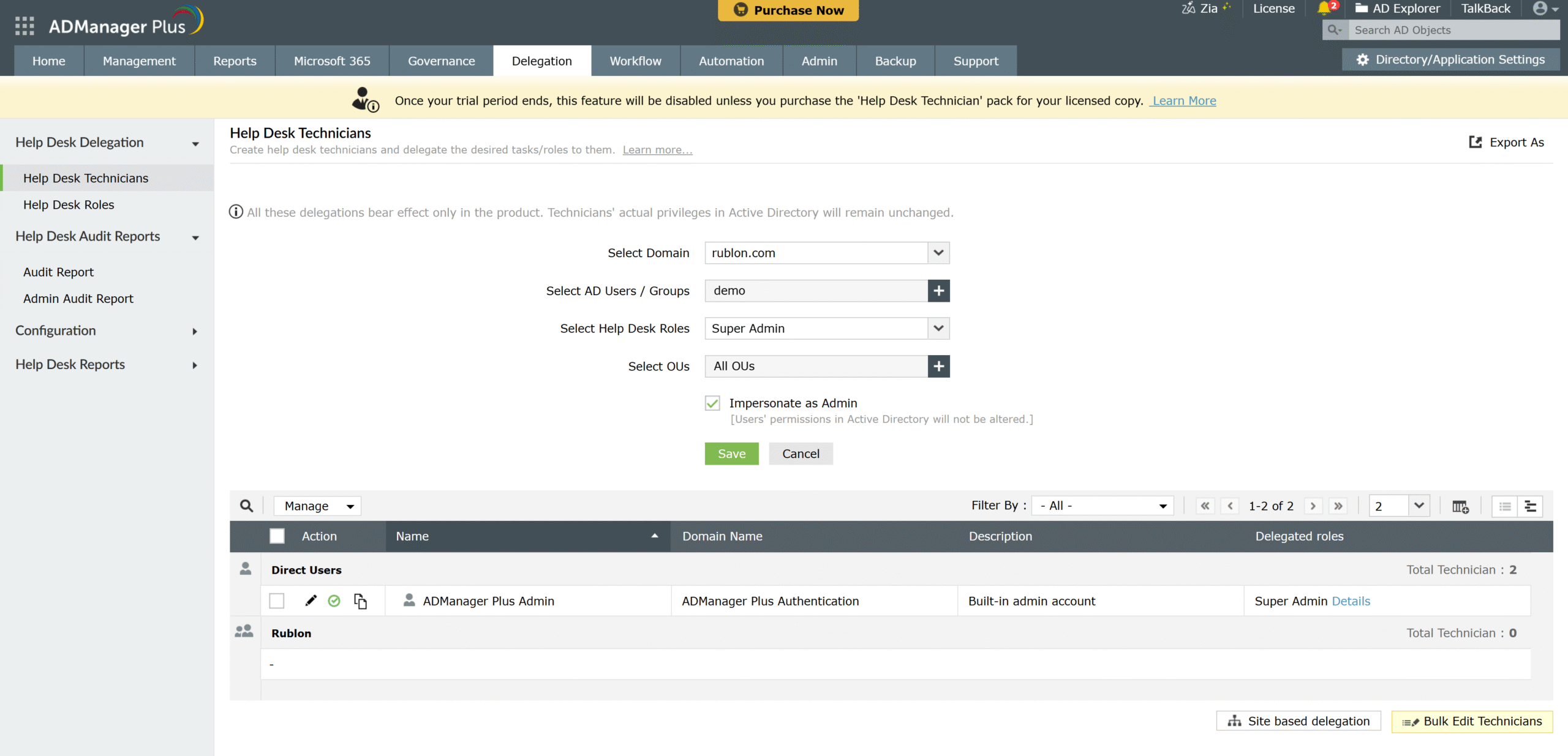
| Select Domain | Select the same domain you set in the Authentication Sources tab of the Rublon Access Gateway. |
| Select AD Users / Groups | Select the user. |
| Select Help Desk Roles | Select the user role. |
| Select OUs | Select All OUs. |
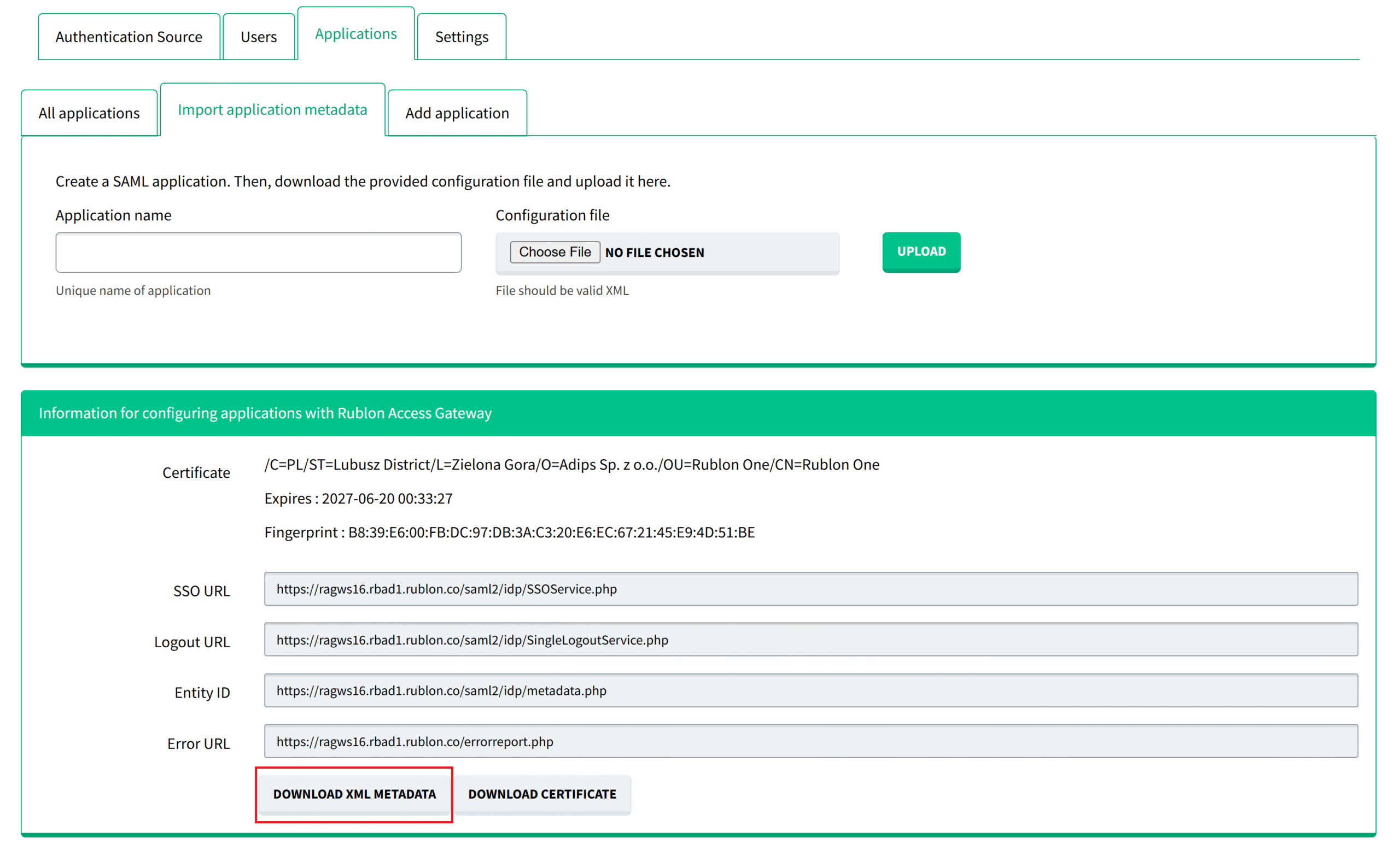
2. In the Rublon Access Gateway, select Application → Import application metadata → DOWNLOAD XML METADATA. The .xml file will open in your browser. Right-click and save as metadata.xml. By default, the browser tries to save it as a .php file, so you need to change the extension to .xml.
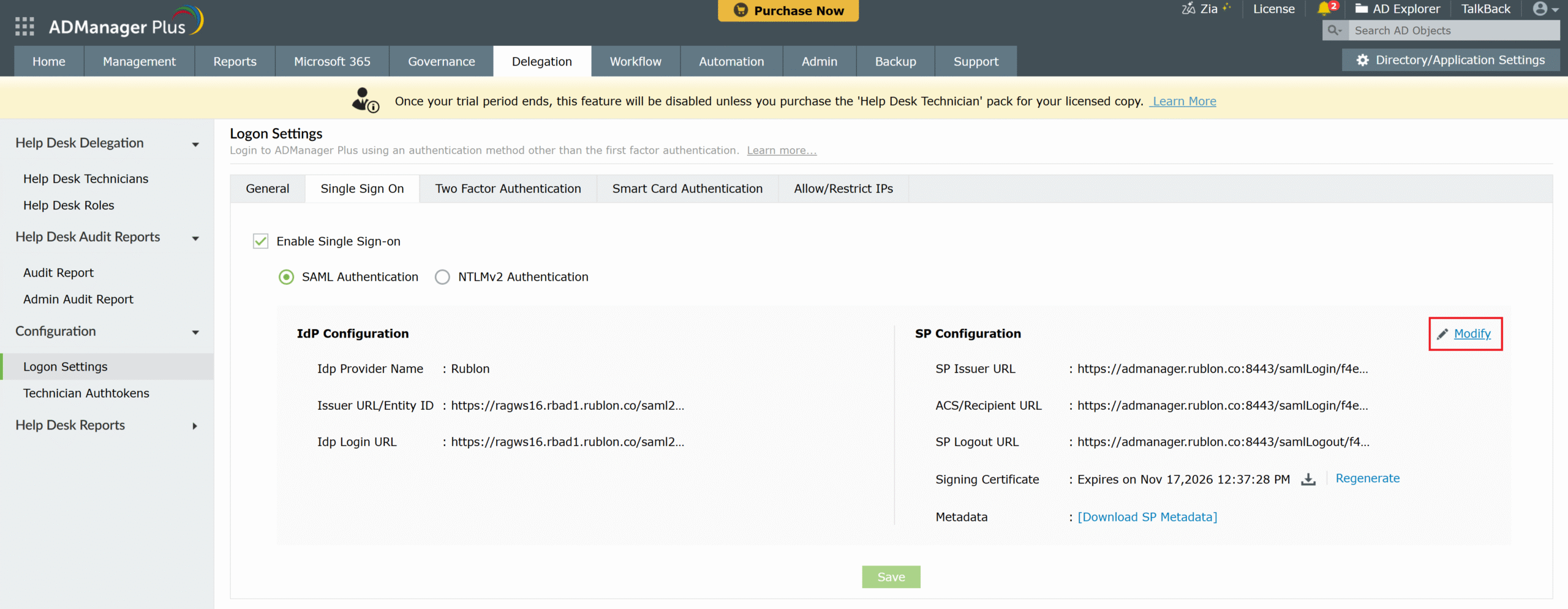
3. In the ADManager Plus Admin Panel, go to Delegation → Configuration → Logon Settings → Single Sign On.
4. Check Enable Single Sign-on and select SAML Authentication.
5. In the SP Configuration section, select Modify.
6. The SAML configuration window opens. Fill in the fields in the Configure Identity Provider section. Refer to the following image and table.
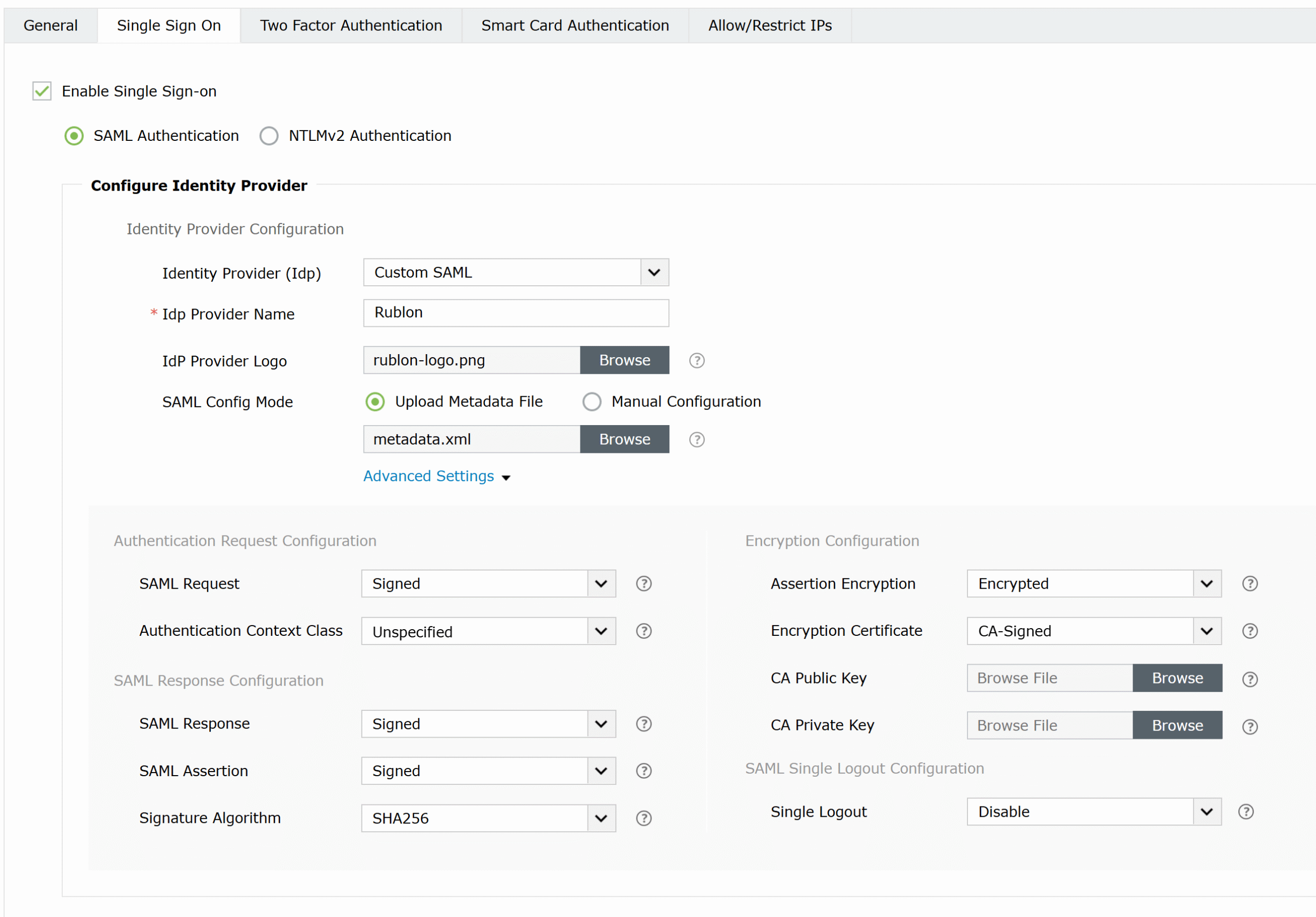
| Identity Provider (Idp) | Custom SAML |
| Idp Provider Name | Rublon |
| IdP Provider Logo | Skip. |
| SAML Config Mode | Select Upload Metadata File and then select the metadata.xml you have previously downloaded from the Rublon Access Gateway. |
| Expand Advanced Settings. | |
| SAML Request | Signed |
| Authentication Context Class | Unspecified |
| SAML Response | Signed |
| SAML Assertion | Signed |
| Signature Algorithm | SHA256 |
| Assertion Encryption | Encrypted |
| Encryption Certificate | Self-Signed or CA-Signed, depending on the type of your certificate. |
| Single Logout | Optional. Enable this option to log out of all applications associated with the Rublon Access Gateway when you log out of ADManager Plus. |
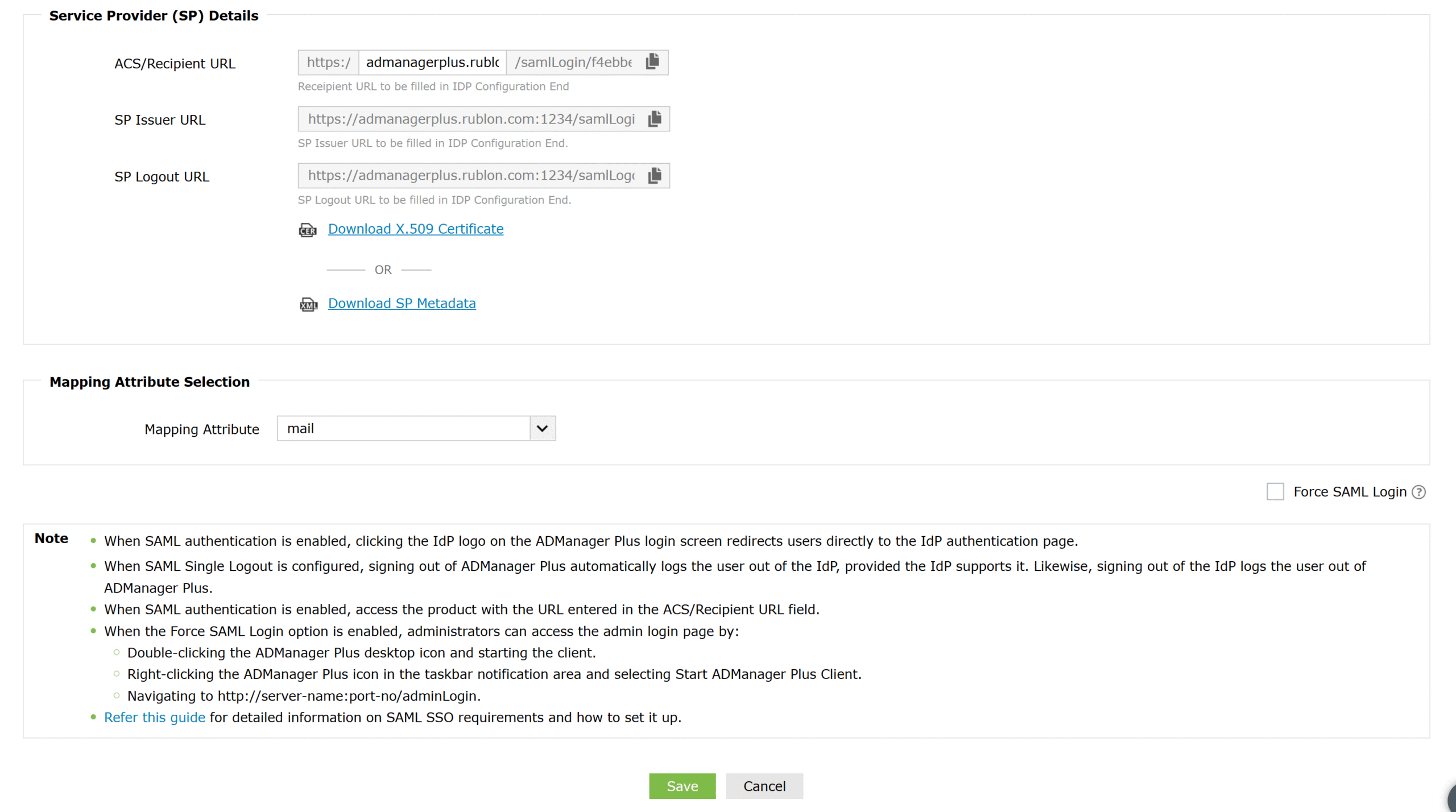
7. Navigate to the Service Provider (SP) Details section. In ACS/Recipient URL, enter the domain address and port used to connect to the ADManager Plus. Use a colon in between, e.g.,:
admanagerplus.rublon.com:1234
8. Navigate to the Mapping Attribute Selection section. In Mapping Attribute, select mail.
9. Select Save to save your SAML configuration.
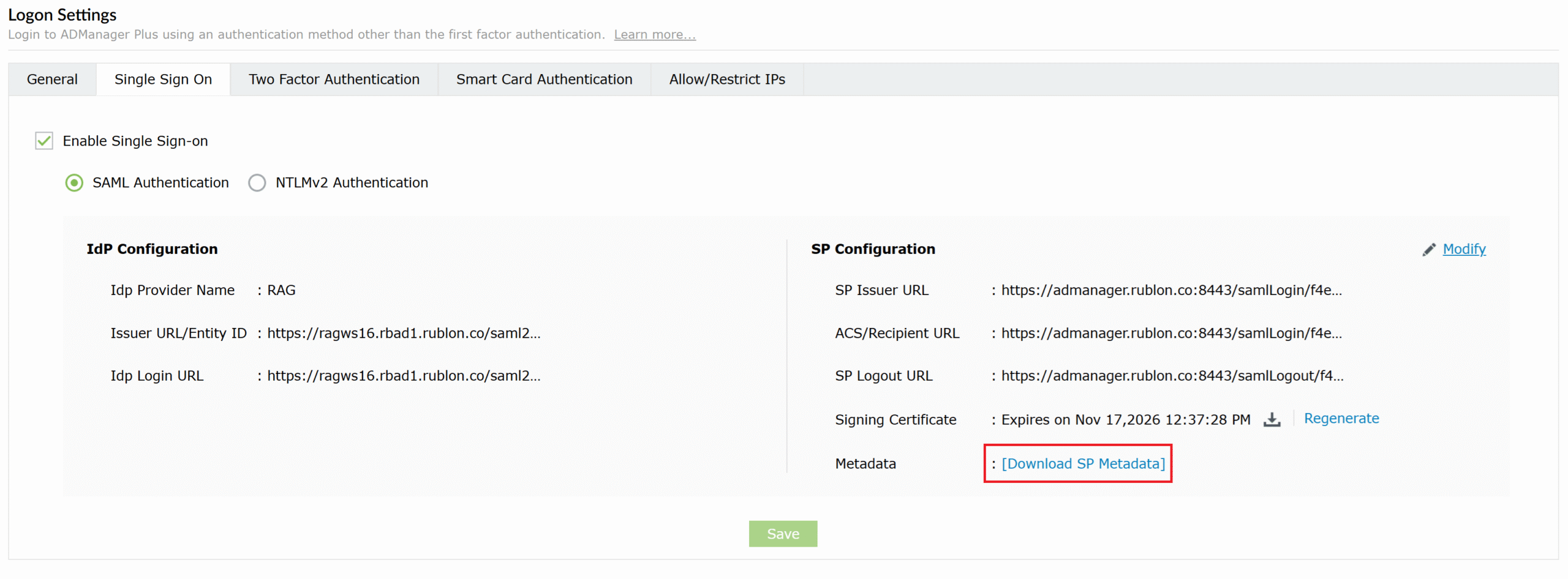
10. Back in the Single Sign On tab, select Download SP Metadata to download the sp_metadata.xml file. Then, open the file in a text editor and change the following values:
- Set validUntil=“2026-11-27T10:01:11.009Z”
- Set AuthnRequestsSigned=”true”
- Set WantAssertionsSigned=”true”
Then, save the sp_metadata.xml file.
Note: ADManager Plus does not pass the settings from Advanced Settings to the sp_metadata.xml file, hence the need to make these adjustments.
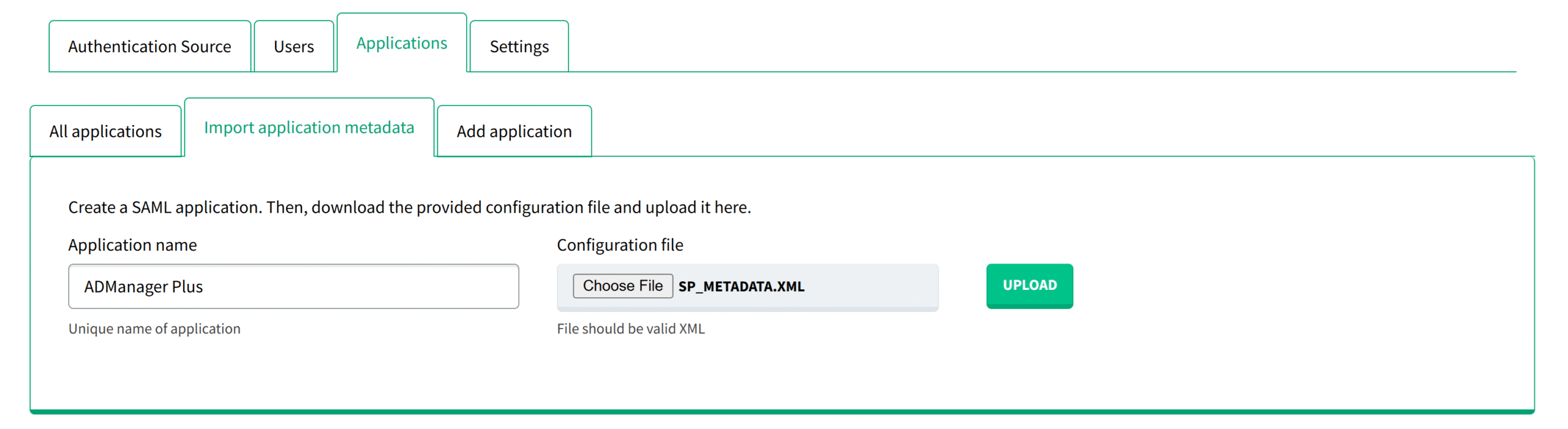
11. In the Rublon Access Gateway, go to Applications → Import application metadata, enter the name for your application (e.g., ADManager Plus), select the sp_metadata.xml file from your computer, and select UPLOAD. The application will appear on the applications list under the All applications subtab.
12. Your configuration is complete. You can now test logging in to ADManager Plus with Rublon Multi-Factor Authentication (MFA).
Testing Multi-Factor Authentication (MFA) for ADManager Plus Via SAML
1. On the ADManager Plus login page, click Rublon under the standard login form.
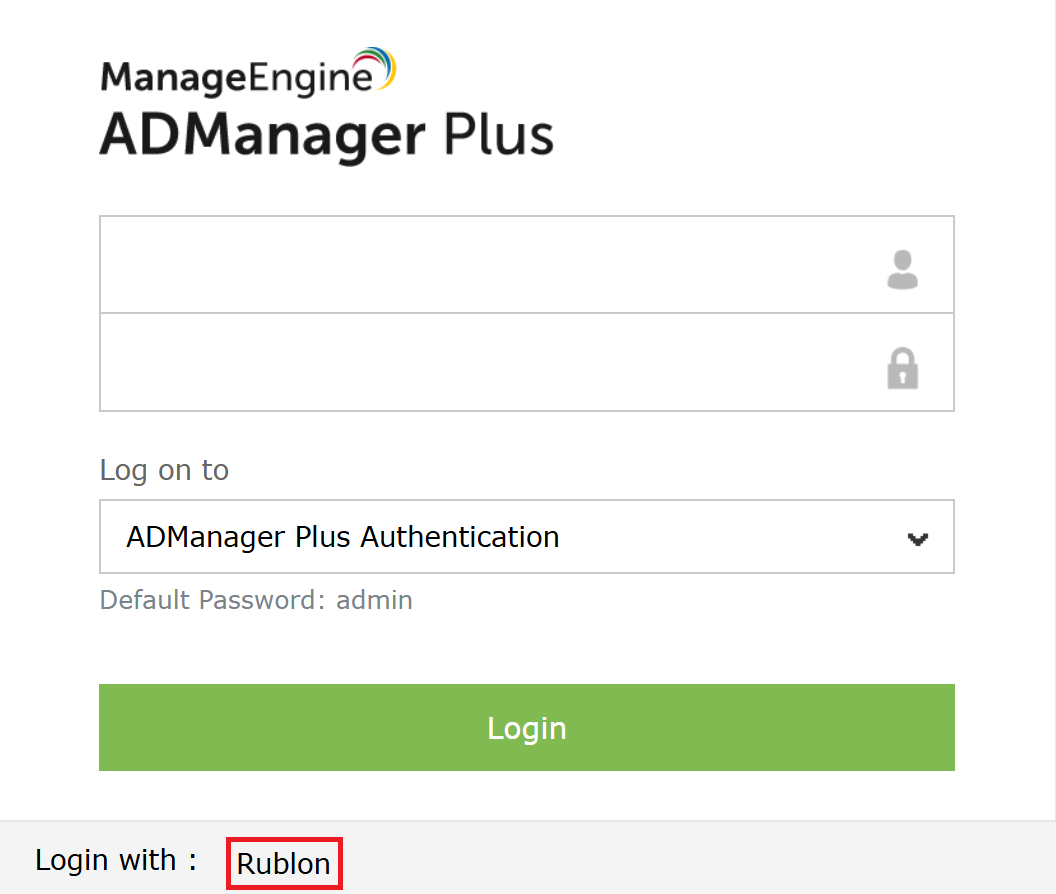
2. You will be redirected to the Rublon Access Gateway login page.
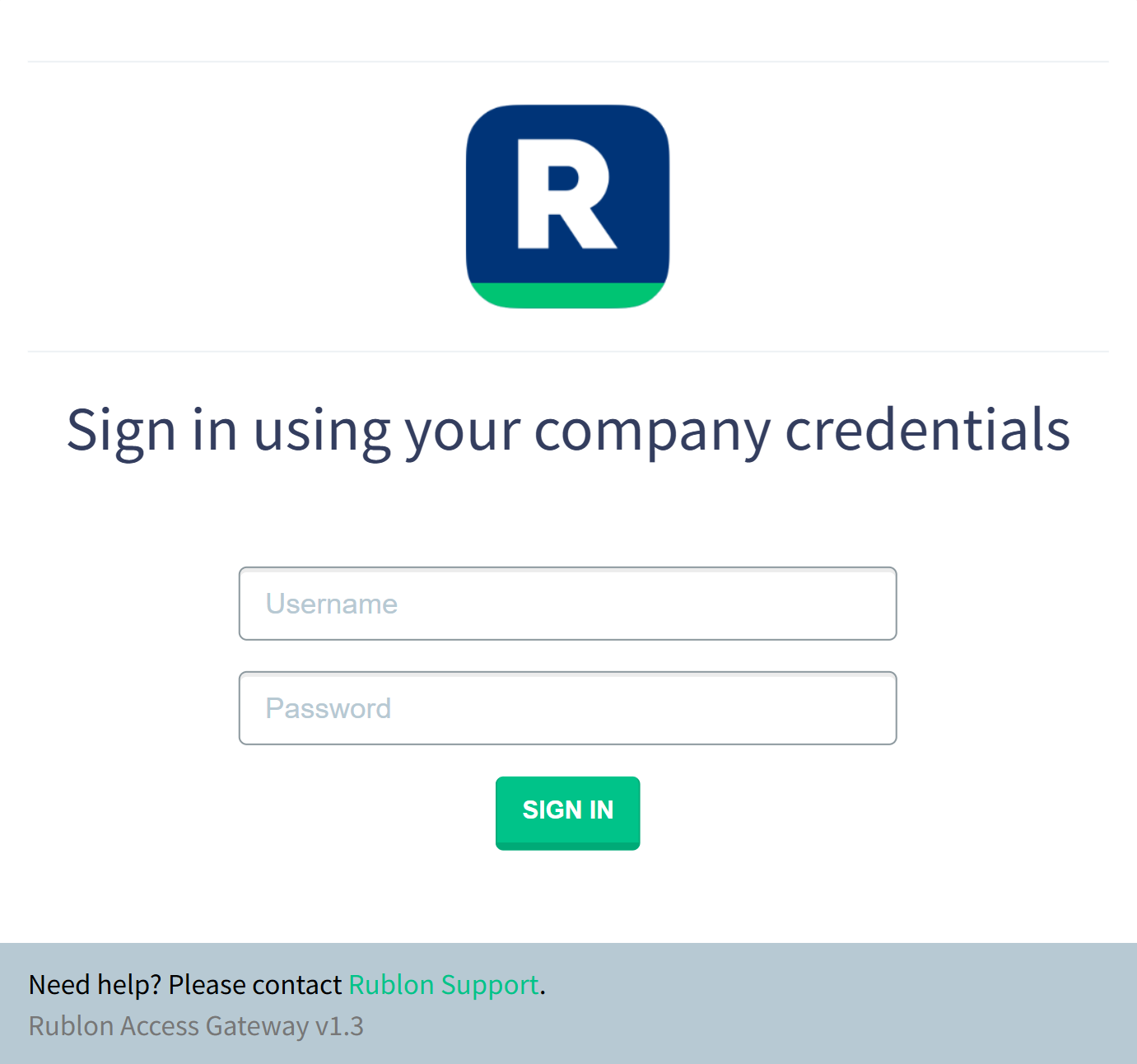
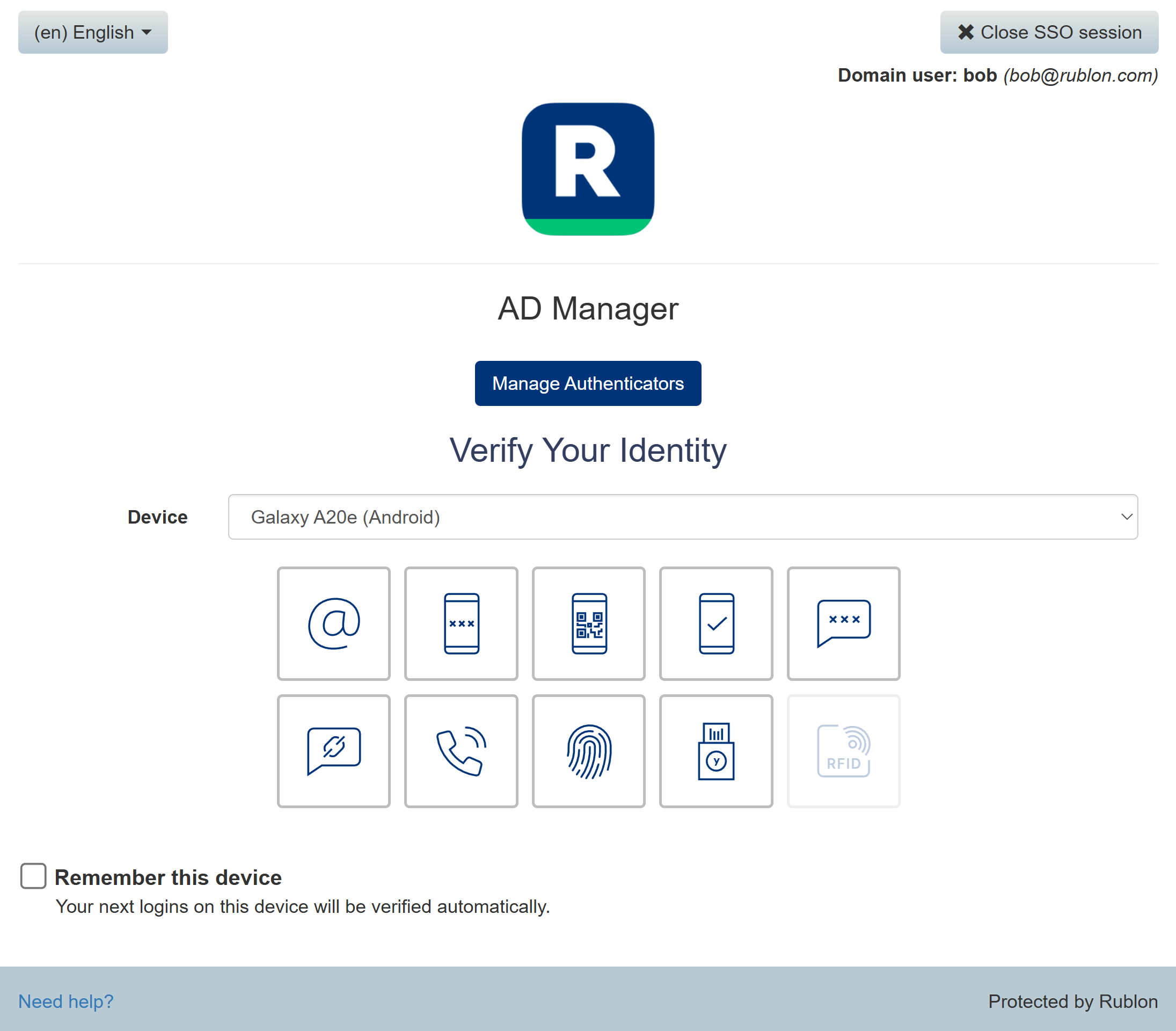
3. Provide your username and password. Click SIGN IN. The Rublon Prompt will appear with a selection of various Rublon MFA options. Let’s choose Mobile Push.
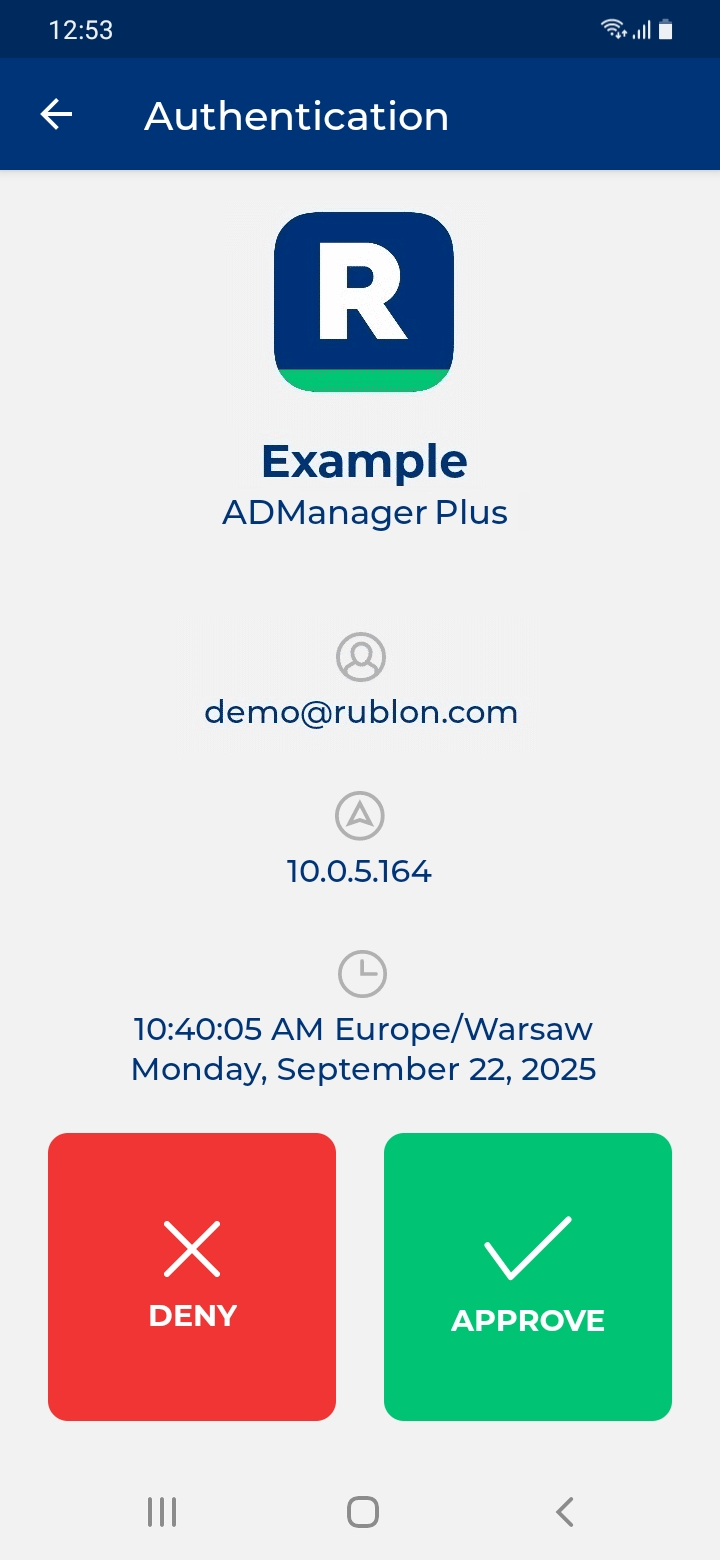
4. Rublon MFA will send a Mobile Push authentication request to your phone. Tap APPROVE.
5. You will be logged in to ADManager Plus.
Troubleshooting
If you encounter any issues with your Rublon MFA integration, please contact Rublon Support.