• Skip to primary navigation
  • Skip to main content
  • Skip to primary sidebar
  • Skip to footer

Company · Blog · Newsletter · Events · Partner Program

Downloads      Support      Security     Admin Login      Password Generator
Rublon

Rublon

Secure Remote Access

  • Product
    • Regulatory Compliance
    • Use Cases
    • Rublon Reviews
    • Authentication Basics
    • What is MFA?
    • User Experience
    • Authentication Methods
    • Rublon Authenticator
    • Remembered Devices
    • Logs
    • Single Sign-On
    • Access Policies
    • Directory Sync
  • Solutions
    • MFA for Remote Desktop
    • MFA for Remote Access Software
    • MFA for Windows Logon
    • MFA for Linux
    • MFA for On-Premise Active Directory
    • MFA for LDAP
    • MFA for RADIUS
    • MFA for SAML
    • MFA for RemoteApp
    • MFA for Workgroup Accounts
    • MFA for Entra ID
  • Customers
  • Industries
    • Financial Services
    • Investment Funds
    • Retail
    • Technology
    • Healthcare
    • Legal
    • Education
    • Government
    • Utilities
    • Manufacturing
  • Pricing
  • Docs
Contact Sales Free Trial

Multi-Factor Authentication (2FA/MFA) for Fortinet FortiGate IPSec VPN – RADIUS

Multi-Factor (MFA) and Two-Factor Authentication (2FA) for Fortinet FortiGate IPSec VPN

February 12, 2026 By Rublon Authors

Overview of MFA for Fortinet FortiGate IPSec VPN Using RADIUS

Multi-Factor Authentication (MFA) for Fortinet FortiGate IPSec VPN using FortiClient or a web browser is an additional layer of security that requires users to provide two authentication factors to gain access to the VPN. The initial factor requires users to enter their Active Directory / RADIUS username and password. Following the completion of the first factor, the user then has to authenticate with an available authentication option, like Mobile Push or Email Link. Once both factors have been completed, the user can access the resource. Enabling Two-Factor Authentication (2FA) or Multi-Factor Authentication (MFA) for Fortinet FortiGate IPSec VPN helps protect from hackers accessing resources even if they possess the user’s login credentials.

Demo Video

YouTube player

Supported Authentication Methods

Authentication Method Supported Comments
Mobile Push ✔ N/A
FIDO – N/A
Passcode ✔ N/A
SMS Passcode – N/A
SMS Link ✔ N/A
Phone Call ✔ N/A
QR Code – N/A
Email Link ✔ N/A
YubiKey OTP ✔ N/A
RFID – N/A

Before you start

You need to install and configure Rublon Authentication Proxy before configuring Fortinet FortiGate IPSec VPN to work with it. Read Rublon Authentication Proxy and follow the steps in the Installation and Configuration sections. Afterward, follow the Configuration section in this document.

Ensure that you have properly set up your authentication source, that is an external Identity Provider (IdP) like RADIUS, OpenLDAP, or Microsoft Active Directory.

Configuration of MFA for Fortinet FortiGate IPSec VPN Using RADIUS

Follow the steps in this section to enable Rublon 2FA in your Fortinet FortiGate IPSec VPN.

Add Rublon Authentication Proxy as RADIUS Server in Fortinet FortiGate

1. Log in to the Fortinet FortiGate administrator panel.

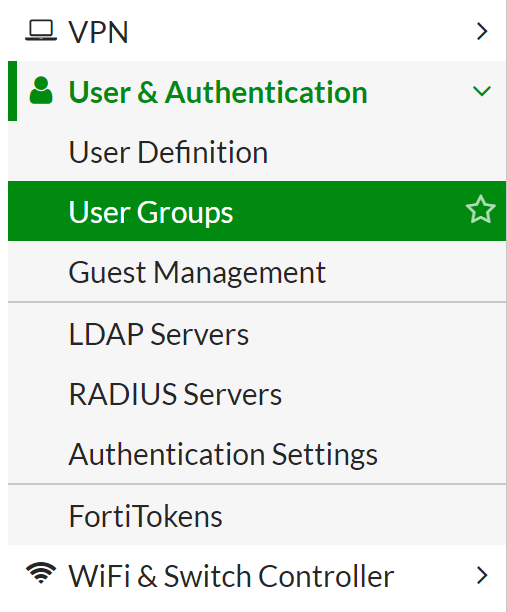
2. Click the User & Authentication section on the left to expand it and click RADIUS Servers.

3. Click the Create New button to add your Rublon Authentication Proxy.

4. Fill in the form and click OK to add your new server. Refer to the following image and table.

NameSet a name for your new server, e.g. Rublon Authentication Proxy.
Authentication methodSelect Specify and then select PAP.
Primary Server Name/IPEnter the IP address or FQDN of your Rublon Authentication Proxy.
Primary Server SecretEnter the RADIUS Secret set in Rublon Authentication Proxy.

Configure a User Group

1. Click the User & Authentication section on the left to expand it and click User Groups.

2. If you already have an existing user group, double-click the name of the group to edit its settings. If you haven’t created a user group yet, click Create New to create one. Enter the following information in the New User Group form:

NameRublon
TypeFirewall

3. Click the Add button in the Remote Groups section. In Add Group Match, select the Rublon Authentication Proxy remote server. You do not have to specify a group. Click OK to add the remote server.

4. Click OK to save the user group settings.

5. LDAP Server Only: If you are using an LDAP server (e.g., Active Directory) in your Rublon Authentication Proxy, adding the user group via GUI might not be enough. You might have to complete the following steps to map to the DN of an AD group using CLI.

After saving the group settings, click Edit, then click Edit in CLI, and then execute the following commands:

set member NAME_OF_THE_SERVER_FROM_LDAP_SERVERS
config match
edit 1
set server-name NAME_OF_THE_SERVER_FROM_LDAP_SERVERS
set group-name DN_OF_THE_GROUP_FROM_AD
next
end
end

You can now close the console and refresh the page. You should now see your mapping to the DN of an AD group.

6. RADIUS Server Only: If you are using a RADIUS server (e.g., FreeRADIUS) in your Rublon Authentication Proxy, you have to include the name of the group you just created in the Rublon Authentication Proxy configuration file’s RADIUS_CLASS_ATTR parameter inside the Servers section, e.g.,

"RADIUS_CLASS_ATTR": "Rublon",

Remember to restart the Rublon Authentication Proxy service for the change to take effect.
For more information, refer to the Rublon Authentication Proxy documentation.

Note

If a user has two accounts with the same name in the FortiGate system – one is a user account for VPN connections and the other is an administrative account (defined in System → Administrators) – and both accounts authenticate through an external Identity Provider (IdP), then after deploying the Rublon Authentication Proxy, switch the administrative account to local authentication (System → Administrators → Edit Administrator → set Type to Local User).

Retaining the admin account’s authentication through the external Identity Provider will result in the user’s VPN connections not requiring a second factor of authentication. This happens because FortiGate sees two accounts with the same username in the same source. If the admin account (using the same username) is also configured in the external IdP and does not require MFA, FortiGate will finalize the login as soon as it receives a positive response for that account—before the Rublon Auth Proxy authentication process completes (which takes longer, for example because it waits for the user’s approval in the Rublon Authenticator app). Switching the admin account to “Local User” ensures that FortiGate no longer searches for an alternate identity source with the same username, thereby always requiring a second factor of authentication for VPN connections.

Configure Firewall Policy and Mapping

1. Configure the IPSec VPN Tunnel if you have not already.

2. Click Policy & Objects on the left to expand it and select IPV4 Policy.

Note: In some cases, there will be a Firewall Policy option instead of an IPV4 Policy.

3. Create or edit the policy related to your IPSec-VPN interface.

4. In Source, add the address space (e.g., IPSECVPN_TUNNEL-ADDR1) and the group (Rublon if you followed this document closely) you created before

5. Click OK to save the changes.

6. Click VPN on the left to expand it and select IPSec-VPN Settings.

7. Navigate to the Authentication/Portal Mapping section.

8. Create New or Edit existing mapping to grant access to the group you created before. Unless your requirements are different, allow full-access.

9. Click OK and then Apply to save the changes.

Configure Timeout and Additional Options

The default timeout in the Fortinet appliance is 5 seconds, which is far too short for anything other than Passcode authentication. You have to increase the timeout in the Fortinet command line interface. We recommend you increase the timeout to at least 180 seconds.

1. Connect to the appliance command-line interface (CLI). If you need more information, refer to the documentation that came with your Fortinet device.

2. Execute the following commands:

config system global
set remoteauthtimeout 60
set ldapconntimeout 60000
end
  • remoteauthtimeout: This time is specified in seconds.
  • ldapconntimeout: This time is specified in milliseconds.

Configure IPSec

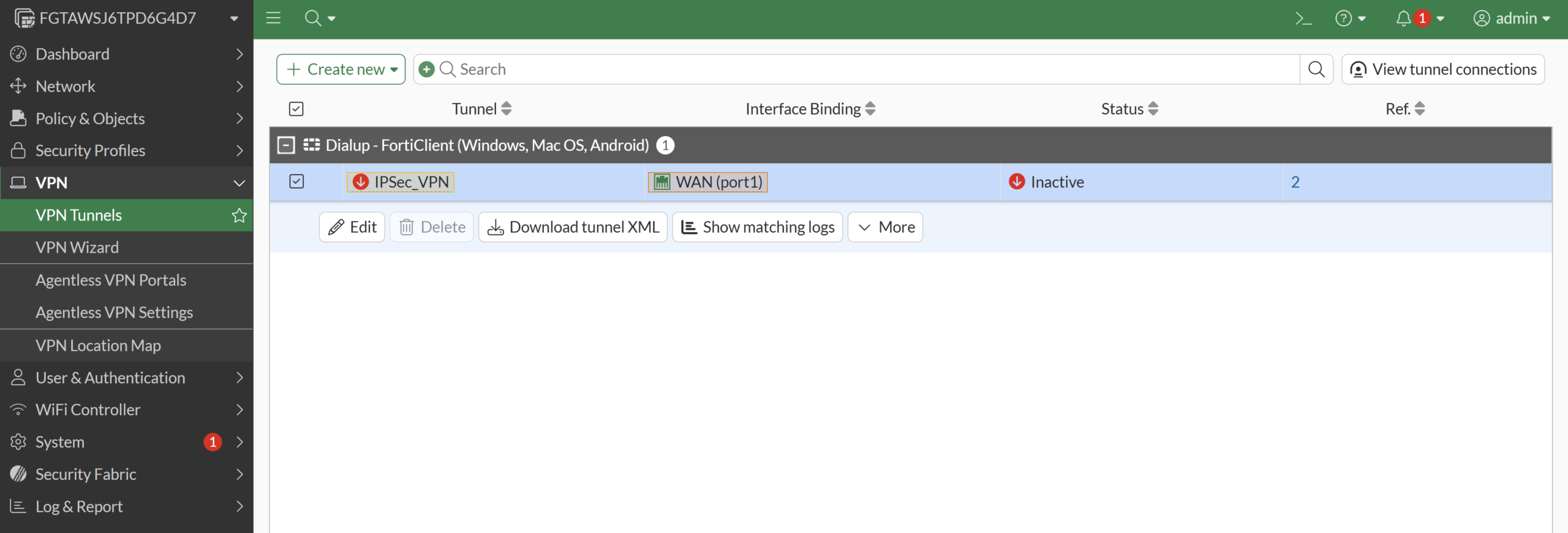
1. In the Fortinet FortiGate administrator panel, go to VPN → VPN Tunnels and select your IPSec VPN profile. Then select Edit.

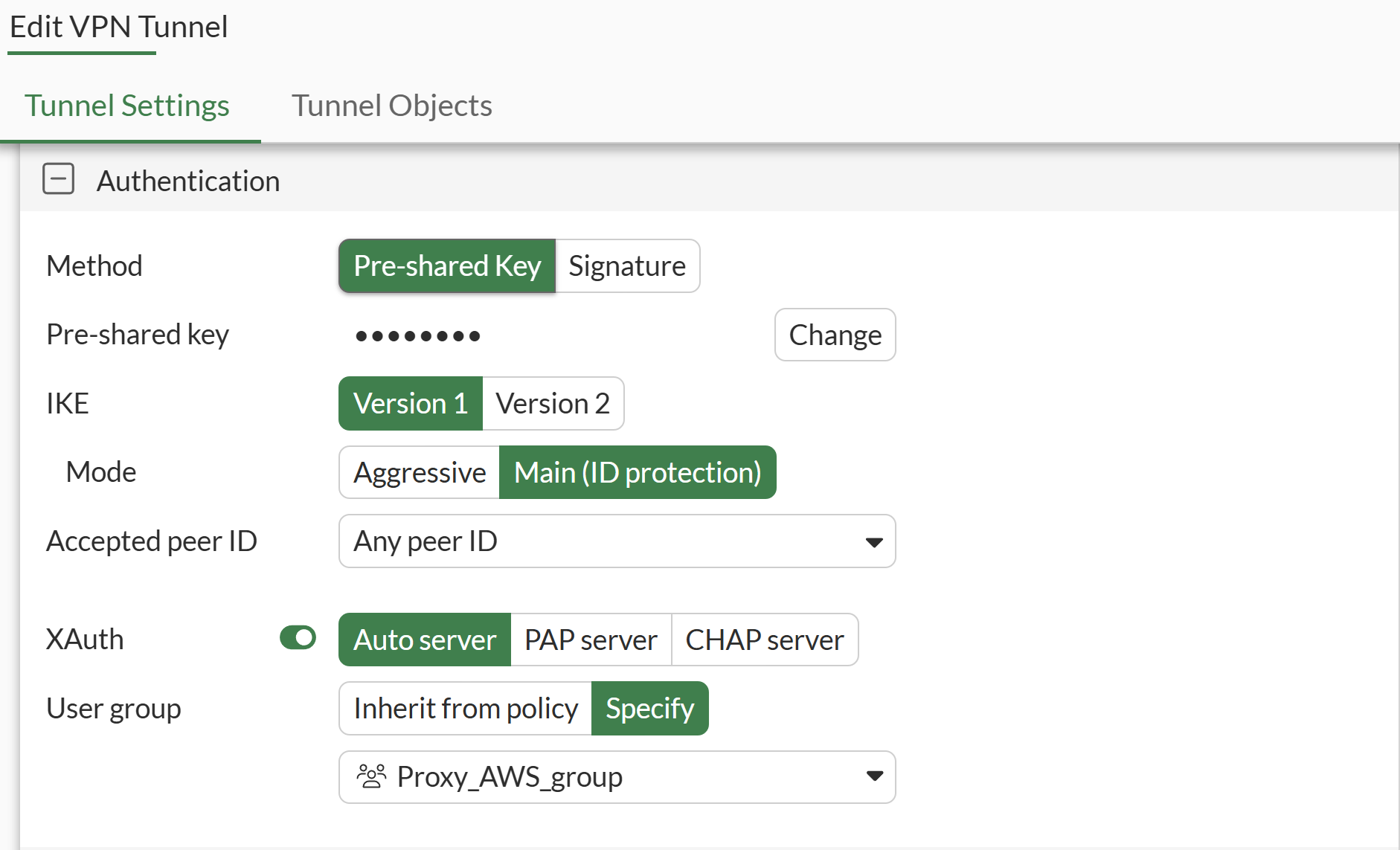
2. In the Tunnel Settings tab, navigate to the Authentication section and fill out the fields. Refer to the following image and table.

MethodSelect Pre‑shared Key or Signature, depending on your IPSec configuration.

These are methods of authenticating the connection between the client and the server. The first uses a shared password, while the second relies on a certificate.

More information: Pre-shared key vs digital certificates
IKEVersion 1
ModeMain (ID Protection)
Accepted peer IDAny peer ID
XAuthAuto server
User GroupSpecify and select the group you have created in Configure a User Group.

3. Leave all other fields at their default values or adjust them according to your needs, and then select OK to save your configuration.

Log in to FortiGate IPSec VPN using MFA for Fortinet FortiGate IPSec VPN Integrated Via RADIUS

Rublon MFA for FortiGate IPSec VPN requires the use of the FortiClient VPN.

In this example, Mobile Push has been set as the second factor in Rublon Authentication Proxy configuration (AUTH_METHOD was set to push).

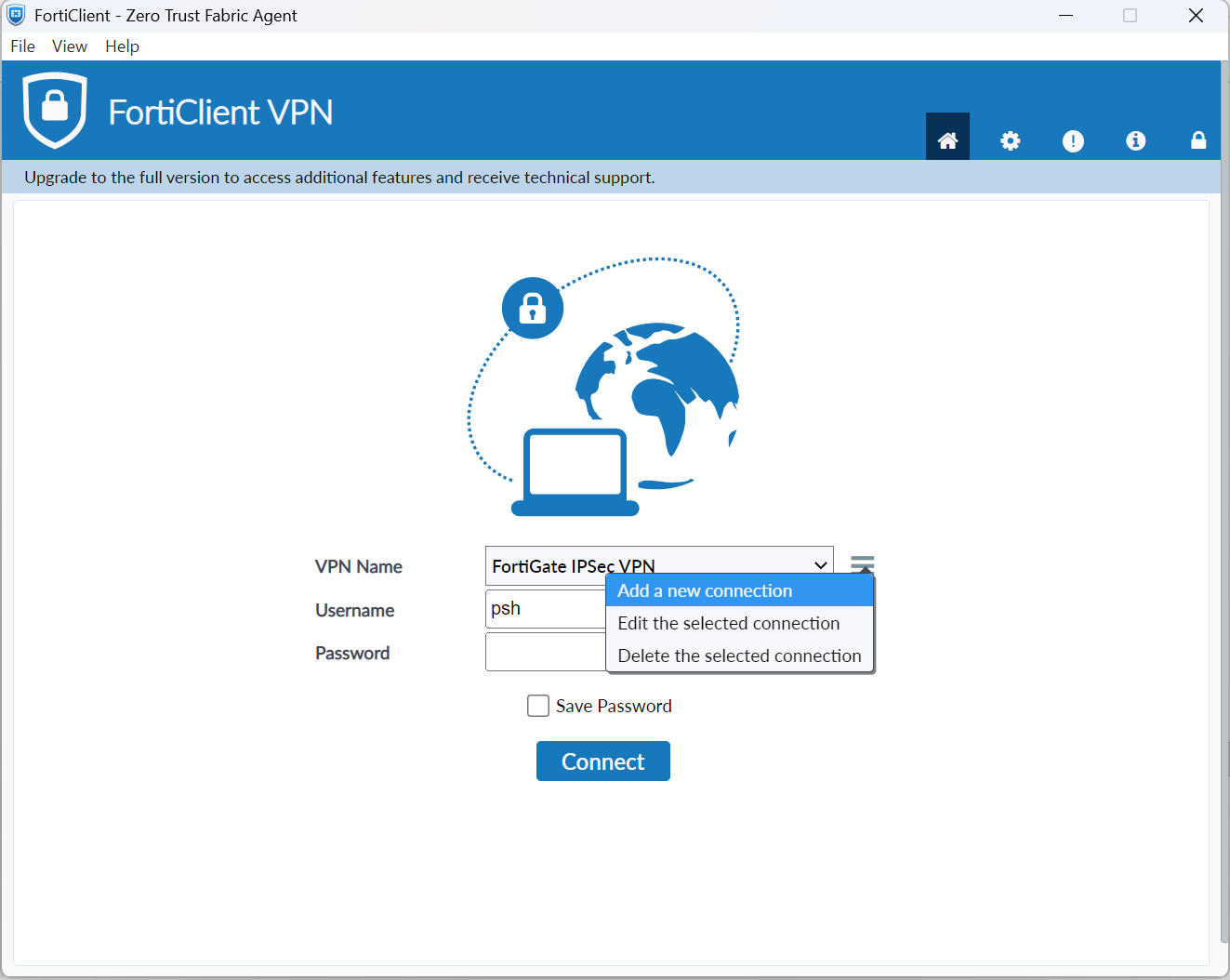
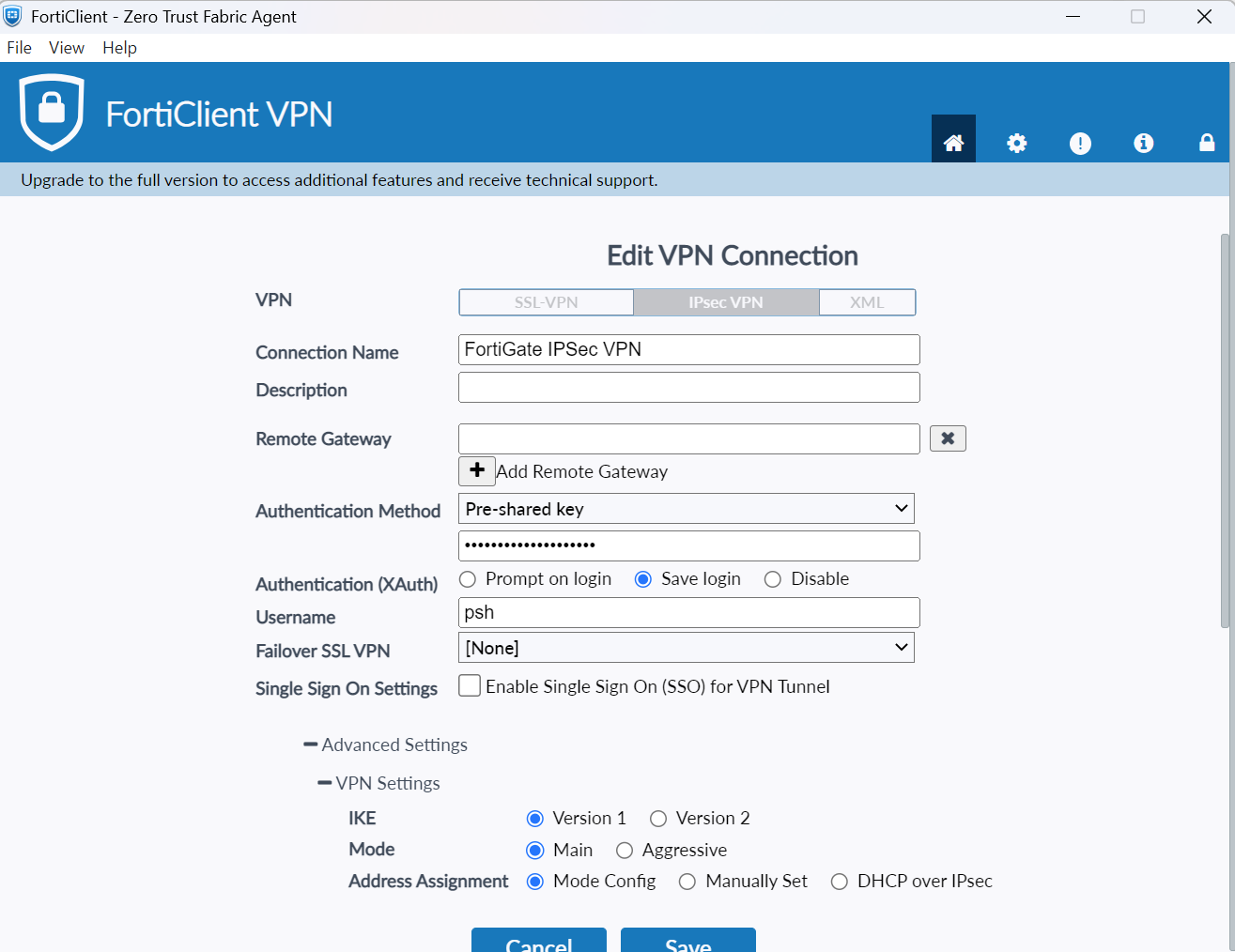
1. Open the FortiClient VPN and create a new IPSec VPN connection.

2. Select IPSec VPN and then set the following settings:

  • Enter the IP in the Remote Gateway.
  • Specify the Authentication Method.
  • Expand Advanced Settings → VPN Settings and set the following:
    • IKE: Version 1
    • Mode: Main
    • Address Assignment: Mode Config
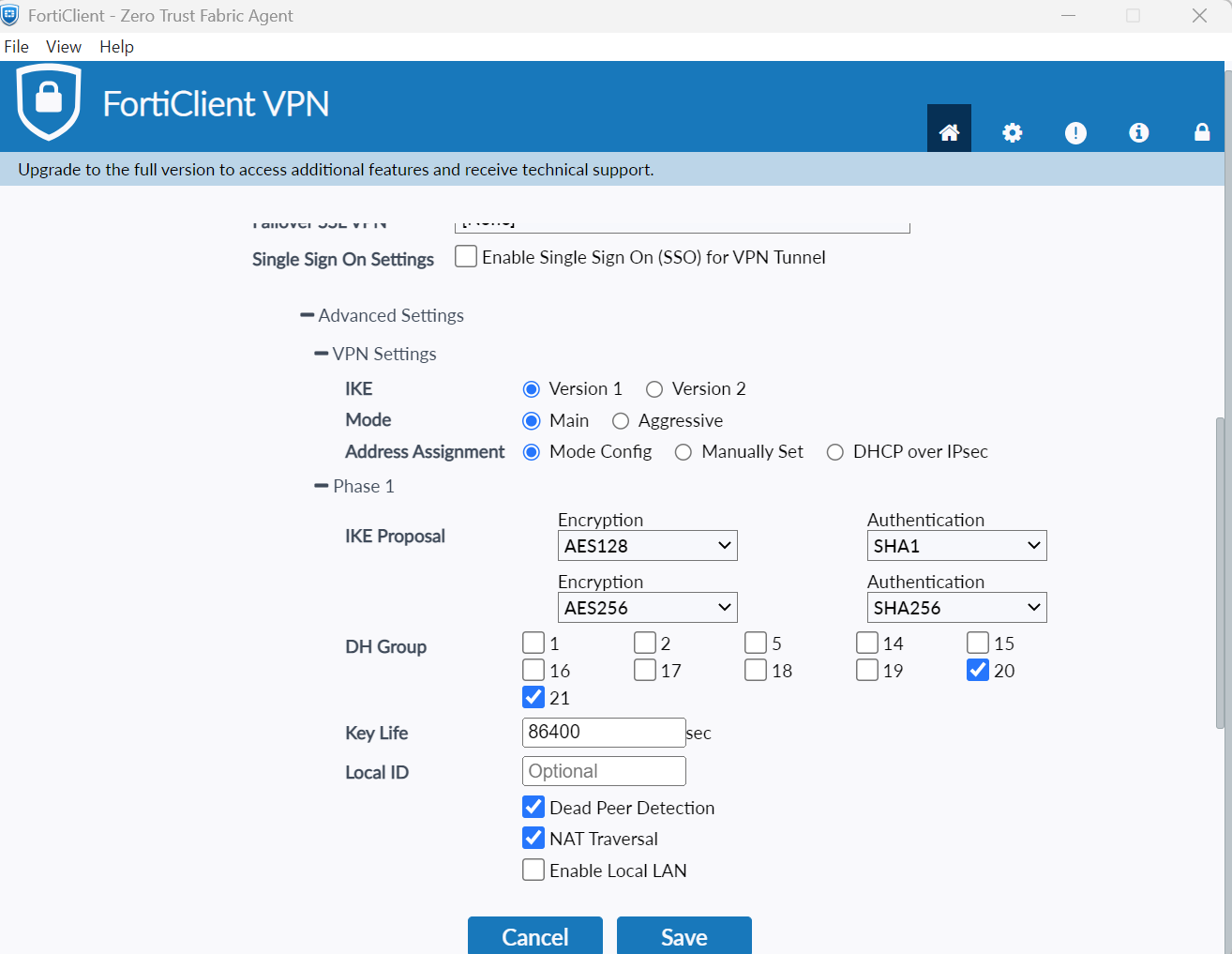
  • Expand Advanced Settings → Phase 1 and set the following:
    • IKE Proposal: AES128/SHA1; AES256/SHA256
    • DH Group: 20 i 21
    • Key Life: 86400
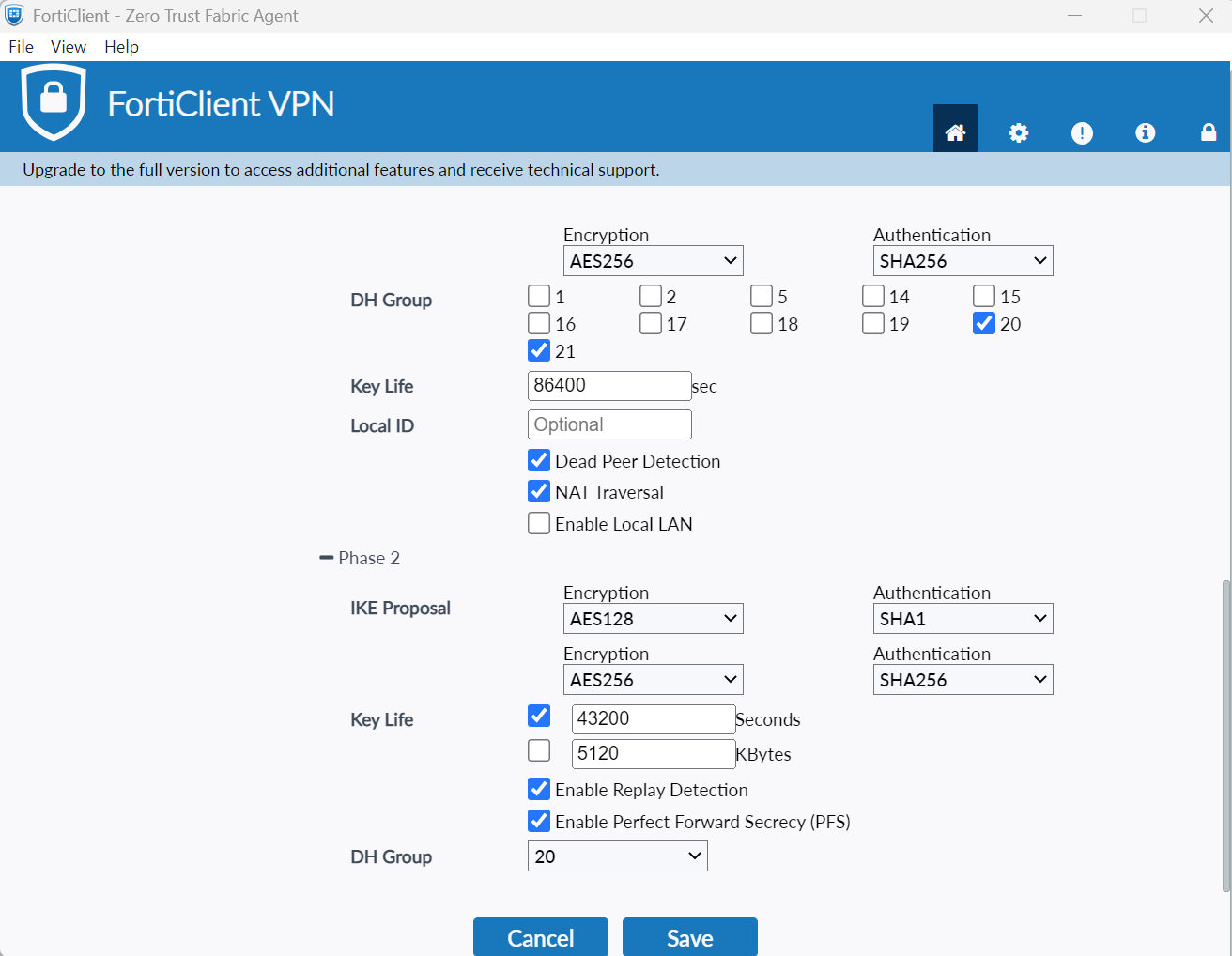
  • Expand Advanced Settings → Phase 2 and set the following:
    • IKE Proposal: AES128/SHA1; AES256/SHA256
    • Key Life: 43200
    • DH Group: 20
  • Select Save.

3. Provide your username and password, and click Connect.

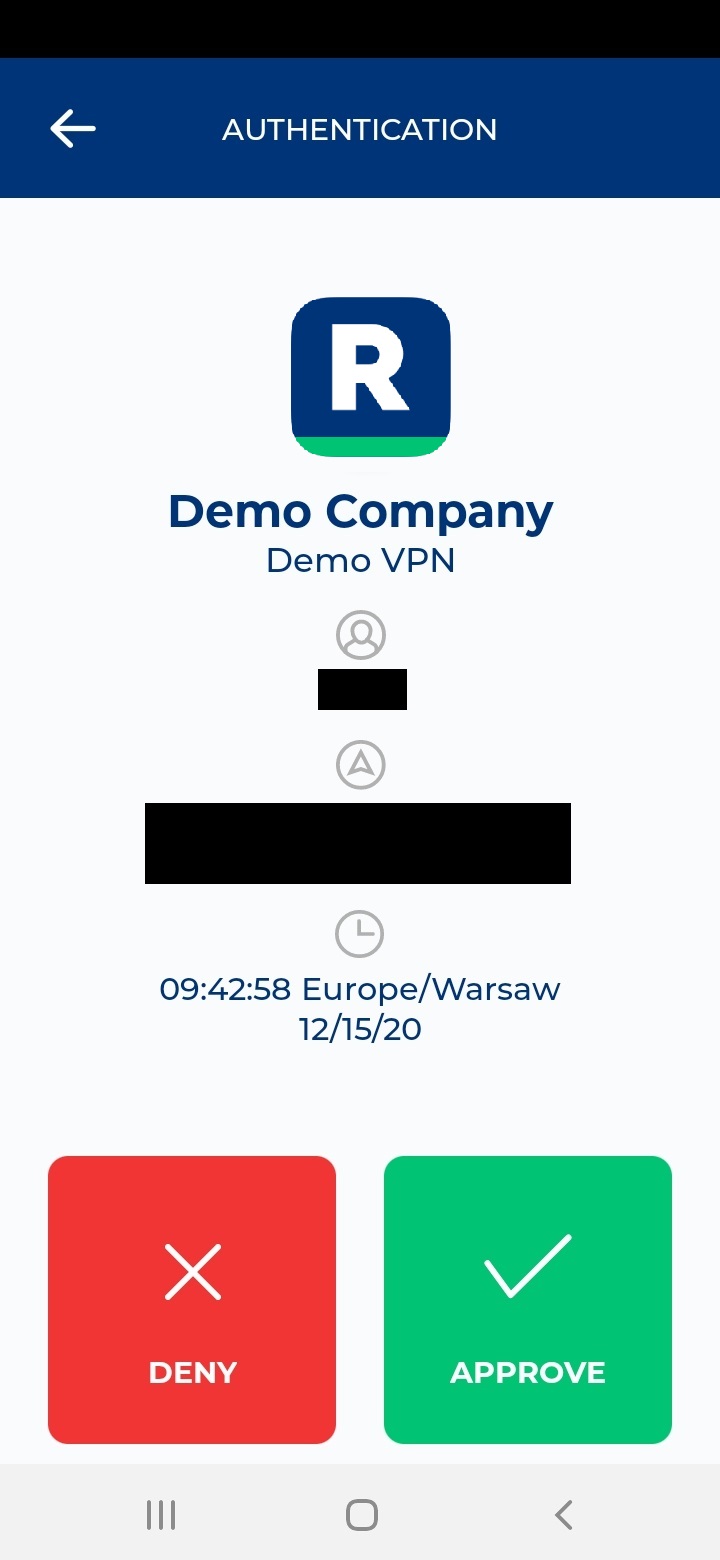
4. You will be sent an automatic push notification on your phone.

5. Tap APPROVE.

6. You will be logged in to your VPN.

Troubleshooting MFA for FortiGate IPSec VPN Using RADIUS

If you encounter any issues with your Rublon integration, please contact Rublon Support.

Related Posts

Rublon Authentication Proxy

Rublon Authentication Proxy – Integrations

Filed Under: Documentation

Primary Sidebar

Contents

  • Overview of MFA for Fortinet FortiGate IPSec VPN Using RADIUS
  • Demo Video
  • Supported Authentication Methods
  • Before you start
  • Configuration of MFA for Fortinet FortiGate IPSec VPN Using RADIUS
    • Add Rublon Authentication Proxy as RADIUS Server in Fortinet FortiGate
    • Configure a User Group
    • Configure Firewall Policy and Mapping
    • Configure Timeout and Additional Options
    • Configure IPSec
  • Log in to FortiGate IPSec VPN using MFA for Fortinet FortiGate IPSec VPN Integrated Via RADIUS
  • Troubleshooting MFA for FortiGate IPSec VPN Using RADIUS
  • Related Posts
Try Rublon for Free
Start your 30-day Rublon Trial to secure your employees using multi-factor authentication.
No Credit Card Required
Rublon 5 star reviews on Gartner Peer Insights

Footer

Product

  • Regulatory Compliance
  • Use Cases
  • Rublon Reviews
  • Authentication Basics
  • What is MFA?
  • User Experience
  • Authentication Methods
  • Rublon Authenticator
  • Remembered Devices
  • Logs
  • Single Sign-On
  • Access Policies
  • Directory Sync

Solutions

  • MFA for Remote Desktop
  • MFA for Windows Logon
  • MFA for Remote Access Software
  • MFA for Linux
  • MFA for On-Premise Active Directory
  • MFA for LDAP
  • MFA for RADIUS
  • MFA for SAML
  • MFA for RemoteApp
  • MFA for Workgroup Accounts
  • MFA for Entra ID

Industries

  • Financial Services
  • Investment Funds
  • Retail
  • Technology
  • Healthcare
  • Legal
  • Education
  • Government
  • Utilities
  • Manufacturing

Documentation

  • 2FA for Windows & RDP
  • 2FA for RDS
  • 2FA for RD Gateway
  • 2FA for RD Web Access
  • 2FA for SSH
  • 2FA for OpenVPN
  • 2FA for SonicWall VPN
  • 2FA for Cisco VPN
  • 2FA for Office 365

Support

  • Knowledge Base
  • FAQ
  • System Status

About

  • About Us
  • AI Info
  • Blog
  • Events
  • Careers
  • Co-funded by the European Union
  • Contact Us

  • Facebook
  • GitHub
  • LinkedIn
  • Twitter
  • YouTube

© 2026 Rublon · Imprint · Legal & Privacy · Security

  • English