
This documentation describes how to integrate Rublon MFA with Oracle Database using the RADIUS protocol to enable multi-factor authentication for logins to Oracle Database.
Overview of MFA for Oracle Database
Rublon Multi-Factor Authentication (MFA) for Oracle Database adds an extra layer of protection, ensuring that only authorized users can access the system. Oracle Database MFA enforces both primary authentication (username and password) and a secondary method, such as Mobile Push, to ensure that access is granted only to verified users through a layered security approach.
The following documentation outlines a straightforward and efficient method for integrating Rublon MFA with Oracle Database using the RADIUS protocol. This integration enables multi-factor authentication for logins, enhancing the overall security posture of the organization.
Supported Authentication Methods
| Authentication Method | Supported | Comments |
| Mobile Push | ✔ | N/A |
| FIDO | – | N/A |
| Passcode | ✔ | N/A |
| SMS Passcode | – | N/A |
| SMS Link | ✔ | N/A |
| Phone Call | ✔ | N/A |
| QR Code | – | N/A |
| Email Link | ✔ | N/A |
| YubiKey OTP | ✔ | N/A |
| RFID | – | N/A |
Before You Start Configuring MFA for Oracle Database
Before configuring Rublon MFA for Oracle Database:
- Ensure you have prepared all required components.
- Create an application in the Rublon Admin Console.
- Install the Rublon Authenticator mobile app.
Required Components
1. User Identity Provider (IdP) – You need an external Identity Provider, such as FreeRADIUS or Microsoft NPS.
2. Rublon Authentication Proxy – Install the Rublon Authentication Proxy if you have not already, and configure the Rublon Authentication Proxy as an RADIUS proxy.
3. Oracle Database – A properly installed and configured Oracle Database. Tested on Oracle Database 19c Enterprise Edition.
Create an Application in the Rublon Admin Console
1. Sign up for the Rublon Admin Console. Here’s how.
2. In the Rublon Admin Console, go to the Applications tab and click Add Application.
3. Enter a name for your application (e.g., Oracle Database) and then set the type to Rublon Authentication Proxy.
4. Click Save to add the new application in the Rublon Admin Console.
5. Copy the values of System Token and Secret Key of the newly created application. You will need them later.
Install Rublon Authenticator
Some end-users may use the Rublon Authenticator mobile app. So, as a person configuring MFA for Oracle Database, we highly recommend you install the Rublon Authenticator mobile app, too. Thanks to that, you will be able to test MFA for Oracle Database via Mobile Push.
Download the Rublon Authenticator for:
Configuring Multi-Factor Authentication (MFA) for Oracle Database
Configuring the Firewall
To enable communication with clients (SQL*Plus) and the Rublon Authentication Proxy (RADIUS), the appropriate ports must be opened.
1. Run sudo su – to log in as the root user, and then execute the following commands:
# Opening the database listening port (For clients)
firewall-cmd --permanent --add-port=1521/tcp

# Opening the RADIUS port (For outgoing/return communication with Rublon MFA)
firewall-cmd --permanent --add-port=1812/udp

# Reloading the configuration
firewall-cmd --reload
Preparing the Environment
1. Run sudo su – oracle to log in as the oracle user.
2. Load environment variables so the system knows where your database installation is located (the $ORACLE_HOME variable). You can do this automatically by running the configuration tool:
. oraenvWhen the system asks for ORACLE_SID, enter the name of your instance (e.g., ORCLCDB) and press Enter to confirm.
Configuring the Network
The RADIUS adapter in Oracle 19c requires the Legacy mode.
1. Create a file with a shared secret.
Note: Replace YOUR_RADIUS_SECRET with your own password. Later in the configuration, you will need to enter the same password in the radius_secret option in the Rublon Authentication Proxy configuration file, so choose a strong password.
mkdir -p $ORACLE_HOME/network/security
printf "YOUR_RADIUS_SECRET" > $ORACLE_HOME/network/security/radius.key
chmod 600 $ORACLE_HOME/network/security/radius.key
2. Configure the sqlnet.ora file. Copy and paste the following block into the terminal. It will create the file in the appropriate directory.
Note: Replace RUBLON_IP_ADDRESS with the IP address of the Rublon Authentication Proxy server.
cat > $ORACLE_HOME/network/admin/sqlnet.ora <<EOF
NAME.DIRECTORY_PATH= (TNSNAMES, EZCONNECT, HOSTNAME)

# Authentication methods: Local (BEQ) and Remote (RADIUS)
SQLNET.AUTHENTICATION_SERVICES = (BEQ, RADIUS)

# RADIUS Server Configuration (Legacy Mode)
SQLNET.RADIUS_AUTHENTICATION = ADRES_IP_RUBLON
SQLNET.RADIUS_AUTHENTICATION_PORT = 1812
SQLNET.RADIUS_AUTHENTICATION_TIMEOUT = 60
SQLNET.RADIUS_SECRET = $ORACLE_HOME/network/security/radius.key

# Disabling features that are incompatible with simple clients
SQLNET.RADIUS_SEND_ACCOUNTING = OFF
SQLNET.RADIUS_CHALLENGE_RESPONSE = OFF
EOF
3. Restart the Listener service:
lsnrctl stop
lsnrctl start
Configuring Users
1. Execute the following command block in SQL*Plus (run the utility by typing sqlplus / as sysdba in the terminal).
Note: In Step 4 of the following command block, change the name ORCLPDB1 if your database is named differently.
Note: Each user protected by Rublon MFA must be created in the database as externally identified (“IDENTIFIED EXTERNALLY”). The username in the CREATE USER command must match the username of the account in Active Directory. This example uses a demo user, but in practice, all Active Directory users who will have access to the database must be created this way.
-- 1. Disable OPS$ prefix (Required for Active Directory compatibility)
-- This is done in the root container (CDB$ROOT)
ALTER SESSION SET CONTAINER=CDB$ROOT;
ALTER SYSTEM SET OS_AUTHENT_PREFIX='' SCOPE=SPFILE;

-- 2. Restart database (Required for the parameter to take effect)
SHUTDOWN IMMEDIATE;
STARTUP;

-- 3. Open application databases (PDB)
ALTER PLUGGABLE DATABASE ALL OPEN;
ALTER PLUGGABLE DATABASE ALL SAVE STATE;

-- 4. Switch to the application database (e.g., ORCLPDB1)
-- NOTE: Change the name ORCLPDB1 if your database has a different name
ALTER SESSION SET CONTAINER=ORCLPDB1;

-- 5. Create a test user (Username must match the name in Active Directory)
CREATE USER demo IDENTIFIED EXTERNALLY;
GRANT CREATE SESSION TO demo;

EXIT;
Rublon Authentication Proxy
1. Edit the Rublon Auth Proxy configuration file and paste the previously copied values of System Token and Secret Key in system_token and secret_key, respectively.
2. In radius_secret, enter the RADIUS password. This must be the same password you have previously defined in the Network Configuration section.
3. Config example file in YAML:
global:
  secret_source: plain  # Options: plain, env, vault

log:
  debug: false

rublon:
  api_server: https://core.rublon.net
  #OracleDB
  system_token: YOURSYSTEMTOKEN
  secret_key: YOURSECRETKEY

proxy_servers:
  - name: RADIUS-Proxy
    type: RADIUS
    radius_secret: YOURRADIUSSECRET
    ip: 0.0.0.0
    port: 1812
    mode: standard
    auth_source: LDAP_SOURCE_1
    auth_method: push,email
    cert_path: /etc/ssl/certs/ca.crt
    pkey_path: /etc/ssl/certs/key.pem
    force_message_authenticator: false

auth_sources:
- name: LDAP_SOURCE_1
  type: LDAP
  ip: 172.16.0.127
  port: 636
  transport_type: ssl
  search_dn: dc=example,dc=org
  access_user_dn: cn=admin,dc=example,dc=org
  access_user_password: CHANGE_ME
  ca_certs_dir_path: /etc/ssl/certs/
See: How to set up LDAPS certificates in the Rublon Authentication Proxy?
Configuring the Client
On the client workstation (like a user PC or application server), edit the sqlnet.ora client configuration file and add content that enforces RADIUS support.
The location of the sqlnet.ora file:
- Linux (Instant Client): the network/admin directory within the installation folder.
- Windows: Directory specified by the environmental variable TNS_ADMIN.
Add the following content that enforces RADIUS support to the sqlnet.ora file:
NAME.DIRECTORY_PATH= (TNSNAMES, EZCONNECT, HOSTNAME)
SQLNET.AUTHENTICATION_SERVICES = (RADIUS)
Now you can configure environment variables for a single user or for every user who connects to the database.
If you have multiple users logging in to your database, we recommend following the instructions to configure environment variables for each user available on the host to avoid having to add variables for each user individually.
Configuring environment variables for one user
Note: Default paths are used. If you use different paths, make changes in the block below.
# Add variables to .bashrc
echo 'export ORACLE_HOME=/opt/oracle/instantclient_19_24' >> ~/.bashrc
echo 'export LD_LIBRARY_PATH=$ORACLE_HOME:$LD_LIBRARY_PATH' >> ~/.bashrc
echo 'export PATH=$ORACLE_HOME:$PATH' >> ~/.bashrc

# Reload configuration (to make it work immediately)
source ~/.bashrc
Configuring environment variables for each user available on the host
1. Edit the /etc/environment file as root:
sudo nano /etc/environment2. Find the line starting with PATH=”…”.
- Append the path to Oracle to the end of the existing PATH line (inside the quotation marks, after the colon).
- Add new lines for ORACLE_HOME and LD_LIBRARY_PATH at the bottom.
The file should look like this (note the full paths):
Note: Default paths are used. If you use different paths, make changes in the block below.
# Add : /opt/oracle/instantclient_19_24 to the end of the existing PATH
PATH="/usr/local/sbin:/usr/local/bin:/usr/sbin:/usr/bin:/sbin:/bin:/usr/games:/usr/local/games:/snap/bin:/opt/oracle/instantclient_19_24"

# Add these lines at the bottom:
ORACLE_HOME="/opt/oracle/instantclient_19_24"
LD_LIBRARY_PATH="/opt/oracle/instantclient_19_24"
3. Save the file (Ctrl+O, Enter) and exit the file editor (Ctrl+X).
- To apply changes made to the /etc/environment file, log out and log back in.
- To test in your current session without logging out, execute the source /etc/environment command (other users and sessions won’t see the changes until they log out and log back in).
- To apply the changes to all users immediately, restart the server. After restarting, each user will need to log back in for their session to take advantage of the new settings.
Testing Multi-Factor Authentication (MFA) for Oracle Database
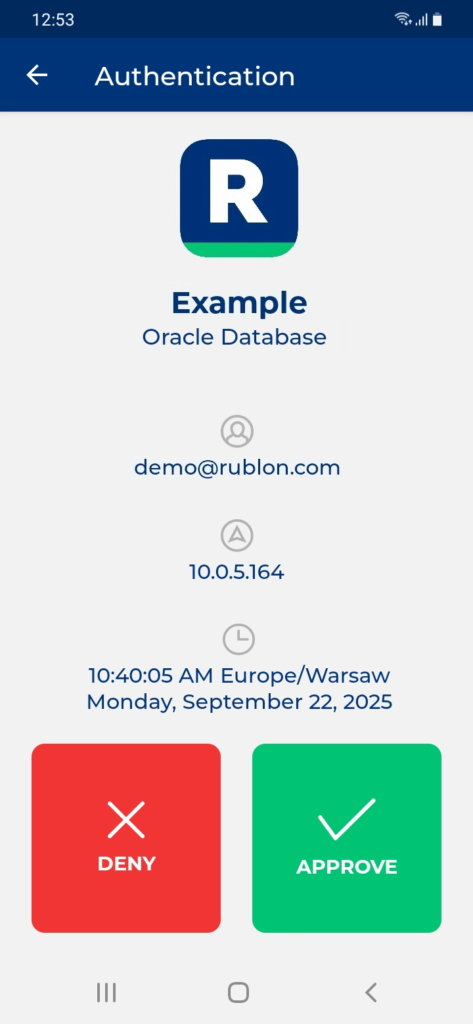
This example portrays logging in to Oracle Database with Rublon Multi-Factor Authentication. Mobile Push has been set as the second factor in the Rublon Authentication Proxy configuration (AUTH_METHOD was set to push).
1. From your workstation, initiate login using the SQL*Plus console client:
sqlplus demo@//IP_ADDRESS_OF_DATABASE:1521/ORCLPDB12. Enter your Active Directory domain password.
3. Rublon will send a Mobile Push authentication request to your phone. Tap APPROVE.
4. You will be logged in to Oracle Database.
Troubleshooting MFA for Oracle Database
If you encounter any issues with your Rublon integration, please contact Rublon Support.