
This documentation describes how to integrate Rublon MFA with Ubiquiti UniFi Dream Machine (UDM, UDM-SE) using the RADIUS protocol to enable multi-factor authentication for VPN logins.
Note
This documentation was validated on UniFi Dream Machine SE (UDM-SE). The same general RADIUS and VPN workflow also applies to other UniFi Dream Machine deployments, although menu labels and available options may vary depending on the Dream Machine model and the UniFi software version running on it.
Overview of MFA for Ubiquiti UniFi Dream Machine
Rublon Multi-Factor Authentication (MFA) for Ubiquiti UniFi Dream Machine (UDM) adds an extra layer of protection, ensuring that only authorized users can access the system. Ubiquiti UniFi Dream Machine MFA enforces both primary authentication (username and password) and a secondary method, such as Mobile Push, to ensure that access is granted only to verified users through a layered security approach.
The following documentation outlines a straightforward and efficient method for integrating Rublon MFA with Ubiquiti UniFi Dream Machine using the RADIUS protocol. This integration enables multi-factor authentication for logins, enhancing the overall security posture of the organization.
Supported Authentication Methods
| Authentication Method | Supported | Comments |
| Mobile Push | ✔ | N/A |
| FIDO | – | N/A |
| Passcode | ✔ | N/A |
| SMS Passcode | – | N/A |
| SMS Link | ✔ | N/A |
| Phone Call | ✔ | N/A |
| QR Code | – | N/A |
| Email Link | ✔ | N/A |
| YubiKey OTP | ✔ | N/A |
| RFID | – | N/A |
Before You Start Configuring MFA for Ubiquiti UniFi Dream Machine
Before configuring Rublon MFA for Ubiquiti UniFi Dream Machine:
- Ensure you have prepared all required components.
- Create an application in the Rublon Admin Console.
- Install the Rublon Authenticator mobile app.
Required Components
1. User Identity Provider (IdP) – You need an external Identity Provider, such as FreeRADIUS or Microsoft NPS.
2. Rublon Authentication Proxy – Install the Rublon Authentication Proxy if you have not already, and configure the Rublon Authentication Proxy as an RADIUS proxy.
3. Ubiquiti UniFi Dream Machine – A properly installed and configured Ubiquiti UniFi Dream Machine (UDM) or Ubiquiti UniFi Dream Machine SE (UDM-SE)
Create an Application in the Rublon Admin Console
1. Sign up for the Rublon Admin Console. Here’s how.
2. In the Rublon Admin Console, go to the Applications tab and click Add Application.
3. Enter a name for your application (e.g., Ubiquiti UniFi Dream Machine) and then set the type to Rublon Authentication Proxy.
4. Click Save to add the new application in the Rublon Admin Console.
5. Copy the values of System Token and Secret Key of the newly created application. You will need them later.
Install Rublon Authenticator
Some end-users may use the Rublon Authenticator mobile app. So, as a person configuring MFA for Ubiquiti UniFi Dream Machine, we highly recommend you install the Rublon Authenticator mobile app, too. Thanks to that, you will be able to test MFA for Ubiquiti UniFi Dream Machine via Mobile Push.
Download the Rublon Authenticator for:
Configuring Multi-Factor Authentication (MFA) for Ubiquiti UniFi Dream Machine
Start by completing the configuration steps in the Rublon Authentication Proxy section. Then, depending on your preferred VPN protocol, continue with either the Ubiquiti UniFi Dream Machine – OpenVPN Configuration section or the Ubiquiti UniFi Dream Machine – L2TP Configuration section.
WireGuard configuration is not included in this documentation because it does not support an external authentication source, meaning it also does not support Rublon MFA.
The configuration flow is similar across supported UniFi Gateways running a compatible UniFi Network version, although the appearance and placement of options in the GUI may vary depending on the device model and UniFi Network version.
Rublon Authentication Proxy
1. Edit the Rublon Auth Proxy configuration file and paste the previously copied values of System Token and Secret Key in system_token and secret_key, respectively.
Note
In our testing, OpenVPN hosted on UniFi Dream Machine only worked reliably with Mobile Push MFA due to its very short, fixed timeout period of approximately 5 seconds. Because this timeout cannot be adjusted, Mobile Push is currently the only practical authentication method for this integration and requires fast, stable network communication. Even brief delays may cause authentication to fail.
In contrast, L2TP VPN uses noticeably longer timeout periods, although these also cannot be configured manually. In our testing, both email-based 2FA and Mobile Push worked successfully with L2TP.
2. Config example file in YAML:
global:
  secret_source: plain  # Options: plain, env, vault

log:
  debug: false

rublon:
  api_server: https://core.rublon.net
  system_token: YOURSYSTEMTOKEN
  secret_key: YOURSECRETKEY

proxy_servers:
  - name: RADIUS-Proxy
    type: RADIUS
    radius_secret: YOURRADIUSSECRET
    ip: 0.0.0.0
    port: 1812
    mode: standard
    auth_source: LDAP_SOURCE_1
    auth_method: push,email
    cert_path: /etc/ssl/certs/ca.crt
    pkey_path: /etc/ssl/certs/key.pem
    force_message_authenticator: false

auth_sources:
- name: LDAP_SOURCE_1
  type: LDAP
  ip: 172.16.0.127
  port: 636
  transport_type: ssl
  search_dn: dc=example,dc=org
  access_user_dn: cn=admin,dc=example,dc=org
  access_user_password: CHANGE_ME
  ca_certs_dir_path: /etc/ssl/certs/
See: How to set up LDAPS certificates in the Rublon Authentication Proxy?
Ubiquiti UniFi Dream Machine – OpenVPN Configuration
1. From the left pane, select Settings → VPN → VPN Server → Create New.
2. In VPN Type, select OpenVPN.
3. Most of the OpenVPN configuration is filled in automatically. Set Credential Source to External RADIUS Server and add a new RADIUS server by selecting New.
4. In the new window, fill in the form. Refer to the following image and table.
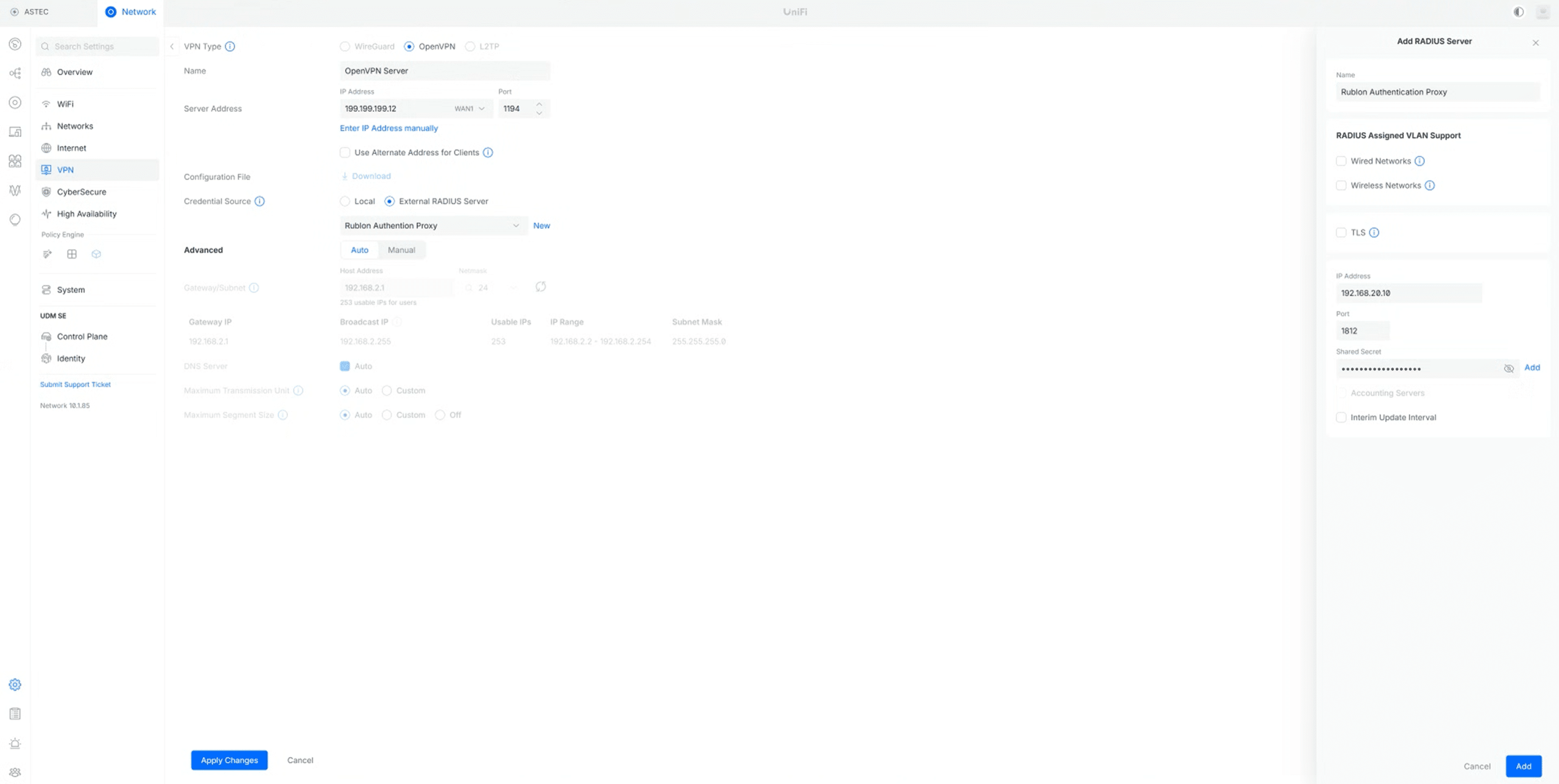
| Name | Any descriptive name. |
| IP Address | The IP Address of the Rublon Auth Proxy. |
| Port | 1812 (Default for RADIUS) |
| Shared Secret | The RADIUS Secret shared between Rublon Auth Proxy and Ubiquiti UniFi Dream Machine (the same you set in Rublon Auth Proxy’s config file’s radius_secret) |
5. After completing the fields, select Add, then select Add again to confirm the server selection, and finally select Apply Changes to save the changes.
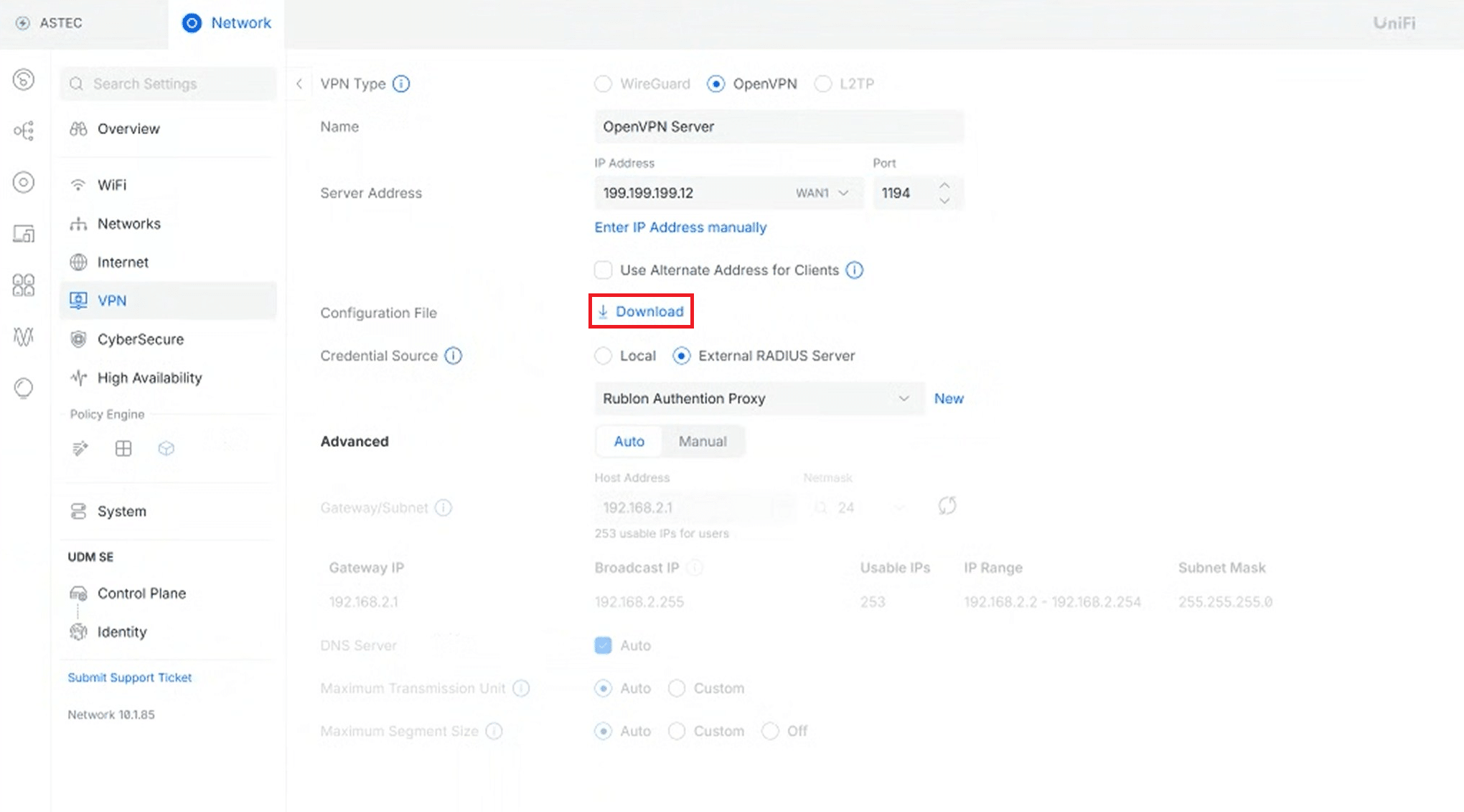
6. After the configuration is saved, select Download to download the OpenVPN configuration file. This file will be imported into the OpenVPN client later when testing the OpenVPN configuration for Dream Machine MFA.
Ubiquiti UniFi Dream Machine – L2TP Configuration
1. From the left pane, select Settings → VPN → VPN Server → Create New.
2. In VPN Type, select L2TP.
3. Most of the L2TP server configuration is filled in automatically. Set Credential Source to External RADIUS Server and add a new RADIUS server by selecting New.
4. In the new window, fill in the form. Refer to the following image and table.
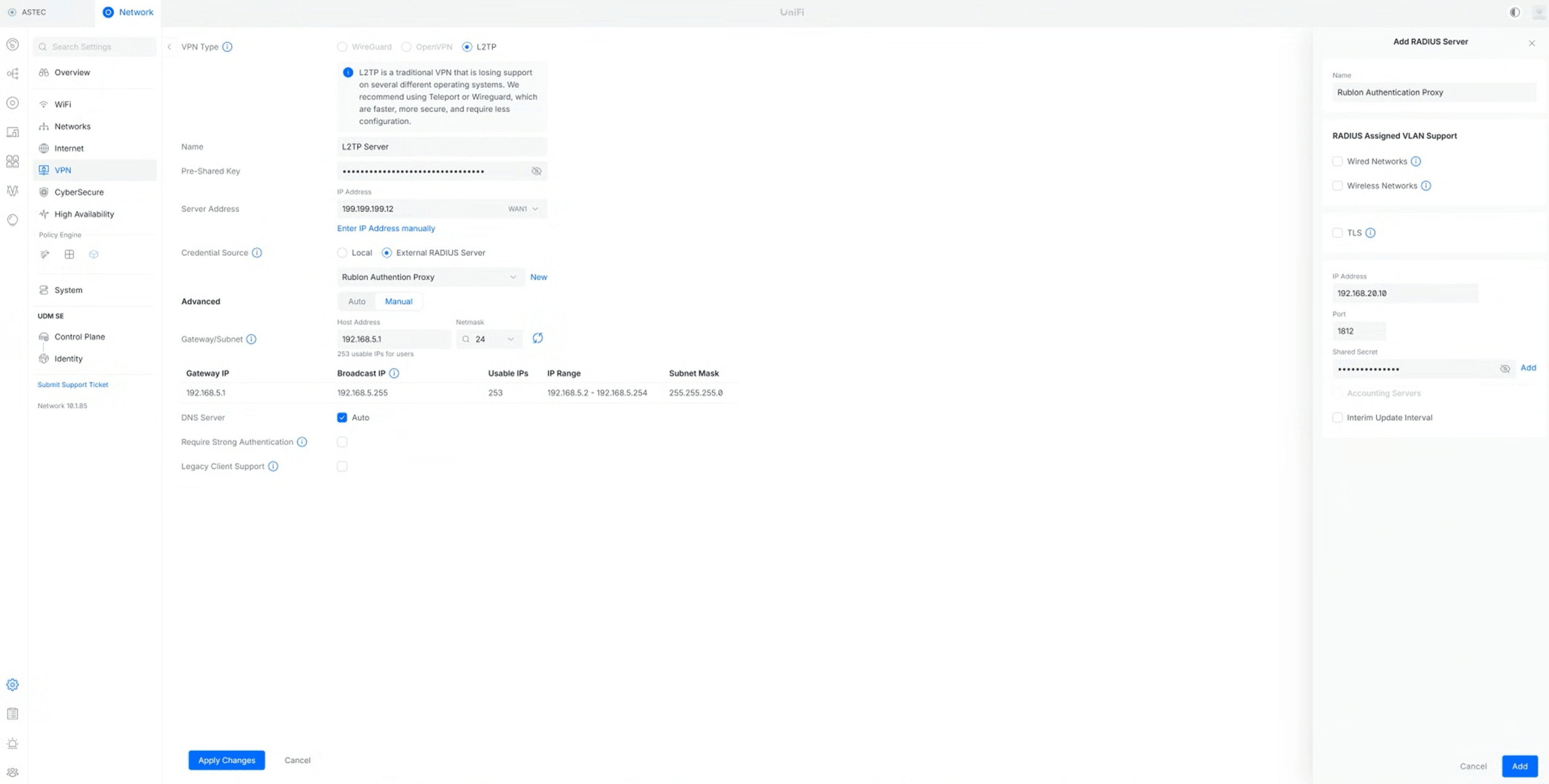
| Name | Any descriptive name. |
| IP Address | The IP address of the Rublon Auth Proxy. |
| Port | 1812 (default RADIUS port). |
| Shared Secret | The RADIUS Secret shared between Rublon Auth Proxy and Ubiquiti UniFi Dream Machine (the same you set in Rublon Auth Proxy’s config file’s radius_secret) |
5. After completing the fields, select Add, then select Add again to confirm the server selection.
6. Before saving the configuration, note the following values from the L2TP configuration screen:
- Pre-Shared Key
- Server Address
You will need both values later when configuring the L2TP client on Windows 11.
7. Select Apply Changes to save the L2TP VPN configuration.
8. On the Windows 11 device that will be used for testing, open Settings → Network & Internet → VPN → VPN connections → Add VPN.
9. In the Add a VPN connection window, configure the client using the values from your UniFi Dream Machine L2TP configuration:
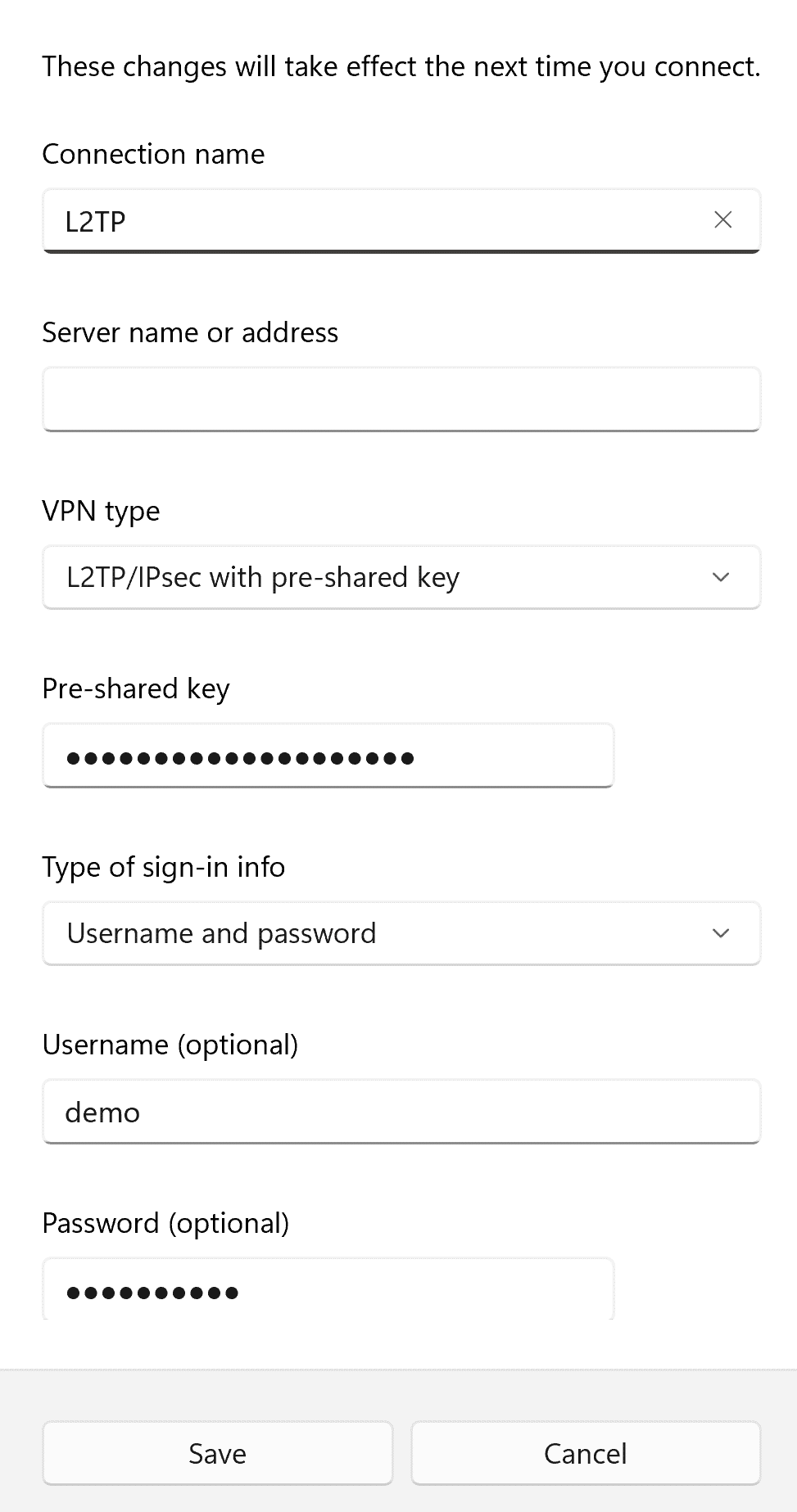
- Connection name — Enter any descriptive name.
- Server name or address — Enter the Server Address from the Dream Machine L2TP configuration.
- VPN type — Select L2TP/IPsec with pre-shared key.
- Pre-shared key — Enter the Pre-Shared Key from the Dream Machine L2TP configuration.
- Type of sign-in info — Select Username and password.
- Username — Enter the username of the user who will authenticate through Rublon.
- Password — Enter the corresponding password.
If preferred, you can save the username and password in the client for convenience.
10. Select Save.
11. In VPN connections, expand the saved VPN entry, then select Edit next to More VPN properties and open the Security tab.
12. Configure the Security settings as follows:
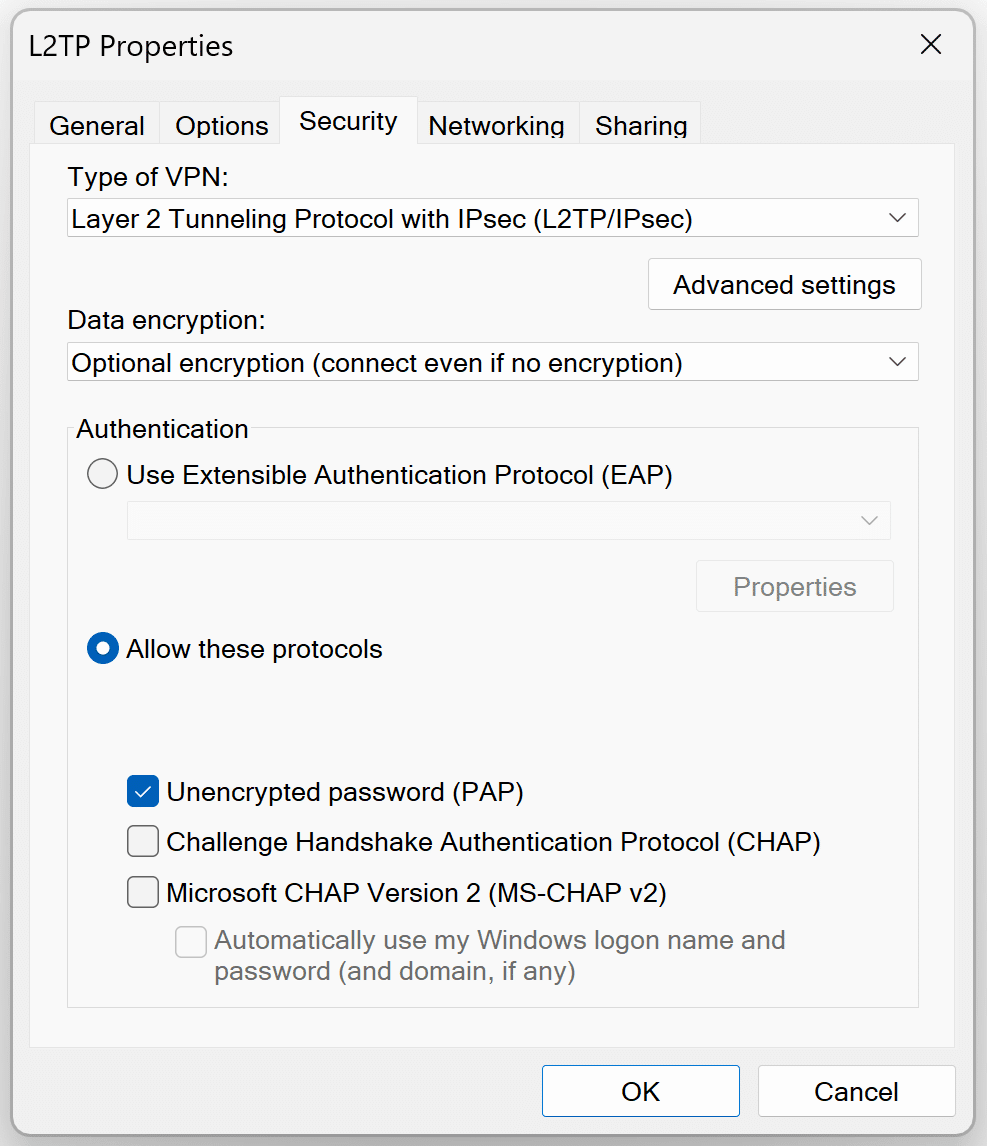
- Type of VPN — Layer 2 Tunnelling Protocol with IPsec (L2TP/IPsec)
- Data encryption — Optional encryption (connect even if no encryption)
- Under Authentication, select Allow these protocols
- Select Unencrypted password (PAP)
- Clear Challenge Handshake Authentication Protocol (CHAP)
- Clear Microsoft CHAP Version 2 (MS-CHAP v2)
- Do not select Use Extensible Authentication Protocol (EAP)
13. Select OK to save the advanced VPN security settings.
14. The Windows 11 L2TP client is now ready for testing.
Testing Multi-Factor Authentication (MFA) for Ubiquiti UniFi Dream Machine – OpenVPN
This example portrays logging in to Ubiquiti UniFi Dream Machine with Rublon Multi-Factor Authentication using the OpenVPN client. Mobile Push has been set as the second factor in the Rublon Authentication Proxy configuration (AUTH_METHOD was set to push).
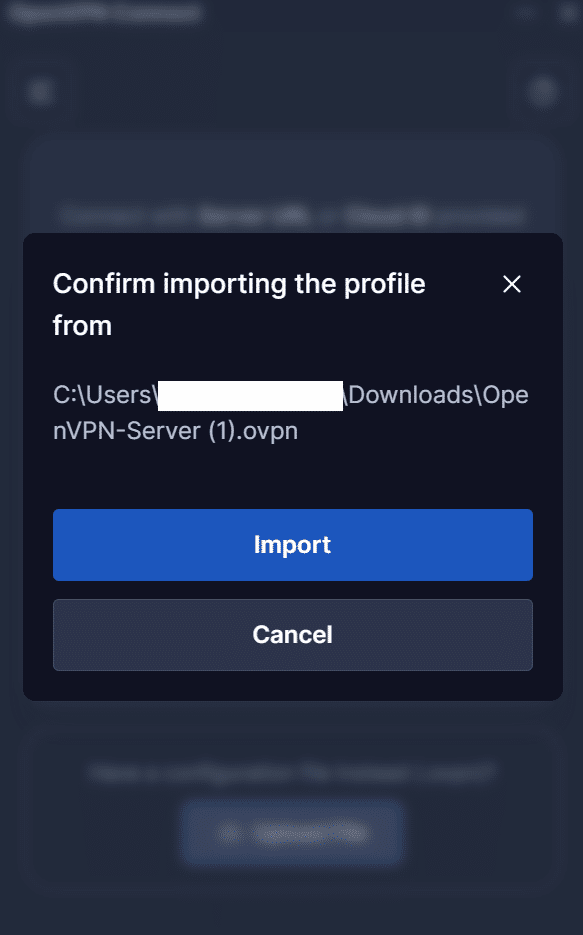
1. Open the OpenVPN client, select Upload File, and upload the OpenVPN configuration file you have downloaded during configuration.
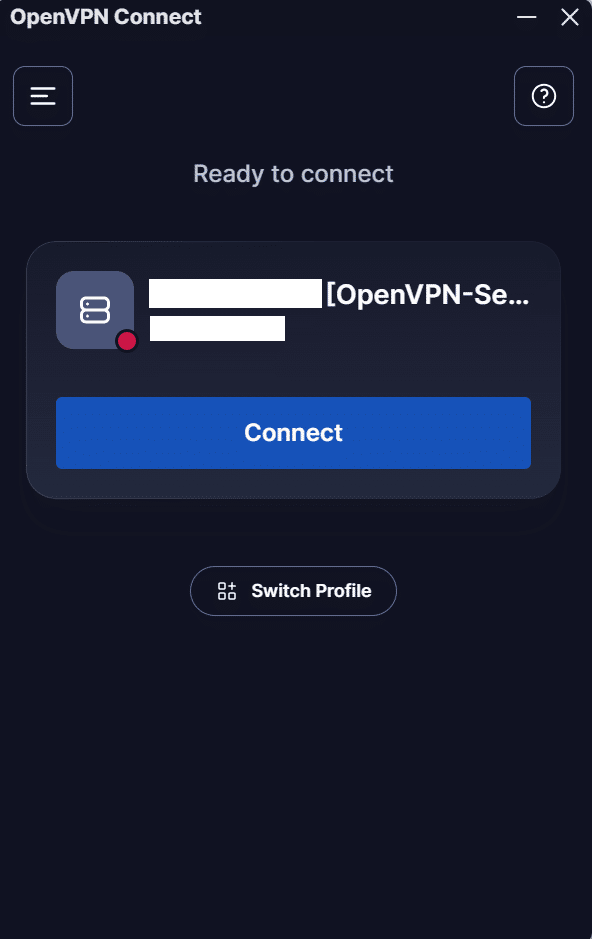
2. Select Connect.
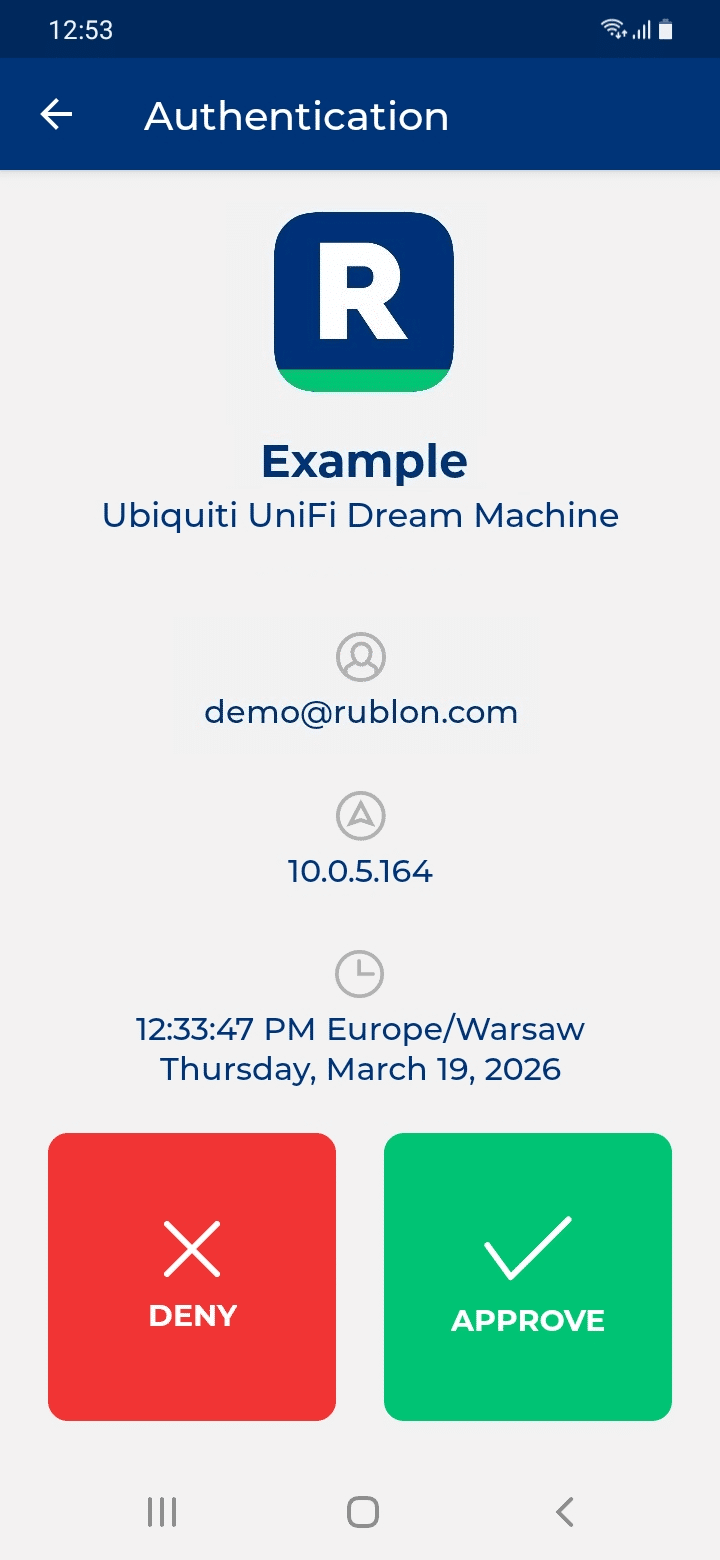
3. Rublon will send a Mobile Push authentication request to your phone. Tap APPROVE.
4. You will be connected to the VPN hosted on Ubiquiti UniFi Dream Machine.
Testing Multi-Factor Authentication (MFA) for Ubiquiti UniFi Dream Machine – L2TP
This example portrays logging in to Ubiquiti UniFi Dream Machine with Rublon Multi-Factor Authentication using the Windows 11 L2TP client. Mobile Push has been set as the second factor in the Rublon Authentication Proxy configuration (AUTH_METHOD was set to push).
1. Open the saved Windows 11 VPN connection and select Connect.
2. Rublon will send a Mobile Push authentication request to your phone. Tap APPROVE.
3. You will be connected to the VPN hosted on Ubiquiti UniFi Dream Machine.
Troubleshooting MFA for Ubiquiti UniFi Dream Machine
If you encounter any issues with your Rublon integration, please contact Rublon Support.