Last updated on February 18, 2026
Rublon User Guide is meant for users who want to learn more about Rublon. If you are an administrator looking for deployment instructions, refer to our Documentation.
Apart from smartphones and tablets, the Rublon Authenticator mobile app supports Mobile Push notifications on popular wearables such as Apple Watch, Galaxy Watch, and other devices that mirror smartphone notifications. This allows you to approve multi-factor authentication (MFA) requests directly from your wrist without reaching for your phone.
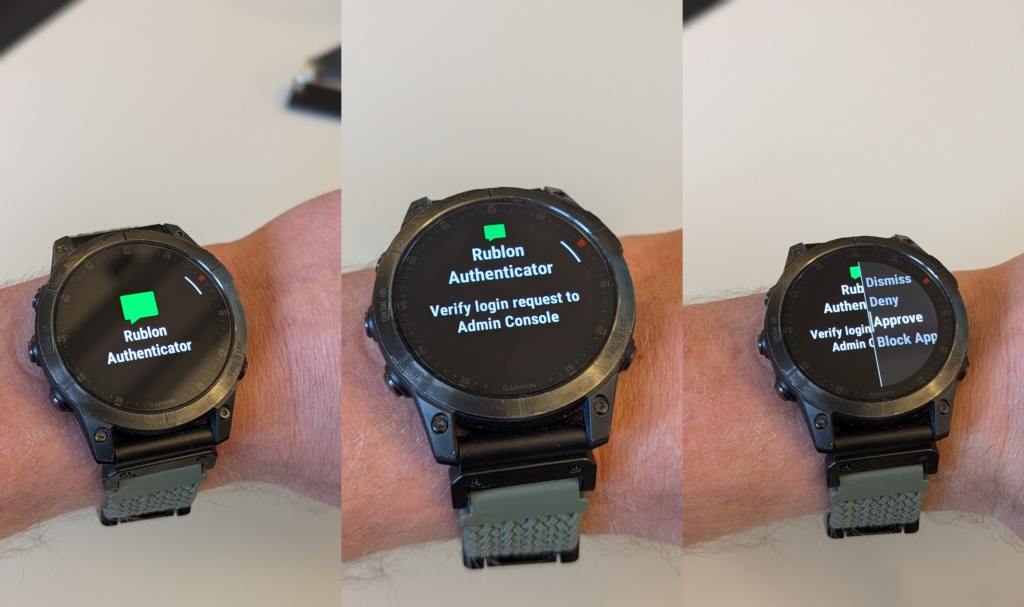
Rublon MFA’s Mobile Push works on wearables that support smartphone notification mirroring, including:
- Apple Watch (watchOS)
- Samsung Galaxy Watch (Wear OS)
- Google Pixel Watch
- Other smartwatches like epix™ (Gen 2)
- Selected Huawei / Xiaomi wearables (depending on phone OS and notification settings)
Apple Watch Setup
Approve Mobile Push authentication requests without ever touching your phone.
Rublon supports the Mobile Push authentication method on Apple Watch and allows you to accept push notifications from Apple Watch.

Remember to enable Apple Watch notifications:
1. Open the Watch app on your phone and tap My Watch.
2. Scroll to the Rublon Authenticator app and enable Show App on Apple Watch.
3. You’re good to go!
Remember to enable Apple Watch notifications:
1. Open the Watch app on your phone and tap My Watch.
2. Scroll to the Rublon Authenticator app and enable Show App on Apple Watch.
3. You’re good to go!
Galaxy Watch Setup
To receive Rublon Mobile Push notifications on your Galaxy Watch, ensure that:
- Your phone allows notification access for the Galaxy Wearable plugin.
- The Galaxy Wearable app has notifications enabled for Rublon Authenticator.
- Do Not Disturb / Theater Mode is disabled on both phone and watch.
If notifications still do not appear, see the troubleshooting section below.
Mobile Push
If your Apple Watch is paired with your phone and your phone is locked, each Mobile Push notification will go directly to your Apple Watch. You can then approve or deny the login request without touching your phone.
Mobile Push notifications will only go to your Apple Watch when your phone is locked. When your phone is unlocked, Mobile Push notifications will go to your phone as usual.
Troubleshooting
Troubleshooting for All Smartwatches
If your wearable does not receive Rublon Mobile Push notifications, check the following
- Your phone is connected to the watch.
- Notifications are enabled for Rublon Authenticator.
- Do Not Disturb / Focus modes are disabled.
- Battery optimization is disabled for Rublon Authenticator.
- The watch is not in Theater / Sleep mode.
- Both devices have been restarted.
Galaxy Watch Notification Troubleshooting Guide
If your Galaxy Watch is not receiving Rublon Mobile Push notifications, follow these steps:
1. Check Notification Access (Phone Settings)
- Open Settings on your phone.
- Go to Apps.
- Tap Special access.
- Select Notification access.
- Ensure Galaxy Wearable Plugin (or Watch Manager) is enabled.
2. Enable App Notifications (Galaxy Wearable App)
- Open Galaxy Wearable.
- Go to Watch settings → Notifications.
- Tap App notifications.
- Enable notifications for Rublon Authenticator.
- Enable Show notifications even when the phone is in use.
3. Disable Blocking Modes
- Turn off Do Not Disturb on both phone and watch.
- Swipe down on the watch and disable Theater Mode or Sleep Mode.
4. Reboot Both Devices
- Restart your phone.
- Restart your Galaxy Watch.
- Test notifications again.
Still Facing the Issue?
Refer to the possible solutions in How To Solve Push Notification Issues on Rublon Authenticator. If none of these worked, contact your administrator.