
Overview of MFA for Fortinet FortiGate IPSec VPN using LDAP(S)
Demo Video

Supported Authentication Methods
Before You Start Configuring MFA for Fortinet FortiGate IPSec VPN using LDAP(S)
Required Components
Create an Application in the Rublon Admin Console
Install Rublon Authenticator
Configuring Multi-Factor Authentication (MFA) for Fortinet FortiGate IPSec VPN using LDAP(S)
Add Rublon Authentication Proxy as LDAP Server in Fortinet FortiGate


Configure a User Group


set member NAME_OF_THE_SERVER_FROM_LDAP_SERVERS
config match
edit 1
set server-name NAME_OF_THE_SERVER_FROM_LDAP_SERVERS
set group-name DN_OF_THE_GROUP_FROM_AD
next
end
endNote
Configure Firewall Policy and Mapping
Configure Timeout and Additional Options
config system global
set remoteauthtimeout 60
set ldapconntimeout 60000
endConfigure IPSec
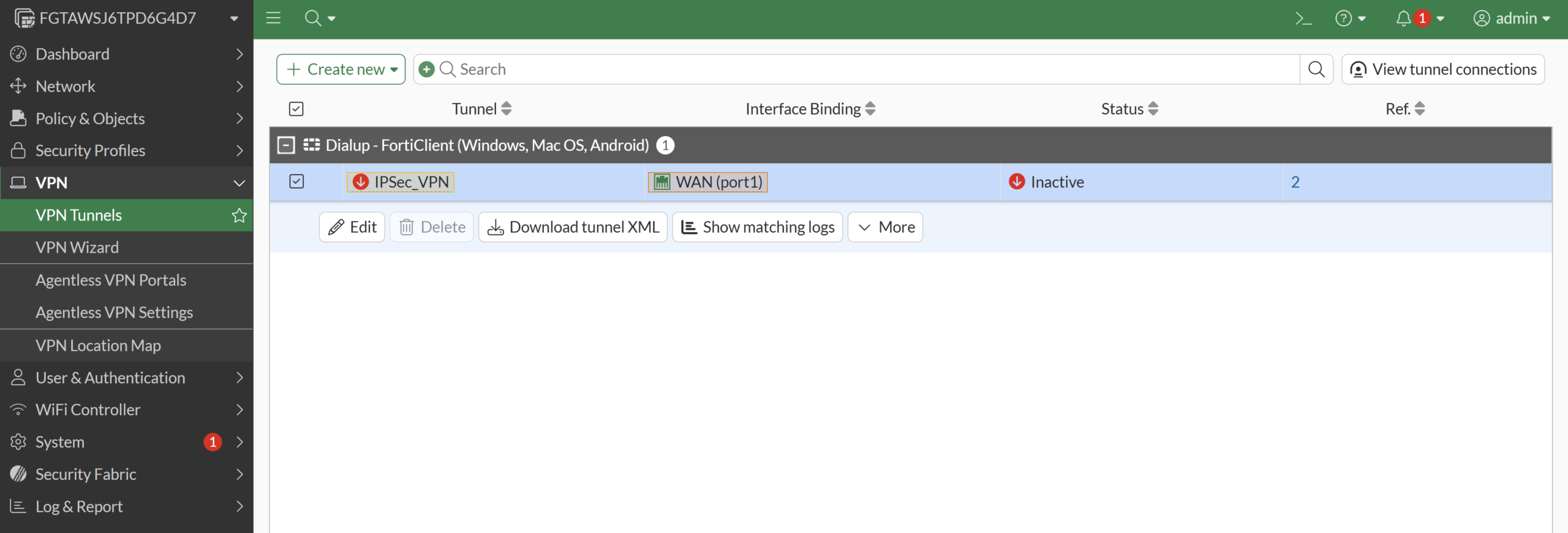
1. In the Fortinet FortiGate administrator panel, go to VPN → VPN Tunnels and select your IPSec VPN profile. Then select Edit.
2. In the Tunnel Settings tab, navigate to the Authentication section and fill out the fields. Refer to the following image and table.
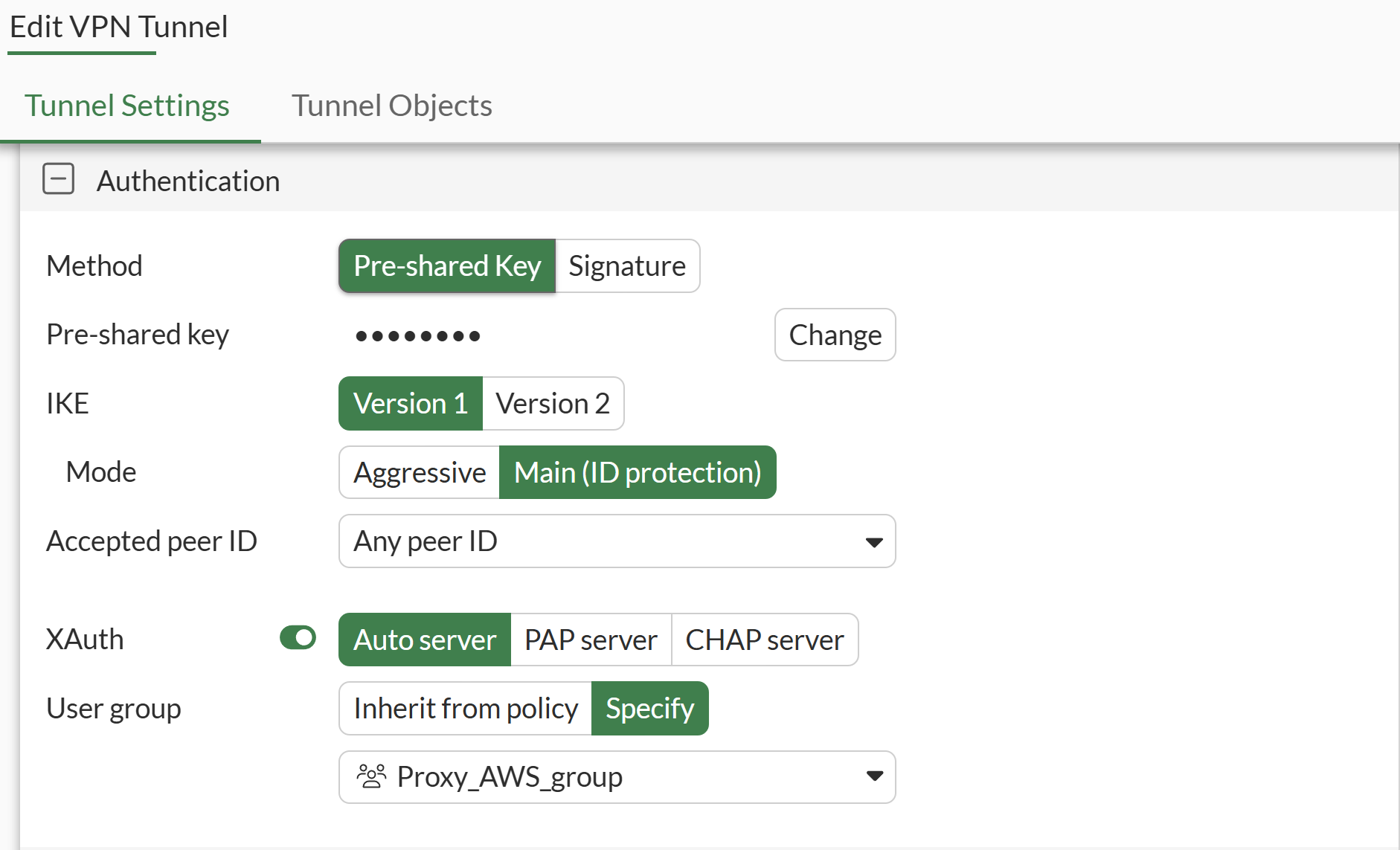
| Method | Select Pre‑shared Key or Signature, depending on your IPSec configuration. These are methods of authenticating the connection between the client and the server. The first uses a shared password, while the second relies on a certificate. More information: Pre-shared key vs digital certificates |
| IKE | Version 1 |
| Mode | Main (ID Protection) |
| Accepted peer ID | Any peer ID |
| XAuth | Auto server |
| User Group | Specify and select the group you have created in Configure a User Group. |
3. Leave all other fields at their default values or adjust them according to your needs, and then select OK to save your configuration.
Log in to FortiGate IPSec VPN using MFA for Fortinet FortiGate IPSec VPN Integrated Via RADIUS
Rublon MFA for FortiGate IPSec VPN requires the use of the FortiClient VPN.
In this example, Mobile Push has been set as the second factor in Rublon Authentication Proxy configuration (AUTH_METHOD was set to push).
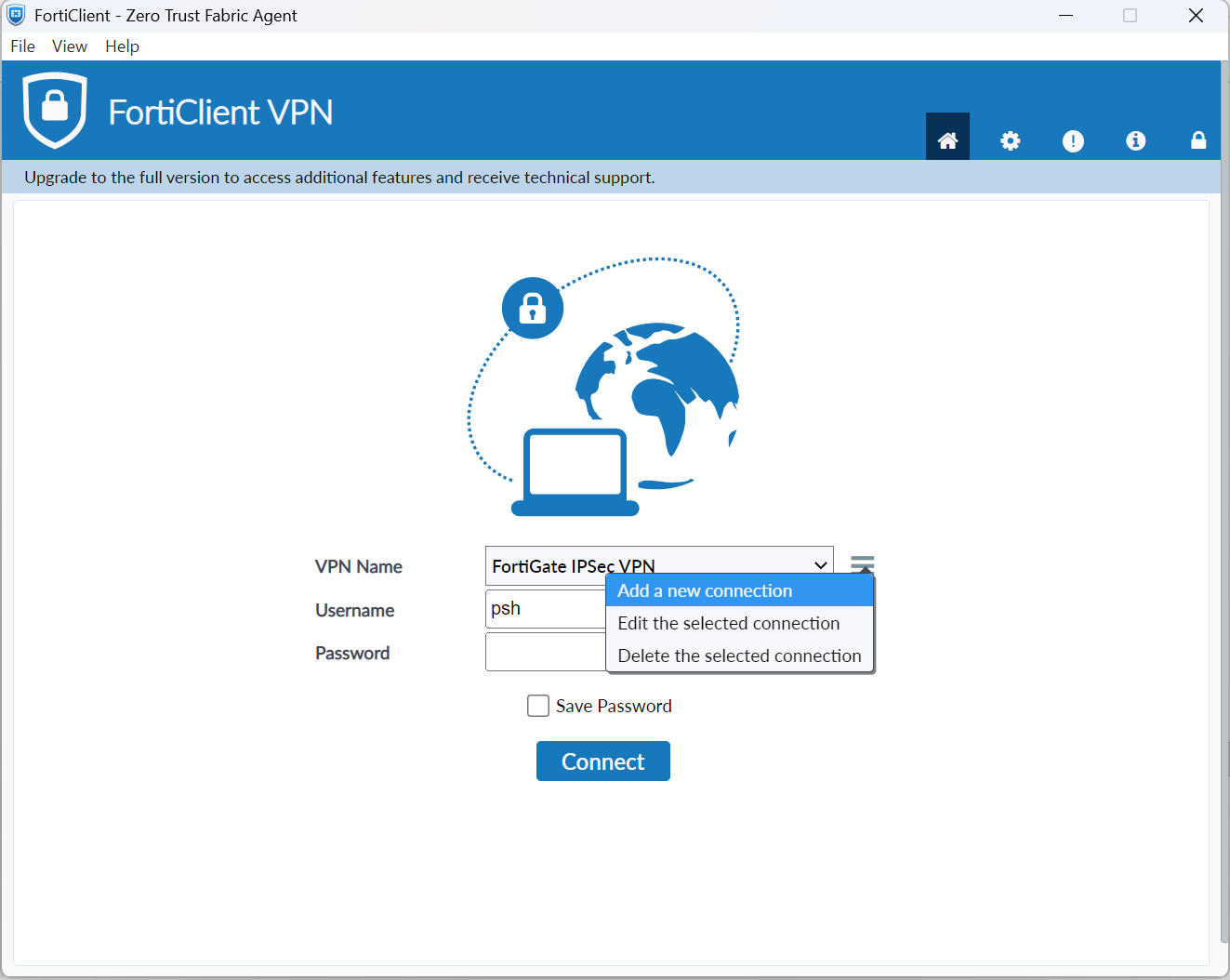
1. Open the FortiClient VPN and create a new IPSec VPN connection.
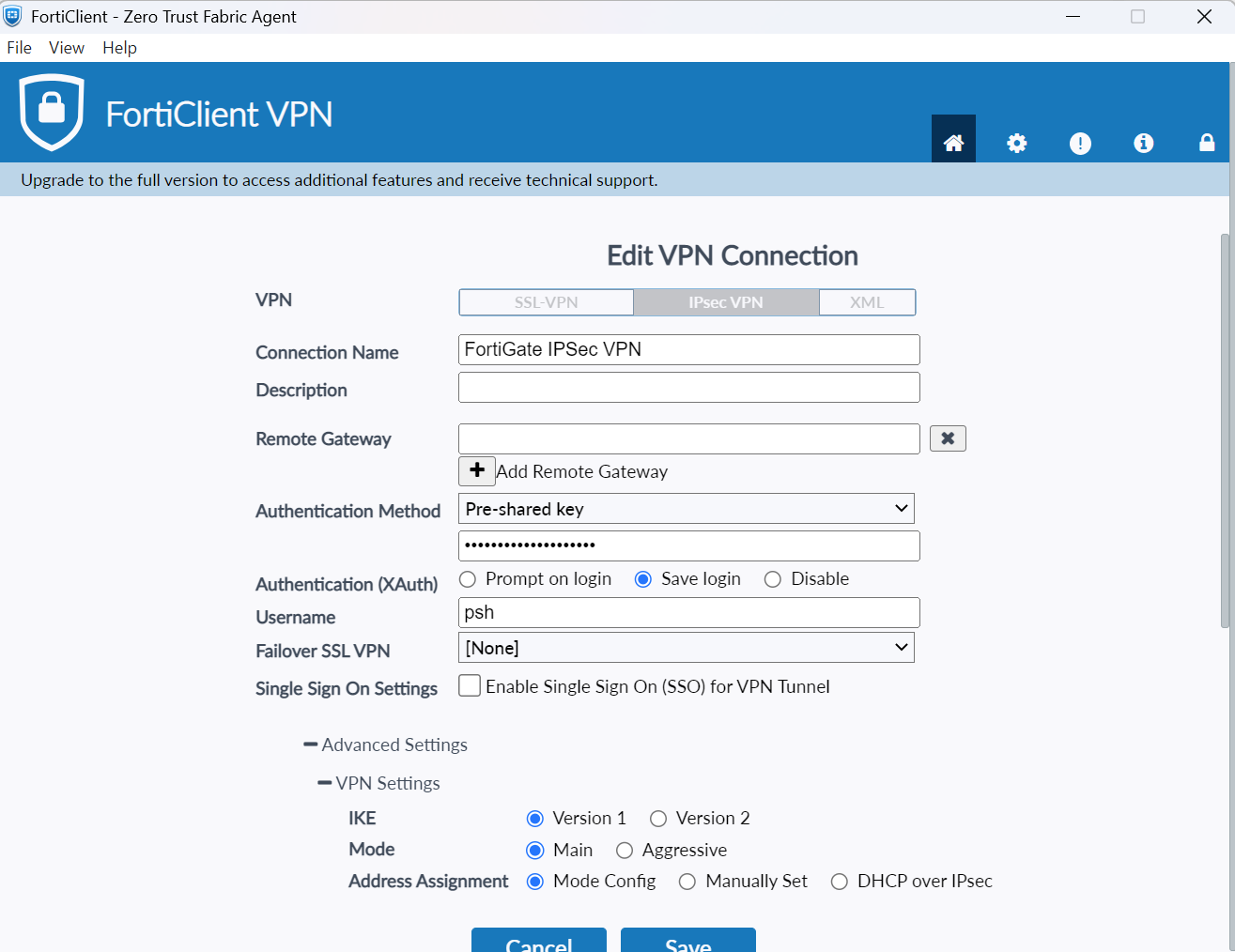
2. Select IPSec VPN and then set the following settings:
- Enter the IP in the Remote Gateway.
- Specify the Authentication Method.
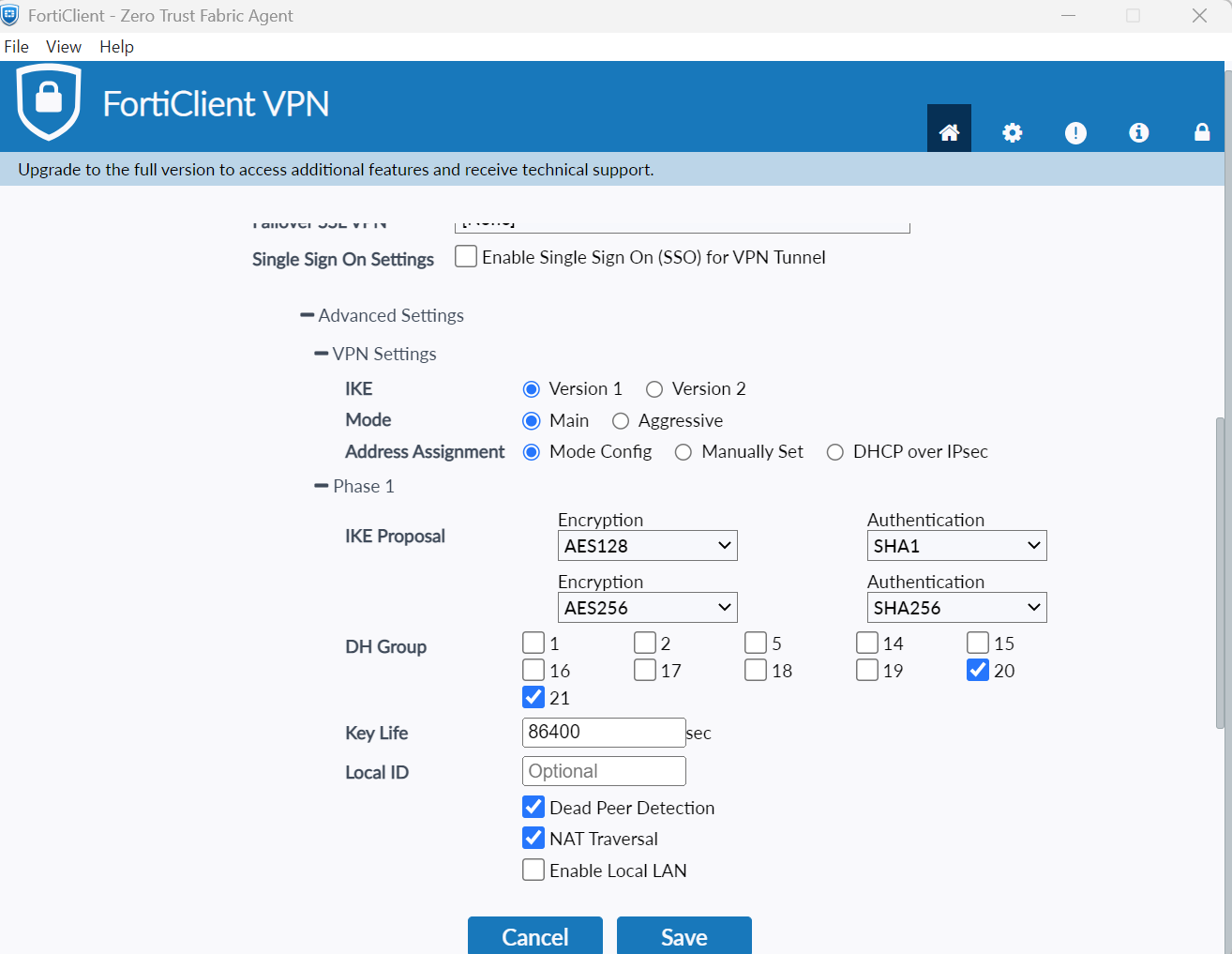
- Expand Advanced Settings → VPN Settings and set the following:
- IKE: Version 1
- Mode: Main
- Address Assignment: Mode Config
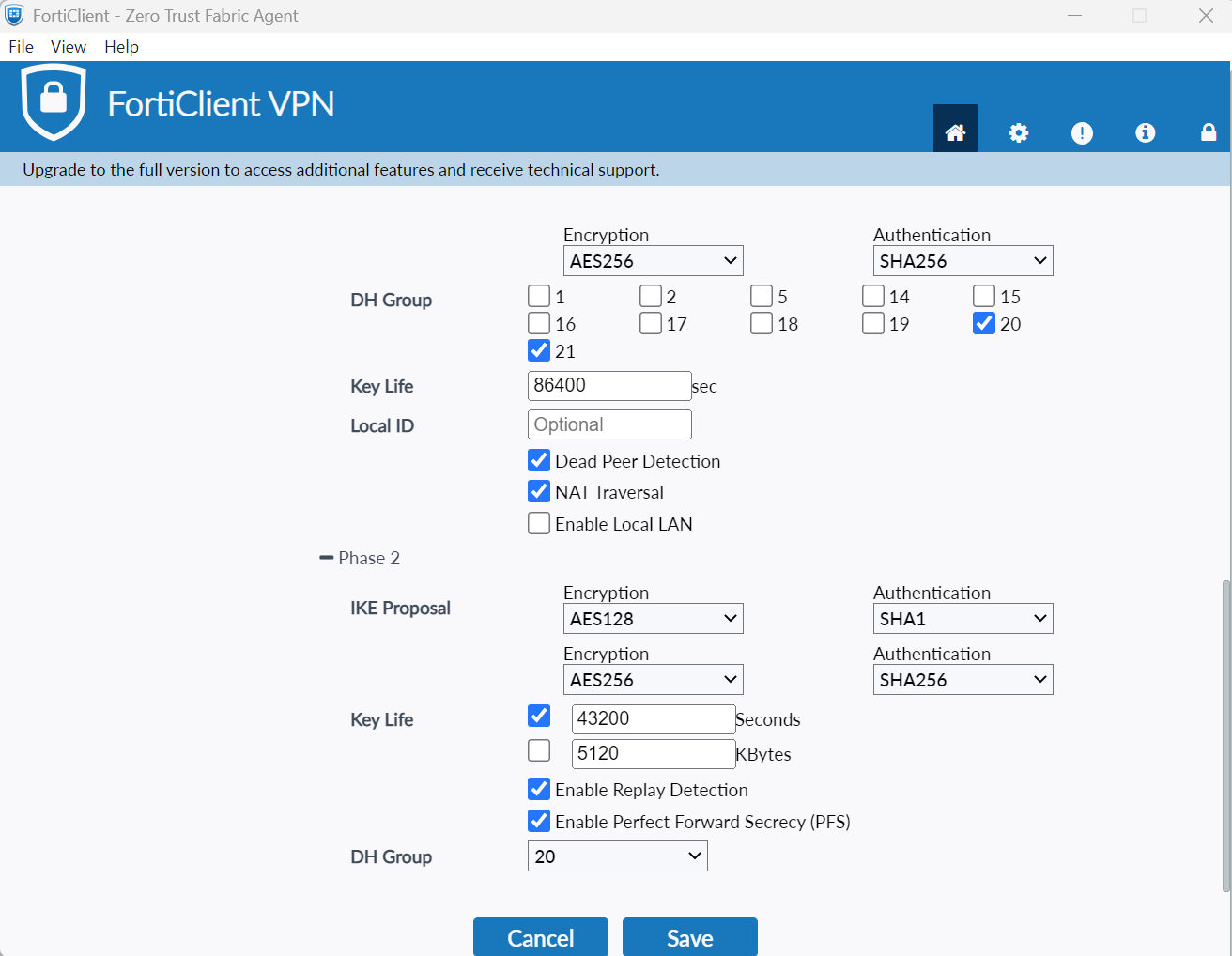
- Expand Advanced Settings → Phase 1 and set the following:
- IKE Proposal: AES128/SHA1; AES256/SHA256
- DH Group: 20 i 21
- Key Life: 86400
- Expand Advanced Settings → Phase 2 and set the following:
- IKE Proposal: AES128/SHA1; AES256/SHA256
- Key Life: 43200
- DH Group: 20
- Select Save.
3. Provide your username and password, and click Connect.
4. You will be sent an automatic push notification on your phone.
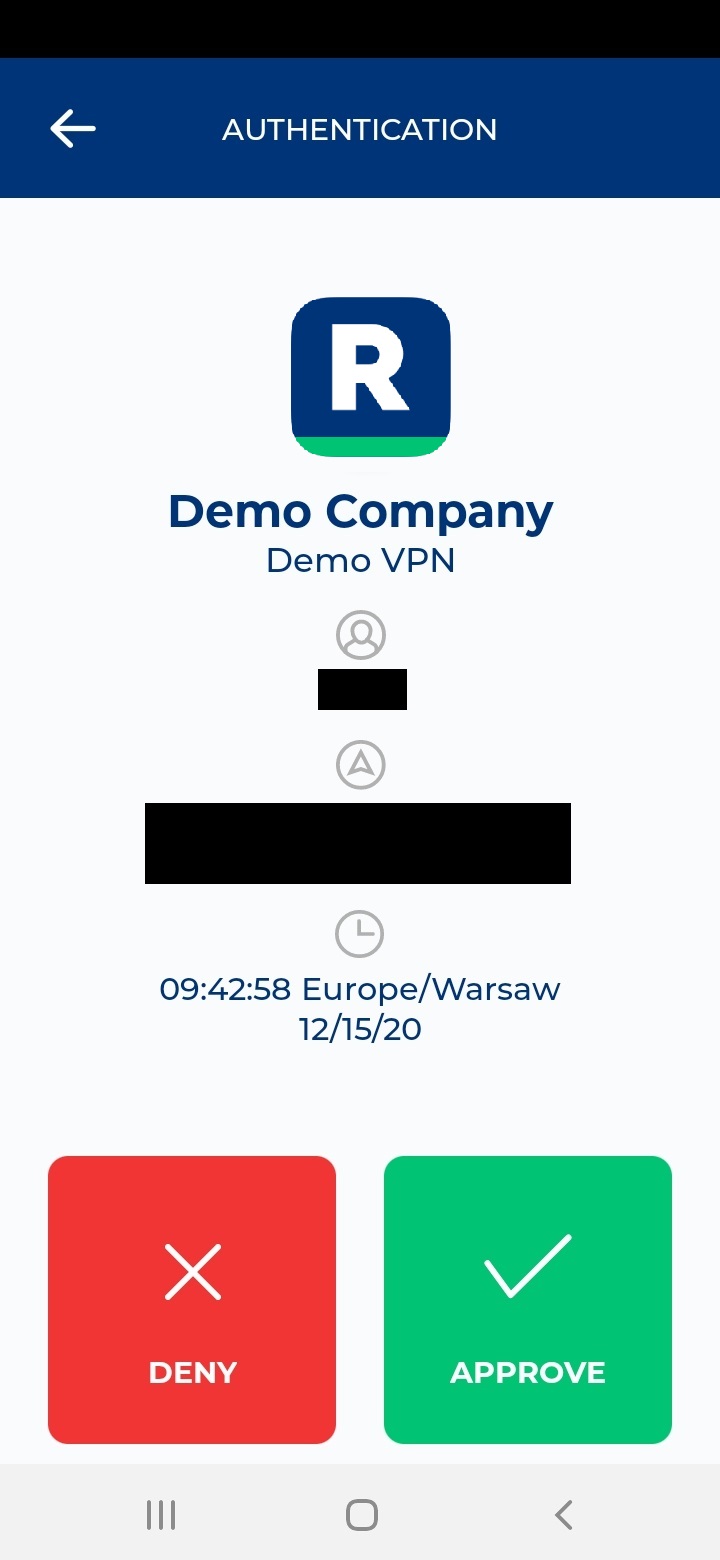
5. Tap APPROVE.