Last updated on September 11, 2026
Prerequisites
Configuration
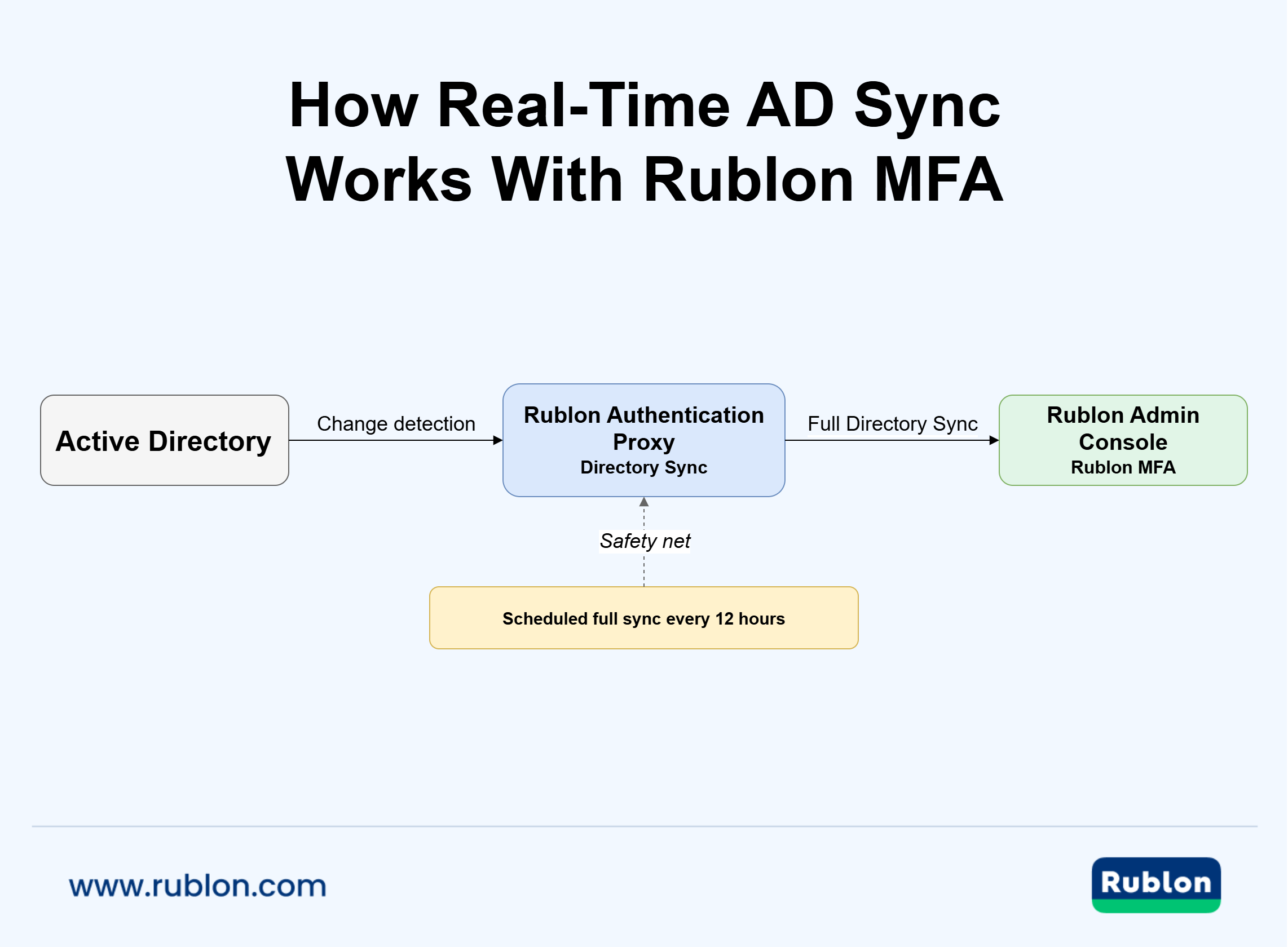
Real-Time Active Directory Sync Configuration
Example Directory Sync Configuration
directory_sync:
  enabled: true
  auth_source: EXAMPLE_AD
  source_type: ad
  change_detection: true
  detect_deletes: true
  group_dns:
    - cn=some-group,dc=example,dc=org
    - cn=some-group2,dc=example,dc=org
  user_alias1: mail
  user_alias2: userPrincipalName

auth_sources:
  - name: EXAMPLE_AD
    type: LDAP
    ip: localhost
    port: 636
    transport_type: ssl
    search_dn: dc=example,dc=org
    access_user_dn: cn=admin,dc=example,dc=org
    access_user_password: some-very-hard-password

rublon:
  api_server: https://core.rublon.net
  system_token: ABC
  secret_key: def
User Search, Group Membership, and Username Aliases
Authentication Source Names and Multi-Domain Environments
Running Directory Sync
Manual
Windows
Linux
Automatic (scheduled sync)
Active Directory Change Detection
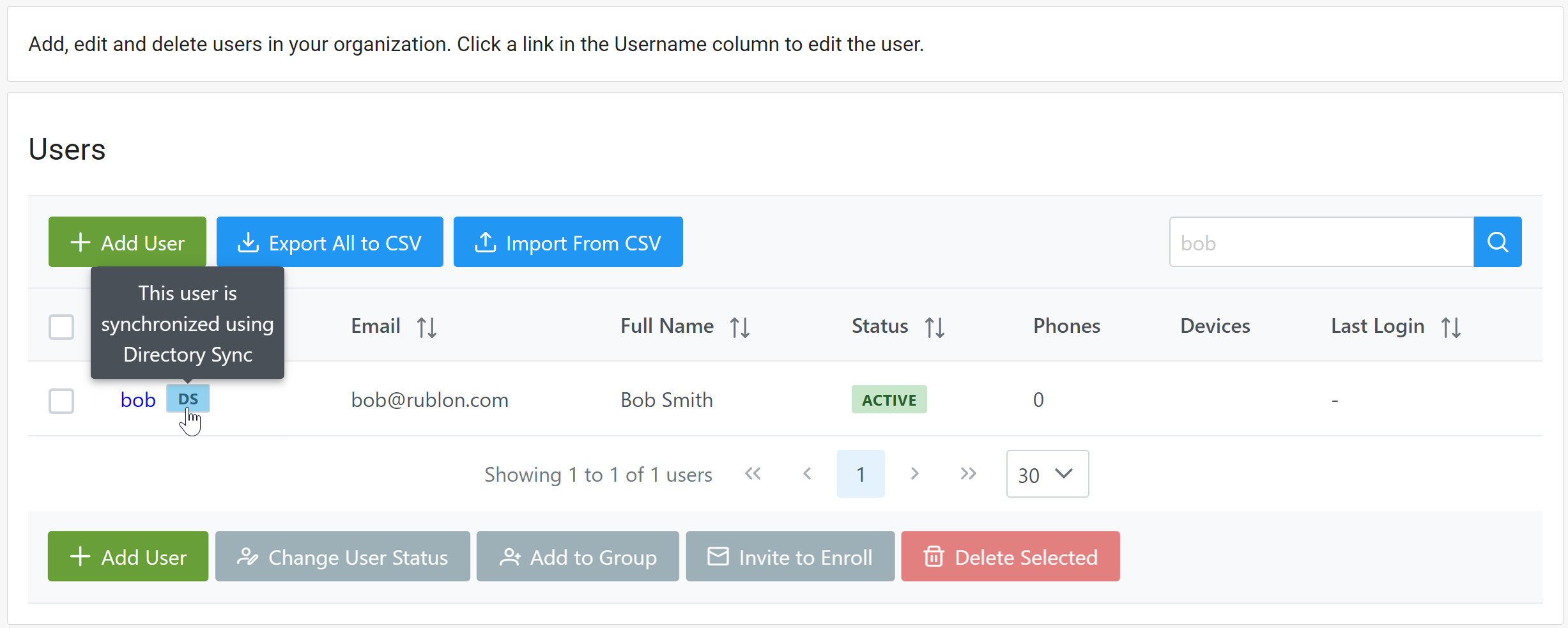
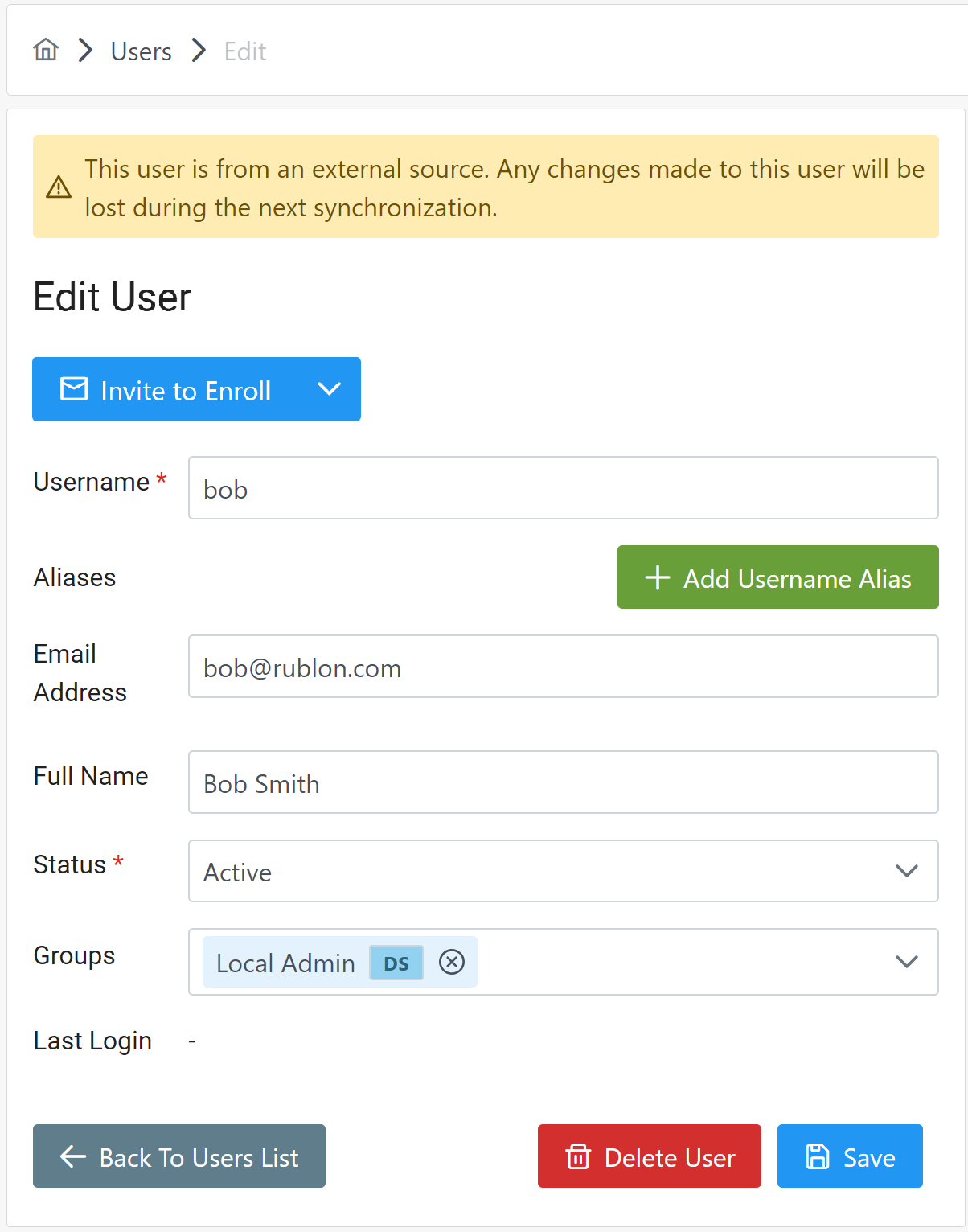
Reviewing the Synchronization Result in the Rublon Admin Console