Last updated on May 18, 2026
Prerequisites
Configuration
Example Directory Sync Configuration
directory_sync:
enabled: true
auth_source: EXAMPLE_AD
source_type: ad
group_dns:
- cn=some-group,dc=example,dc=org
- cn=some-group2,dc=example,dc=org
user_alias1: mail
user_alias2: userPrincipalName
auth_sources:
- name: EXAMPLE_AD
type: LDAP
ip: localhost
port: 636
transport_type: ssl
search_dn: dc=example,dc=org
access_user_dn: cn=admin,dc=example,dc=org
access_user_password: some-very-hard-password
rublon:
api_server: https://core.rublon.net
system_token: ABC
secret_key: def
User Search, Group Membership, and Username Aliases
You can also synchronize Username Aliases from Active Directory by adding user_aliasX options to the directory_sync section, where X is a unique number from 1 to 9, for example user_alias1 or user_alias2. Each user_aliasX option should point to an Active Directory attribute whose value will be imported as a Username Alias for the synchronized user in the Rublon Admin Console. You can define multiple aliases as long as each uses a different number.
If you use Directory Sync together with Rublon MFA for Windows Logon and RDP, make sure the username format imported by Directory Sync matches the username format sent by Rublon MFA for Windows. This is especially important when choosing between sAMAccountName, userPrincipalName, and NTLM/down-level logon names. For detailed recommendations, refer to How to Choose the Username Format for Rublon MFA for Windows and Directory Sync.
Authentication Source Names and Multi-Domain Environments
In multi-domain environments, also make sure the selected username attribute is unique across all synchronized domains. If different domains can contain users with the same short username, refer to How to Choose the Username Format for Rublon MFA for Windows and Directory Sync before choosing the username format.
Running Directory Sync
Manual
Windows
Linux
1. Navigate to your Rublon Authentication Proxy installation directory (rublonauthproxy/).
2. Open the bin/ directory.
3. Run the rublon-directorysync script to start your AD synchronization. In case of errors, follow the instructions written in the logs.
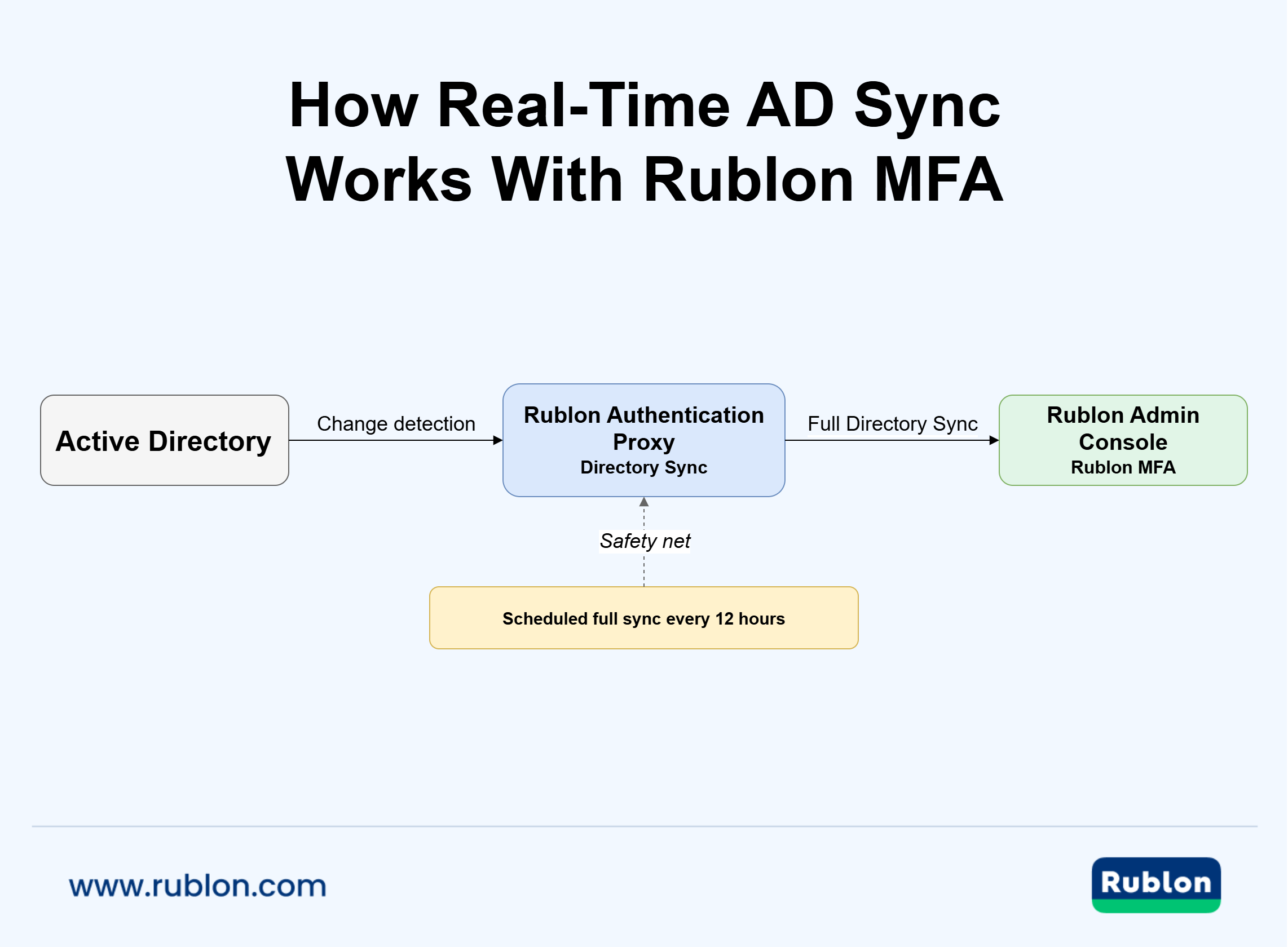
Automatic (scheduled sync)
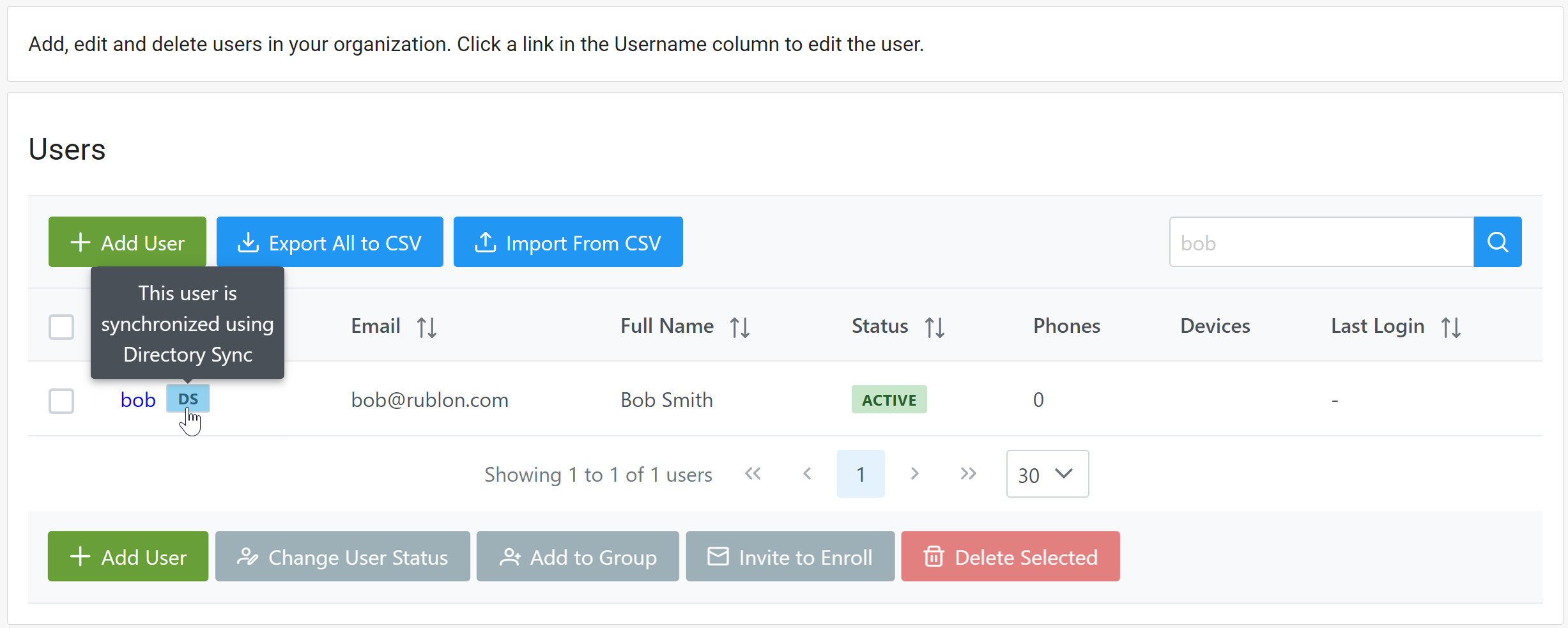
Reviewing the Synchronization Result in the Rublon Admin Console


Troubleshooting
If your issue is related to username formats, Rublon MFA for Windows Logon and RDP, duplicate users, multi-domain Active Directory environments, or Username Normalization, refer to How to Choose the Username Format for Rublon MFA for Windows and Directory Sync.
Related Posts
How to Choose the Username Format for Rublon MFA for Windows and Directory Sync