
Last updated on December 9, 2025
Overview of MFA for Kemp LoadMaster
This documentation describes how to integrate Rublon MFA with Kemp LoadMaster Load Balancer using the LDAP(S) protocol to enable multi-factor authentication for logins to Kemp LoadMaster.
Supported Authentication Methods
| Authentication Method | Supported | Comments |
| Mobile Push | ✔ | N/A |
| FIDO | – | N/A |
| Passcode | ✔ | N/A |
| SMS Passcode | – | N/A |
| SMS Link | ✔ | N/A |
| Phone Call | ✔ | N/A |
| QR Code | – | N/A |
| Email Link | ✔ | N/A |
| YubiKey OTP | ✔ | N/A |
| RFID | – | N/A |
Before You Start Configuring MFA for Kemp LoadMaster Using LDAP(S)
Before configuring Rublon MFA for Kemp LoadMaster:
- Ensure you have prepared all required components.
- Create an application in the Rublon Admin Console.
- Install the Rublon Authenticator mobile app.
Required Components
1. User Identity Provider (IdP) – You need an external Identity Provider, such as Microsoft Active Directory, OpenLDAP, or FreeIPA.
2. Rublon Authentication Proxy – Install the Rublon Authentication Proxy if you have not already, and configure the Rublon Authentication Proxy as an LDAP proxy.
3. Kemp – A properly installed and configured Kemp LoadMaster Load Balancer. Tested on Kemp LoadMaster LX-25.
Create an Application in the Rublon Admin Console
1. Sign up for the Rublon Admin Console. Here’s how.
2. In the Rublon Admin Console, go to the Applications tab and click Add Application.
3. Enter a name for your application (e.g., Kemp) and then set the type to Rublon Authentication Proxy.
4. Click Save to add the new application in the Rublon Admin Console.
5. Copy the values of System Token and Secret Key of the newly created application. You will need them later.
Install Rublon Authenticator
Some end-users may use the Rublon Authenticator mobile app. So, as a person configuring MFA for Kemp LoadMaster, we highly recommend you install the Rublon Authenticator mobile app, too. Thanks to that, you will be able to test MFA for Kemp LoadMaster via Mobile Push.
Download the Rublon Authenticator for:
Configuring Multi-Factor Authentication (MFA) for Kemp LoadMaster Using LDAP(S)
Rublon Authentication Proxy
1. Edit the Rublon Auth Proxy configuration file and paste the previously copied values of System Token and Secret Key in system_token and secret_key, respectively.
2. Config example file in YAML:
log:
  debug: true

rublon:
  api_server: https://core.rublon.net
  system_token: YOURSYSTEMTOKEN
  secret_key: YOURSECRETKEY

proxy_servers:
- name: LDAP-Proxy
  type: LDAP
  ip: 0.0.0.0
  port: 636
  auth_source: LDAP_SOURCE_1
  auth_method: push, email
  rublon_section: rublon
  cert_path: /etc/ssl/certs/ca.crt
  pkey_path: /etc/ssl/certs/key.pem

auth_sources:
- name: LDAP_SOURCE_1
  type: LDAP
  ip: 192.0.2.0
  port: 636
  transport_type: ssl
  search_dn: dc=example,dc=org
  access_user_dn: cn=admin,dc=example,dc=org
  access_user_password: CHANGE_ME
  ca_certs_dir_path: /etc/ssl/certs/
See: How to set up LDAPS certificates in the Rublon Authentication Proxy?
Configuring MFA for Access to Kemp LoadMaster
1. Log in to the Kemp Admin Interface.
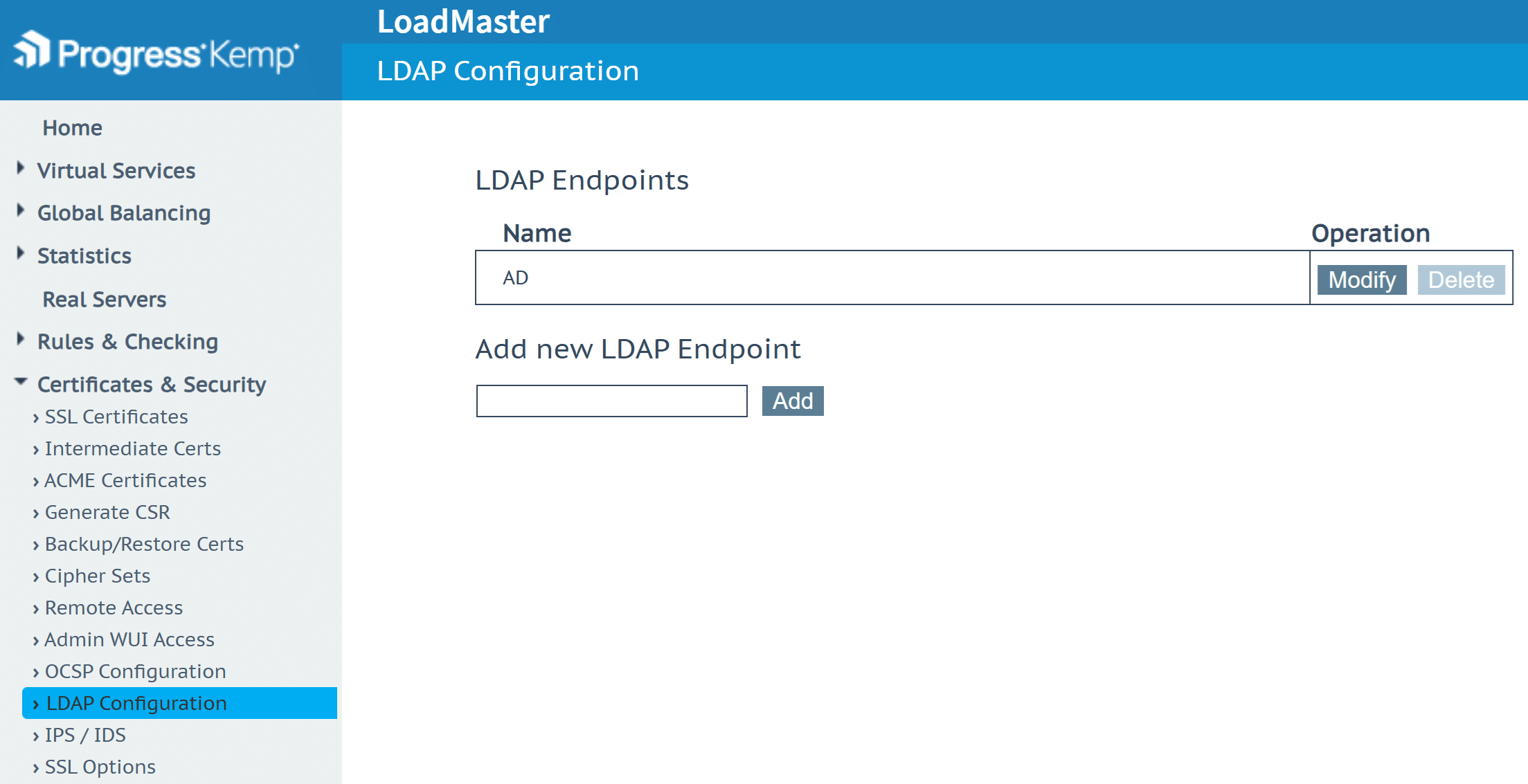
2. In the left pane, select Certificates & Security → LDAP Configuration.
3. In Add new LDAP Endpoint enter a descriptive name for your endpoint and click Add.
4. Fill in the fields. Refer to the following image and table.
Note: After entering each value, click the corresponding Set button (e.g., Set LDAP Server(s) or Set Interval) to apply the change. Values are not saved until their respective Set buttons are clicked.
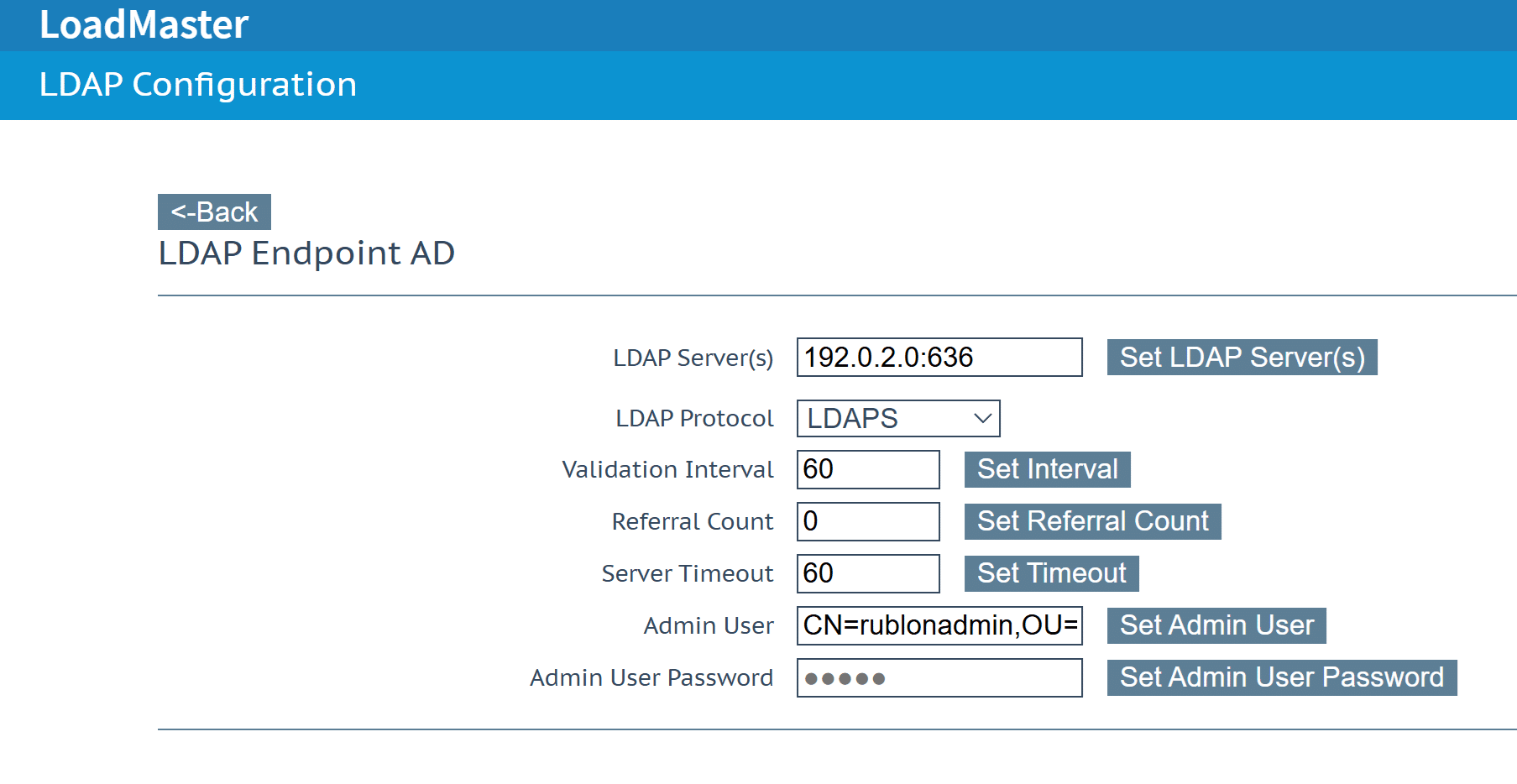
| LDAP Server(s) | The IP address or hostname of the Rublon Authentication Proxy. Use the following form: <IP_address>:<port> For example: 192.0.2.0:636 |
| LDAP Protocol | For LDAPS: LDAPS For LDAP: Unencrypted |
| Validation Interval | 0 (Default) |
| Referral Count | 60 (Default) |
| Server Timeout | 60 |
| Admin User | The Bind DN (the full LDAP path of the service account, e.g., CN=rublonadmin,OU=Rublon,DC=rublondemo,DC=local) that Kemp will use to authenticate and access the LDAP directory for querying user information. This account must have at least the permission to read other users’ attributes. Note: This Bind DN must be the same as access_user_dn in your Rublon Auth Proxy’s config file. |
| Admin User Password | The password of the user defined in the Admin User field. Note: This Bind password must be the same as access_user_password in your Rublon Auth Proxy’s config file. |
5. MFA configuration for Kemp login (access to the LoadMaster itself) is now complete. You can proceed to configure MFA for applications served through the Load Balancer.
Configuring MFA for Applications Behind the Load Balancer
1. Log in to the Kemp Admin Interface.
2. In the left pane, select Add New under the Virtual Services section.
3. Specify the parameters for your Virtual Service, and click the Add this Virtual Service button. If you would like to learn more, please visit this web page.
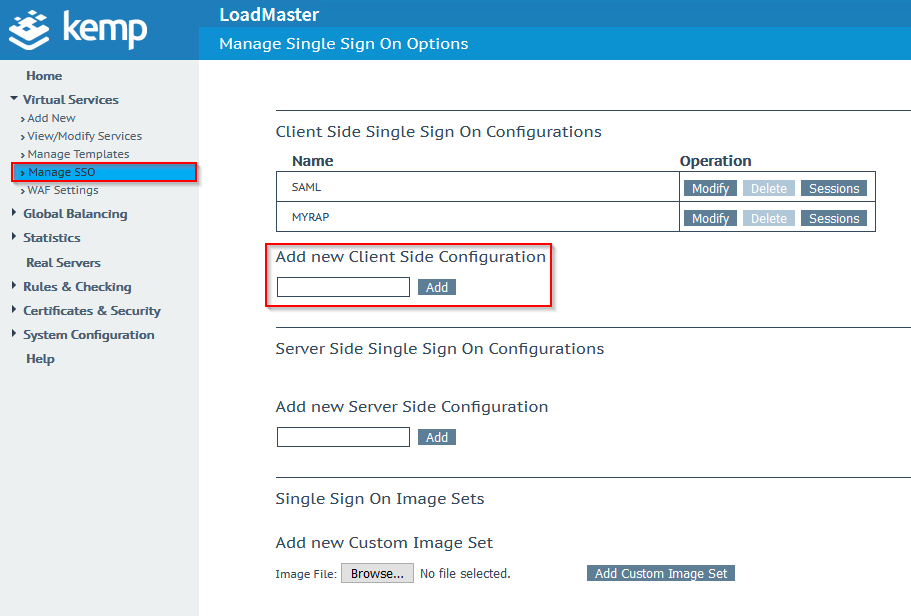
4. Navigate to Virtual Services → Manage SSO, and fill in the Add new Client Side Configuration field with the name of your new SSO configuration. Afterwards, click Add to create a new Client Side Configuration.
5. Select LDAP in the Authentication Protocol drop-down list. Fill in the fields based on the screenshot and table below. You can leave the values not described in the table at their default settings or adjust them to suit your needs.
Note: After entering each value, click the corresponding Set button to apply the change. Values are not saved until their respective Set buttons are clicked.
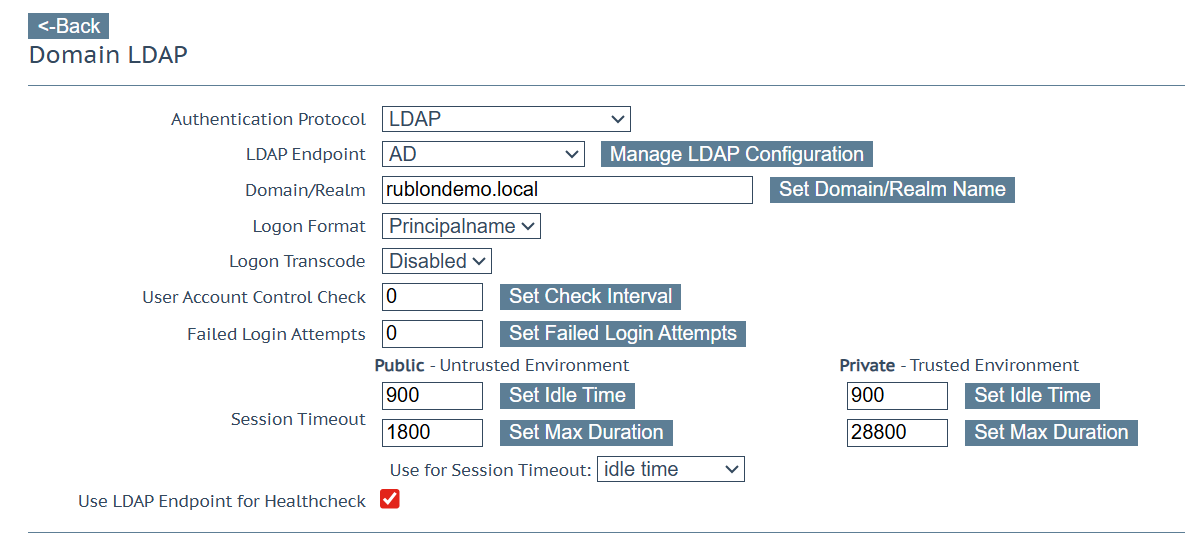
| LDAP Endpoint | AD |
| Domain/Realm | Enter your Active Directory domain. |
| Logon format | Principalname |
| Use LDAP Endpoint for Healthcheck | Check. |
6. Navigate to View/Modify Services, and click the Modify button. Extend ESP options.
7. Check Enable ESP, and fill in the required data.
8. Set Client Authentication Mode to Form Based. Set the SSO Domain you have created before, and finally specify the Allowed Virtual Hosts, Allowed Virtual Directories and Server Authentication Mode according to your configuration. If you would like to learn more about the ESP configuration, please visit this page.
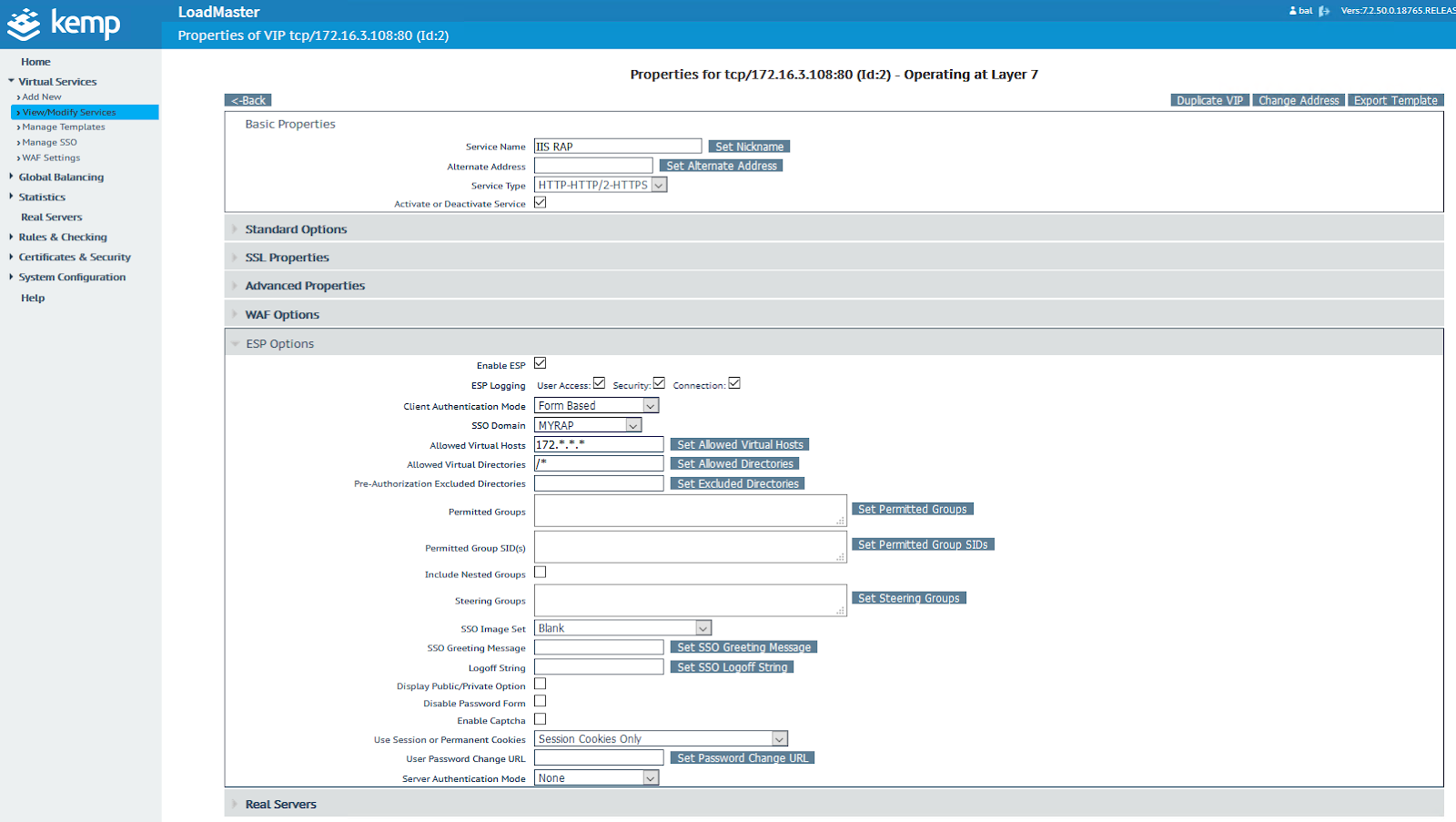
Your configuration is complete. Your users have 2FA enabled when logging in to their Virtual Service. You can now test multi-factor authentication login to Kemp and MFA to applications behind the Load Balancer.
Testing Multi-Factor Authentication (MFA) for Kemp LoadMaster Integrated Via LDAP(S)
This example portrays logging in to Kemp LoadMaster with Rublon Multi-Factor Authentication. Mobile Push has been set as the second factor in the Rublon Authentication Proxy configuration (AUTH_METHOD was set to push).
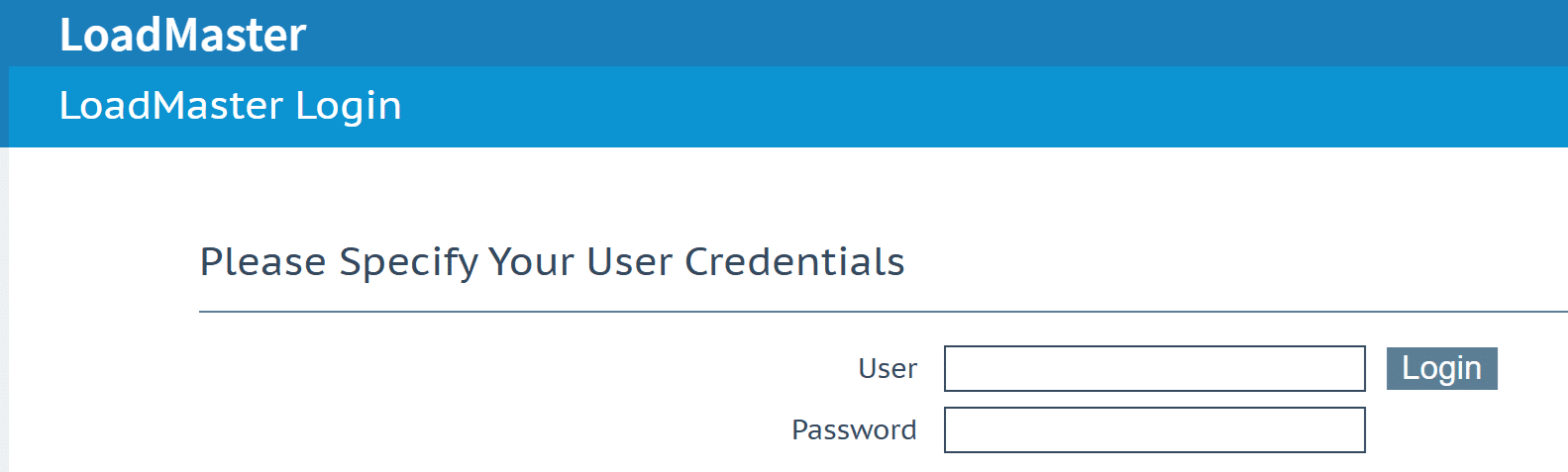
1. Log in to Kemp LoadMaster as a user by entering your name and password and clicking Sign in.
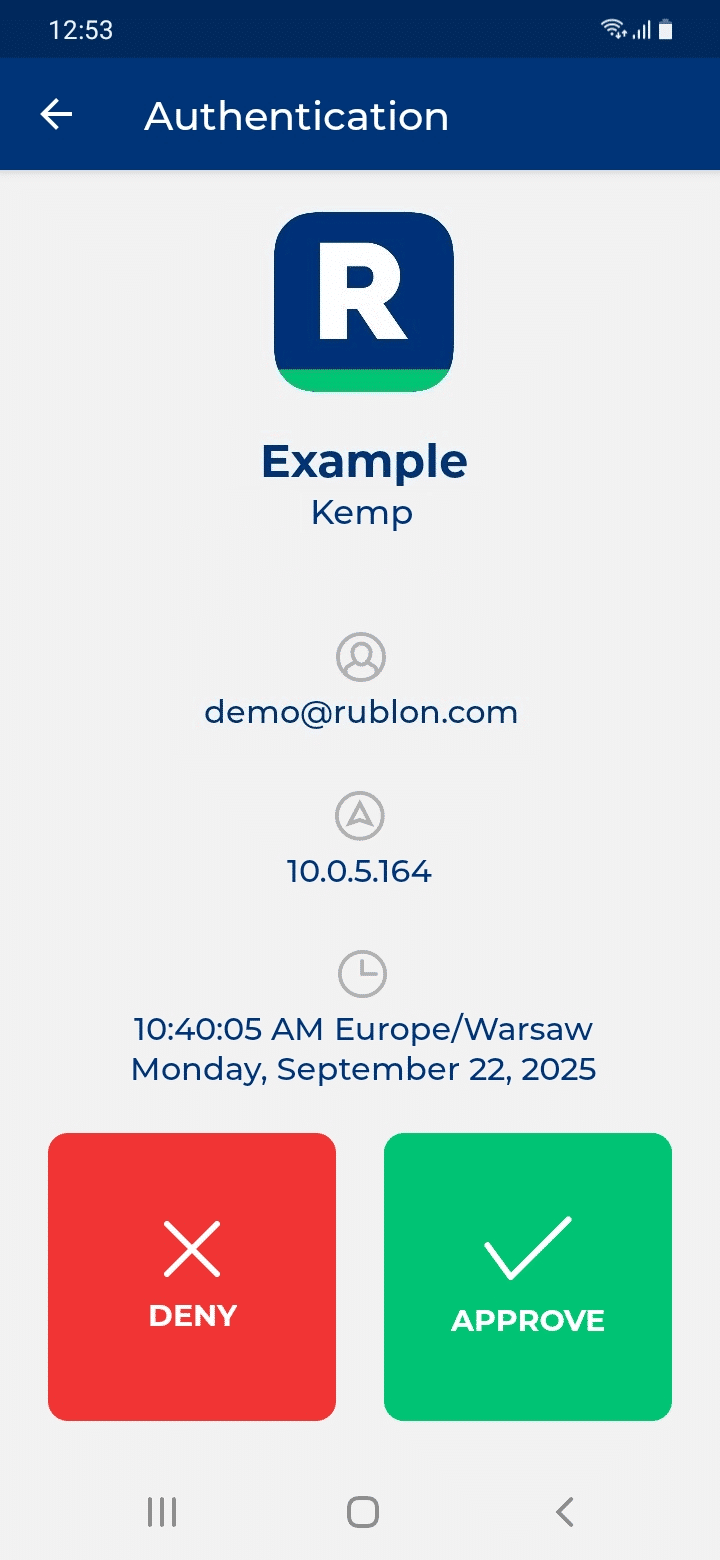
2. Rublon MFA will send a Mobile Push authentication request to your phone. Tap APPROVE.
3. You will be logged in to Kemp.
Testing Multi-Factor Authentication (MFA) for Application Behind the Load Balancer
1. Initiate the Kemp Virtual Service and supply LDAP credentials.
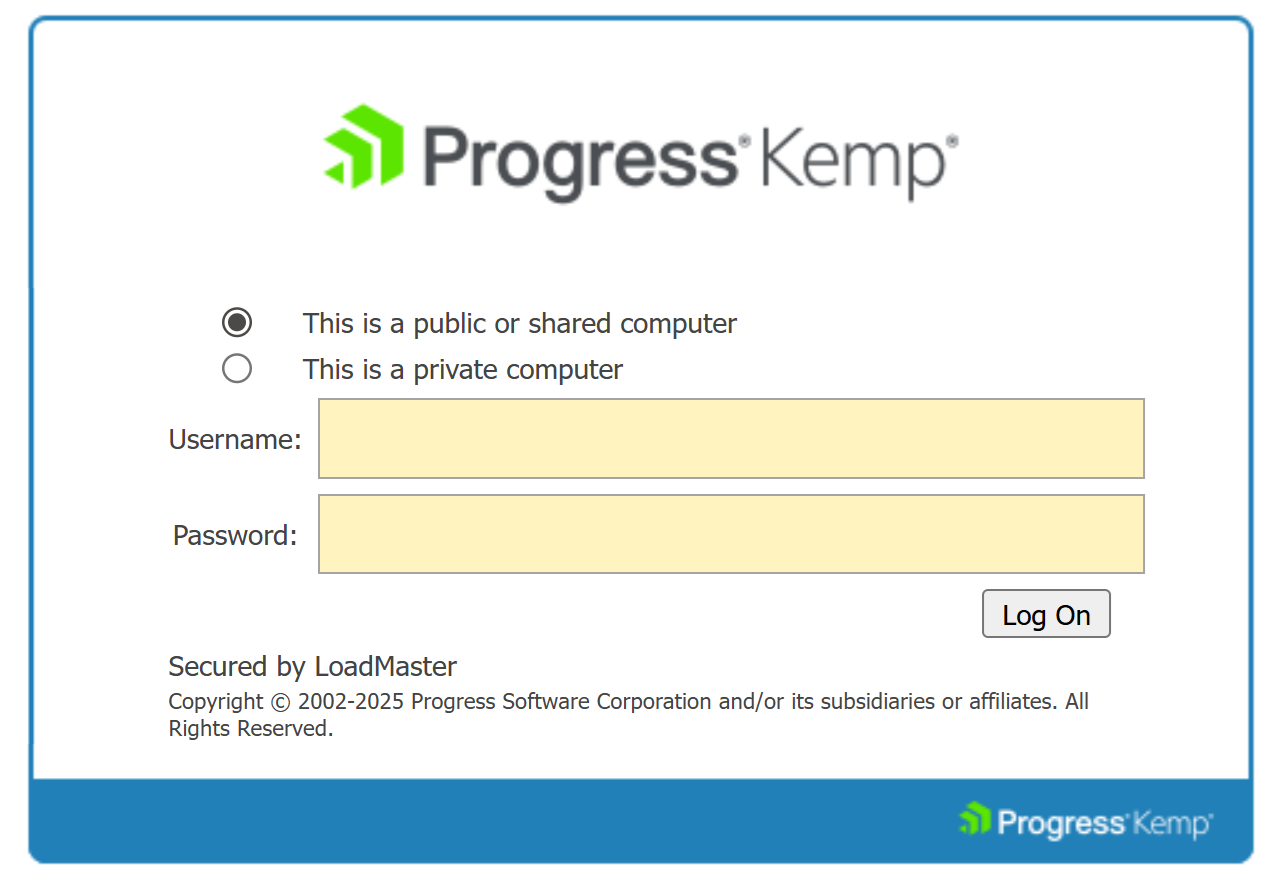
2. Let’s assume you have configured your Rublon Authentication Proxy to use Mobile Push as the authentication method (auth_method is set to push). After providing your login and password, Rublon MFA will send a Mobile Push authentication request to your phone. Tap APPROVE.
3. After completing MFA, you will be redirected to the virtual service.
4. An active session will appear in the Domain Users Management section of the Kemp LoadMaster Admin Interface.
Troubleshooting MFA for Kemp LoadMaster Using LDAP(S)
If you encounter any issues with your Rublon integration, please contact Rublon Support.