Last updated on July 1, 2026
Overview
Enable Entra ID logins to Palo Alto GlobalProtect using Rublon MFA
If Palo Alto GlobalProtect authenticates users through LDAP or RADIUS, you can use Rublon Authentication Proxy to validate primary credentials against Microsoft Entra ID and then enforce Rublon MFA. This allows users to sign in to Palo Alto GlobalProtect with Microsoft Entra ID credentials, even when Palo Alto GlobalProtect does not support Microsoft Entra ID, SAML, OAuth 2.0, or OpenID Connect natively.
See how to authenticate LDAP and RADIUS with Microsoft Entra ID credentials and MFA, or explore the related use case: Microsoft Entra ID logins for LDAP and RADIUS applications with MFA.
Demo Video

Supported Authentication Methods
Before You Start
Before configuring Rublon MFA for Palo Alto GlobalProtect:
- Ensure you have prepared all required components.
- Create an application in the Rublon Admin Console.
- Install the Rublon Authenticator mobile app.
Required Components
1. User Identity Provider (IdP) – You need an external Identity Provider, such as FreeRADIUS or Microsoft NPS.
2. Rublon Authentication Proxy – Install the Rublon Authentication Proxy if you have not already, and configure the Rublon Authentication Proxy as an RADIUS proxy.
3. Palo Alto GlobalProtect – A properly installed and configured Palo Alto GlobalProtect along with the GlobalProtect App.
Create an Application in the Rublon Admin Console
1. Sign up for the Rublon Admin Console. Here’s how.
2. In the Rublon Admin Console, go to the Applications tab and click Add Application.
3. Enter a name for your application (e.g., Palo Alto GlobalProtect) and then set the type to Rublon Authentication Proxy.
4. Click Save to add the new application in the Rublon Admin Console.
5. Copy the values of System Token and Secret Key of the newly created application. You will need them later.
Install Rublon Authenticator
Some end-users may use the Rublon Authenticator mobile app. So, as a person configuring MFA for Palo Alto GlobalProtect, we highly recommend you install the Rublon Authenticator mobile app, too. Thanks to that, you will be able to test MFA for Palo Alto GlobalProtect via Mobile Push.
Download the Rublon Authenticator for:
Configuration
Rublon Authentication Proxy
1. Edit the Rublon Auth Proxy configuration file and paste the previously copied values of System Token and Secret Key in system_token and secret_key, respectively.
2. Config example file in YAML:
global:
  secret_source: plain  # Options: plain, env, vault

log:
  debug: false

rublon:
  api_server: https://core.rublon.net
  system_token: YOURSYSTEMTOKEN
  secret_key: YOURSECRETKEY

proxy_servers:
  - name: RADIUS-Proxy
    type: RADIUS
    radius_secret: YOURRADIUSSECRET
    ip: 0.0.0.0
    port: 1812
    mode: standard
    auth_source: LDAP_SOURCE_1
    auth_method: push,email
    cert_path: /etc/ssl/certs/ca.crt
    pkey_path: /etc/ssl/certs/key.pem
    force_message_authenticator: false

auth_sources:
- name: LDAP_SOURCE_1
  type: LDAP
  ip: 172.16.0.127
  port: 636
  transport_type: ssl
  search_dn: dc=example,dc=org
  access_user_dn: cn=admin,dc=example,dc=org
  access_user_password: CHANGE_ME
  ca_certs_dir_path: /etc/ssl/certs/
See: How to set up LDAPS certificates in the Rublon Authentication Proxy?
3. (Optional) If you want to use the Challenge Mode, change:
mode: standard
To:
mode: challenge
Then, you can set the message displayed on the challenge request:
challenge_request: “Enter Your MFA Code”
If you do not set challenge_request in the config file, the default message will be used instead, as defined in the Rublon Authentication Proxy documentation.
Add RADIUS Server Profile


Note

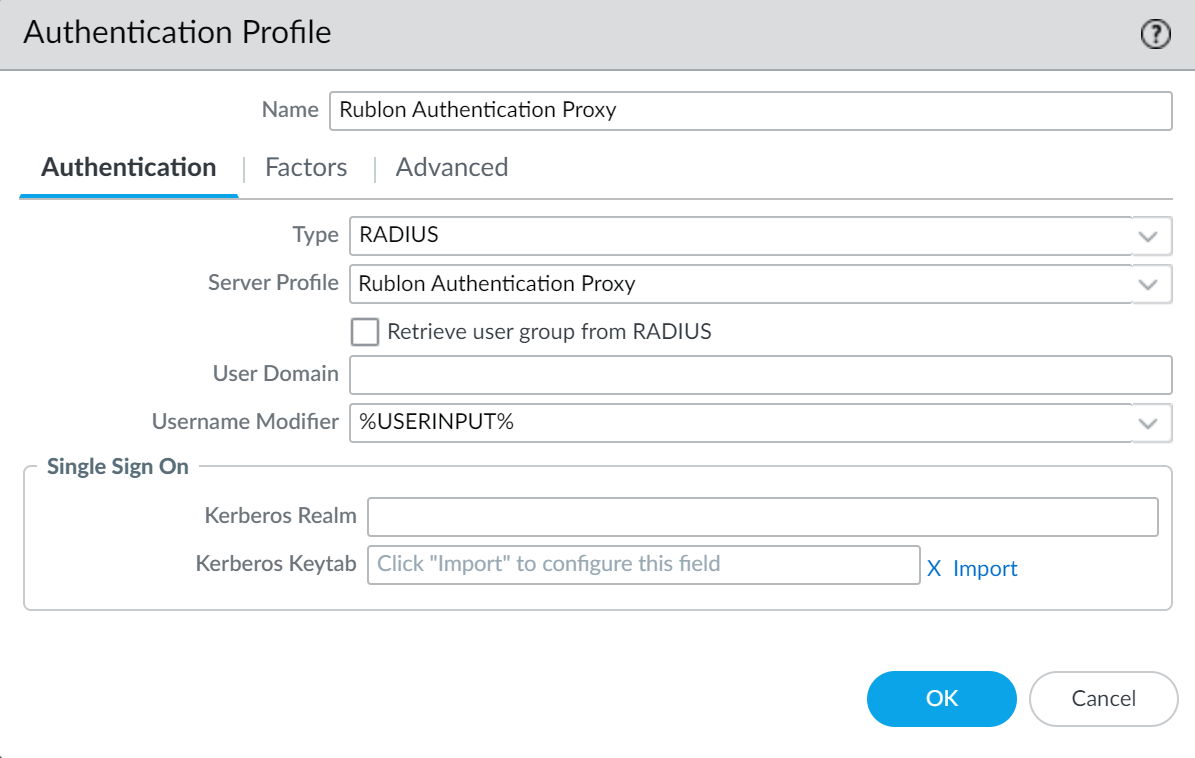
Add Authentication Profile


Configure GlobalProtect Gateway

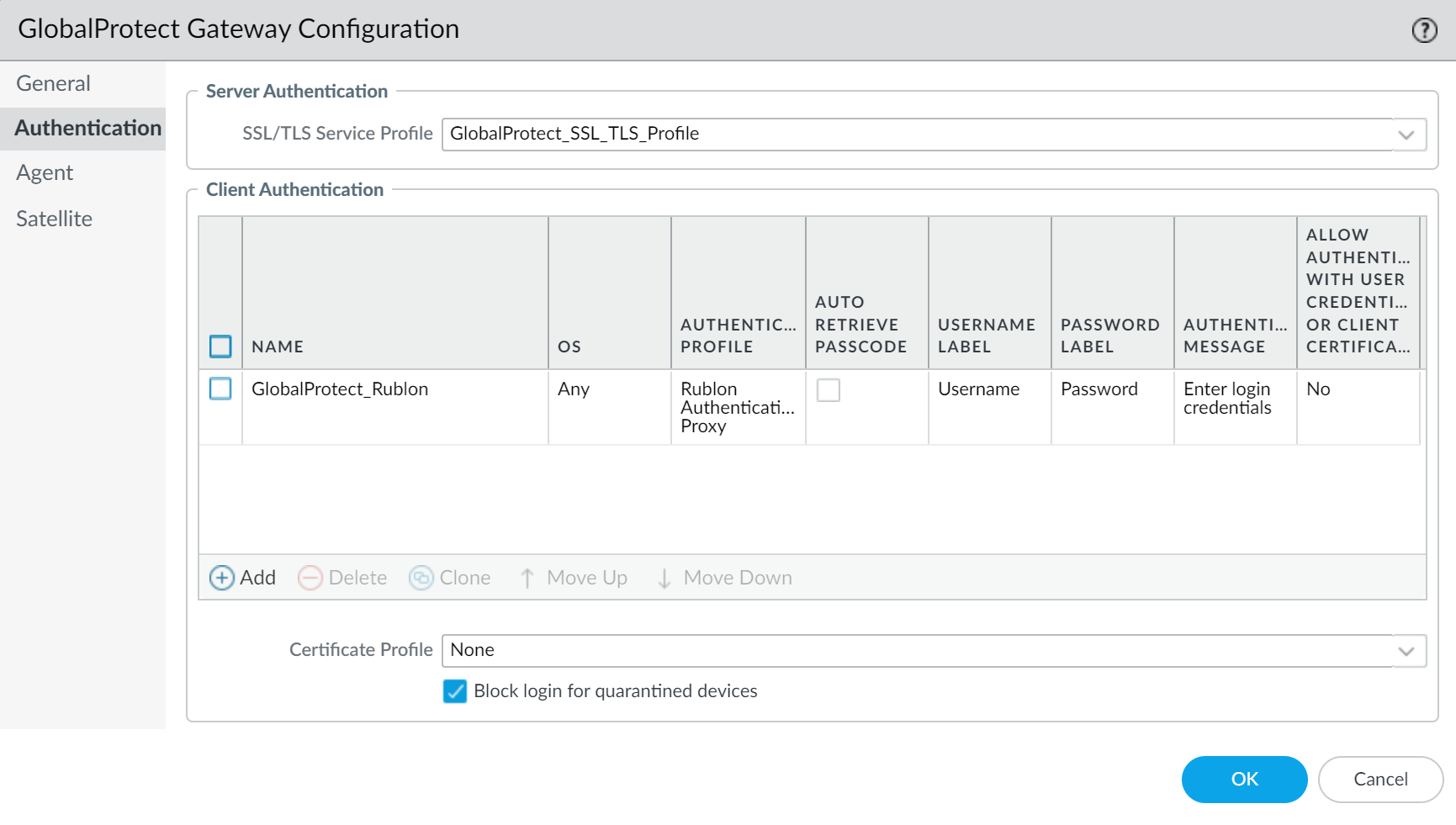

- Select the Agent tab, and then select the Client Settings tab.
- Select the profile to enter its properties, and go to Authentication Override.
- Check both options:
- Generate cookie for authentication override
- Accept cookie for authentication override (this option requires you to select the SSL certificate imported to GlobalProtect)
- Click OK to save the changes.

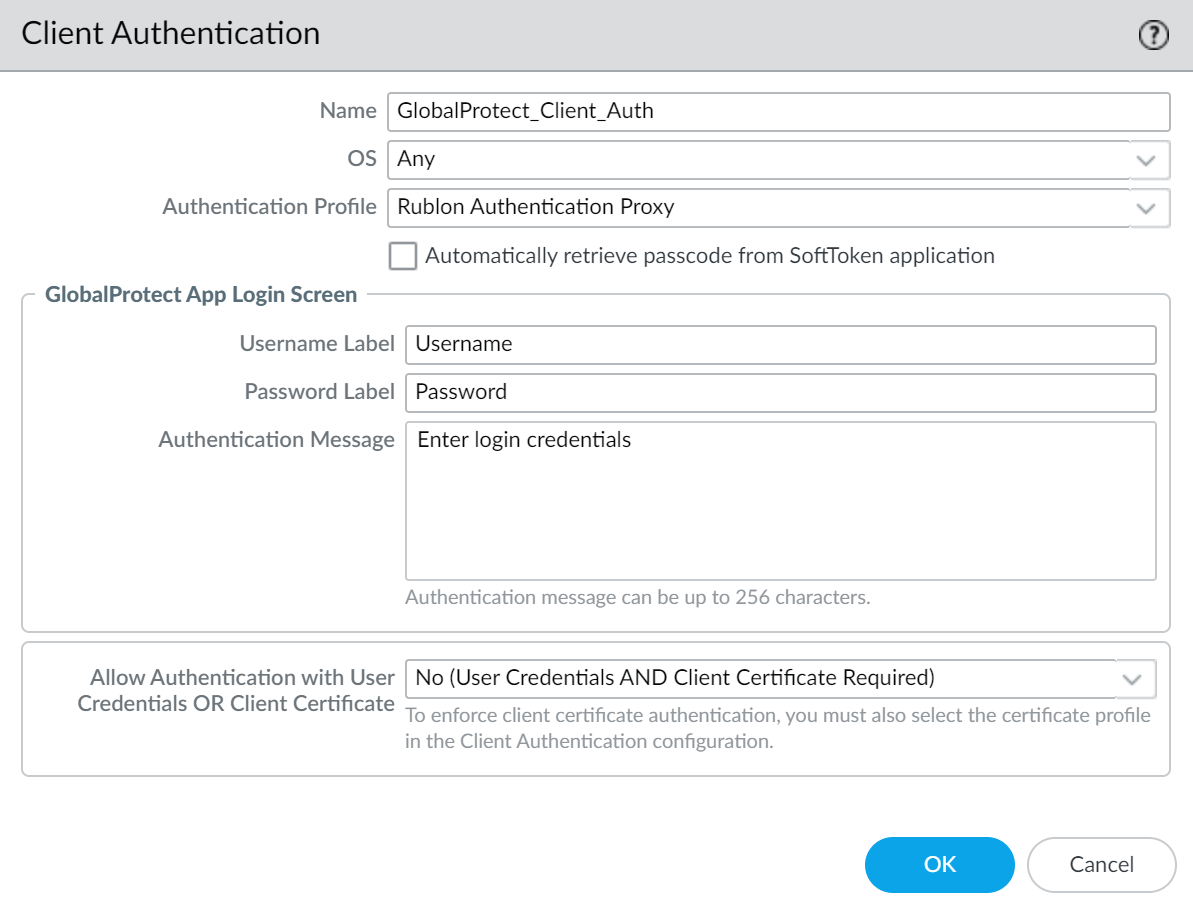
Configure GlobalProtect Portal
IMPORTANT


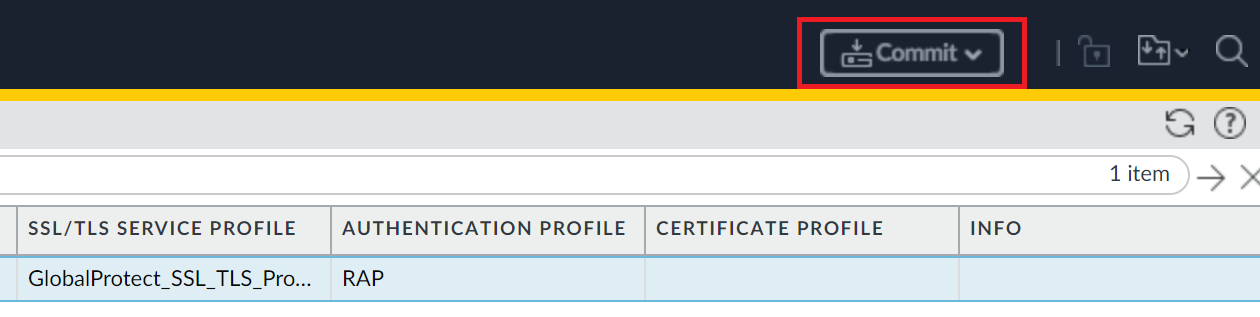
Commit Your Configuration
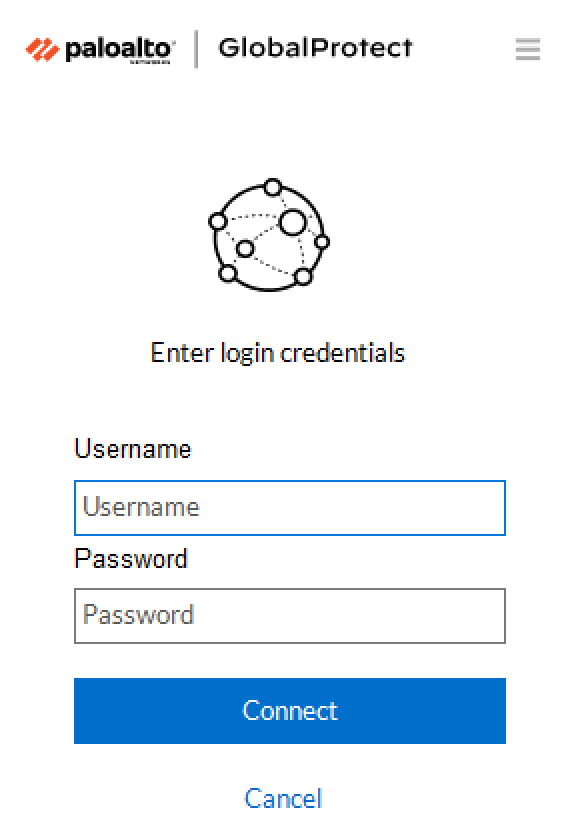
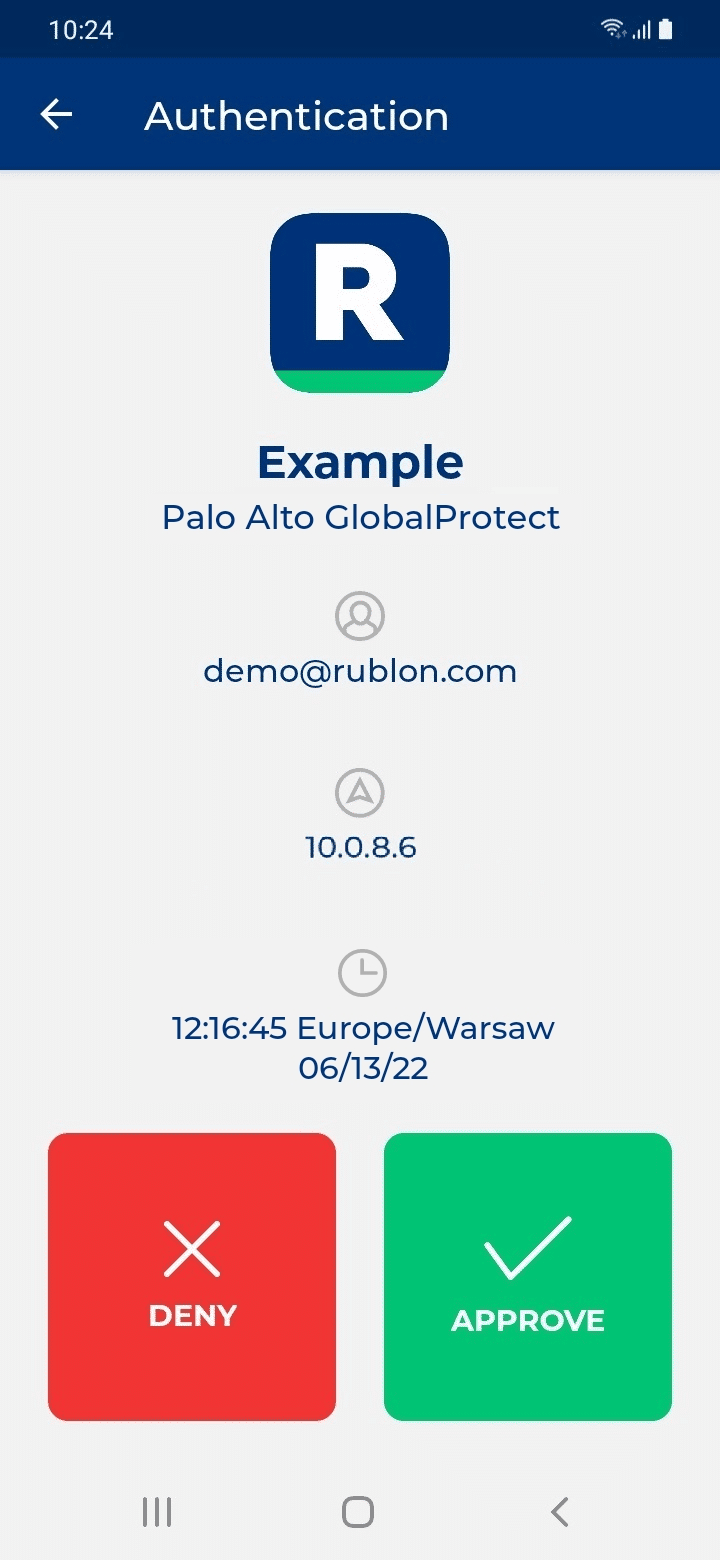
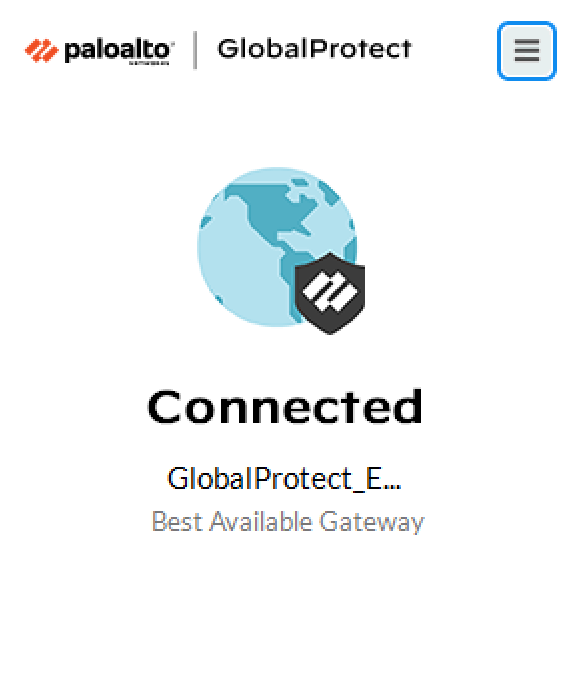
Log in to Palo Alto GlobalProtect with Rublon 2FA
- Mobile Push has been set as the second factor in Rublon Authentication Proxy configuration (AUTH_METHOD was set to push)
- We assume you have already installed and configured the VPN client. To download the client, log in to the GlobalProtect website and download the VPN client. Note that if you configured the GlobalProtect Portal for Rublon 2FA, you will be required to undergo Rublon 2FA authentication before downloading the client.