
Last updated on September 18, 2026
The Rublon Authentication Proxy lets you use Microsoft Entra ID as the primary authentication source for LDAP and RADIUS authentication. This means that applications, VPNs, network devices, and other systems that still rely on LDAP or RADIUS can authenticate users with Microsoft Entra ID credentials, while Rublon MFA adds multi-factor authentication to the same login flow.
This approach is useful when an application or device cannot integrate with Microsoft Entra ID directly through SAML, OAuth 2.0, or OpenID Connect, but can authenticate users through LDAP or RADIUS. Instead of maintaining a separate LDAP or RADIUS identity source, you can connect Rublon Authentication Proxy to Microsoft Entra ID and use Entra ID credentials for primary authentication.
Robust RADIUS & LDAP MFA With Entra ID Credentials
Interested? Try our multi-factor authentication for 30 days for free and see how simple it is.
Use Microsoft Entra ID Credentials for LDAP and RADIUS Logins
Many legacy applications, VPNs, firewalls, Wi-Fi controllers, and network devices still support LDAP or RADIUS as their main external authentication method. With Rublon Authentication Proxy, these systems can continue using LDAP or RADIUS while the primary credentials are verified against Microsoft Entra ID.
- Enable access to legacy applications with Microsoft Entra ID credentials and Rublon MFA through LDAP or RADIUS.
- Enable access to networking devices with Microsoft Entra ID credentials and Rublon MFA through LDAP or RADIUS.
- Enable VPN access with Microsoft Entra ID credentials and Rublon MFA through LDAP or RADIUS.
- Reduce reliance on separate LDAP or RADIUS identity stores when Microsoft Entra ID is already the central user directory.
- Add Rublon MFA to LDAP and RADIUS authentication flows without requiring the protected system to support Microsoft Entra ID natively.
In this configuration, Microsoft Entra ID is used for primary authentication, and Rublon MFA provides the secondary authentication step. Microsoft Entra MFA must be excluded for the Rublon Authentication Proxy application so that Rublon MFA can apply its own MFA flow.
Entra ID + Rublon MFA Login Flow Diagram
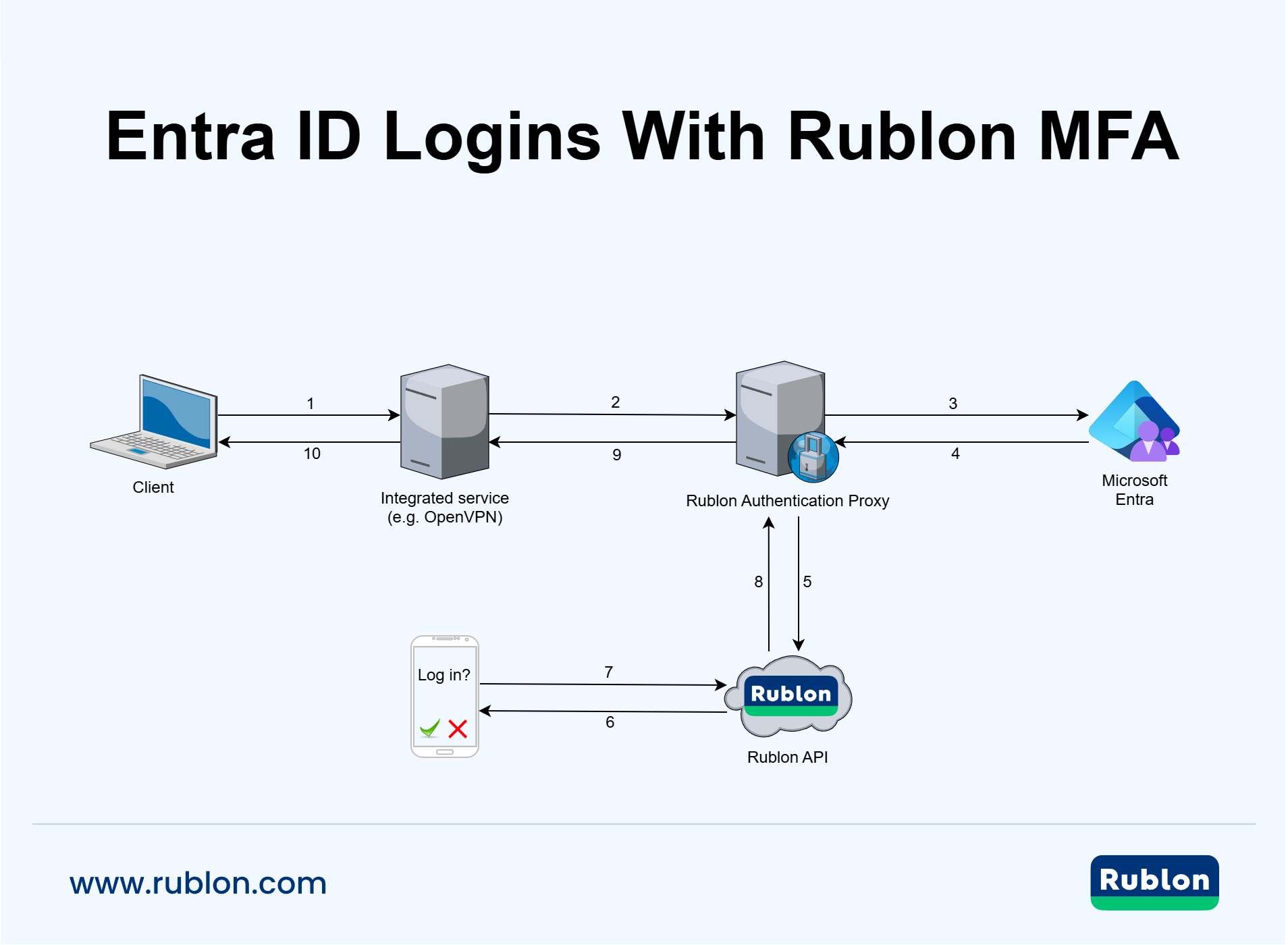
Support Entra-First Identity Without Breaking LDAP and RADIUS Access
Many organizations want to move toward an Entra-first or Entra-only identity architecture, but local Active Directory often remains in place because legacy systems still require LDAP or RADIUS. Rublon Authentication Proxy helps close this gap by letting LDAP and RADIUS clients use Microsoft Entra ID as the primary authentication source.
This can reduce dependency on local Active Directory, domain controllers, LDAP service accounts, LDAPS certificate maintenance, and Microsoft NPS infrastructure kept only for RADIUS-based authentication. Users can continue accessing VPNs, firewalls, network devices, servers, and legacy applications with Microsoft Entra ID credentials, while Rublon MFA protects the same authentication flow.
- Support Active Directory decommissioning projects without replacing every LDAP- or RADIUS-based system first.
- Keep legacy LDAP and RADIUS access working while moving the primary identity source to Microsoft Entra ID.
- Use Microsoft Entra ID credentials for systems that cannot integrate with SAML, OAuth 2.0, or OpenID Connect.
- Deploy Rublon Authentication Proxy on Windows Server or Linux, including cloud-hosted infrastructure.
Explore Related Microsoft Entra ID + LDAP & RADIUS MFA Use Cases
RADIUS Authentication With Microsoft Entra ID
RADIUS authentication with Microsoft Entra ID is useful when VPNs, firewalls, Wi-Fi controllers, RRAS servers, and other RADIUS clients need to authenticate users with Entra ID credentials. Microsoft Entra ID is not a native RADIUS server, so RADIUS clients cannot usually connect to Entra ID directly.
Rublon Authentication Proxy solves this by acting as the RADIUS endpoint for your RADIUS client and using Microsoft Entra ID as the primary authentication source. The RADIUS client sends the authentication request to Rublon Authentication Proxy. Rublon Authentication Proxy verifies the user’s primary credentials against Microsoft Entra ID and then requires Rublon MFA before access is granted.
This lets you enable Entra ID logins to RADIUS clients without moving the protected system to SAML, OAuth 2.0, or OpenID Connect. It is especially useful for VPNs, network appliances, and legacy systems that support RADIUS but do not support Microsoft Entra ID natively.
LDAP Authentication With Microsoft Entra ID
LDAP authentication with Microsoft Entra ID is useful when legacy applications, network appliances, and other LDAP clients need to authenticate users with Entra ID credentials. Microsoft Entra ID is not a traditional LDAP directory, so LDAP clients cannot usually bind to Entra ID directly in the same way they bind to Active Directory or another LDAP server.
Rublon Authentication Proxy solves this by acting as the LDAP endpoint for your LDAP client and using Microsoft Entra ID as the primary authentication source. The LDAP client sends the authentication request to Rublon Authentication Proxy. Rublon Authentication Proxy validates the user’s primary credentials against Microsoft Entra ID and then requires Rublon MFA before access is granted.
This lets you enable Entra ID logins to LDAP applications and devices without moving the protected system to SAML, OAuth 2.0, or OpenID Connect. It is especially useful for legacy systems that support LDAP authentication but do not support Microsoft Entra ID natively.
How to Enable Microsoft Entra ID Logins for RADIUS Clients
To enable Microsoft Entra ID logins for RADIUS clients such as VPNs, Wi-Fi networks, firewalls, and network appliances, configure Rublon Authentication Proxy with Microsoft Entra ID as an ENTRA authentication source. The RADIUS client continues to send authentication requests to Rublon Authentication Proxy, while the proxy verifies the user’s primary credentials against Microsoft Entra ID and then enforces Rublon MFA.
How to Enable Microsoft Entra ID Logins for LDAP Clients
To enable Microsoft Entra ID logins for LDAP clients, configure Rublon Authentication Proxy as an LDAP Proxy Server and use Microsoft Entra ID as the ENTRA authentication source. The protected application or device continues to use LDAP, while Rublon Authentication Proxy validates user credentials against Microsoft Entra ID and adds Rublon MFA to the authentication flow.
Enable Microsoft Entra ID Logins to FortiGate VPN With Rublon MFA
If FortiGate VPN authenticates users through RADIUS or LDAP, you can use Rublon Authentication Proxy to validate primary credentials against Microsoft Entra ID and require Rublon MFA before VPN access is granted. This allows FortiGate VPN users to sign in with Microsoft Entra ID credentials without requiring FortiGate to integrate with Microsoft Entra ID directly.
Enable Microsoft Entra ID Logins to VPNs With Rublon MFA
Rublon Authentication Proxy lets VPNs that support RADIUS or LDAP use Microsoft Entra ID as the primary authentication source. Users sign in with Microsoft Entra ID credentials, and Rublon enforces MFA before access to the VPN is granted.
Enable Microsoft Entra ID Logins to RADIUS Clients With Rublon MFA
Rublon Authentication Proxy allows RADIUS clients to authenticate users against Microsoft Entra ID and apply Rublon MFA in the same login flow. This is useful for VPNs, firewalls, Wi-Fi networks, and network devices that support RADIUS but do not support Microsoft Entra ID natively.
Sign In to LDAP and RADIUS Applications With Entra ID
Protect LDAP- and RADIUS-enabled applications and VPNs using Entra ID credentials and Rublon Multi-Factor Authentication.
Enable Microsoft Entra ID Logins to LDAP Applications With Rublon MFA
Rublon Authentication Proxy allows LDAP applications to authenticate users against Microsoft Entra ID and apply Rublon MFA before access is granted. This is useful for legacy applications and systems that support LDAP but cannot connect to Microsoft Entra ID directly.
Microsoft Entra ID Configuration
1. Register the Rublon Authentication Proxy App in Entra ID
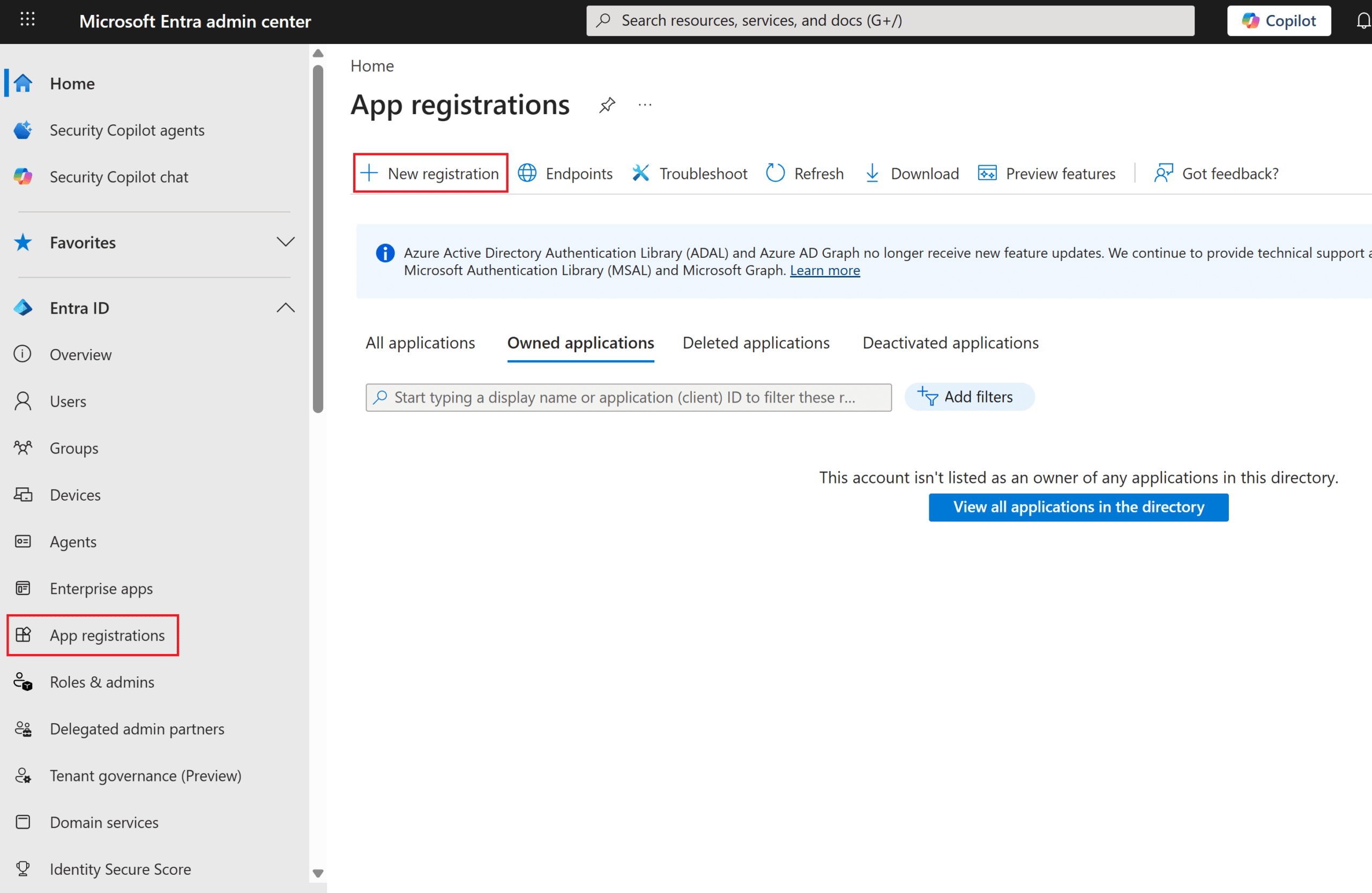
1. In the Entra ID admin center, navigate to the App registrations site panel and click New registration.
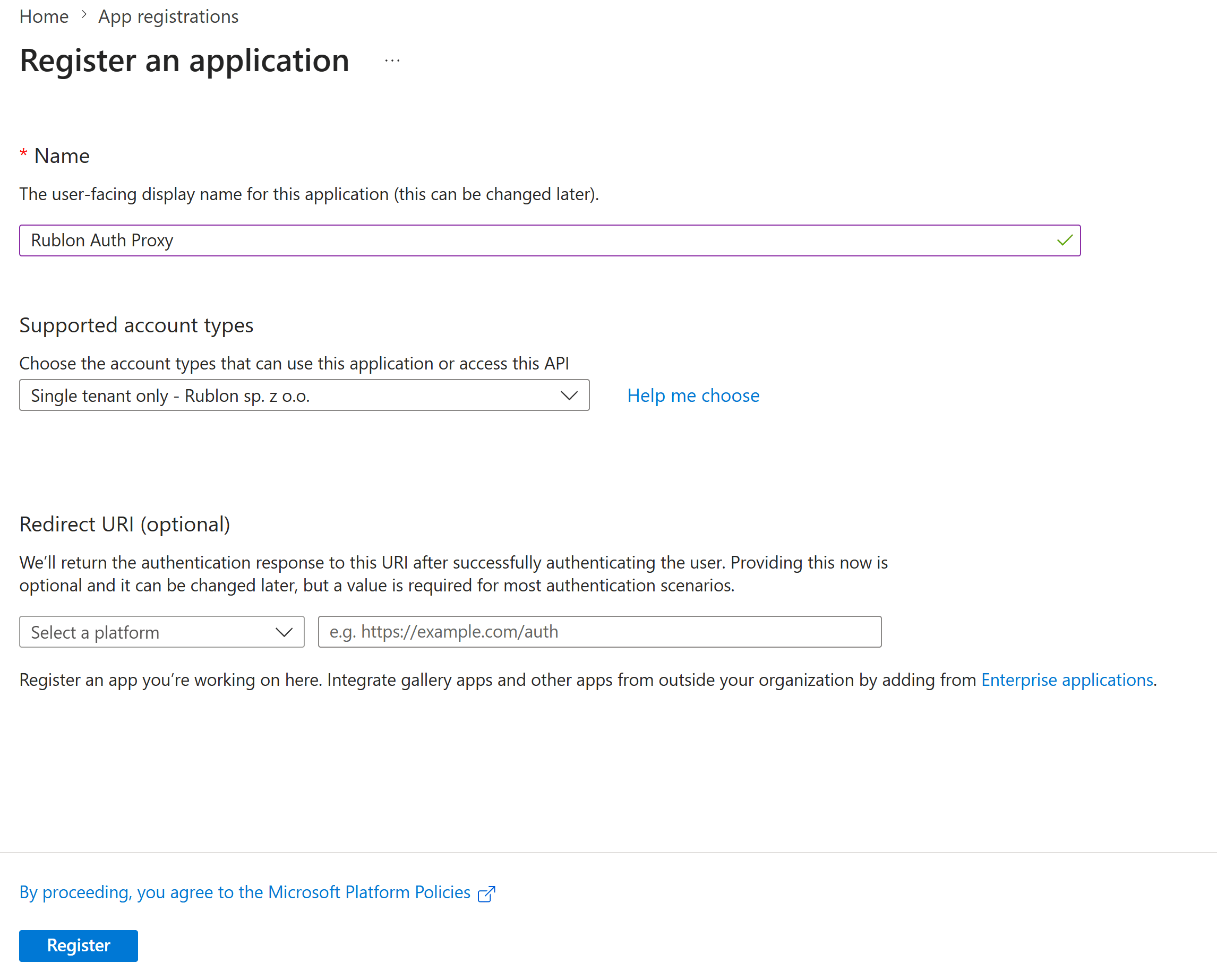
2. Set a name for the application and click Register.
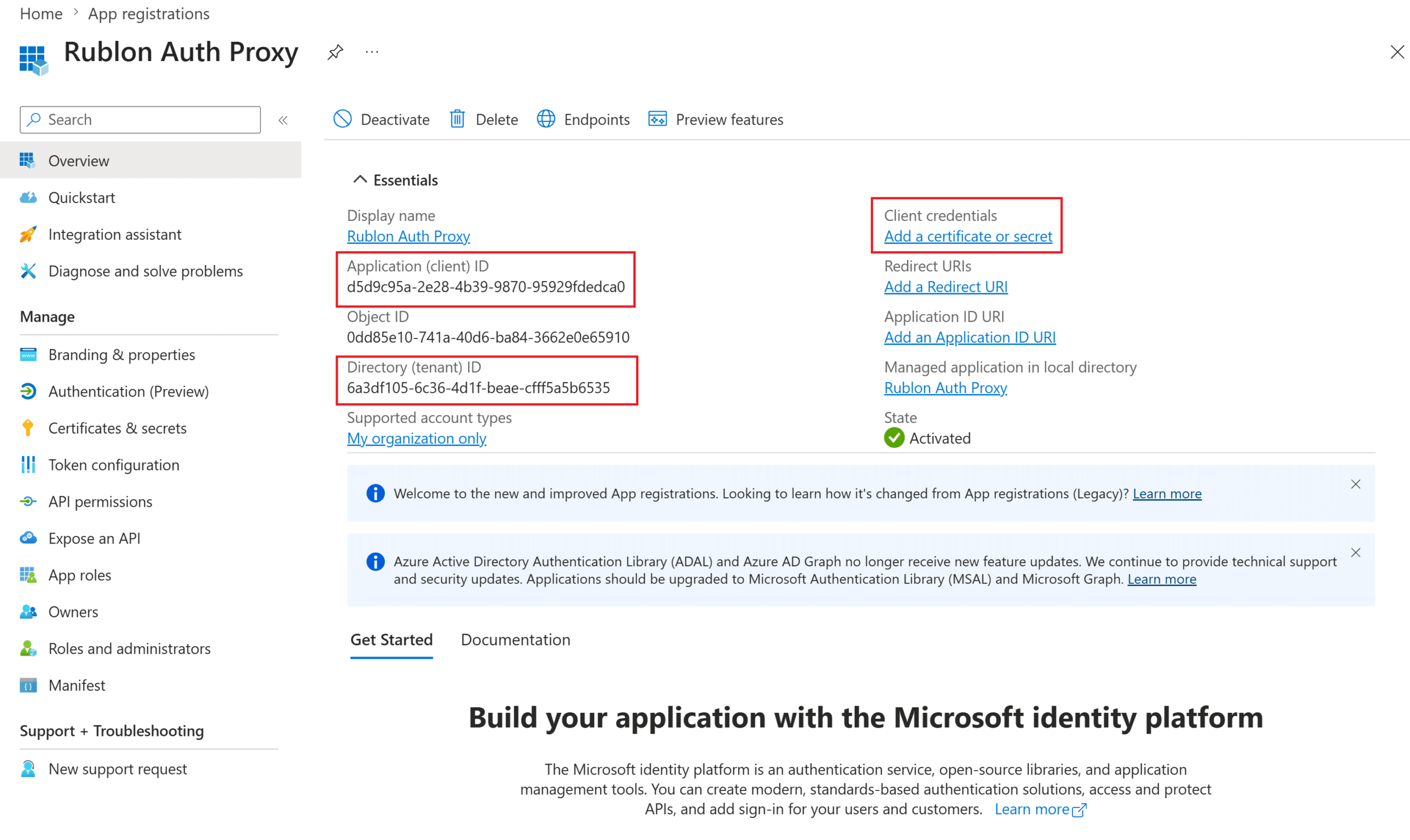
3. Copy the Application (client) ID and paste it as the value of client_id in the Rublon Auth Proxy config file.
4. Copy the Directory (tenant) ID and paste it as the value of tenant_id in the Rublon Authentication Proxy config file.
5. Click Add a certificate or secret.
6. Click + New client secret, set a description and expiration date for this client secret, and click Add.
Note
After the secret expires, the Rublon Auth Proxy will be unable to authenticate your users.
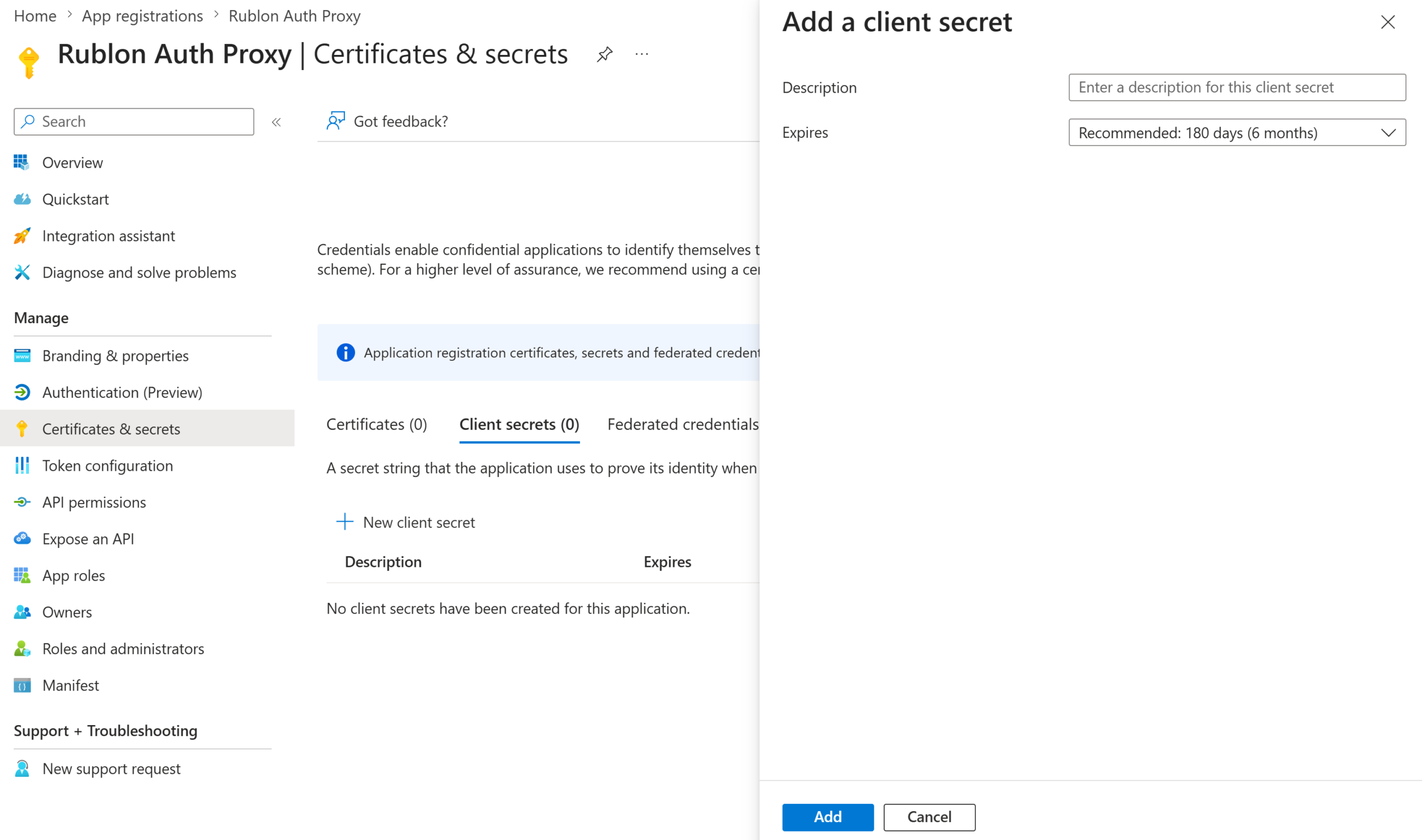
7. Copy the secret’s value and paste it as the value of client_secret in the Rublon Authentication Proxy config file.
8. Navigate to API permissions and add the following Microsoft Graph permissions:
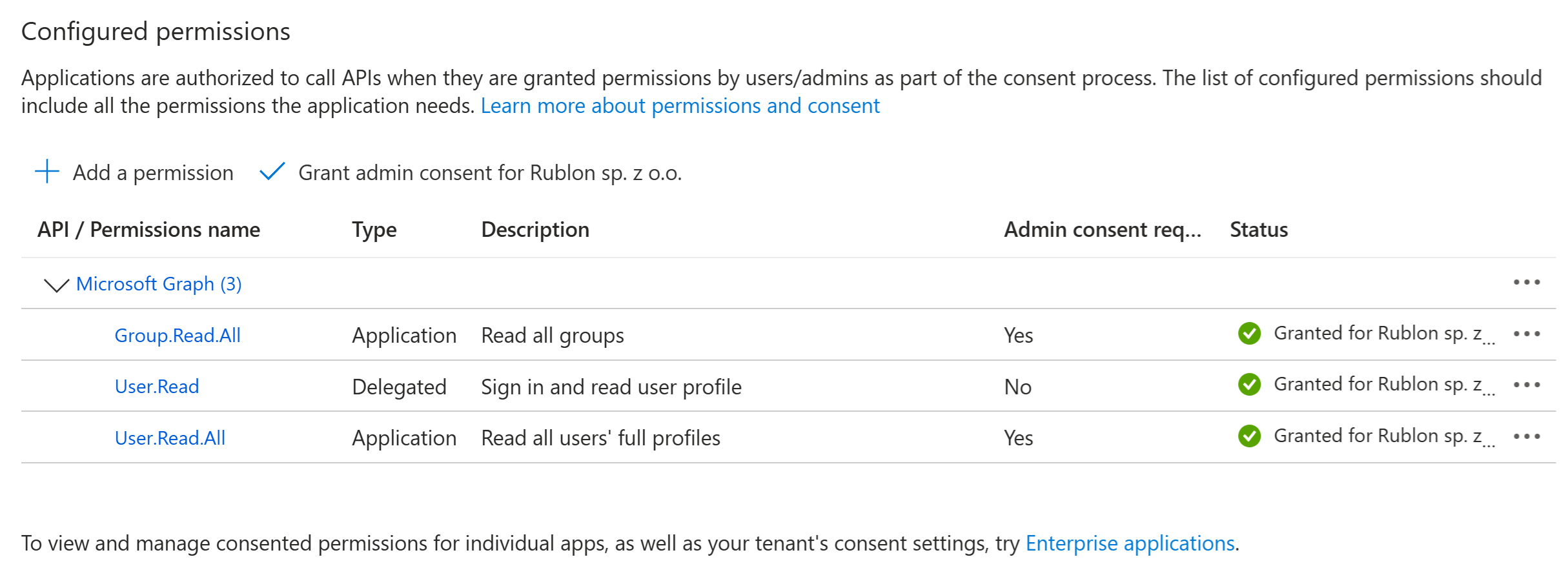
| API / Permissions name | Type | Description | Admin consent required |
| Group.Read.All | Application | Read all groups | Yes |
| User.Read | Delegated | Sign in and read user profile | No |
| User.Read.All | Application | Read all users’ full profiles | Yes |
9. Click Grant admin consent for X, where X is your tenant.
2. Exclude the Rublon Authentication Proxy App From the MFA Conditional Access Policy
For Rublon Auth Proxy to work with Microsoft Entra ID, you need to disable multi-factor authentication requirements in Entra ID for authentication requests from Rublon Auth Proxy, as the proxy needs to inject its MFA flow. Without this exclusion, Microsoft Entra ID may require MFA before Rublon Authentication Proxy can complete primary credential verification, which can cause the authentication flow to fail with the following error:
AADSTS50076: Due to a configuration change made by your administrator, or because you moved to a new location, you must use multi-factor authentication to access '{RESOURCE_ID}'.You have two options:
- Option 1: Disable the policy responsible for MFA (Require multifactor authentication for all users) globally.
- Option 2: Use a more restrictive configuration.
We recommend Option 2 because the recommended end-result configuration should be much more restrictive and exempt the MFA processes just for the application resource you have created in Entra ID. Use Option 1 only when testing or troubleshooting in a test environment!
Note
If Security defaults are enabled in your tenant, you must disable them before you can use Conditional Access policies:
1. Navigate to Entra ID → Overview → Properties.
2. Click Manage security defaults.
3. Set Security defaults to Disabled, then click Save.
Option 1: Disable MFA Policy Globally (Test Environment Only!)
1. In the left pane of the Entra ID admin center, navigate to Entra ID → Conditional Access.
2. Click Policies, click the Multifactor authentication for all users policy, and then click Edit to modify it. Under Enable Policy, set either Off or Report-only.
Option 2: Exclude Only the Rublon Authentication Proxy App From the MFA Policy (Recommended!)
1. In the left pane of the Entra ID admin center, navigate to Entra ID → Conditional Access.
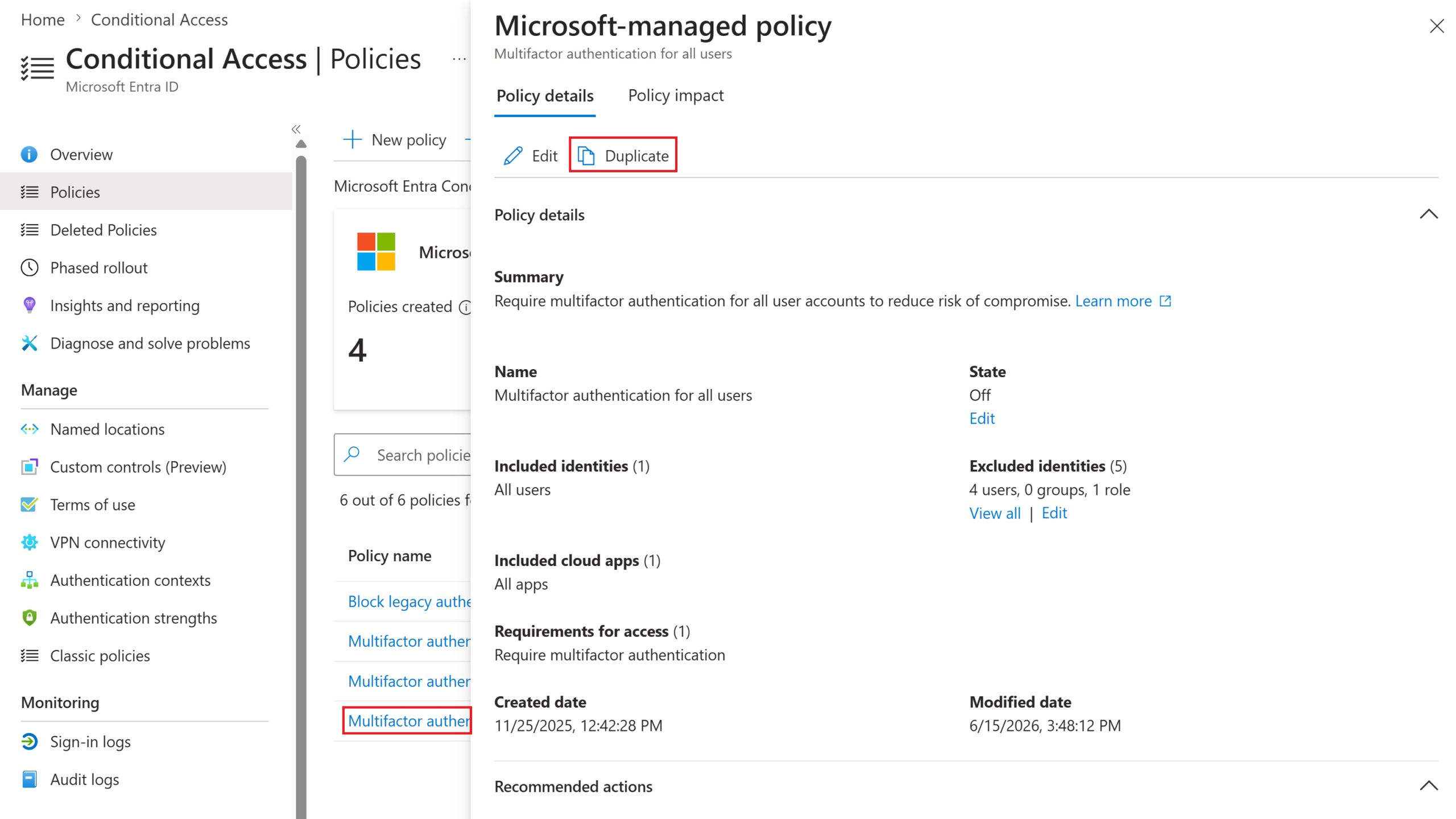
2. Navigate to Policies, click the Microsoft-managed policy Require multifactor authentication for all users, and click Duplicate.
3. Click Target resources. Select Exclude and then select Select resources.
4. In Select specific resources, select the application that you registered for Rublon Authentication Proxy.
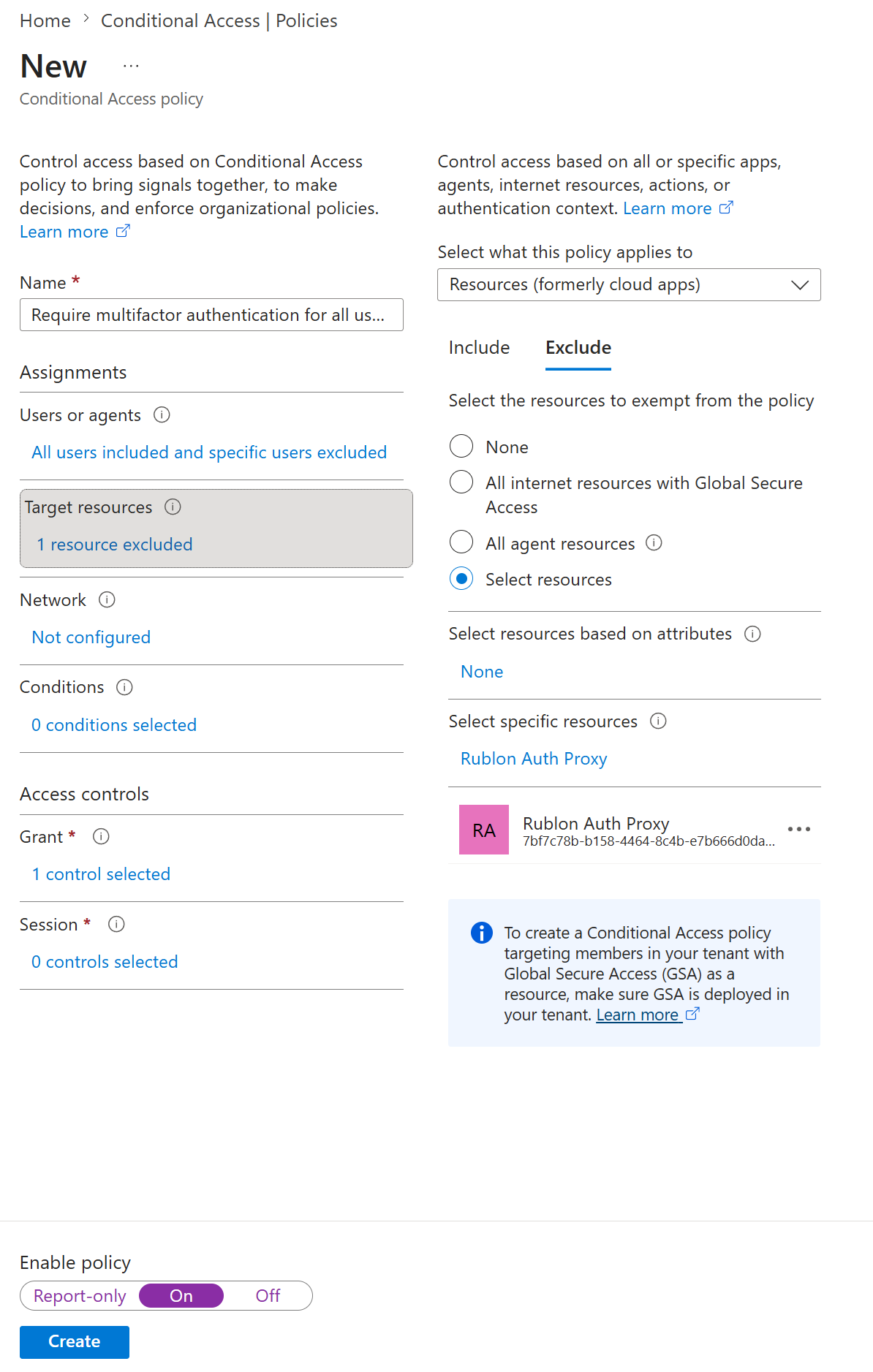
5. Set Enable policy to On and click Create to create the new conditional access policy.
6. This will result in a user-created policy that is an exact duplicate of the original Microsoft-managed policy with an additional exclusion for the resource you have created for Rublon Auth Proxy. You now have to disable the original policy: Multifactor authentication for all users → Edit → Enable policy: Off → Save.
Configure Rublon Authentication Proxy for Entra ID
Configuration of the Rublon Auth Proxy requires adding an authentication source under the auth_sources section with type: ENTRA. Then, provide the tenant_id, client_id, client_secret, transport_type, and base_dn. If your RADIUS or LDAP clients send short usernames such as jdoe, set append_domain to your Entra ID domain, such as contoso.com. The Rublon Auth Proxy will then authenticate jdoe as jdoe@contoso.com. Usernames that already include a domain are left unchanged. If append_domain is omitted, usernames without a domain are rejected.
Note
You can define multiple authentication sources with type: ENTRA, but each proxy server can use only one ENTRA authentication source. Multiple proxy servers can point to different or the same Microsoft Entra ID sources. A single proxy server cannot use multiple ENTRA authentication sources, so failover between ENTRA sources is not supported. You can use both RADIUS and LDAP proxy servers with Entra ID.
Configuration example:
proxy_servers:
  - name: RADIUS-Proxy
    type: RADIUS
    radius_secret: RADIUS_SECRET
    ip: 0.0.0.0
    port: 1812
    mode: standard
    auth_source: ENTRAID
    auth_method: email

  - name: LDAP-Proxy
    type: LDAP
    ip: 0.0.0.0
    port: 389
    auth_source: ENTRAID
    auth_method: email

auth_sources:
  - name: ENTRAID
    type: ENTRA
    tenant_id: xxxxxxxx-xxxx-xxxx-xxxx-xxxxxxxxxxxx
    client_id: yyyyyyyy-yyyy-yyyy-yyyy-yyyyyyyyyyyy
    client_secret: ENTRA_CLIENT_SECRET
    base_dn: dc=entra,dc=com
    append_domain: contoso.com
    transport_type: plain
Note
You can use client_secret with the Secret Source feature. If you use secret_source different from “plain”, set up the client_secret in the same way as other secrets, depending on your setup with either env or winvault.
Learn more:
Configuring the Rublon Authentication Proxy Secret Source – Environment Variables (env)
Configuring the Rublon Authentication Proxy Secret Source – Windows Credential Manager
Summary
The Rublon Authentication Proxy integrates with Microsoft Entra ID as a primary authentication source for RADIUS and LDAP proxies. Setup requires an Entra app registration, a client secret, and a Conditional Access policy that excludes that application from Entra MFA so that Rublon Authentication Proxy can apply Rublon MFA instead. Configure an ENTRA auth source with tenant_id, client_id, and client_secret, then point your proxy server to it. Each proxy can use one Entra auth source, and Entra auth source failover is not supported. Keep client_secret out of plain config by using secret_source with env or winvault.
Learn More
For the complete list of Entra source settings, see the Rublon Authentication Proxy documentation.
For full instructions on configuring Rublon Authentication Proxy as an LDAP Proxy Server and RADIUS Proxy Server, refer to:
- Configuring the Rublon Authentication Proxy as an LDAP Proxy Server
- Configuring the Rublon Authentication Proxy as a RADIUS Proxy Server
To learn more about LDAPS certificates in the Rublon Authentication Proxy, check How to set up LDAPS certificates in the Rublon Authentication Proxy?.
FAQ: Entra ID, RADIUS, and LDAP Authentication
Can Microsoft Entra ID be used for RADIUS authentication?
Yes. Microsoft Entra ID can be used as the primary authentication source for RADIUS authentication through Rublon Authentication Proxy. The RADIUS client connects to Rublon Authentication Proxy, and Rublon Authentication Proxy validates the user’s credentials against Microsoft Entra ID before enforcing Rublon MFA.
How do I enable Entra ID logins to RADIUS?
To enable Entra ID logins to RADIUS, configure Rublon Authentication Proxy as a RADIUS Proxy Server and add an ENTRA authentication source. Then point your VPN, firewall, Wi-Fi controller, RRAS server, or other RADIUS client to Rublon Authentication Proxy. Users authenticate with Microsoft Entra ID credentials, and Rublon MFA protects the login.
Can I use Microsoft Entra ID credentials for VPN logins over RADIUS?
Yes. If your VPN supports RADIUS authentication, you can use Rublon Authentication Proxy to authenticate VPN users with Microsoft Entra ID credentials and require Rublon MFA before VPN access is granted.
Can Microsoft Entra ID be used for LDAP authentication?
Yes. Microsoft Entra ID can be used as the primary authentication source for LDAP authentication through Rublon Authentication Proxy. The LDAP client connects to Rublon Authentication Proxy, and Rublon Authentication Proxy validates the user’s credentials against Microsoft Entra ID before enforcing Rublon MFA.
How do I enable Entra ID logins to LDAP applications?
To enable Entra ID logins to LDAP applications, configure Rublon Authentication Proxy as an LDAP Proxy Server and add an ENTRA authentication source. The application continues to use LDAP, while Rublon Authentication Proxy verifies primary credentials against Microsoft Entra ID and adds Rublon MFA to the login flow.
Do I need Microsoft NPS to use Entra ID with RADIUS?
Not always. Microsoft NPS with the Microsoft Entra MFA extension is one possible approach for RADIUS MFA, but the common NPS pattern still uses Active Directory Domain Services (AD FS) for primary authentication and adds Microsoft Entra MFA after that step. Rublon Authentication Proxy provides another approach: it can receive RADIUS authentication requests, verify primary credentials against Microsoft Entra ID, and enforce Rublon MFA in the same authentication flow. This is useful when you want to reduce dependency on local Active Directory while keeping RADIUS-based systems working.