Last updated on July 1, 2026
Overview
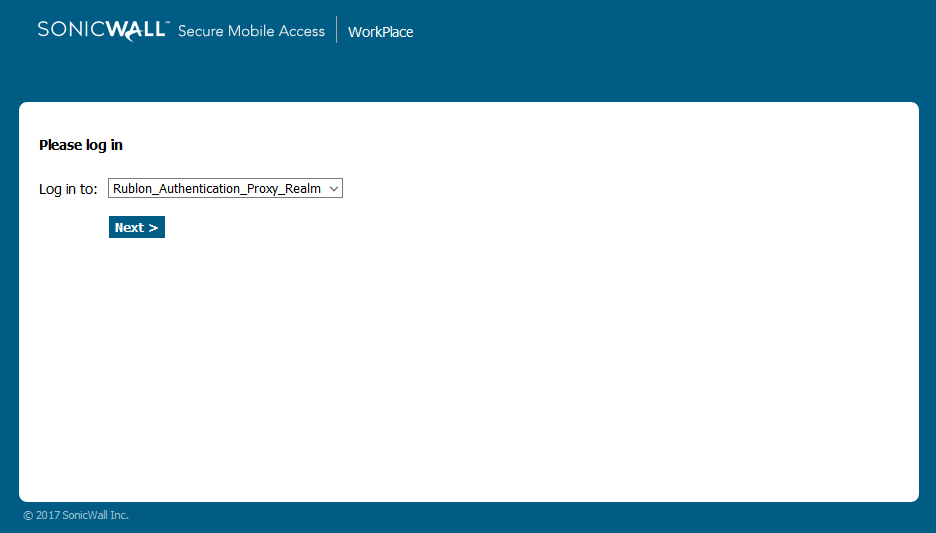
Enable Entra ID logins to SonicWall SMA using Rublon MFA
If SonicWall SMA authenticates users through LDAP or RADIUS, you can use Rublon Authentication Proxy to validate primary credentials against Microsoft Entra ID and then enforce Rublon MFA. This allows users to sign in to SonicWall SMA with Microsoft Entra ID credentials, even when SonicWall SMA does not support Microsoft Entra ID, SAML, OAuth 2.0, or OpenID Connect natively.
See how to authenticate LDAP and RADIUS with Microsoft Entra ID credentials and MFA, or explore the related use case: Microsoft Entra ID logins for LDAP and RADIUS applications with MFA.
Supported Authentication Methods
Before you start
Configuration
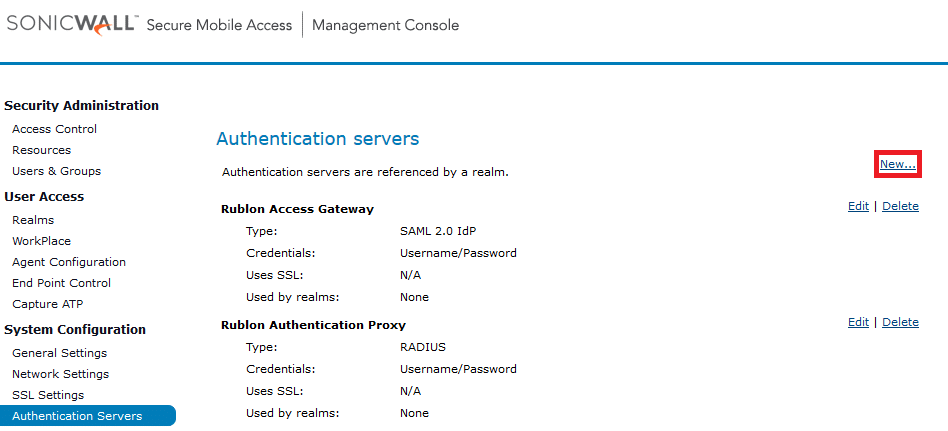
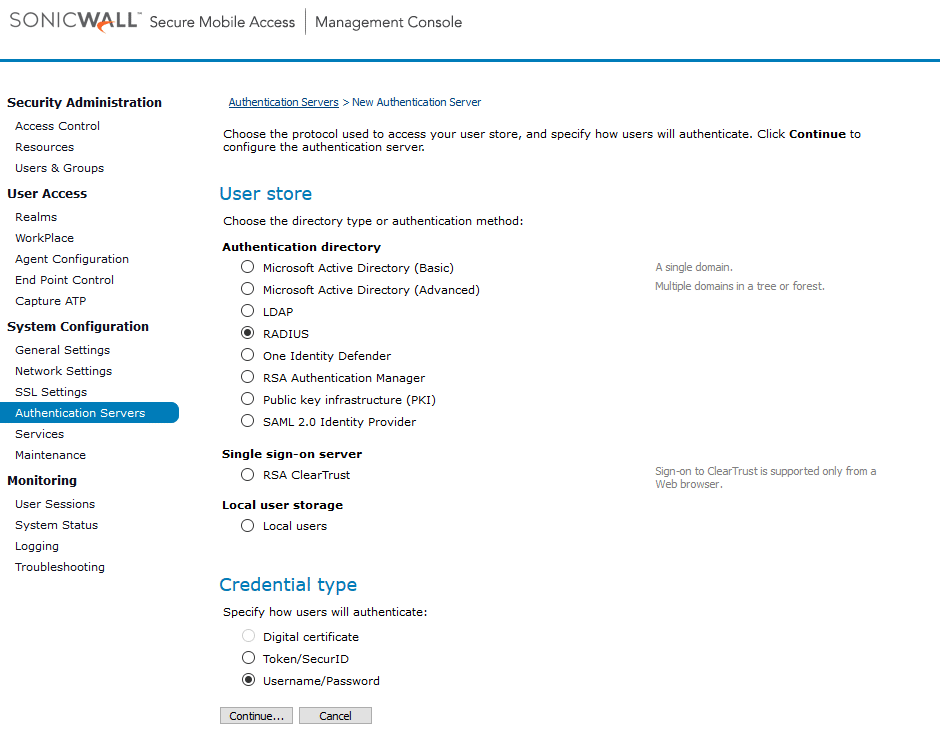
10. Set Connection timeout to 180.
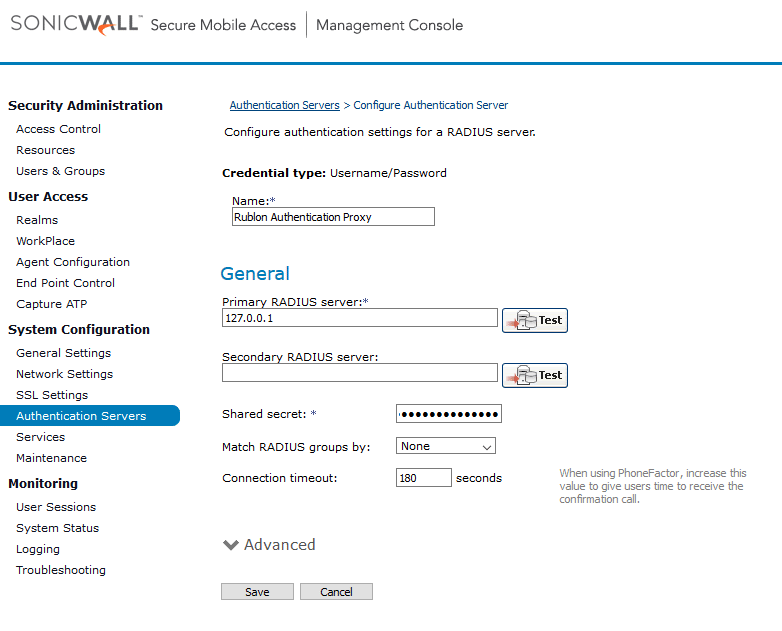
8. Go to User Access → Realms.
9. Select +New realm in the top right corner.
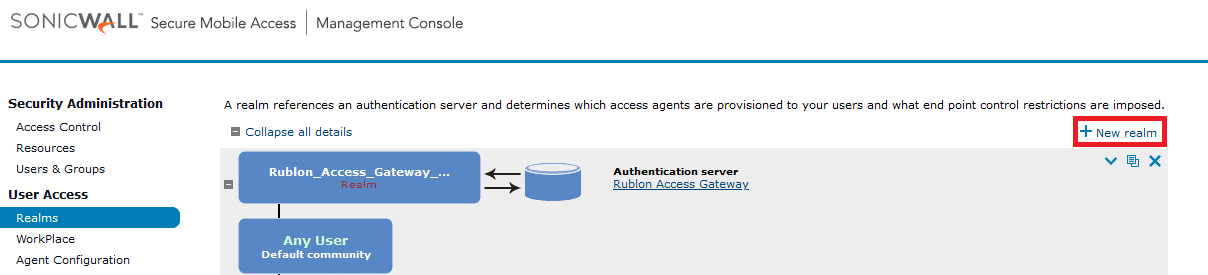
10. Set a name for the new realm in the Name field.
11. Set the status to enabled.
12. Check Display this realm.
13. Select the previously created Rublon Authentication Proxy server in Authentication Server.
14. Click Save to add a new realm.
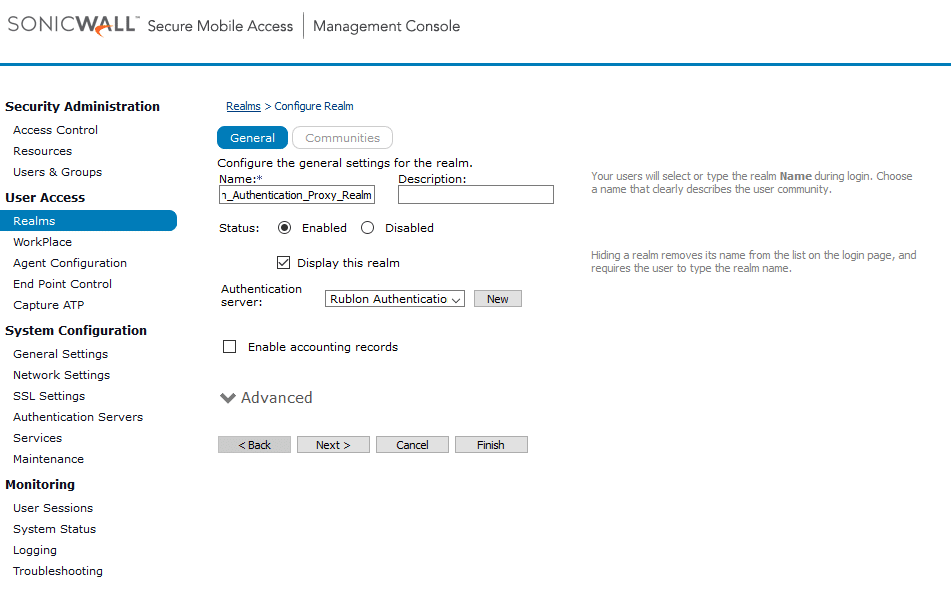
15. Go to Security Administration → Users & Groups.
16. Click New and create a new account whose name corresponds to the cn of a user in the authentication source set in Rublon Access Gateway (in the case of Active Directory).
17. Click Pending changes in the top right corner, and then click Apply Changes.

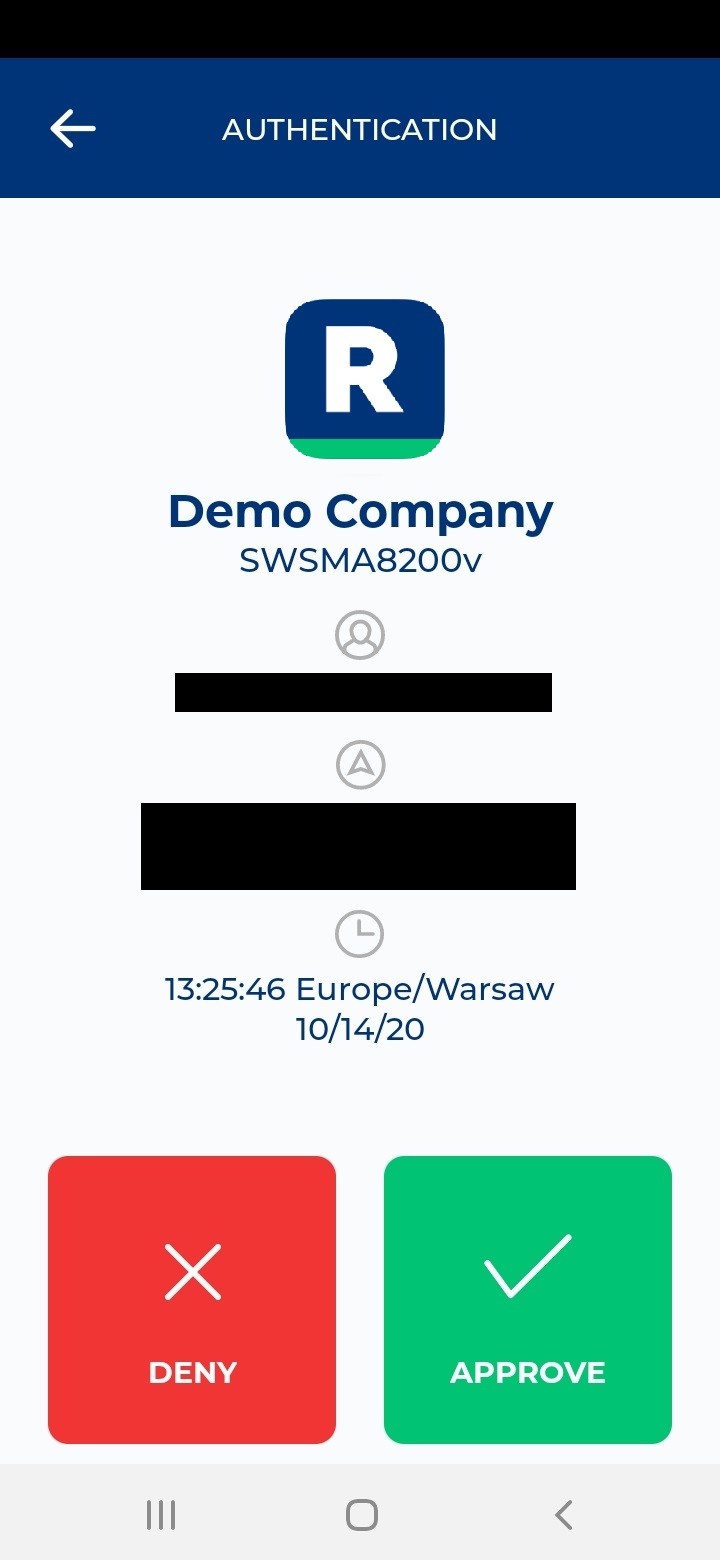
18. Your configuration is now finished. Users have Rublon 2FA enabled when logging in to your VPN.
Log in to SonicWall SMA with Rublon 2FA
1. Open SonicWall SMA.
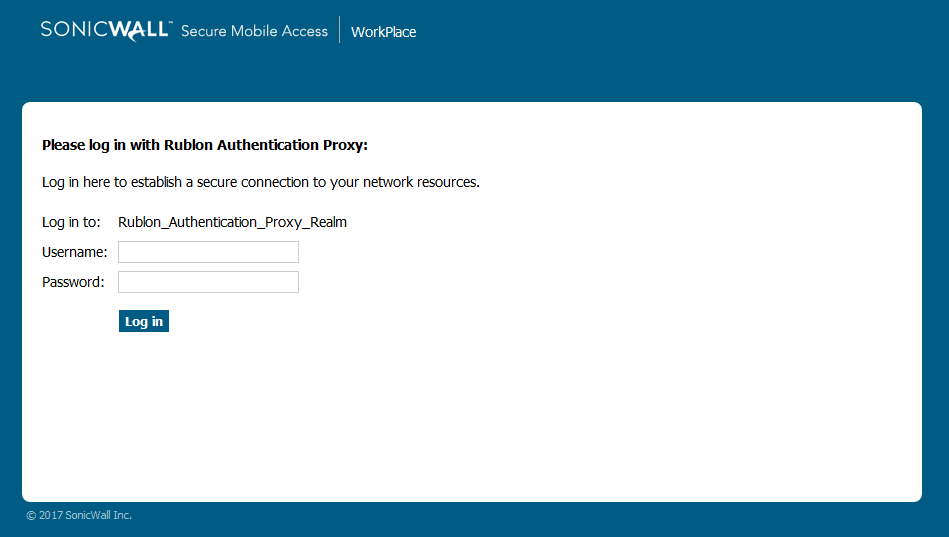
2. Select the realm to log in to. Click Next.