
Last updated on October 19, 2026
Note: This document describes how to deploy Rublon MFA for Windows using PDQ Deploy. Note that you can also use SCCM, Intune, or Group Policy (GPO) to achieve the same results. Deploying MFA for Windows Logon and RDP using PDQ Deploy is faster than using SCCM. So, we recommend using PDQ Deploy unless you specifically need to use SCCM.
Overview
PDQ Deploy is a software deployment tool that allows deploying software to a large number of endpoints remotely. You can use PDQ Deploy to deploy the Rublon for Windows & RDP connector on many endpoints simultaneously. We recommend deploying the connector manually if you have only a few endpoints. However, if you need to deploy the connector on many endpoints, we recommend using PDQ Deploy to automate the process.
The instructions described in this document allow you to deploy Rublon MFA for Windows on many endpoints regardless of your PDQ Deploy mode. This means that you can use either PDQ Deploy Free Mode or PDQ Deploy Enterprise Mode to achieve the same results.
Before You Start
- Ensure you have correctly configured PDQ Deploy so that it will be possible to create and deploy an application on multiple endpoints.
- Download the latest EXE or MSI installer for the Rublon MFA for Windows Logon and RDP connector.
Configuration
You can deploy Rublon MFA for Windows Logon and RDP using either the EXE or MSI installer. First, prepare the required installation files, and then create and deploy the package using PDQ Deploy.
Prepare the Installer Files
1. Save the EXE or MSI installer in your PDQ Deploy repository or another shared location accessible to PDQ Deploy.
If you want to deploy the MSI installer:
- Create the
rublon.conffile as described in Using a Configuration File. - Save
rublon.confin the same folder asRublonForWindows-6.8.1.msi.
IMPORTANT
When using the MSI installer, all Rublon MFA configuration options must be specified in the rublon.conf file. Ensure that the file contains the correct settings before deploying the package.
Creating Package Rublon MFA for Windows using PDQ Deploy
1. Open PDQ Deploy Main Console and click New Package on the toolbar.

2. In the Details tab of a newly opened window, enter the following information:
- In Name, enter a name for your application, e.g., Rublon MFA for Windows.
- In Version, enter the version of the Rublon for Windows Logon & RDP connector you are deploying.
- In Description, enter a description for the package you are creating, e.g., include a link to the Rublon for Windows Logon and RDP documentation.

3. The Conditions, Options, and Offline Settings tabs are optional. Configure the options in these tabs according to the characteristics of your infrastructure, or skip them altogether.
4. Click New Step on the toolbar and select Install.

5. In Step Title, enter a name for your step, e.g., Installation.
6. In the Details tab, configure the installation step according to the installer you want to deploy.
EXE installer
- In Install File, select
RublonForWindows-6.8.1.exe. - In Parameters, enter:
- For the first deployment:
/verysilent /token=<token> /key=<secret> /failMode=bypass /rdpOnly=0 /norestart - For an update:
/verysilent /norestart
- For the first deployment:
Replace <token> and <secret> with the System Token and Secret Key of your application of type Windows Logon & RDP in the Rublon Admin Console.
MSI installer
- In Install File, select
RublonForWindows-6.8.1.msi. - In Additional Files, add
rublon.conf. - In Parameters, enter:
RUBLONCONF="rublon.conf" /l*vx C:\Windows\Temp\rublon.log - In MSI Options:
- Set Operation to Install.
- Set Restart to Never.
- Enable Quiet.
The Quiet option adds the /qn Windows Installer parameter. The Restart: Never option prevents the installer from restarting the endpoint automatically.
The rublon.conf file added under Additional Files is copied to the same directory on the target endpoint as the MSI installer. The RUBLONCONF parameter instructs the installer to load the connector configuration from that file.
All other fields are optional.

7. The Conditions and Options tabs are optional. Configure the options in these tabs according to the characteristics of your infrastructure, or skip them altogether.
8. Click Save on the toolbar to save your package. Then, close the Package window by clicking the X sign in one of the corners. You now need to deploy the connector to your endpoints.

Deploying Rublon MFA for Windows using PDQ Deploy
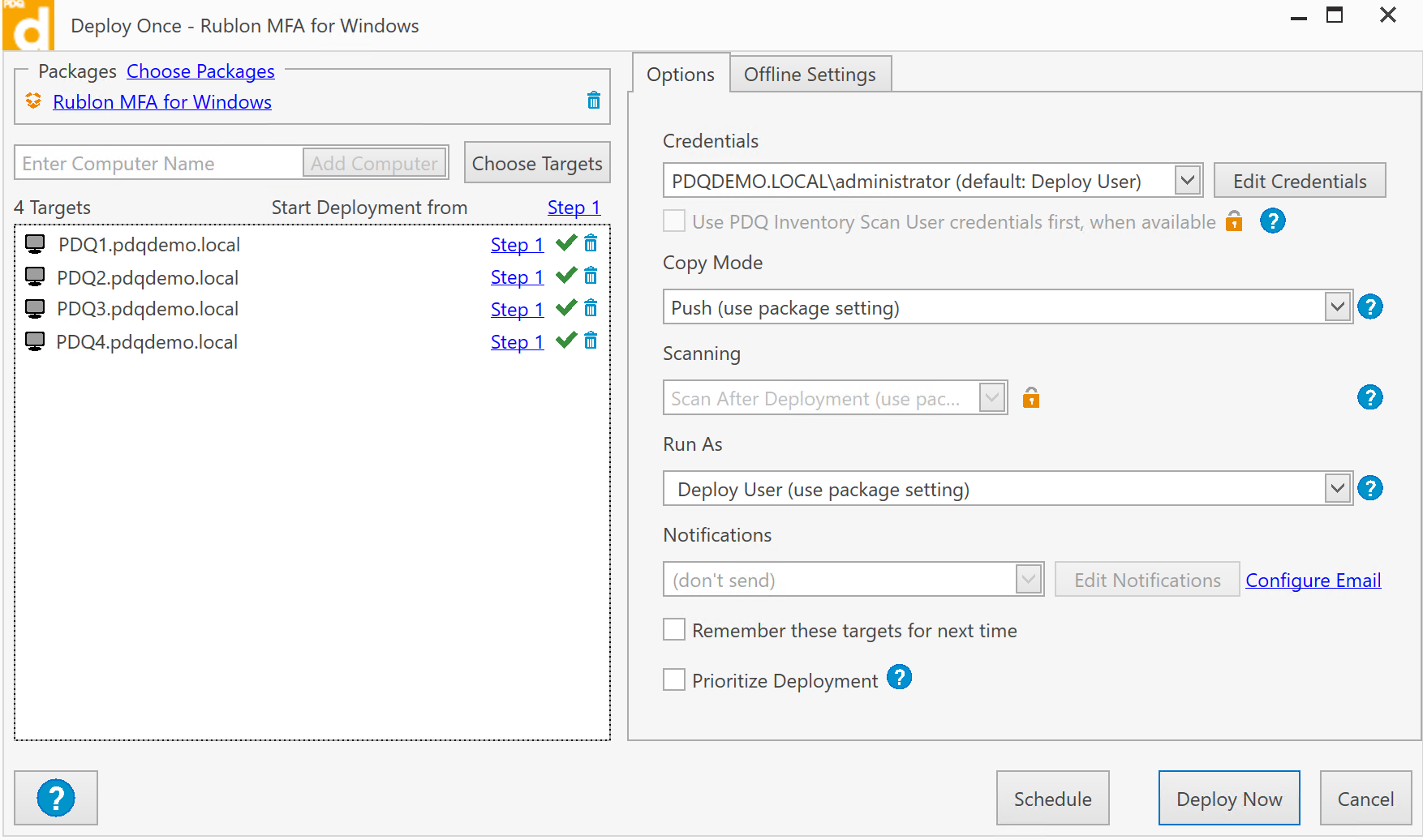
1. Once created, your package should now be visible in the left pane. Select the package and click Deploy Once on the toolbar.

2. A new window will open. Click Choose Targets and select your endpoints. If you need more information about choosing targets, refer to the PDQ Deploy Documentation.
3. After selecting your endpoints, select the Options tab if it is not selected already, and:
- In Credentials, select an account that has administrator privileges.
- In Copy Mode, select Push (use package setting).
- In Run As, select Deploy User (use package setting).
- All other fields are optional.
4. The Offline Settings tab is optional.
5. Click Deploy Now to start the deployment.
6. In the Deployments tab, you can follow the progress of your deployment and check its status.
7. After the deployment is completed, you should test if the installation of the Rublon for Windows & RDP connector was successful.
Testing Deployment of Rublon MFA for Windows
To test your deployment, connect to at least one of your endpoints and try to log in. After you provide your login and password, a Rublon Prompt should appear. Refer to the following two instructions for step-by-step guidance on how Rublon Multi-Factor Authentication works after installing Rublon:
Troubleshooting
If you encounter any issues with your Rublon integration, please contact Rublon Support.
Updating the Connector
If you wish to update the connector to the latest version:
- Download the latest EXE or MSI installer from Rublon Downloads.
- Edit the existing PDQ Deploy package or create a new package. Ensure that you:
- Update Version.
- Replace the file selected in Install File with the latest installer.
- Update the parameters if the installer filename or configuration method has changed.
- Add the current
rublon.conffile under Additional Files when using the MSI installer.
You can use the MSI installer to update a connector previously installed using the EXE installer. The MSI installer replaces the application entry created by the EXE installer in the list of installed apps in Windows.
After switching to the MSI installer, we recommend using MSI installers for subsequent updates. Using an EXE installer over an MSI installation creates separate EXE and MSI application entries in Windows.
Related Posts
Rublon 2FA for Windows Logon and RDP
How to deploy Rublon for Windows Logon & RDP on many endpoints at once using Intune