
Last updated on October 19, 2026
Note: This document describes how to deploy Rublon MFA for Windows using Intune. Note that you can also use PDQ Deploy, SCCM, or Group Policy (GPO) to achieve the same results.
Overview of MFA for Windows Using Intune
Microsoft Intune is a cloud-based service that allows managing and securing mobile devices, desktop computers, virtual endpoints, and applications. One of the benefits of Intune is that you can use it to deploy a computer program on multiple devices at once, without requiring physical access to them.
You can use Microsoft Intune to deploy the Rublon for Windows & RDP connector on many devices simultaneously. We recommend you deploy the connector manually if you have only a few devices. However, if you need to deploy the connector on a large number of devices, we recommend using Intune to automate the process.
Before You Start
- Ensure you have correctly configured Microsoft Intune so that it will be possible to create and assign an app on multiple devices.
- Download the latest EXE or MSI installer for the Rublon MFA for Windows Logon and RDP connector.
Configure MFA for Windows
You can deploy Rublon MFA for Windows Logon and RDP using either the EXE or MSI installer. First, prepare the appropriate .intunewin package, and then add and assign it as a Windows app (Win32) in Intune.
Prepare the Installer Package
Prepare the EXE or MSI installer package. For most use cases, the EXE package is the way to go.
Prepare the EXE Installer Package
To deploy the EXE installer as a Windows app (Win32), package it in the .intunewin format using the Microsoft Win32 Content Prep Tool.
1. Create a new folder, e.g., C:/convert and paste the Rublon connector’s .exe file there.
2. Download the Microsoft Win32 Content Prep Tool (Code → Download ZIP) and unzip it.
3. Open Command Prompt and change the current working directory to the folder to which you unzipped the archive using the cd command, e.g.,
cd C:/Downloads/Microsoft-Win32-Content-Prep-Tool-master
4. Execute the following command (adjust the paths and file name if necessary):
IntuneWinAppUtil -c C:\convert -s RublonForWindows-6.8.1.exe -o C:\convert -qIf you wish to know what each command-line parameter means:
| Option | Description |
| -c <setup_folder> | The folder that contains the Rublon connector’s .exe file. |
| -s <setup_file> | The name of the Rublon connector’s .exe file. |
| -o <output_folder> | The output folder for the resulting .intunewin file. |
| -q | Enables the quiet mode, which suppresses any prompts or messages. |
5. You should now have the .intunewin file in your output folder. Keep it there, as you’re going to need it later.
Prepare the MSI Installer Package
1. Create separate source and output folders, for example:
- C:\RublonIntune\Source
- C:\RublonIntune\Output
2. Copy RublonForWindows-6.8.1.msi to the C:\RublonIntune\Source folder.
3. Create the rublon.conf file as described in the Using a Configuration File section and save it in the same source folder.
4. Download the Microsoft Win32 Content Prep Tool and extract it to a folder that is not located inside the source folder.
5. Open Command Prompt, navigate to the folder containing IntuneWinAppUtil.exe, and run:
IntuneWinAppUtil -c C:\RublonIntune\Source -s RublonForWindows-6.8.1.msi -o C:\RublonIntune\Output -q
6. The RublonForWindows-6.8.1.intunewin package will be created in the output folder. You will use this package when adding the connector to Intune.
Note
The .intunewin package contains the configuration that will be applied to the target endpoints. Ensure that the rublon.conf file contains the correct settings before creating and deploying the package.
Deploy Rublon MFA to Your Windows Endpoints Using Intune
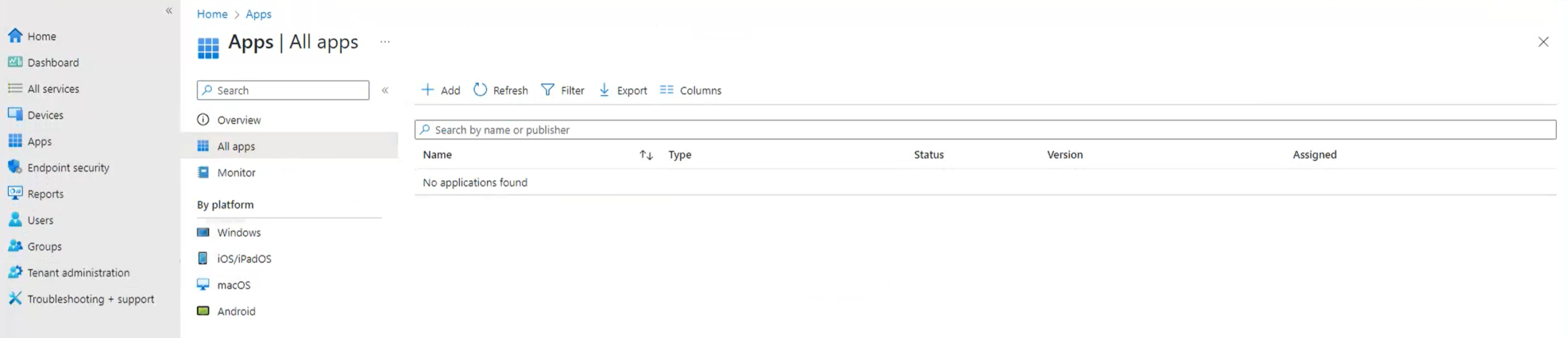
1. In Microsoft Endpoint Manager, navigate to Apps → All Apps and click Add.
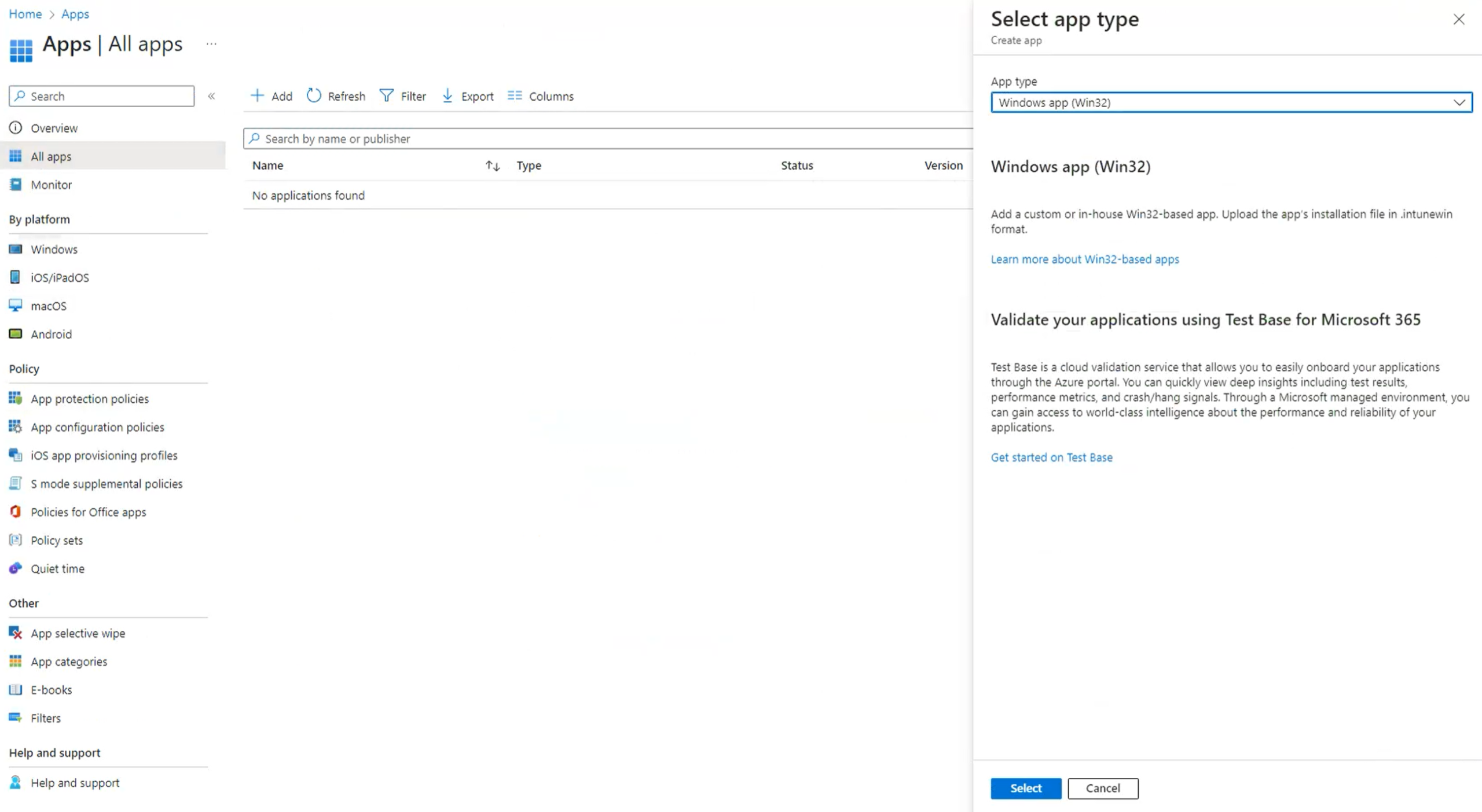
2. Select Windows app (Win32) as the app type and click Select to confirm your decision.
3. Provide the path for the .intunewin file of the Rublon MFA for Windows Logon connector and click OK.

4. In App Information, in the Publisher field, enter Rublon. All other fields are optional. Click Next.

5. In Program, fill in the form and click Next. Refer to the following image and table.

| Install command | Install command – EXE, first deployment:.\RublonForWindows-6.8.1.exe /verysilent /token=<token> /key=<secret> /failMode=bypass /rdpOnly=1 /norestartInstall command – EXE, update: .\RublonForWindows-6.8.1.exe /verysilent /norestartInstall command – MSI: msiexec /i RublonForWindows-6.8.1.msi RUBLONCONF="rublon.conf" /qn /norestart /l*vx C:\Windows\Temp\rublon.log |
| Uninstall command | "C:\Program Files\Rublon\Logon\unins000.exe" /VERYSILENT /NORESTART |
| Install behavior | System |
| Device restart behavior | The Rublon MFA for Windows Logon and RDP connector requires a restart after installation. Choose the device behavior that best suits your needs. We recommend App install may force a device restart because Intune will force a mandatory device restart immediately triggers a restart of the device which may make your users lose unsaved work. |
Note
When using the EXE installer, replace <token> and <secret> with the System Token and Secret Key of your application of type Windows Logon & RDP in the Rublon Admin Console.
When using the MSI installer, all Rublon MFA configuration options must be specified in the rublon.conf file included in the .intunewin package. The RUBLONCONF parameter is the only supported method of providing the connector configuration to the MSI installer.
The /qn option prevents Windows Installer from displaying a user interface during deployment.
6. In Requirements, fill in the form according to your device requirements and click Next.
Example requirements:
- Operating system architecture: 64-bit
- Minimum operating system: Windows 10 1809
- Other fields are optional
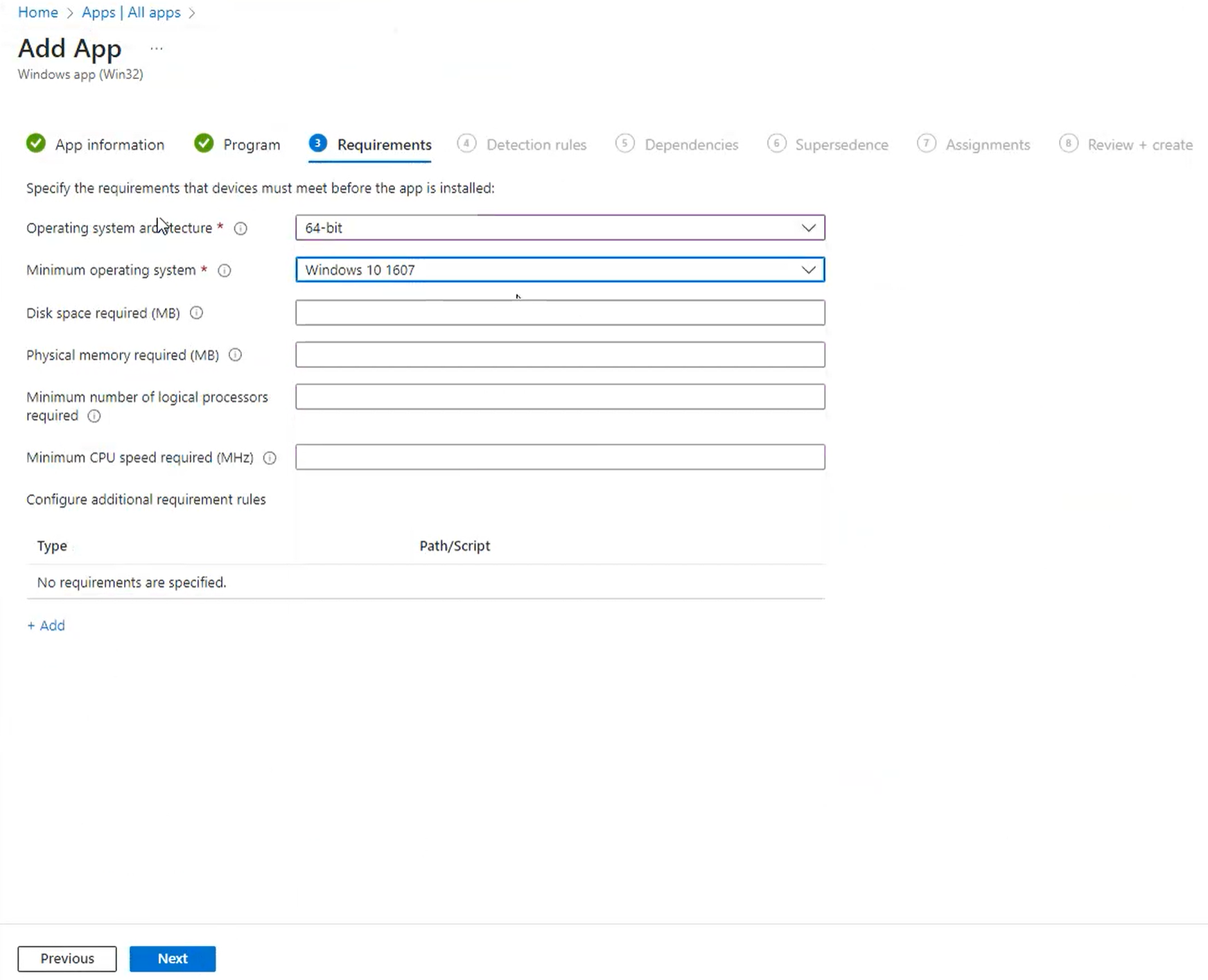
7. In Detection Rules, in the Rules format dropdown, select Manually configure detection rules and then click Add.

8. Configure the following version-based registry detection rule and click OK. This rule works regardless of whether you deploy the EXE or MSI installer and allows Intune to distinguish the version being deployed from earlier connector versions.
| Rule type | Registry |
| Key path | HKEY_LOCAL_MACHINE\SOFTWARE\Rublon\WindowsLogon\Data |
| Value name | Version |
| Detection method | Version comparison |
| Operator | Greater than or equal to |
| Value | 6.8.1 |
| Associated with a 32-bit app on 64-bit clients | No |
Note
When deploying a later connector version, update the expected Version value in the detection rule to the version you are deploying.
9. Skip Dependencies and Supersedence by clicking Next twice.
10. In Assignments, select the endpoints on which the Rublon MFA for Windows connector is to be installed and click Next. You can create a dedicated group of devices (click Add group) or select them all (click Add all devices). This is up to you.
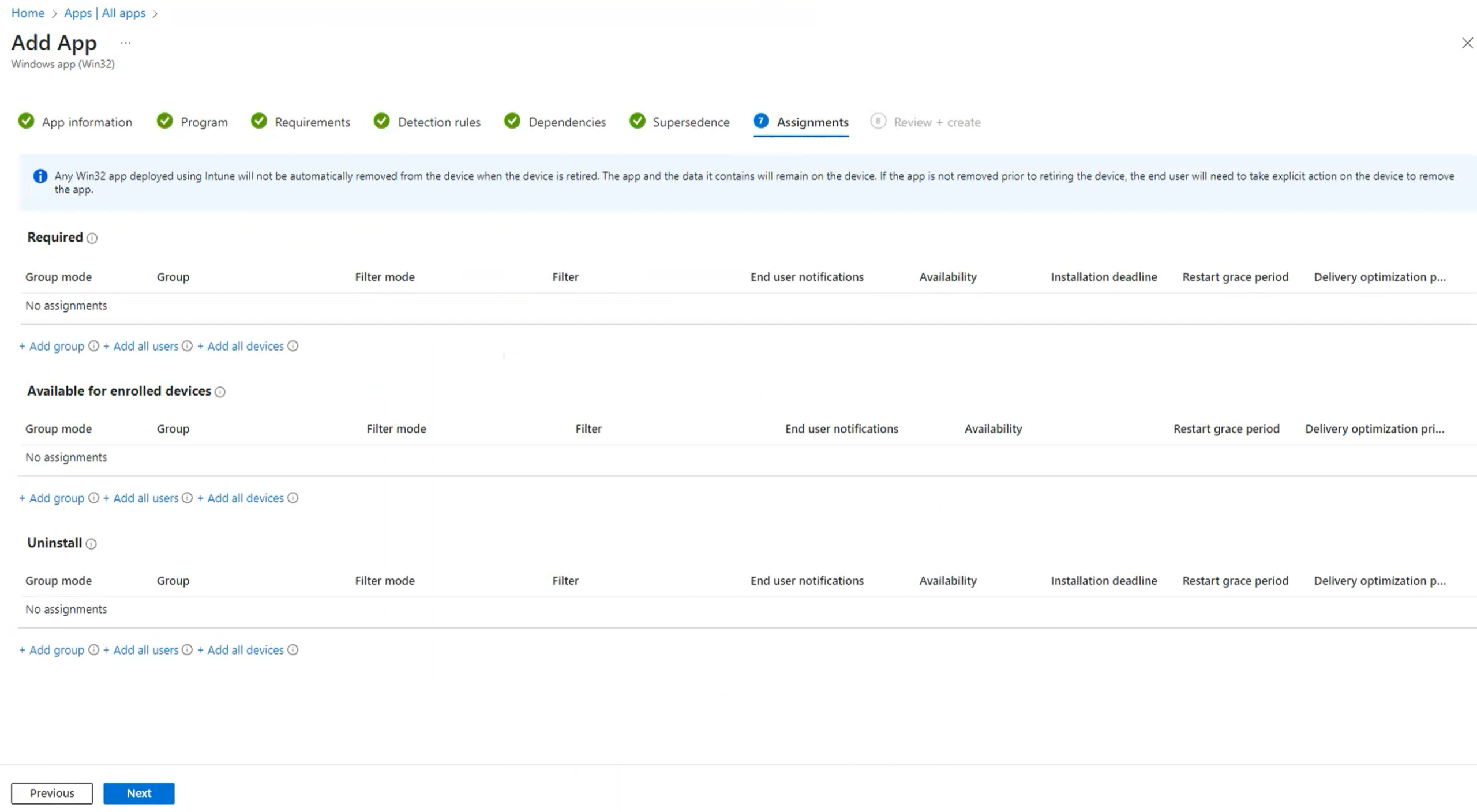
11. In Review + create, review all your choices and finalize the creation of the new app in Intune by clicking Create.
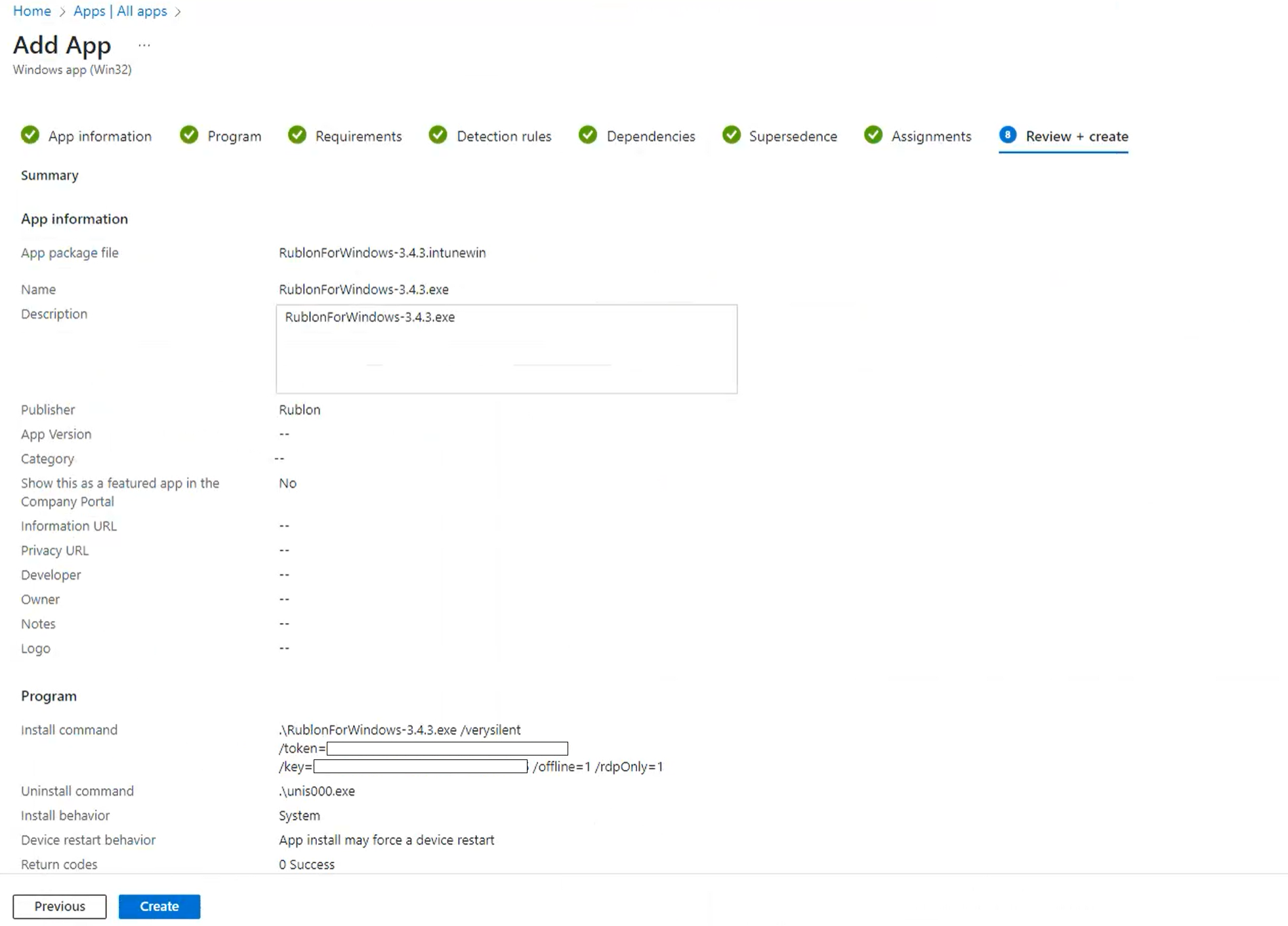
12. Intune will start uploading the package and you will be informed when it is finished.
You can view the deployment status in the Overview tab.
Just keep in mind that the whole process might take a while. Wait until you see the Device status and User status. No data to display means that you have to wait a little bit more.

13. After the deployment, you should test if the installation of the Rublon for Windows & RDP connector was successful.
Testing Deployment of Rublon MFA for Windows
To test your deployment, connect to at least one of your endpoints and try to log in. After you provide your login and password, a Rublon Prompt should appear. Refer to the following two instructions for step-by-step guidance on how Rublon Multi-Factor Authentication works after installing Rublon:
Updating the Connector
To update the connector to the latest version:
1. Download the latest EXE or MSI installer from Rublon Downloads.
2. Create a new .intunewin package using the instructions in the Prepare the EXE Installer Package or Prepare the MSI Installer Package section.
3. Update the existing Intune app or create a new app, depending on your Intune deployment model. Ensure that you:
- Select the new .intunewin package.
- Update the install command with the new installer filename.
- Include an updated rublon.conf file when using the MSI installer.
- Update the expected Version value in the detection rule to the version you are deploying.
You can use the MSI installer to update a connector previously installed using the EXE installer. The MSI installer replaces the application entry created by the EXE installer in the list of installed apps in Windows.
After switching to the MSI installer, we recommend using MSI installers for subsequent updates. Using an EXE installer over an MSI installation creates separate EXE and MSI application entries in Windows.
Troubleshooting Your MFA for Windows
Refer to the Troubleshooting section of Rublon MFA for Windows Logon and RDP.
If you encounter any issues with your Rublon integration, please contact Rublon Support.
Related Posts
Rublon 2FA for Windows Logon and RDP
How to deploy Rublon for Windows Logon & RDP on multiple endpoints using PDQ Deploy