
Scope: This article covers discoverable FIDO2 credentials, commonly referred to as passkeys, that can be managed on the YubiKey. Non-discoverable FIDO2 security-key credentials do not appear in Yubico Authenticator’s Passkeys view or in ykman fido credentials list, and they cannot be individually removed with ykman fido credentials delete. Their registration is typically removed at the relying party. For example, a registered FIDO2 security key should be removed from Rublon MFA either by an administrator in the FIDO Authenticators tab of the Rublon Admin Console or by the user through the Manage Authenticators view.
You can delete a passkey from a YubiKey without resetting the entire security key. For most users, the simplest method is Yubico Authenticator, which lets you view stored passkeys, inspect their details, and remove individual discoverable credentials. If you prefer the command line, YubiKey Manager CLI (ykman) provides equivalent credential-management commands.
Check This Phishing-Resistant MFA
Interested? Try our phishing-resistant multi-factor authentication for 30 days for free and see how simple it is.
A passkey stored on a YubiKey is technically a discoverable FIDO2 credential, also known as a resident credential. These credentials are part of the broader FIDO authentication model. You normally need the YubiKey’s FIDO2 PIN to manage and delete them.
Note
The procedures in this article apply to discoverable FIDO2 credentials, commonly referred to as passkeys. Non-discoverable FIDO2 security-key credentials do not appear in the Passkeys view in Yubico Authenticator or in ykman fido credentials list, and they cannot be individually removed with ykman fido credentials delete.
A registered security key should be removed from Rublon MFA either by an administrator in the FIDO Authenticators tab of the Rublon Admin Console or by the user through the Manage Authenticators view.
Deleting a YubiKey passkey is permanent. Once removed, that YubiKey can no longer use the deleted credential to sign in to the associated account.
Note
Before deleting a passkey, make sure you can still sign in to the associated account using another authenticator or backup YubiKey.
Quick Answer: Delete a YubiKey Passkey in Yubico Authenticator
The steps below apply to discoverable FIDO2 credentials, or passkeys, stored on the YubiKey. A non-discoverable FIDO2 security-key credential will not appear in the Passkeys view and cannot be individually removed with ykman fido credentials delete.
- Connect the YubiKey to your device.
- Open Yubico Authenticator.
- Select Passkeys.
- Enter the FIDO2 PIN and unlock credential management if prompted.
- Select the passkey you want to remove.
- Check the RP ID, username, and other credential details to make sure you selected the correct passkey.
- Select Delete passkey.
- Confirm the deletion.
Need the command-line method? Use ykman fido credentials list --csv to identify the stored credential, then run ykman fido credentials delete <credential-id> to remove it.
- Quick Answer: Delete a YubiKey Passkey in Yubico Authenticator
- Discoverable vs. Non-Discoverable YubiKey Credentials
- Before You Delete a Passkey From Your YubiKey
- Method 1: Delete a Passkey With Yubico Authenticator
- Method 2: Delete a YubiKey Passkey With ykman
- Yubico Authenticator vs. ykman: Which Method Should You Use?
- Why Is Your YubiKey Full of Passkeys?
- Does Deleting a Passkey From a Website Remove It From the YubiKey?
- What If You Forgot the YubiKey FIDO2 PIN?
- When Should You Reset FIDO2 on a YubiKey?
- Troubleshooting YubiKey Passkey Deletion
- Best Practices for Managing Passkeys on a YubiKey
- Frequently Asked Questions About Deleting YubiKey Passkeys
- Conclusion
Discoverable vs. Non-Discoverable YubiKey Credentials
Before using Yubico Authenticator or ykman to manage credentials, it is important to distinguish between discoverable and non-discoverable FIDO2 credentials. This difference determines whether a credential appears in the Passkeys list and whether it can be individually deleted from the YubiKey.
FIDO2 distinguishes between discoverable and non-discoverable credentials, and that difference determines whether a credential can appear in a passkey management interface.
A discoverable credential stores enough information on the authenticator for the account to be discovered without the relying party first supplying a credential ID. Yubico explains that these credentials are stored on the YubiKey and can be enumerated using the relying party ID. They were previously called resident credentials or resident keys. In current passkey terminology, a discoverable WebAuthn credential is generally considered a passkey.
A non-discoverable credential works differently. The relying party must provide the credential ID during authentication so that the YubiKey can reconstruct and use the appropriate credential. It does not occupy the YubiKey’s limited discoverable-credential storage.
Both are FIDO credentials and can provide strong authentication. Passkeys and security keys are also important components of phishing-resistant MFA, but not every FIDO registration on a YubiKey should be described as a stored passkey.
Why Can’t I See Every FIDO Credential in Yubico Authenticator’s Passkeys List?
The Passkeys view in Yubico Authenticator and other credential-management tools enumerate discoverable credentials stored on the YubiKey. For a non-discoverable credential, the relying party supplies the credential ID during authentication, so the authenticator does not expose it as an enumerable stored account entry. The private-key material remains protected by the authenticator and is not stored by the relying party.
Yubico’s credential management guidance explicitly notes that credential management cannot display non-discoverable credentials, including U2F-based credentials.
Therefore, “No passkeys stored” does not mean that the YubiKey contains no usable FIDO2 credentials or has never been registered with a service. The key may still authenticate successfully using a non-discoverable FIDO2 credential even though that credential does not appear in the Passkeys list.
Before You Delete a Passkey From Your YubiKey
Before removing a passkey, make sure you are working with the correct YubiKey and can still access the associated account another way. This might mean having a second registered security key, another passkey, or an account recovery method.
You will also normally need the YubiKey’s FIDO2 PIN to manage stored passkeys. According to Yubico’s credential management documentation, deleting an individual credential is a protected operation that requires PIN-based user verification.
Keep these points in mind before proceeding:
- Connect the correct YubiKey. This is especially important if you use several security keys for different accounts.
- Confirm that you know the FIDO2 PIN. The PIN protects credential-management operations involving discoverable FIDO2 credentials.
- Verify another way to sign in. Yubico recommends having an alternate credential before deleting a passkey because the deleted credential cannot be used again to access the account.
- Do not reset FIDO2 just to remove one passkey. Compatible YubiKeys support selective deletion of discoverable credentials, so you can remove an obsolete stored passkey without erasing all FIDO credentials.
- Identify the credential carefully. A passkey stored on a YubiKey is a discoverable FIDO2 credential, sometimes referred to as a resident credential.
Hardware-bound passkeys stored on security keys such as YubiKeys are one implementation of FIDO authentication. The important distinction here is that deleting one stored passkey is a credential-management operation, not a reset of the entire security key.
What Happens When You Delete a Passkey From a YubiKey?
Deleting a passkey removes that discoverable credential from the physical YubiKey. The key can no longer use that credential to authenticate to the account for which it was registered.
The deletion is permanent. Yubico Authenticator documentation specifically warns that after a passkey is deleted, the YubiKey cannot use it to sign in to the corresponding account or service. To use the YubiKey with that account again, you must sign in another way and register a new credential.
Deleting one passkey:
- removes only the selected discoverable credential
- frees the storage used by that credential on the YubiKey
- does not delete unrelated passkeys stored on the same key
- does not automatically remove the corresponding credential registration from the online account
That last distinction matters because the YubiKey and the online service maintain different parts of the FIDO credential relationship. Removing the credential from one side does not necessarily clean it up on the other.
Can You Delete One YubiKey Passkey Without Resetting the Key?
Yes. Supported YubiKeys provide FIDO2 credential management, which allows individual discoverable credentials to be deleted.
For normal passkey cleanup, selective deletion is the safer option:
Selective passkey deletion
- Removes one chosen credential.
- Leaves other stored passkeys intact.
- Preserves the FIDO2 PIN and the rest of the FIDO configuration.
- Is appropriate when a passkey is obsolete, duplicated, or no longer needed.
FIDO2 reset
- Removes all FIDO credentials affected by the reset.
- Removes the FIDO2 PIN.
- Requires affected accounts to be registered with the YubiKey again.
- Should be reserved for situations where a complete reset is actually necessary.
Yubico’s YubiKey Manager documentation confirms that ykman can delete a single resident credential by its credential ID, while the separate FIDO reset command wipes all FIDO credentials on the YubiKey. If your goal is simply to delete an old passkey or free one credential slot, there is normally no reason to reset FIDO2.
Trusted YubiKey Passkey Management Standards & Reference Resources
- Yubico Authenticator User Guide – Passkeys and FIDO2 Credential Management docs.yubico.com
- YubiKey Manager CLI Guide – FIDO Credential Listing, Deletion, and Reset Commands docs.yubico.com
- YubiKey Technical Manual – Firmware Features and FIDO2 Credential Storage Capacity docs.yubico.com
- Yubico Passkeys – Discoverable and Non-Discoverable Credentials developers.yubico.com
- Yubico Authenticator User Guide – FIDO2 Factory Reset and Credential Removal docs.yubico.com
- Yubico Guidance – Passkey Deployment and Management Best Practices docs.yubico.com
- W3C – Web Authentication: An API for Accessing Public Key Credentials, Level 3 w3.org
Method 1: Delete a Passkey With Yubico Authenticator
For most users, Yubico Authenticator is the easiest way to remove an individual passkey because it displays the discoverable credentials stored as passkeys on the key before anything is deleted. Yubico currently supports viewing and deleting passkeys in Yubico Authenticator on Desktop and Android. Exact USB and NFC support varies by YubiKey model and platform, as shown in Yubico’s current Yubico Authenticator functionality matrix.
How Do You View the Passkeys Stored on a YubiKey?
1. Install and open the current version of Yubico Authenticator.
2. Connect your YubiKey using USB or a supported NFC connection.
3. Select Passkeys in Yubico Authenticator.
4. Enter your FIDO2 PIN when prompted.
5. Review the passkeys stored on the YubiKey.
Note
If Yubico Authenticator shows “No passkeys stored”, do not assume that the YubiKey has no FIDO2 registrations. The key may still be registered with a service using a non-discoverable FIDO2 credential, which does not appear in the Passkeys list.
On supported NFC setups, keep the YubiKey in contact with the NFC reader while the operation is in progress.
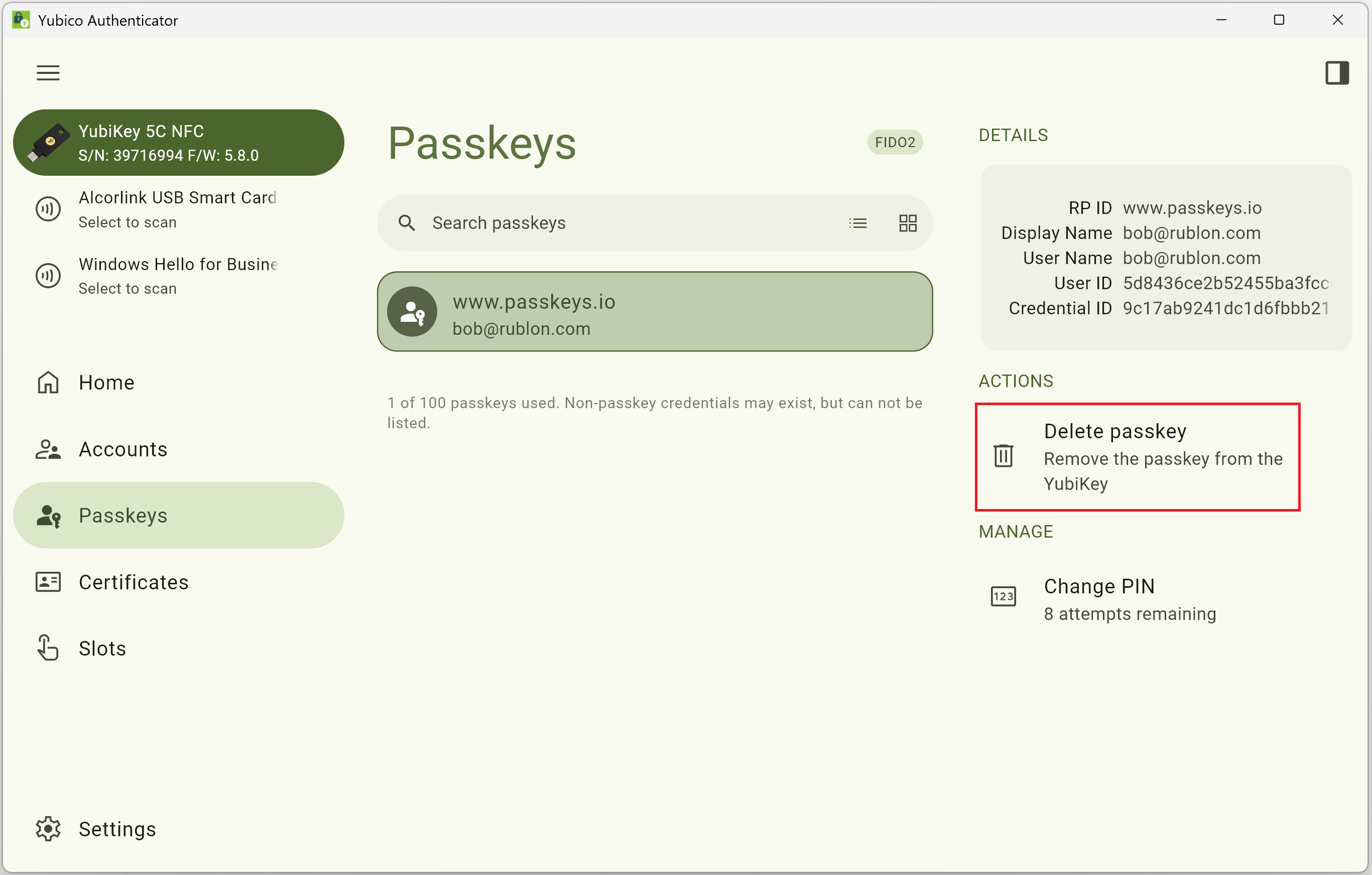
Yubico Authenticator exposes several fields that help distinguish credentials:
- RP ID
- Display Name
- User Name
- User ID
- Credential ID
The RP ID normally identifies the website or service for which the credential was created, such as example.com.
How Do You Identify the Correct Passkey Before Deleting it?
Check more than one field before removing a credential. The RP ID tells you which relying party the passkey belongs to, while the User Name and Display Name can help identify the associated account.
The Credential ID provides a more precise identifier when several stored passkeys have similar names. If anything is unclear, open the security or passkey settings for the corresponding online account and compare the available information before deleting anything.
Tip
If two credentials appear to belong to the same service, verify the account and credential before assuming one is a duplicate.
Do not delete a passkey simply because its label looks unfamiliar. A credential may use a domain or account identifier that differs from the service’s public-facing name.
How Do You Delete the Selected Passkey?
After identifying the correct credential, follow the steps below. Keep the YubiKey connected throughout the deletion process. If you are using NFC, keep it in contact with the NFC reader until the operation is complete.
1. Select the passkey in Yubico Authenticator.
2. Review its Details.
3. Verify the RP ID, username, and other available identifiers.
4. Select Delete passkey.
5. Enter the FIDO2 PIN if required.
6. Confirm the deletion.
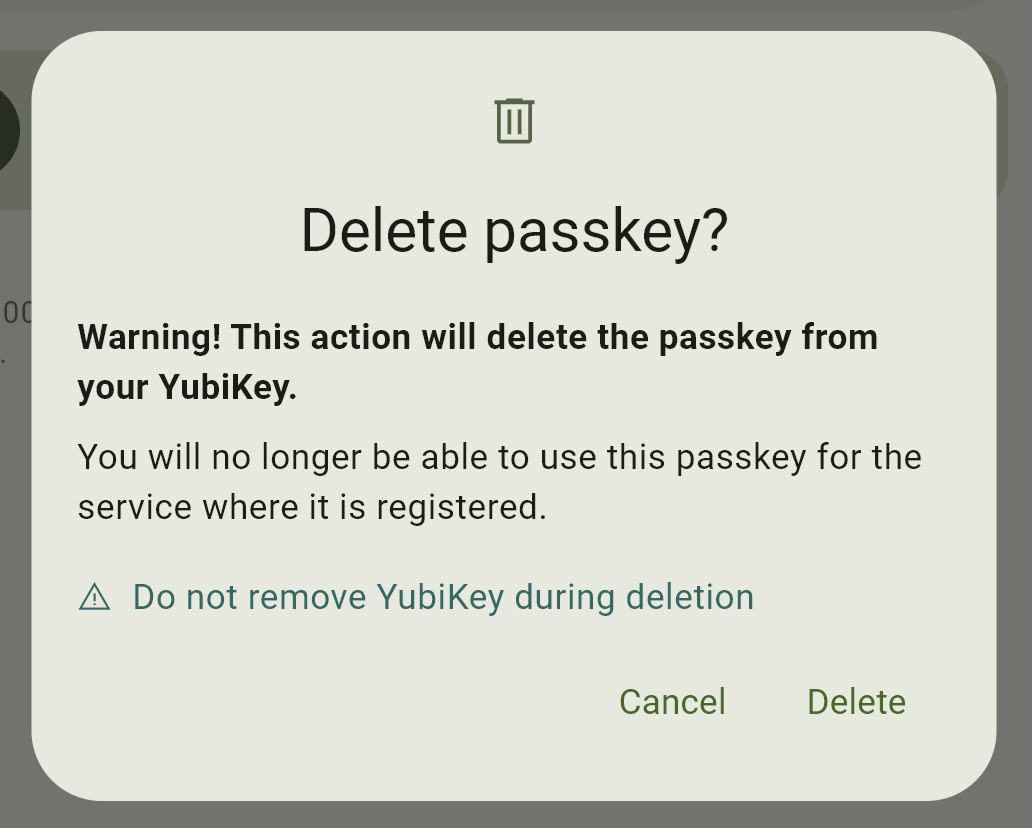
Warning
Passkey deletion is permanent. Make sure you have another way to access the associated account before confirming the deletion.
How Can You Verify That the Passkey Was Deleted?
Return to Passkeys and confirm that the credential no longer appears in the list. The application displays the number of stored passkeys or available capacity. Check that information as well.
If you deleted the credential to free YubiKey passkey storage, retry registration of the new passkey. For a YubiKey used with Rublon MFA, the FIDO2 passkey enrollment guide covers registering a replacement hardware-bound passkey.
You can also check the online account’s security settings and remove any obsolete server-side registration that remains after deleting the credential from the YubiKey.

Sign up for a Free Rublon MFA Trial →
Method 2: Delete a YubiKey Passkey With ykman
ykman is the command-line interface for YubiKey Manager. It provides direct access to YubiKey configuration and credential-management functions, including listing and deleting discoverable FIDO2 credentials stored on the key.
This method is useful if you prefer a terminal, need more detailed credential information, or are managing several YubiKeys. If ykman is not installed, Yubico provides current installation packages for Windows, macOS, and Linux in its YubiKey Manager CLI installation guide.
How Do You Check Whether ykman Detects Your YubiKey?
Connect the YubiKey and run:
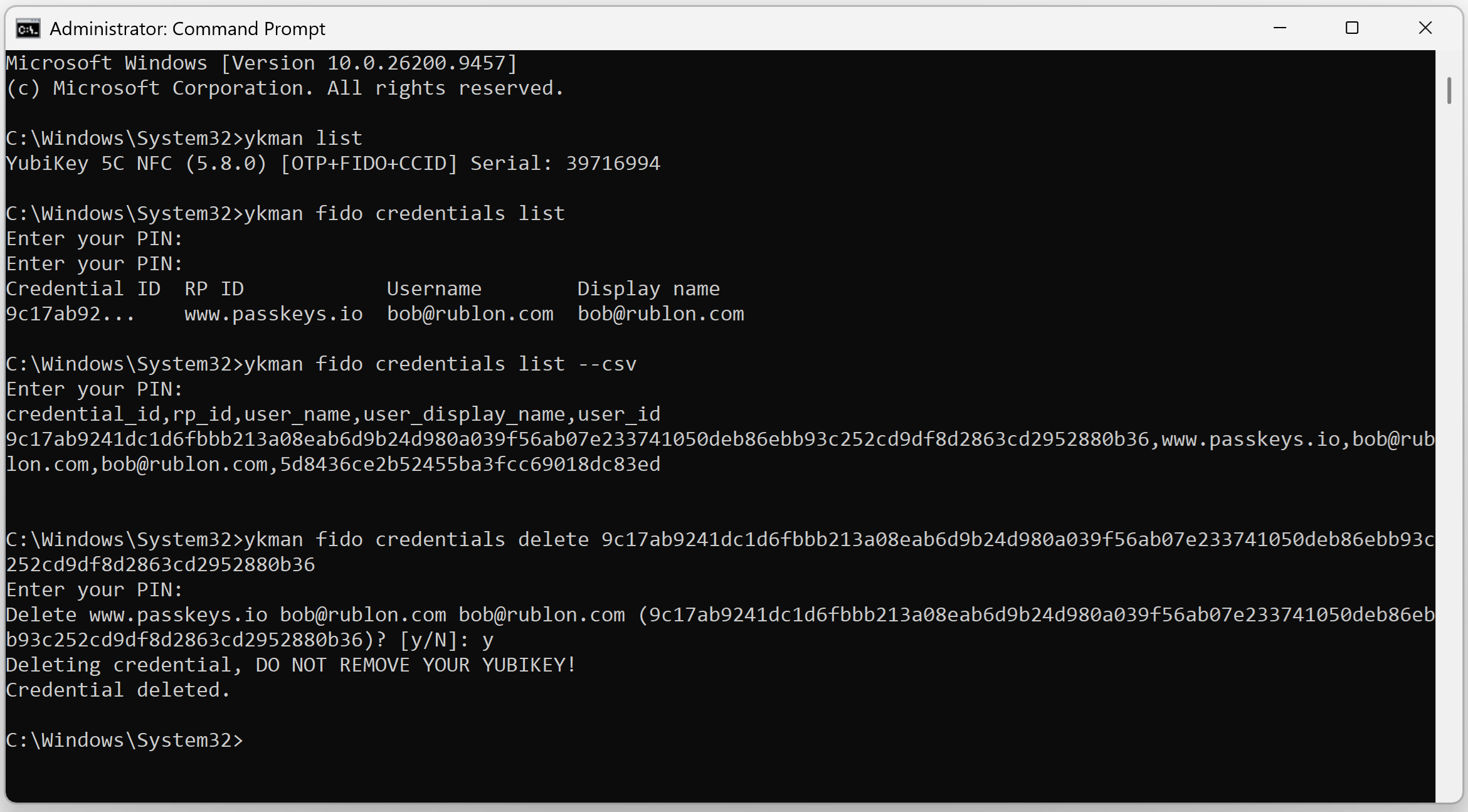
ykman listThe command lists connected YubiKeys. Depending on the device, the output can include the YubiKey model and serial number.
If more than one YubiKey is connected, confirm that you are working with the intended device before deleting any credential. The serial number is particularly useful when several similar keys are attached.
A YubiKey can also be used as a FIDO2 security key for MFA, so identifying the physical key correctly is important when different keys protect different accounts.
How Do You List Passkeys Stored on a YubiKey With ykman?
On Windows, run commands that begin with ykman fido in Command Prompt or PowerShell opened as administrator.
Run:
ykman fido credentials list --csvThis command lists the manageable discoverable credentials, also known as resident credentials, stored in the YubiKey’s FIDO2 application. Credential management requires a configured FIDO2 PIN, which ykman prompts you to enter when necessary.
Note
This command does not list non-discoverable FIDO2 credentials. A YubiKey can therefore be registered and working with a service even when ykman fido credentials list returns no corresponding credential.
The output helps you identify the credential before deleting it. Pay particular attention to the account information and credential ID rather than relying only on a familiar-looking name.
How Do You Delete One Passkey With ykman?
After identifying the credential, run:
ykman fido credentials delete <credential-id>Replace <credential-id> with the ID shown by the previous list command.
This command can delete only a discoverable credential that is available through FIDO2 credential management. A non-discoverable FIDO2 credential that does not appear in ykman fido credentials list cannot be individually removed with ykman fido credentials delete.
Yubico allows CREDENTIAL_ID to be a unique substring of the full credential ID. Use enough characters to identify only the intended credential. If the substring could match more than one entry, use a longer portion of the ID.
ykman prompts for the FIDO2 PIN when required and asks you to confirm the deletion. You can also append:
--forceThis option confirms deletion without an interactive prompt. It is unnecessary for most users and removes an important safeguard against accidental deletion, so use the normal confirmation flow unless you have a specific administrative reason not to.
How Do You Confirm That ykman Deleted the Passkey?
Run the list command again:
ykman fido credentials listConfirm that the deleted credential no longer appears among the passkeys stored on the YubiKey.
If you removed the credential because the YubiKey had no space for another passkey, retry the new passkey registration. Successful enrollment confirms both that the obsolete credential was removed and that sufficient FIDO2 credential storage is now available.
Yubico Authenticator vs. ykman: Which Method Should You Use?
Both Yubico Authenticator and ykman can remove an individual passkey without affecting other stored credentials. The main difference is the interface. Yubico Authenticator provides a graphical interface, while ykman provides command-line credential management.
| Method | Best for | Shows credential details | Requires terminal | Deletes one passkey | Risk |
| Yubico Authenticator | Most users | Yes | No | Yes | Lower |
| ykman | Admins and advanced users | Yes | Yes | Yes | Moderate |
| FIDO2 reset | Complete wipe and recovery cases | N/A | Depends on method | No, wipes all | High |
Note
These selective deletion methods apply to discoverable credentials only. Non-discoverable FIDO2 security-key credentials are not individually manageable through the Passkeys view or ykman fido credentials delete.
- Use Yubico Authenticator if you simply need to remove an old or unused passkey. Its GUI makes it easier to inspect the credential before confirming deletion.
- Use ykman if you prefer CLI tools, need detailed credential output, or are troubleshooting a YubiKey from a terminal.
Do not reset FIDO2 merely to remove one passkey. According to Yubico’s FIDO2 reset documentation, resetting the FIDO2 application removes the FIDO2 PIN as well as all passkeys, non-passkey FIDO2 credentials, and fingerprints stored in that application. Selective credential deletion is therefore the appropriate option for routine cleanup of discoverable credentials. Non-discoverable FIDO2 registrations are normally retired at the relying party instead.
Why Is Your YubiKey Full of Passkeys?
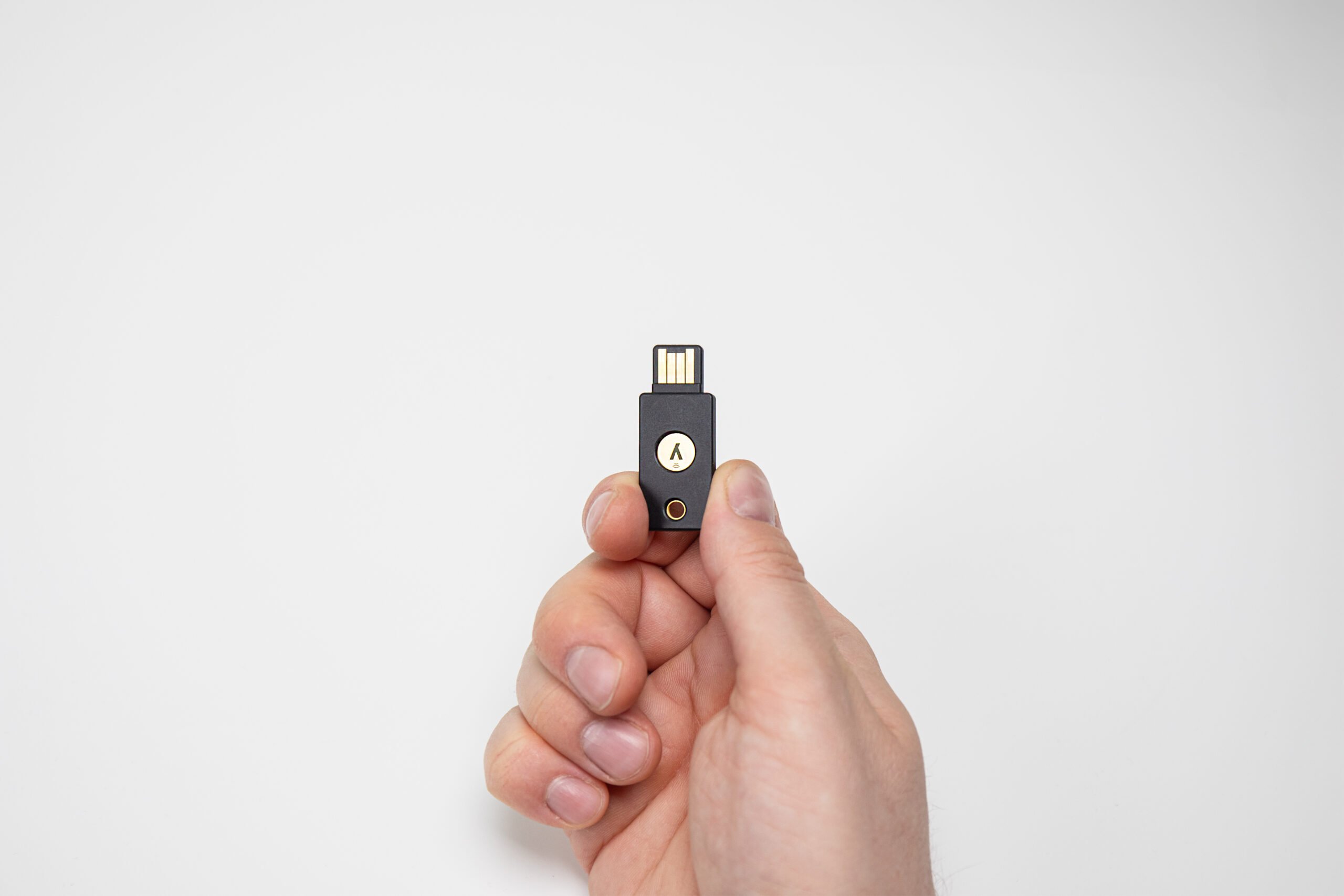
A hardware-bound passkey is stored directly on the authenticator rather than synchronized through a software passkey provider. Each discoverable credential therefore consumes space in the YubiKey’s dedicated FIDO2 credential storage.
That storage is finite, and the limit depends on the YubiKey model and firmware version. This distinction matters when managing many hardware-bound passkeys. Hardware and software FIDO2 passkeys use the same underlying authentication standard, but only discoverable credentials consume the YubiKey’s limited discoverable-credential storage slots. Non-discoverable FIDO2 credentials do not consume those slots.
How Many Passkeys Can a YubiKey Store?
There is no single capacity that applies to every YubiKey. Yubico’s current firmware capability matrix shows different FIDO2 credential-storage limits across firmware generations.
| YubiKey and firmware family | Discoverable credential capacity |
| Relevant older firmware and models | Up to 25 |
| Firmware with expanded FIDO2 storage | Up to 100 |
For the YubiKey 5 Series, firmware versions before the expanded storage generation typically support 25 discoverable credentials. Newer firmware supports up to 100 passkeys. Yubico documents the expanded capacity as 100 discoverable FIDO2 credentials for the relevant 5.7 generation and later devices.
Always check the specifications for the exact YubiKey and firmware version rather than assuming that every YubiKey has a 25-passkey or 100-passkey limit.
What Does “security key is full” or “not enough space” Mean?
When a service tries to create a new discoverable credential, the YubiKey must have a free FIDO2 credential slot. If all available slots are occupied, registration cannot complete.
The sequence is straightforward: registering a new passkey requires a discoverable credential. If there are no free credential slots available, it results in a storage error.
Depending on the browser or service, the message may say that the security key is full, there is not enough space, or there is no room for another credential.
Yubico notes that hardware authenticators have limited discoverable-credential storage in its passkey deployment guidance. If the YubiKey is full, the normal solution is to identify and delete an unused stored passkey. A complete FIDO2 reset is unnecessary when individual credentials can be removed safely.
Does Deleting a Passkey From a Website Remove It From the YubiKey?
No. Removing a passkey from an online account and deleting the corresponding discoverable credential from a YubiKey are separate operations.
A WebAuthn credential has state on both sides of the authentication relationship:
Online service or relying party
- Stores the credential’s public-key information and associates it with your account.
- Uses that registration to verify future authentication attempts.
YubiKey or authenticator
- Keeps the private-key material protected by the authenticator for both discoverable and non-discoverable FIDO2 credentials.
- For a discoverable credential, also stores enough relying-party and user information for the credential to be discovered and managed directly on the authenticator.
The WebAuthn specification treats server-side credential decommissioning and deletion from an authenticator as separate processes.
For a non-discoverable FIDO2 credential, there may be no corresponding entry in the YubiKey’s Passkeys list to delete. In that case, retiring the registration at the relying party is normally the available per-credential cleanup action.
What Happens if You Remove Your YubiKey From Google, Microsoft, GitHub, or Another Account?
Removing a YubiKey passkey from an account prevents that service from accepting the corresponding credential for future sign-ins. However, this does not necessarily delete the discoverable credential stored on the physical YubiKey.
The reverse is also true. If you delete the passkey directly from the YubiKey, the online service may continue to display the old registration in its security settings until you remove it there.
This separation is why an obsolete passkey can remain on a YubiKey and continue occupying credential storage even after it has been revoked from an online account.
Should You Delete the Passkey From Both the Account and the YubiKey?
For a discoverable passkey, usually yes when permanently retiring the credential:
- Make sure another sign-in method is available.
- Remove or revoke the passkey from the online account.
- Delete the corresponding discoverable credential from the YubiKey.
- Verify that both the account and the physical key are in the expected state.
If the registration uses a non-discoverable FIDO2 credential, there may be no individual credential to remove through Yubico Authenticator or ykman. In that case, remove or revoke the registration at the relying party.
For important accounts, having a backup authenticator reduces the risk of lockout. Rublon MFA, for example, allows users to enroll an additional FIDO2 security key before retiring an existing credential.
Exact account-side removal procedures vary by service.
What If You Forgot the YubiKey FIDO2 PIN?
The FIDO2 PIN protects sensitive operations on a YubiKey, including passkey credential management. If you do not know the PIN, you cannot simply bypass it to delete a stored passkey.
If you do not remember your FIDO2 PIN, stop entering guesses. The YubiKey limits incorrect PIN attempts to prevent guessing attacks, with a default limit of eight. To check how many attempts you have left, connect your YubiKey and run ykman fido info. On Windows, run the command in Command Prompt or PowerShell opened as administrator.
Can You Delete a Passkey Without the FIDO2 PIN?
No. If the YubiKey’s FIDO2 application is protected by a PIN, you must enter it to delete an individual passkey.
Can the YubiKey FIDO2 PIN Be Recovered?
No. The existing FIDO2 PIN cannot be displayed or retrieved from the YubiKey.
If you know the current PIN, you can change it. Yubico’s FIDO2 PIN documentation confirms that changing an existing PIN requires both the current PIN and the new PIN.
If the PIN has been forgotten and cannot be supplied, resetting the FIDO2 application may be the remaining option. This is not PIN recovery. A FIDO2 reset removes the PIN and deletes the credentials stored in the FIDO2 application.
Warning
Do not reset FIDO2 until you have confirmed another way to access every affected account. Credentials removed by the reset can no longer be used for authentication with that YubiKey.
When Should You Reset FIDO2 on a YubiKey?
Resetting FIDO2 should be a last resort, not the normal way to delete an old passkey. If you can identify and remove an individual discoverable credential with Yubico Authenticator or ykman, selective deletion preserves the other FIDO credentials on the key.
A FIDO2 reset is appropriate when you intentionally want to clear the FIDO state or can no longer manage credentials, for example because the FIDO2 PIN is blocked or has been forgotten.
Does a FIDO2 Reset Delete All YubiKey Passkeys?
Yes. Yubico states that a FIDO2 reset removes the FIDO2 PIN, passkeys, non-passkey FIDO2 credentials, and fingerprints stored in the FIDO2 application. The ykman fido reset command also resets FIDO U2F credentials.
This is therefore not an appropriate method for deleting a single obsolete passkey.
Warning
Resetting the FIDO2 application is destructive. Make sure you can access every affected account using another registered authenticator or recovery method before proceeding.
If a complete reset is necessary, ykman provides the following command:
ykman fido resetThe reset requires physical interaction with the YubiKey and cannot be undone.
Does Resetting FIDO2 Reset the Whole YubiKey?
Usually no, unless you are using YubiKey Bio Multi-protocol Edition. YubiKeys can contain separate applications for FIDO2, FIDO U2F, OATH, PIV, OpenPGP, OTP, and other functions, with separate credential storage. This is also why a YubiKey and a FIDO2 security key are not exactly the same thing.
For most models, resetting one application does not reset the others. Yubico documents an important exception for the YubiKey Bio Series Multi-protocol Edition, where the FIDO2 and PIV applications share a PIN and reset behavior differs.
Check the instructions for your exact YubiKey model before performing any reset.
Troubleshooting YubiKey Passkey Deletion
Most problems with deleting a YubiKey passkey come down to credential type, PIN verification, software compatibility, device selection, or an incomplete deletion.
Why is the Passkeys Section Empty in Yubico Authenticator?
An empty Passkeys section does not necessarily mean the YubiKey has never been registered with an account.
Check the following:
- Make sure the correct YubiKey is connected.
- Confirm that the credential is a discoverable credential stored on the key.
- Remember that non-discoverable FIDO credentials do not appear as stored passkeys.
- Verify that your YubiKey, operating system, and connection method support passkey management in the current Yubico Authenticator. Yubico maintains detailed platform and connection requirements.
- Compare the result with:
ykman fido credentials listIf Yubico Authenticator shows “No passkeys stored” and ykman fido credentials list shows no discoverable credential, the YubiKey may still be registered and working with a service through a non-discoverable FIDO2 credential. Such a credential cannot be individually removed with ykman fido credentials delete. Its registration is normally removed at the relying party.
For example, a YubiKey registration as a FIDO2 Security Key in Rublon MFA uses a non-discoverable credential. In that case, the YubiKey can work normally during authentication even though Yubico Authenticator shows “No passkeys stored”. The registration should be removed from Rublon MFA either by an administrator in the FIDO Authenticators tab of the Rublon Admin Console or by the user through the Manage Authenticators view rather than through YubiKey passkey management.
Why Does “ykman fido credentials list” Ask for a PIN?
Because listing and managing discoverable credentials is a protected FIDO2 credential-management operation.
A PIN prompt is expected behavior, not an error. Yubico requires a configured FIDO2 PIN before ykman can manage resident credentials.
Why Does ykman Say “command not found”?
The shell cannot locate the ykman executable.
First check:
ykman --versionIf the command is still unavailable:
- Confirm that YubiKey Manager CLI is installed.
- Open a new terminal after installation.
- Check whether the installation directory is available through your system’s PATH.
- Run ykman from its installation directory if necessary.
Yubico’s ykman CLI usage guide includes commands for locating the executable and resolving PATH issues.
Why Can’t I Delete the Passkey I See?
Start by checking the simplest causes:
- Confirm that you entered the correct FIDO2 PIN.
- Make sure you are managing the intended physical YubiKey.
- Update Yubico Authenticator or ykman if you are using an older release.
- Disconnect and reconnect the key if communication fails.
- Confirm that the credential is a manageable discoverable credential.
- With ykman, use enough of the credential ID to match only one credential.
Avoid resetting FIDO2 until you have ruled out these less destructive causes.
Why Is My YubiKey Still Full After Deleting a Passkey?
First verify that the credential was actually removed:
- Disconnect and reconnect the YubiKey.
- List the stored passkeys again.
- Confirm that the deleted credential is gone.
- Remove another genuinely unused passkey if more space is required.
- Confirm that the reported error refers to FIDO2 passkey storage rather than another YubiKey function or an account-side enrollment problem.
- Retry the new passkey registration.
If registration succeeds, the required discoverable-credential capacity is available again.
Can I Delete Duplicate Passkeys From a YubiKey?
Yes, if they are separate discoverable credentials and you can identify the one that is no longer needed.
Do not assume that two entries are duplicates simply because their names look similar. Compare the RP ID, username, display name, and credential ID, then verify that you still have access to the associated account before deleting either credential.
If both passkeys are intentionally registered as separate backup credentials, keep them unless you are certain one is no longer required.
Best Practices for Managing Passkeys on a YubiKey
Good passkey management reduces both account lockout risk and unnecessary credential buildup on the YubiKey.
- Register a backup authentication method. For important accounts, consider registering a second security key or another strong recovery method before you need it. Yubico recommends supporting multiple passkeys so access can be recovered if an authenticator is lost.
- Review stored passkeys periodically. Remove credentials for accounts you no longer use or keys that have been replaced.
- Clean up both sides when retiring a credential. Remove stale account-side registrations and the corresponding discoverable credential from the YubiKey where appropriate.
- Verify before deleting. Compare the RP ID, username, display name, and credential ID rather than relying on the label alone.
- Reserve FIDO2 reset for exceptional cases. Routine cleanup should use selective credential deletion.
- Keep Yubico management software current. New releases can improve compatibility and credential-management support.
- Track physical keys used for critical accounts. If you manage several YubiKeys, record which keys are registered where.
Rublon MFA users can review and remove registered authenticators through the Manage Authenticators view. This is particularly relevant for a non-discoverable FIDO2 Security Key registration, because it may not appear in Yubico Authenticator’s Passkeys list and cannot be individually removed with ykman fido credentials delete.
For enterprise deployments, document the complete credential lifecycle, including issuance, backup keys, replacement, revocation, recovery, and disposal. Passkey cleanup should be part of a defined authenticator-management process rather than an ad hoc task.
Frequently Asked Questions About Deleting YubiKey Passkeys
How Do I Delete a Passkey From a YubiKey?
For a discoverable passkey stored on the YubiKey, open Yubico Authenticator, connect the YubiKey, select Passkeys, unlock credential management with the FIDO2 PIN, select the credential, verify its details, and choose Delete passkey.
Alternatively, use ykman fido credentials list to identify the credential and ykman fido credentials delete <credential-id> to remove it.
How Do I See What Passkeys Are Stored on My YubiKey?
Open Yubico Authenticator and select Passkeys to view discoverable credentials stored on the key.
From the command line, run:
ykman fido credentials list
Stored passkeys can include identifying information such as the relying party ID, username, and credential ID.
Neither method lists non-discoverable FIDO2 credentials. Their registrations must instead be removed or revoked at the relying party.
Can I Delete Just One Passkey From My YubiKey?
Yes. Credential management allows individual discoverable credentials to be removed without deleting the other passkeys stored on the YubiKey.
Selective deletion is the preferred method when you only need to remove an obsolete credential or free one credential slot.
Does Deleting a Passkey From My YubiKey Delete It From My Online Account?
No. Deleting the credential from the physical YubiKey does not necessarily remove the corresponding registration from the online service.
If the passkey is being permanently retired, check the account’s security settings and remove the obsolete registration there as well.
Does Deleting a Passkey From Google or Microsoft Remove It From the YubiKey?
Not necessarily. Removing a passkey from Google, Microsoft, or another relying party removes the account-side registration, but a discoverable credential may remain stored on the YubiKey.
If you no longer need the credential, remove it separately from the YubiKey to reclaim its storage slot.
Does Deleting a Passkey Free Space on a YubiKey?
Yes. Deleting a discoverable credential stored on the YubiKey frees the slot used by that credential.
If registration previously failed because the security key was full, confirm that the credential disappeared from the Passkeys list and retry creating the new passkey.
How Many Passkeys Can a YubiKey Hold?
Capacity depends on the YubiKey model and firmware. Yubico documents up to 25 discoverable credentials on relevant YubiKey 5 devices with firmware 5.0 through 5.6.x and up to 100 credentials on firmware 5.7 and later.
Why Does Yubico Authenticator Show No Passkeys?
Yubico Authenticator lists discoverable credentials stored as passkeys on the YubiKey. A non-discoverable FIDO2 credential does not appear in this list, and it is also not returned by ykman fido credentials list.
Therefore, “No passkeys stored” does not mean that the YubiKey has no working FIDO2 credentials. The key may still authenticate normally as a FIDO2 security key using a non-discoverable credential.
Can I Delete a Non-Discoverable FIDO2 Credential With Yubico Authenticator or ykman?
No. A non-discoverable FIDO2 credential does not appear in Yubico Authenticator’s Passkeys list or in ykman fido credentials list, so it cannot be individually removed with ykman fido credentials delete. To retire that credential, remove or revoke its registration at the relying party where the YubiKey was registered.
Can I Delete a YubiKey Passkey Without a PIN?
No. Managing stored discoverable credentials requires the YubiKey’s FIDO2 PIN.
If the PIN has been forgotten, avoid repeated guesses. If credential-management access cannot be restored, a FIDO2 reset may ultimately be necessary, but that reset is destructive.
What Is the Difference Between Deleting a Passkey and Resetting FIDO2?
Deleting a passkey removes one selected discoverable credential.
Resetting FIDO2 clears the FIDO state and removes the credentials affected by the reset. It is intended for complete cleanup or recovery situations, not routine removal of one old passkey.
Can I Recover a Deleted YubiKey Passkey?
No. A passkey deleted from the YubiKey cannot be restored from the key.
If you still have access to the online account through another authentication method, you can register the YubiKey again and create a new credential.
Conclusion
For normal removal of a discoverable passkey, Yubico Authenticator provides the simplest way to inspect and delete the credential. ykman offers equivalent control for discoverable credentials to administrators and users who prefer command-line tools.
If a YubiKey is full, remove only discoverable credentials you no longer need rather than resetting FIDO2. If the FIDO2 PIN is forgotten and credential management is no longer possible, consider a FIDO2 reset only as a destructive last resort.
When permanently retiring a passkey, remember that the credential stored on the YubiKey and its registration with the online account may require separate cleanup.
Non-discoverable FIDO2 security-key credentials are not listed by these tools and cannot be individually deleted with ykman fido credentials delete. Their registration is normally retired at the relying party.
Always verify alternate account access before deleting authentication credentials.