
Last updated on October 13, 2026
Rublon User Guide is meant for users who want to learn more about Rublon. If you are an administrator looking for deployment instructions, refer to our Documentation.
The Manage Authenticators view allows you to enroll, delete, and edit your authenticators.
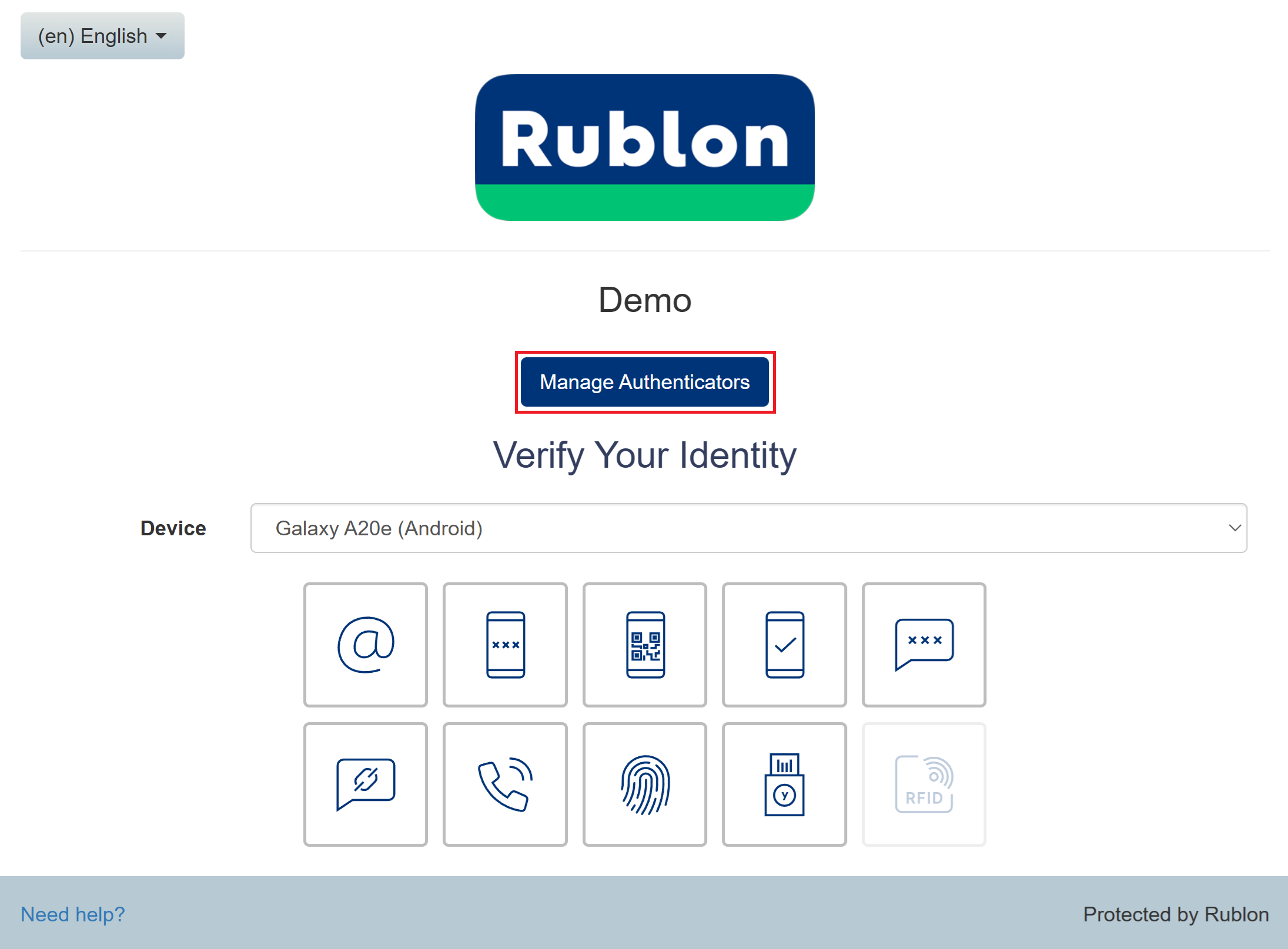
You can access the Manage Authenticators view during logins to applications that support the Rublon Prompt.
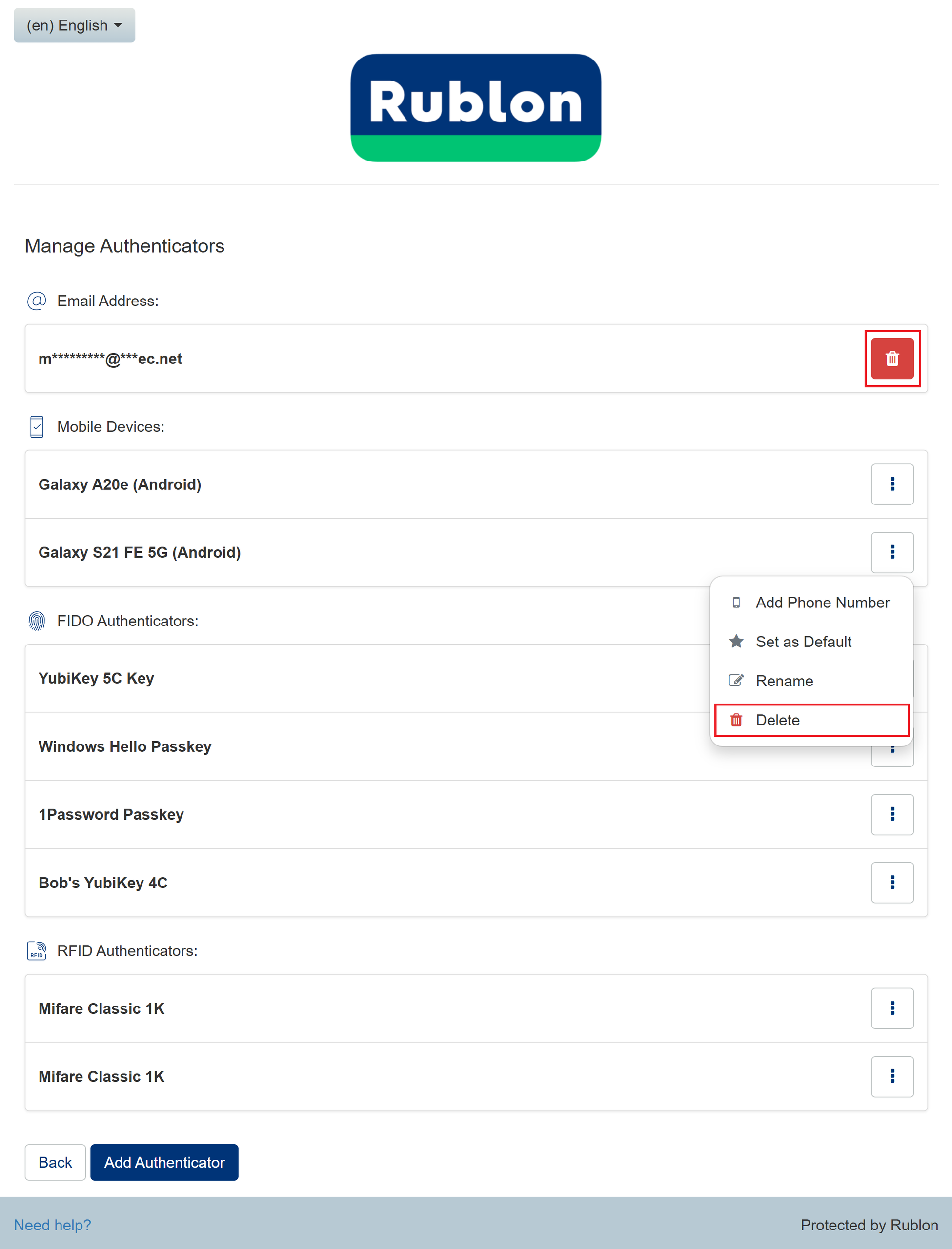
To see the available actions for an authenticator, click the button with three vertical dots next to it. Then select an action from the menu. To enroll a new authenticator, click Add Authenticator.
Open Manage Authenticators
To open the Manage Authenticators view, follow the steps below.
1. Log in to your application.
2. The Rublon Prompt appears.
3. Click the Manage Authenticators button.
Enroll New Authenticator
To add your landline phone number, refer to the following guide:
To add your mobile phone number, refer to the following guide:
To enroll a new mobile device, refer to the following guide:
To enroll your third-party authenticator app (such as Google Authenticator, Microsoft Authenticator, etc.), refer to the following guide:
To enroll a FIDO2/U2F Security Key, refer to the following guide:
To enroll a FIDO2 passkey, refer to the following guide:
To enroll a YubiKey OTP Security Key, refer to the following guide:
To enroll an RFID authenticator, refer to the following guide:
Delete Authenticator
You can delete your authenticator (mobile device, FIDO security key, etc.) in the Manage Authenticators view.
To delete an authenticator:
1. Open Manage Authenticators.
2. Click the button with three vertical dots next to the authenticator you want to delete, then select Delete.
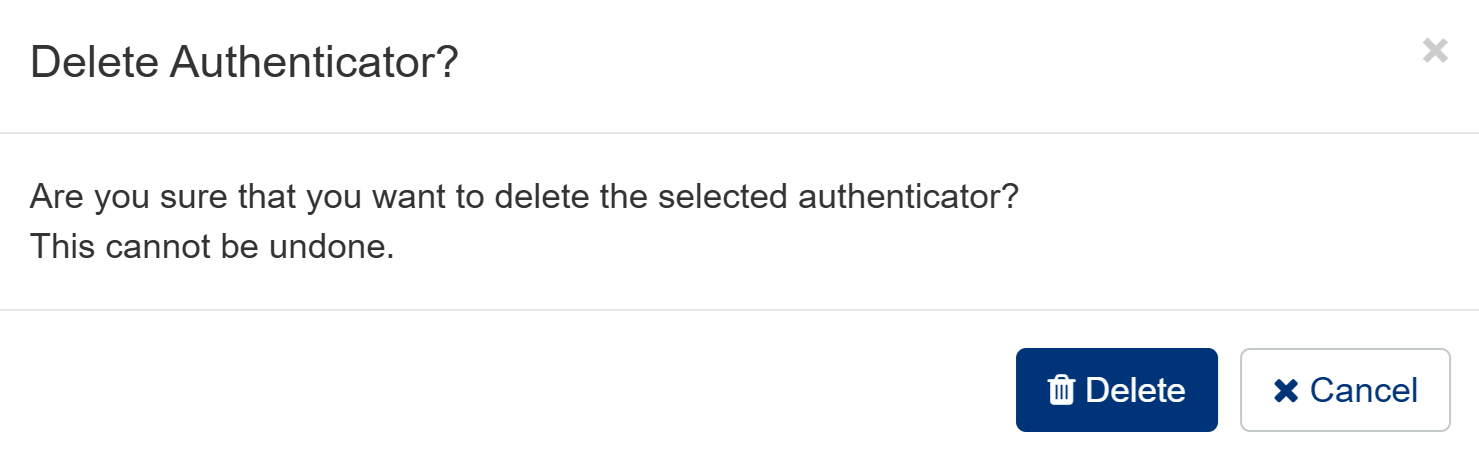
3. You will be asked to confirm your decision.
- Click Delete to delete the selected authenticator
- Click Cancel to return to the Manage Authenticators view without deleting the authenticator
4. Your authenticator will be deleted.
Rename Authenticator
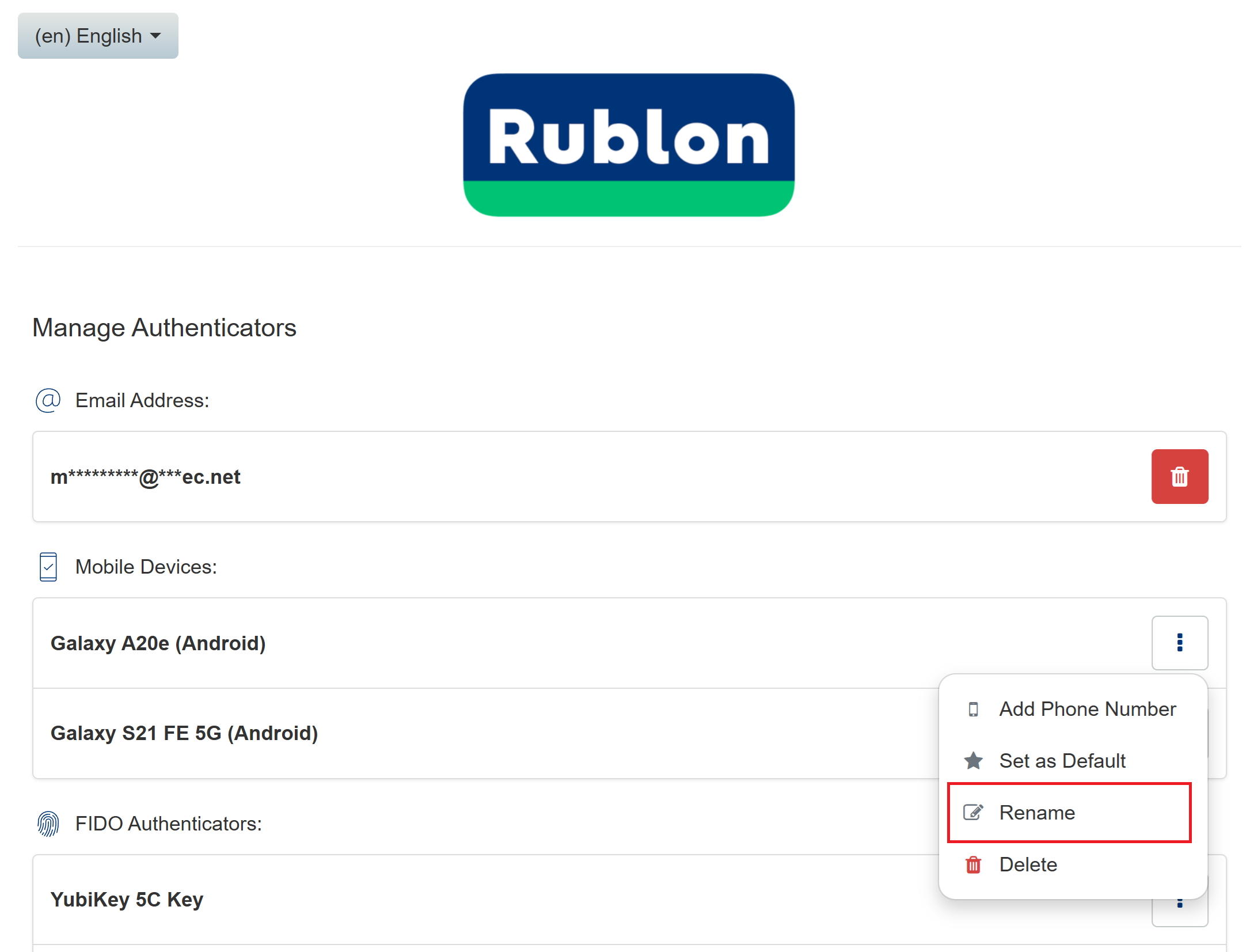
You can rename your authenticator in the Manage Authenticators view.
To rename an authenticator:
1. In the Manage Authenticators view, click the button with three vertical dots next to the authenticator you want to rename, then select Rename.
2. Provide a new name for your authenticator and click the green checkmark button to confirm the changes.
Set Phone as Default
When you set a phone as default, the selected phone will be automatically set as the first phone in the Device dropdown on the Rublon Prompt.
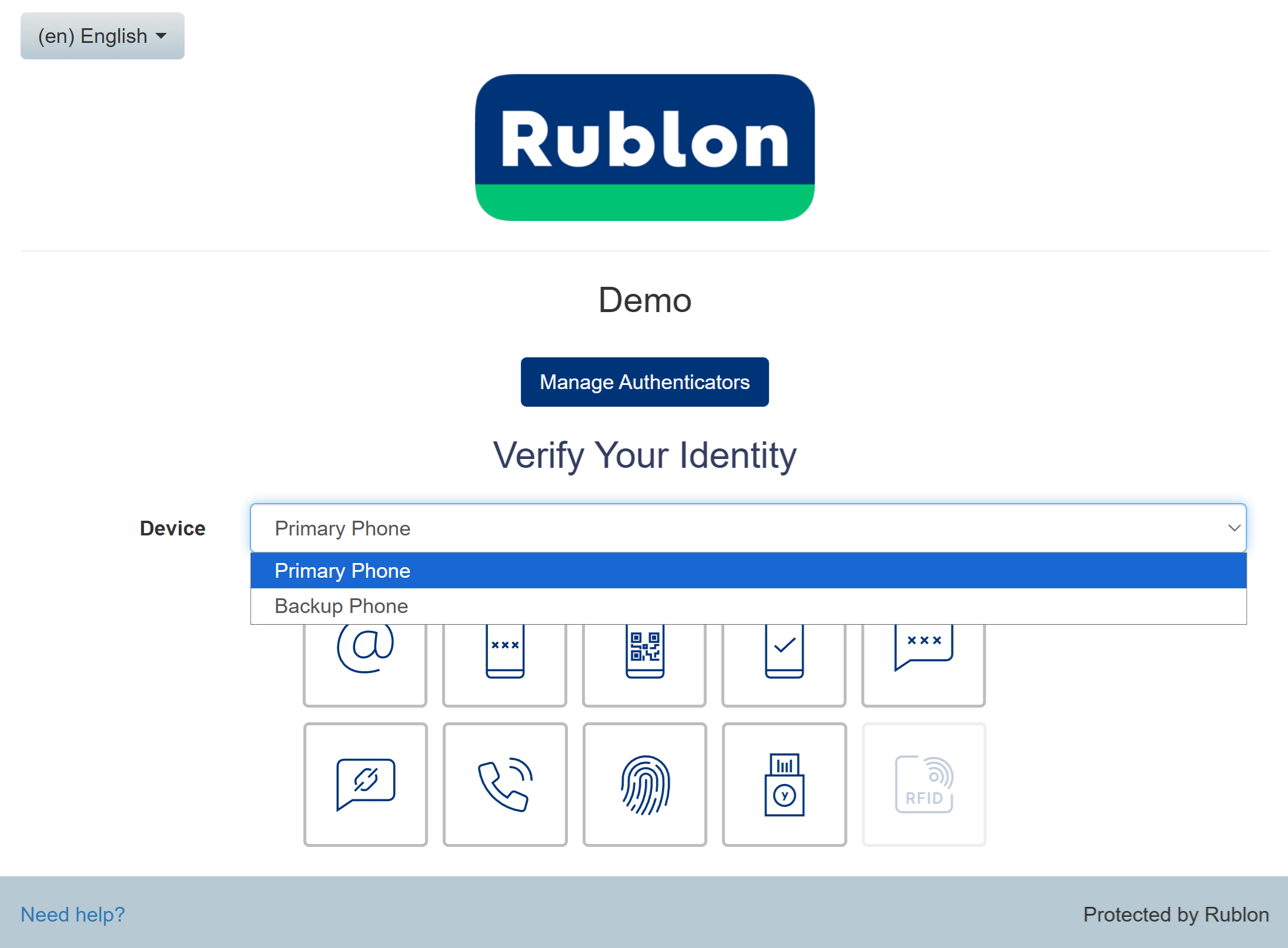
You may want to set another phone to default if you enrolled more than one phone and would like to choose which phone should be automatically selected every time you log in to a service integrated with Rublon.
To set the phone as default:
1. In the Manage Authenticators view, click the button with three vertical dots next to the mobile device you want to use by default, then select Set as Default.
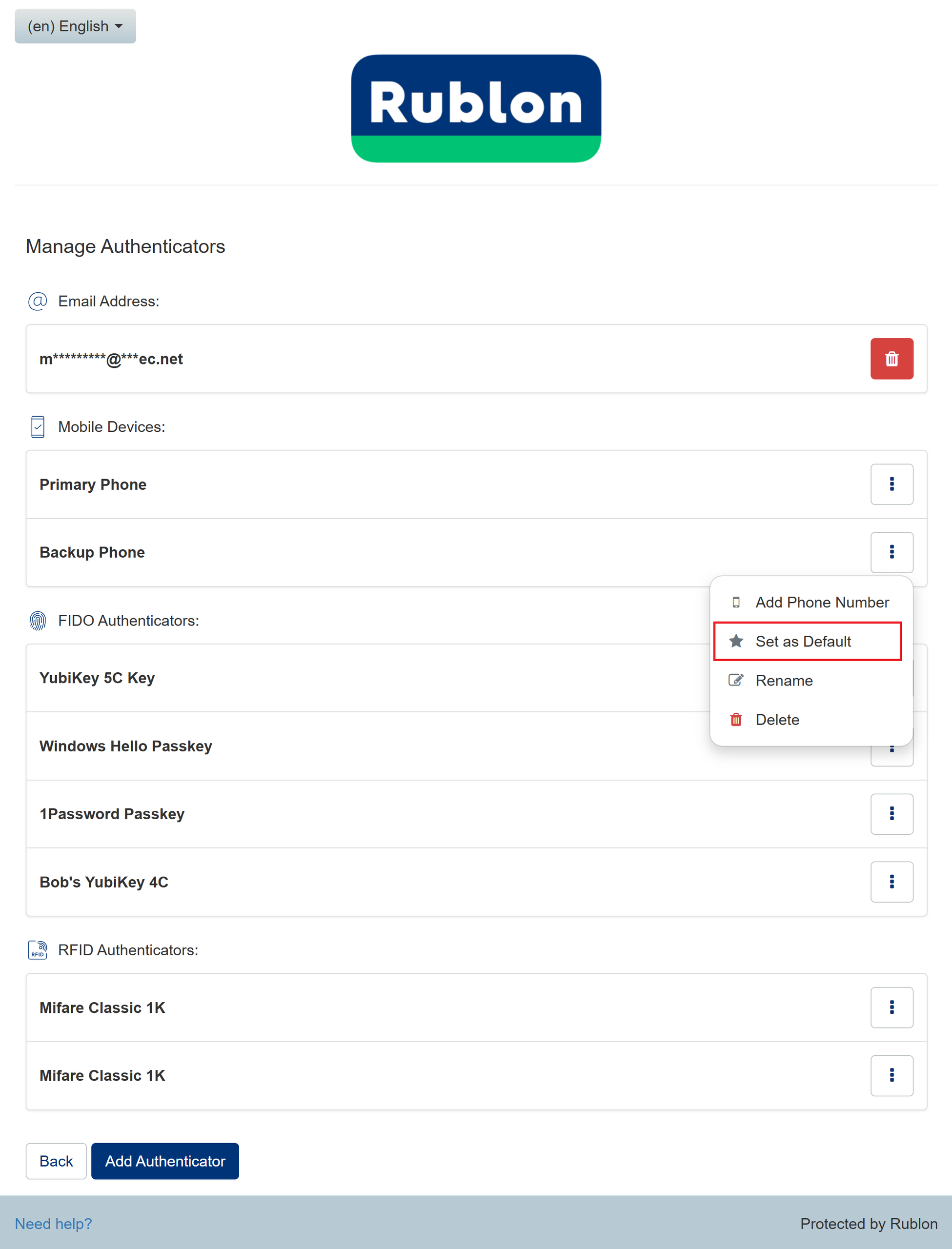
2. Click Back.
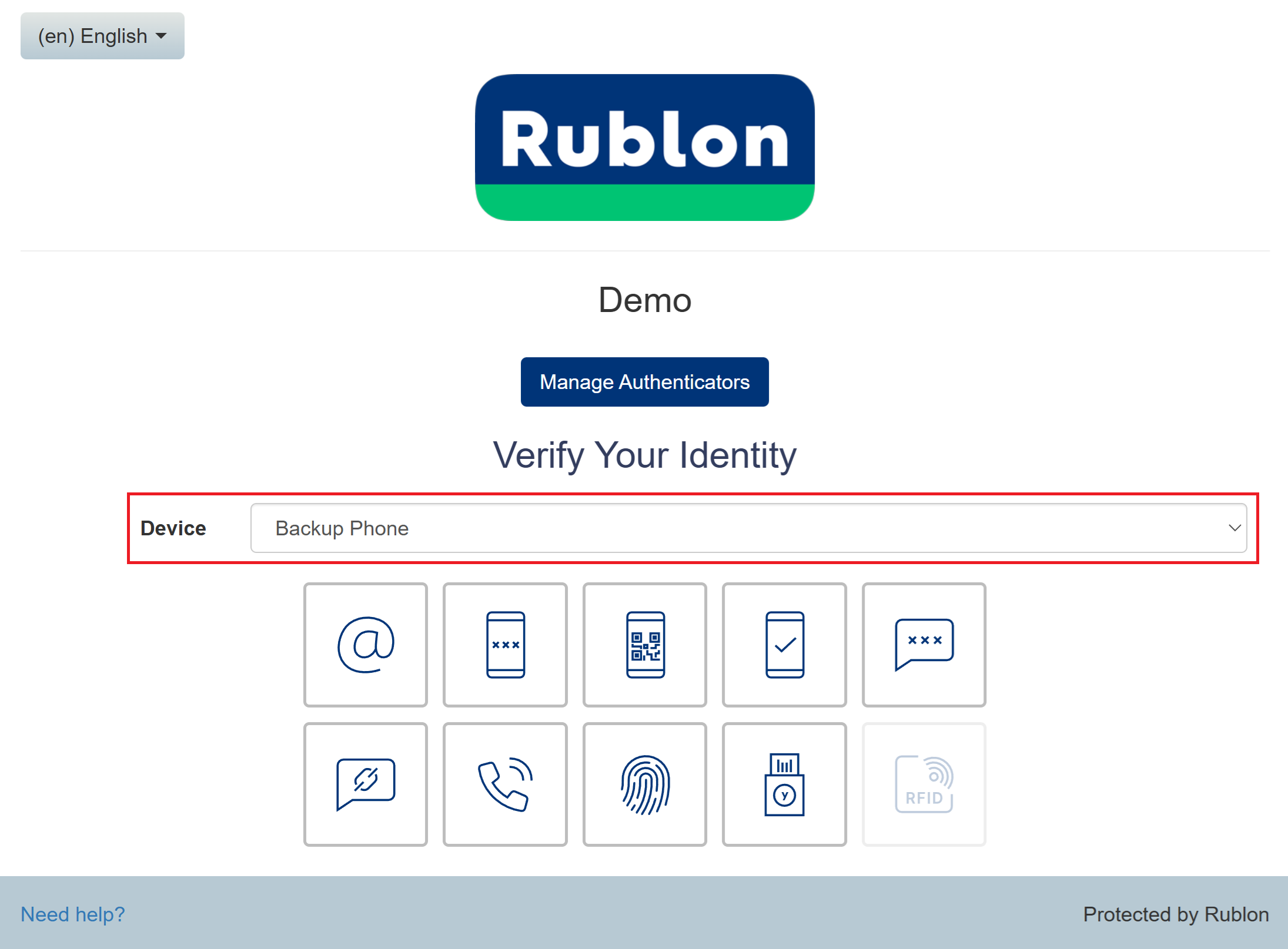
3. The phone you set to default will now be automatically selected in the Device dropdown every time you open the Rublon Prompt.
Add a Phone Number to an Existing Mobile Device
To add a phone number to a mobile device you have already enrolled:
1. Open Manage Authenticators.
2. Click the button with three vertical dots next to the mobile device, then select Add Phone Number.
3. Enter your phone number and follow the instructions on the screen to complete verification.
Activate Rublon Authenticator
If your administrator added your phone in the Users tab of the Rublon Admin Console, you must now activate this phone.
To activate a phone added by an administrator:
1. In the Manage Authenticators view, click the button with three vertical dots next to the mobile device you want to activate, then select Activate Rublon Authenticator.
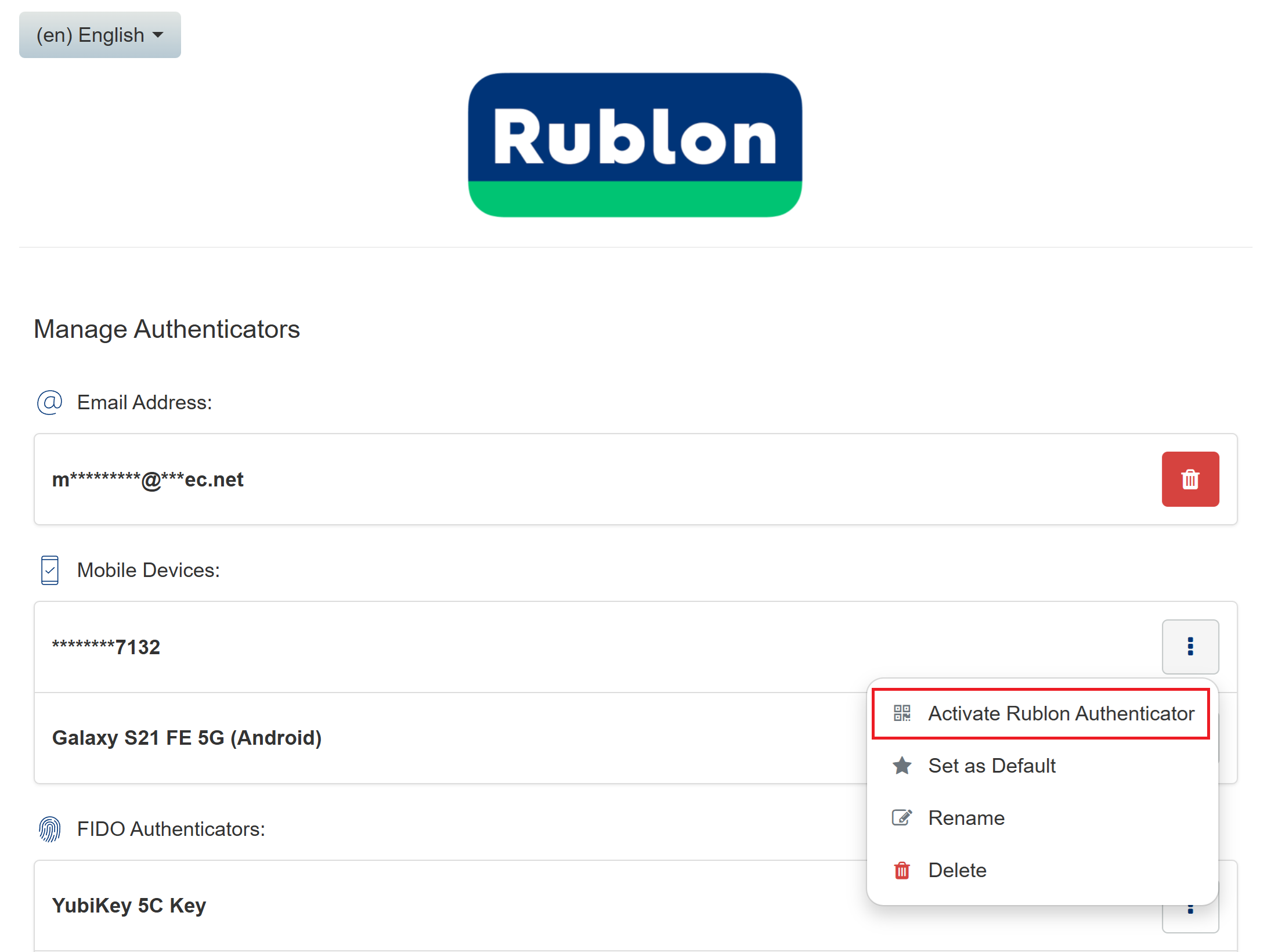
2. Depending on the device you are using:
- If you opened the activation page on a computer, scan the displayed QR code using the scanner in Rublon Authenticator on your mobile device.
- If you opened the activation page on the mobile device you want to activate, tap Open in Rublon Authenticator to activate the app on that device. Alternatively, display the QR code and scan it using Rublon Authenticator on another mobile device.

3. Your account will be added to the list of accounts on the Rublon Authenticator mobile app.
Activate a Third-Party Authenticator App
You can enroll and activate a third-party authenticator app and then enter the OTPs generated by that app as the Passcode. Learn more at How to enroll a third-party authenticator app?.