Last updated on October 14, 2026
To use the Mobile Push authentication method, you must enroll your mobile device.
To enroll your mobile device, install Rublon Authenticator and activate it to add your user account to the app. You can activate the app by scanning a QR code displayed on a computer or by opening Rublon Authenticator directly from the activation page on your phone or tablet.
Note
You can add your mobile device and activate Rublon Authenticator yourself (Self-Enrollment), or activate Rublon Authenticator on a device added by your administrator (Activate Rublon Authenticator).
If your administrator sent you an Enrollment Email or Enrollment SMS, refer to Enroll Rublon Authenticator.
Self-Enroll Your Mobile Device
You can self-enroll your mobile device, which means you both add your mobile device and activate Rublon Authenticator. Self-Enrollment requires no help from your administrator.
You can self-enroll your mobile device during any sign-in to a service integrated with Rublon.
Self-Enrollment is easier on services that support the Rublon Prompt, so if you have access to both a service that supports the Rublon Prompt and one that does not, we recommend you start the self-enrollment by signing into a service that supports the Rublon Prompt.
Self-Enrollment differs depending on whether your service supports the Rublon Prompt. If you are not sure whether your service supports this view, check Which Services Support the Rublon Prompt?.
My Service Supports Rublon Prompt
Note
If your logins are configured to automatically send you a Mobile Push request without giving you a chance to access the Rublon Prompt, click Back or refer to My Service Does Not Support Rublon Prompt instead.
If your integrated service supports the Rublon Prompt, follow the steps below:
1. Initiate login to your service by providing your login and password.
2. On the Rublon Prompt, click the Manage Authenticators button.
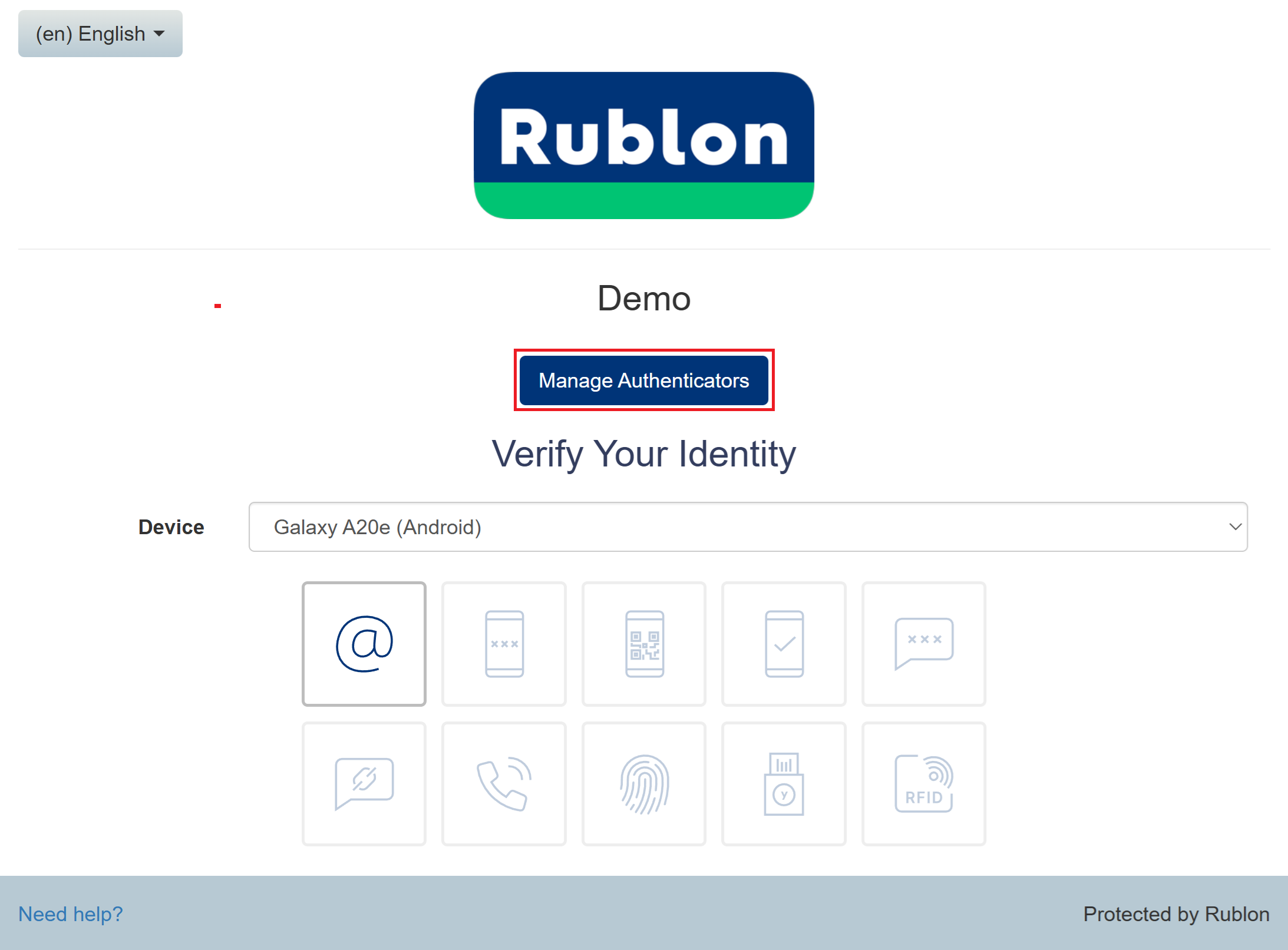
3. If you have already enrolled an authenticator, click Add Authenticator.
4. Refer to Enroll Your Account for further instructions.
My Service Does Not Support Rublon Prompt
If your integrated service does not support the Rublon Prompt, we recommend you ask your administrator to send you an Enrollment Email or Enrollment SMS, or enroll your device and then send you a Mobile Activation Email.
If you want to self-enroll without your administrator’s help, follow these steps:
1. Initiate login to your service by providing your login and password.
2. Rublon MFA detects that you have not added your account to Rublon Authenticator and sends the Enroll your authenticator message to your email address.
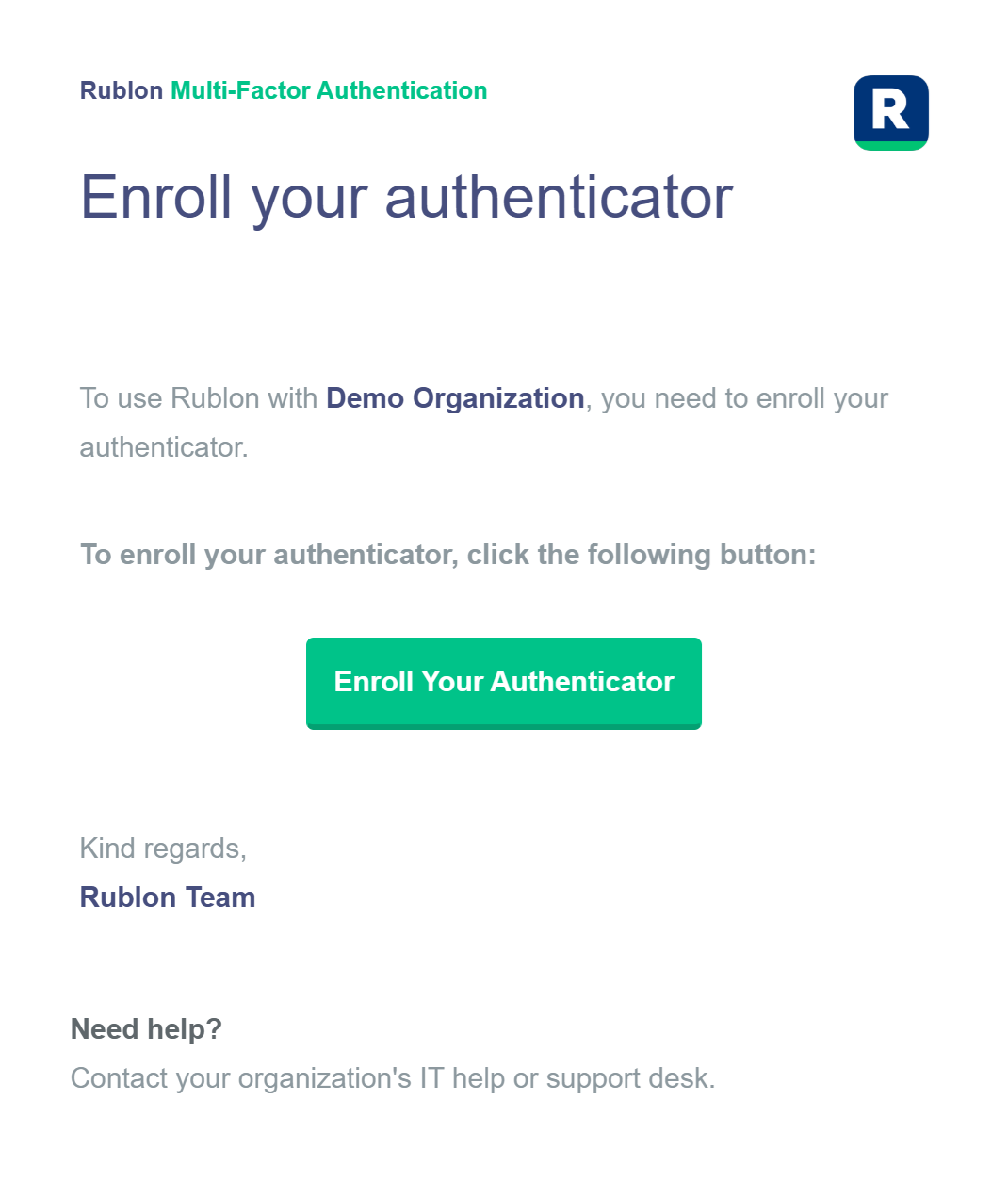
3. Click the Enroll Your Authenticator button in the email message you received.
4. The process of enrollment will start. Refer to Enroll Your Account.
Enroll Your Account
1. Select Rublon Authenticator as device type and click Next.
Note
If you are enrolling on a phone or tablet, selecting Rublon Authenticator takes you directly to the activation page. Skip Steps 2 and 3 and continue with Step 4. Steps 2 and 3 apply when you enroll from a computer.
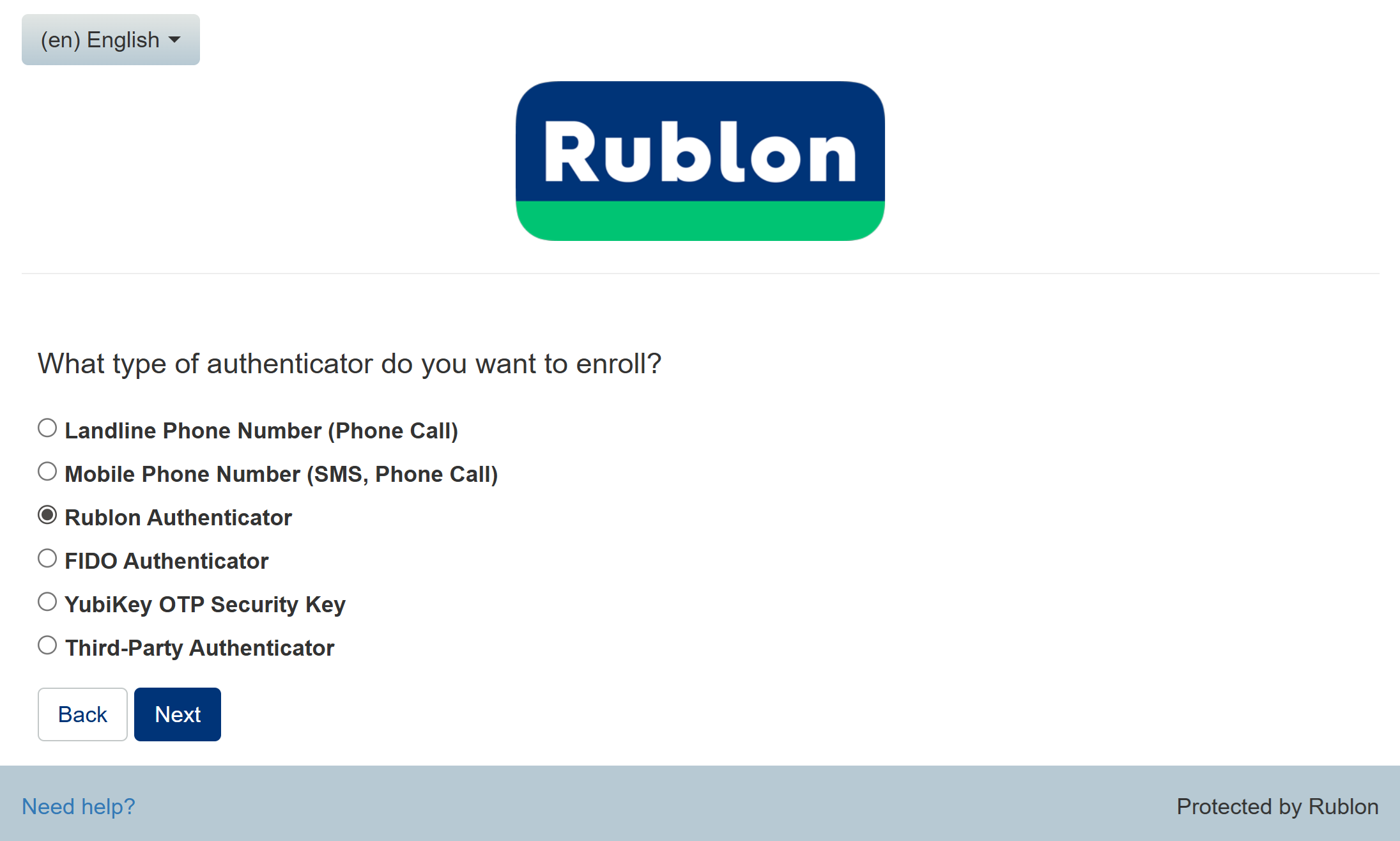
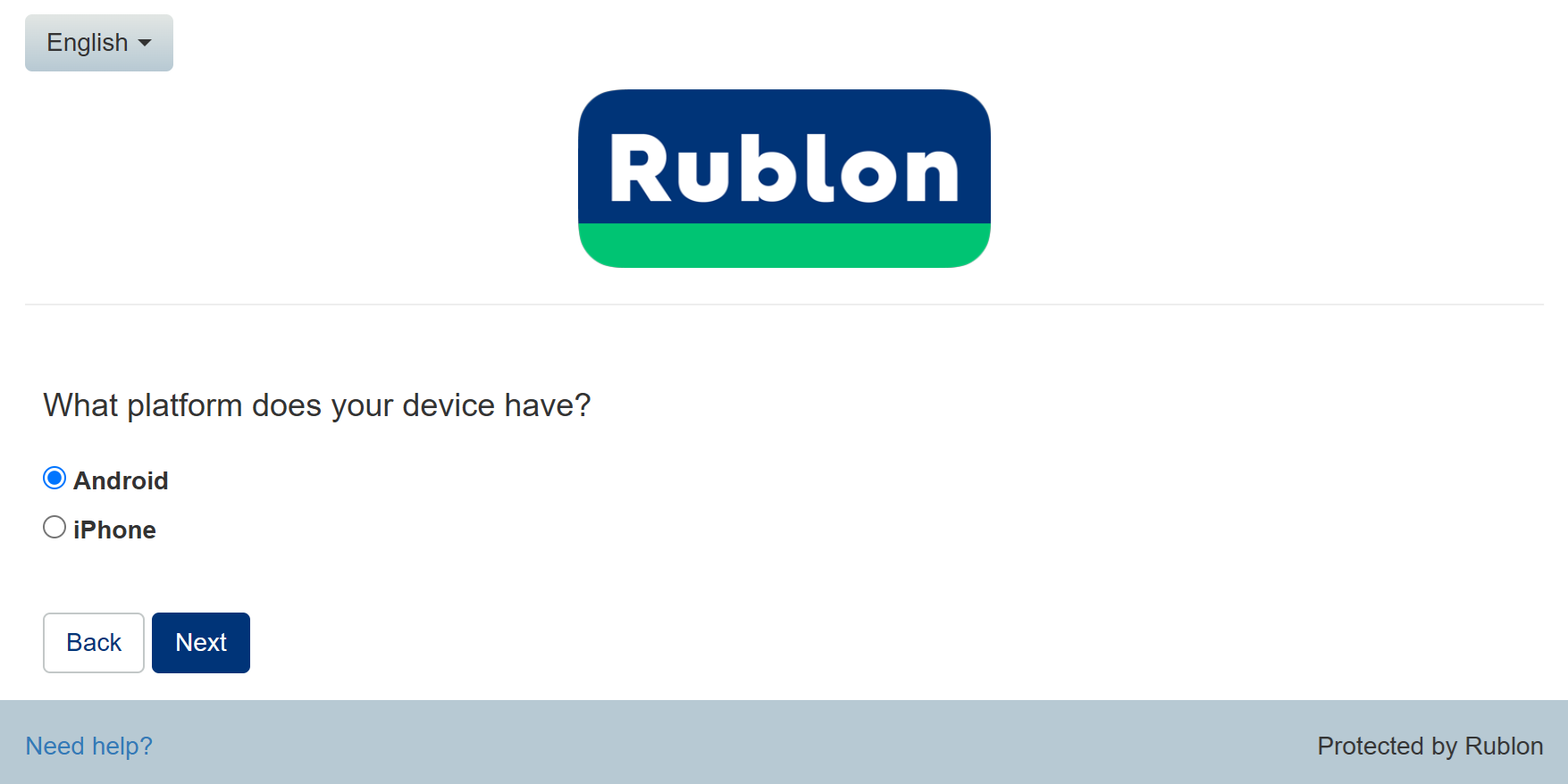
2. Select the platform of your device (your device’s operating system) and click Next.
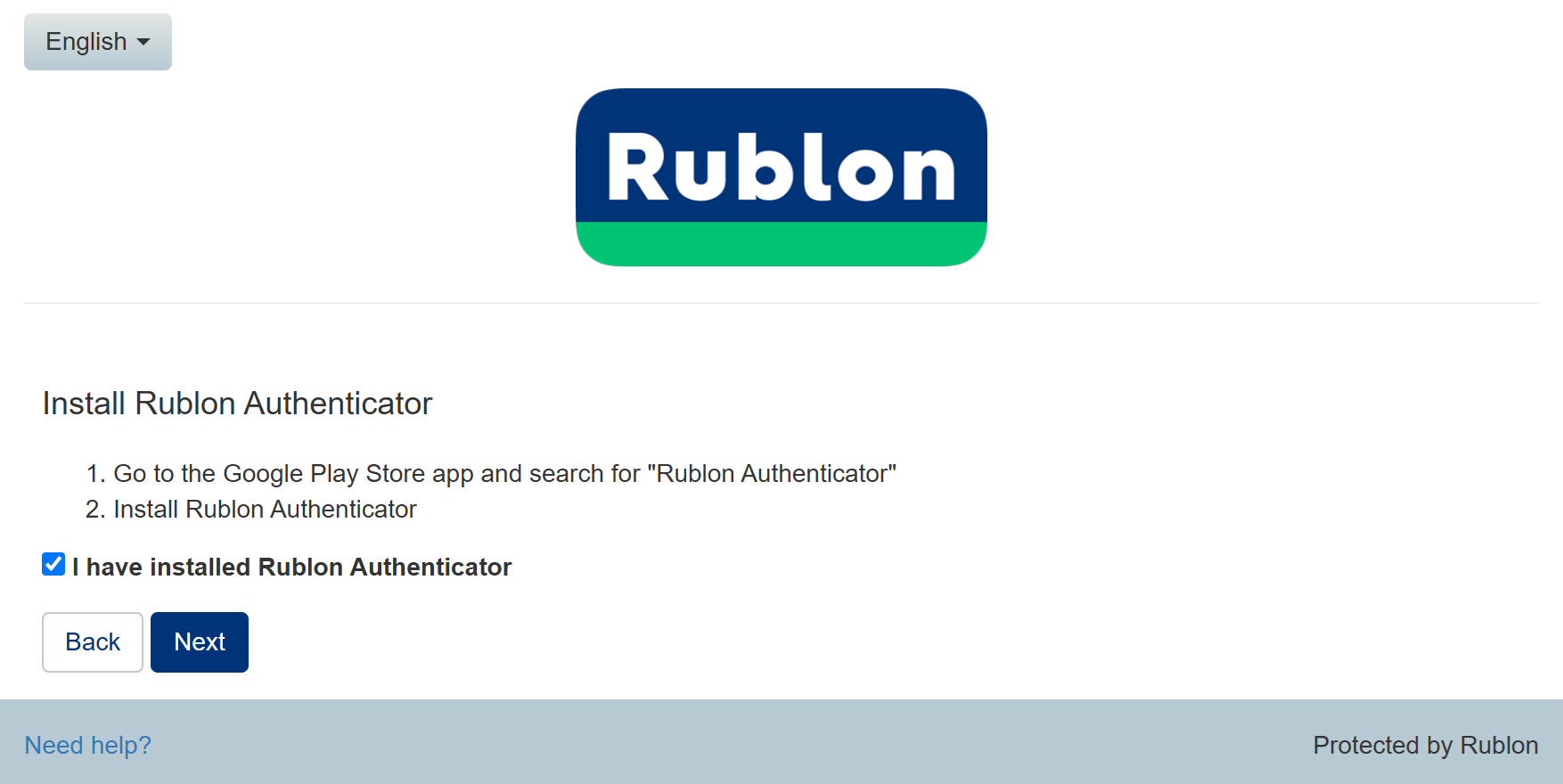
3. Install Rublon Authenticator if you have not already, check the I have installed Rublon Authenticator checkbox, and click Next.
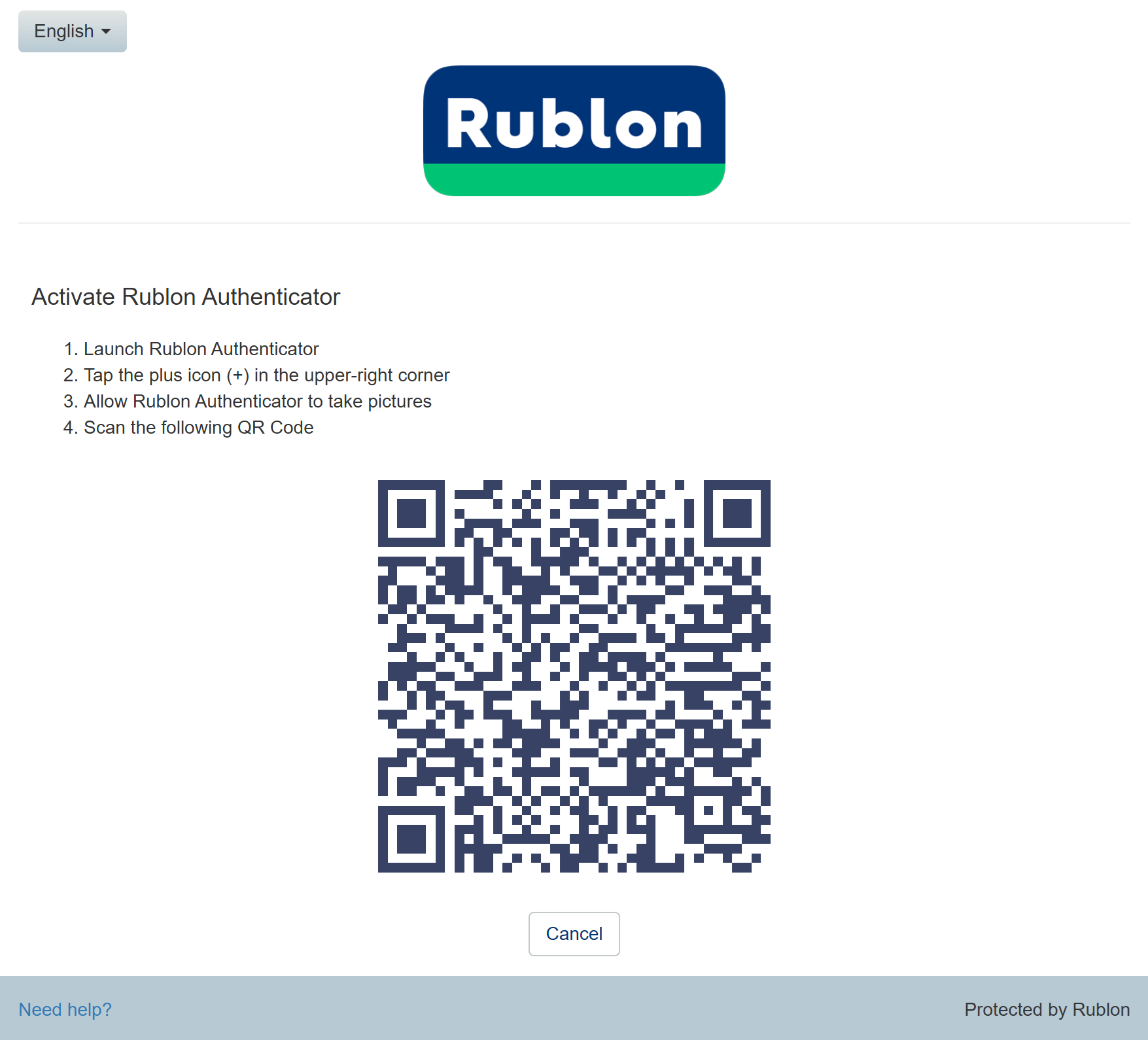
4. Activate Rublon Authenticator:
- On a computer: use the scanner in Rublon Authenticator on your mobile device to scan the QR code displayed on the activation page on the computer.
- On the mobile device you want to enroll: tap Open in Rublon Authenticator to activate the app on that device. If the app is not installed, the button takes you to the app store. Install the app, then return to the activation page to complete enrollment.
5. After activation, your account will be added to the list of accounts in Rublon Authenticator.
6. Congratulations. You have just enrolled your mobile device. You can now log in using Mobile Push.
Activate Rublon Authenticator
If your administrator has already added your mobile device in the Rublon Admin Console, you must now activate Rublon Authenticator on this mobile device.
You can activate the Rublon Authenticator mobile app in two ways:
- Use the Mobile Activation Email
- Use the Manage Authenticators view
If your integrated service does not support the Rublon Prompt, we recommend you ask your administrator to send you an Enrollment Email or Enrollment SMS, or enroll your device and then send you a Mobile Activation Email.
Use the Mobile Activation Email
1. Ask your administrator to send you a Mobile Activation Email.
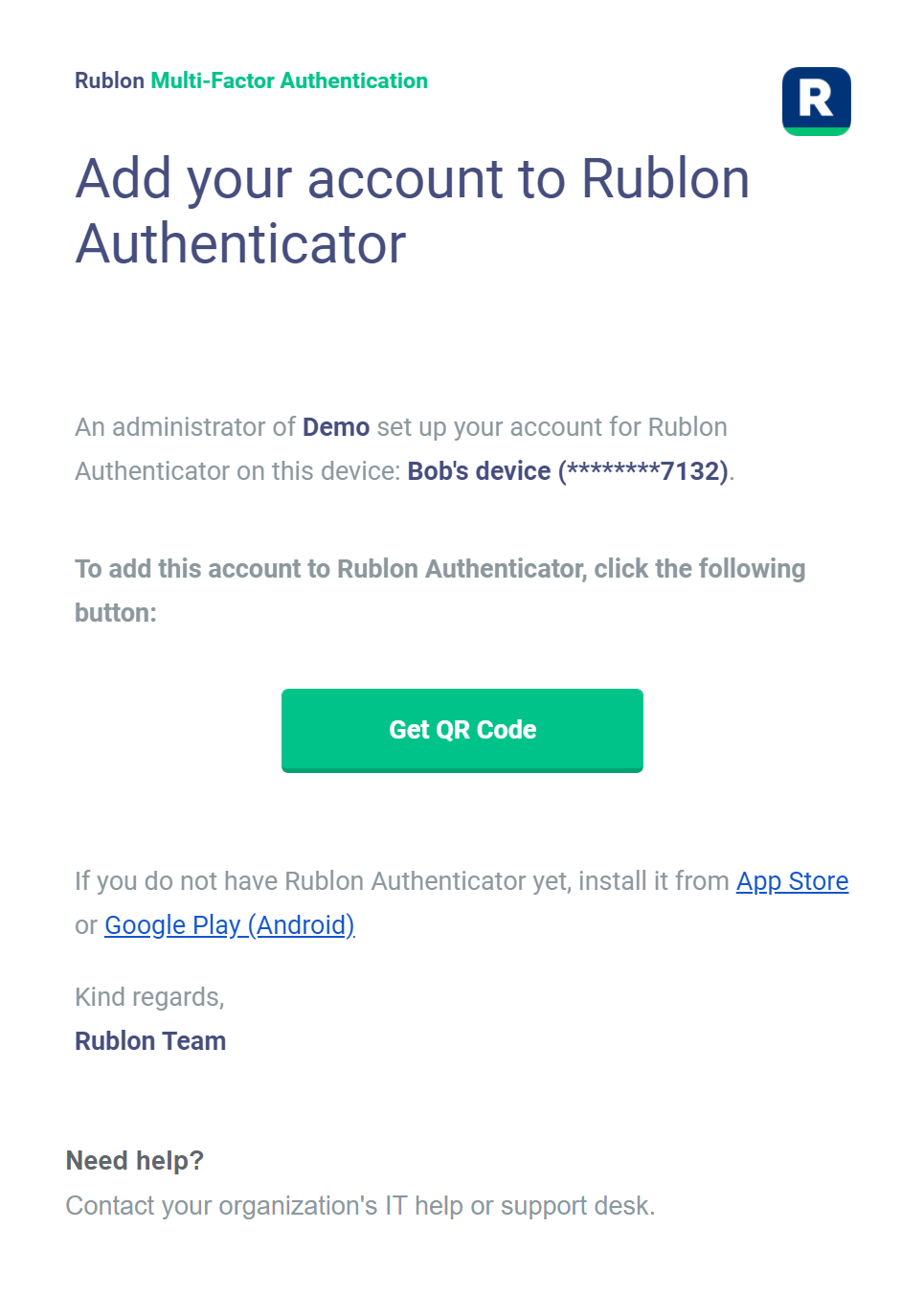
2. You will receive an email message from Rublon.
3. Click the Get QR Code button.
4. Depending on the device you are using:
- If you opened the activation page on a computer, scan the displayed QR code using the scanner in Rublon Authenticator on your mobile device.
- If you opened the activation page on the mobile device you want to activate, tap Open in Rublon Authenticator to activate the app on that device. Alternatively, display the QR code and scan it using Rublon Authenticator on another mobile device.
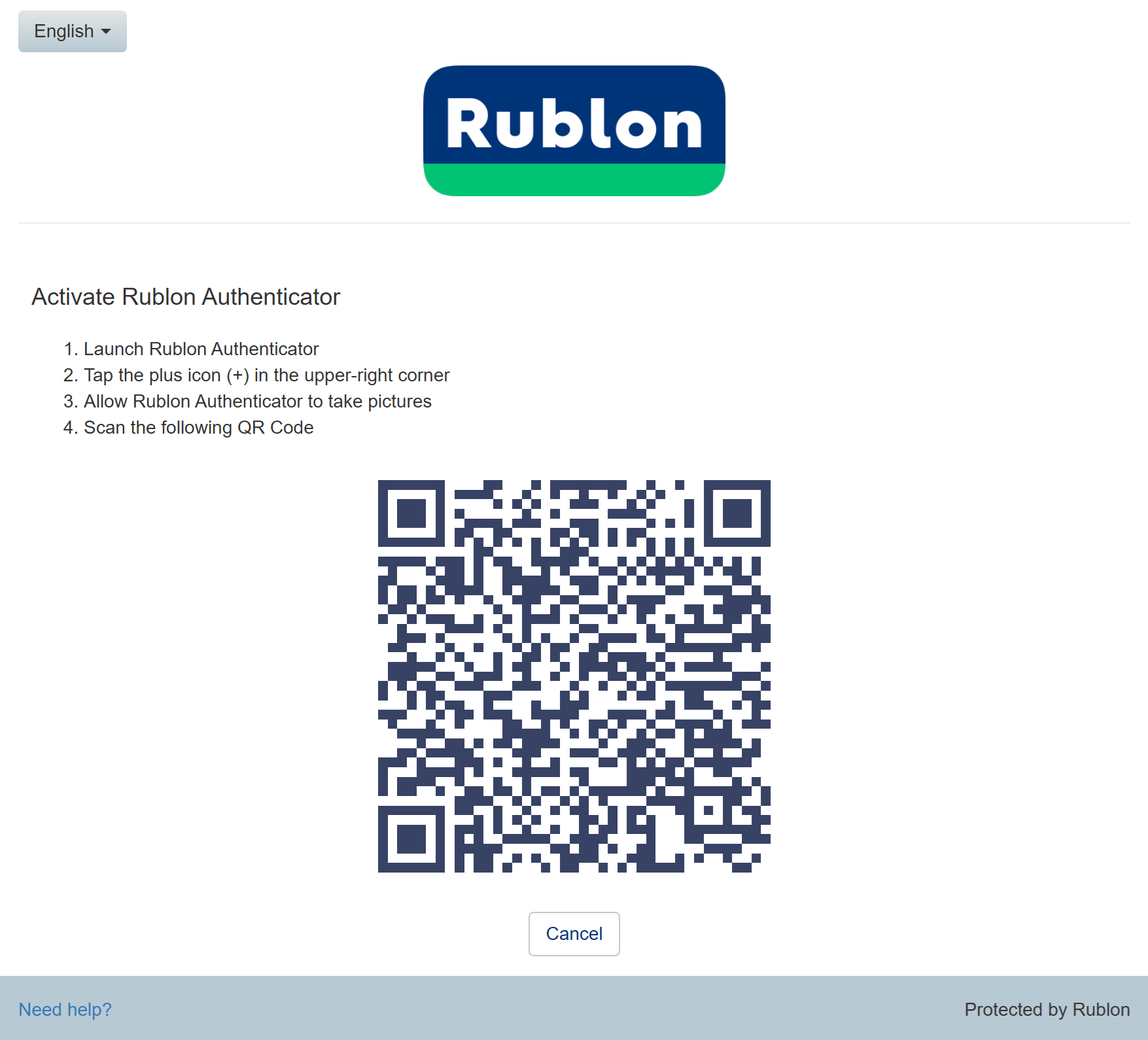
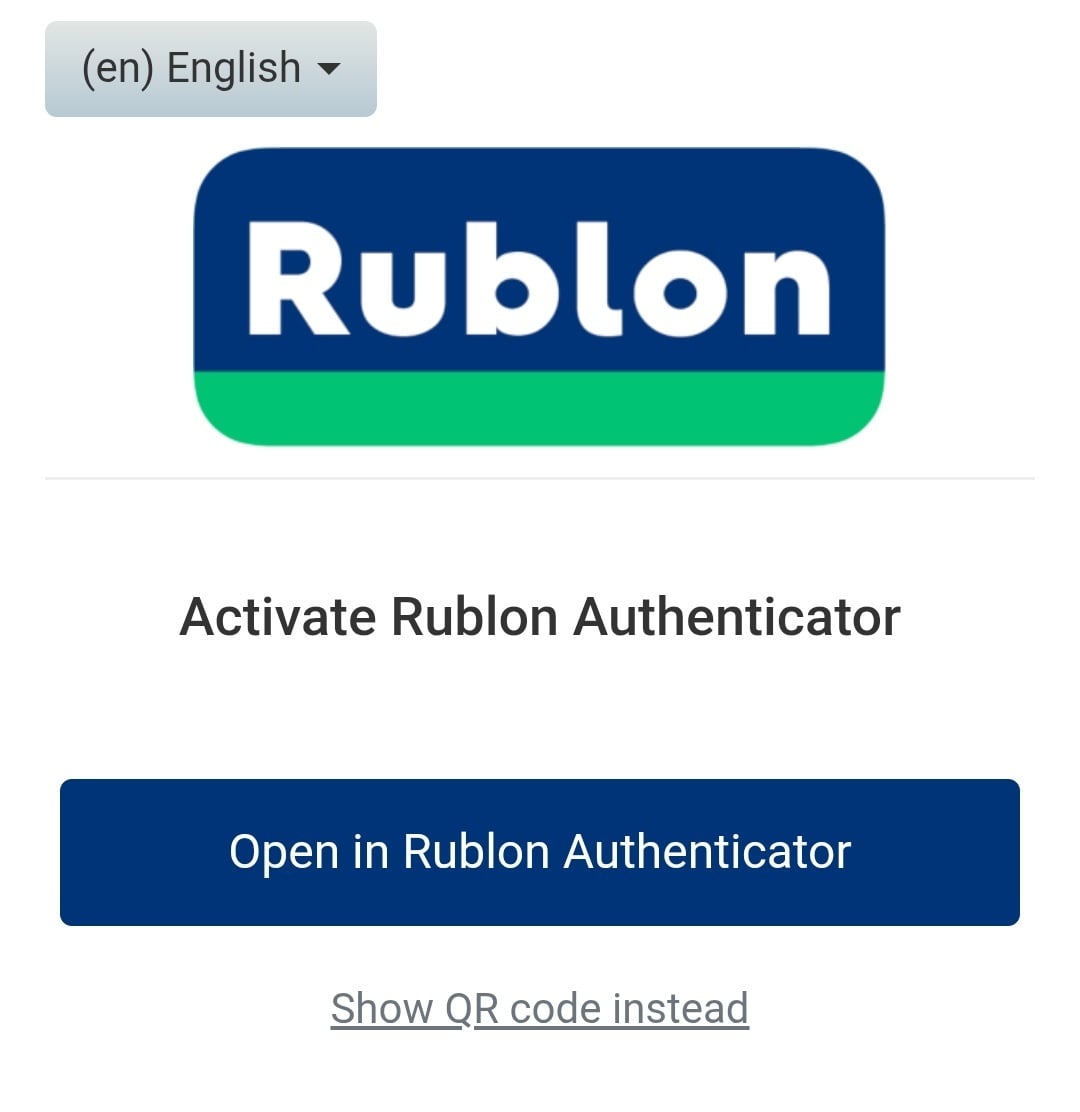
5. Your account will be added to the list of accounts on your Rublon Authenticator mobile app.
6. Congratulations! You have just activated your Rublon Authenticator.
Next time you log in, you will be able to verify your identity using Mobile Push.
Use the Manage Authenticators View
If your administrator added your mobile device in the Rublon Admin Console but did not send you the Mobile Activation Email, you can activate the Rublon Authenticator yourself.
1. Initiate login to your service by providing your login and password.
2. Rublon Prompt appears.
3. Click the Manage Authenticators button.
4. Click the button with three vertical dots next to the mobile device you want to activate, then select Activate Rublon Authenticator.
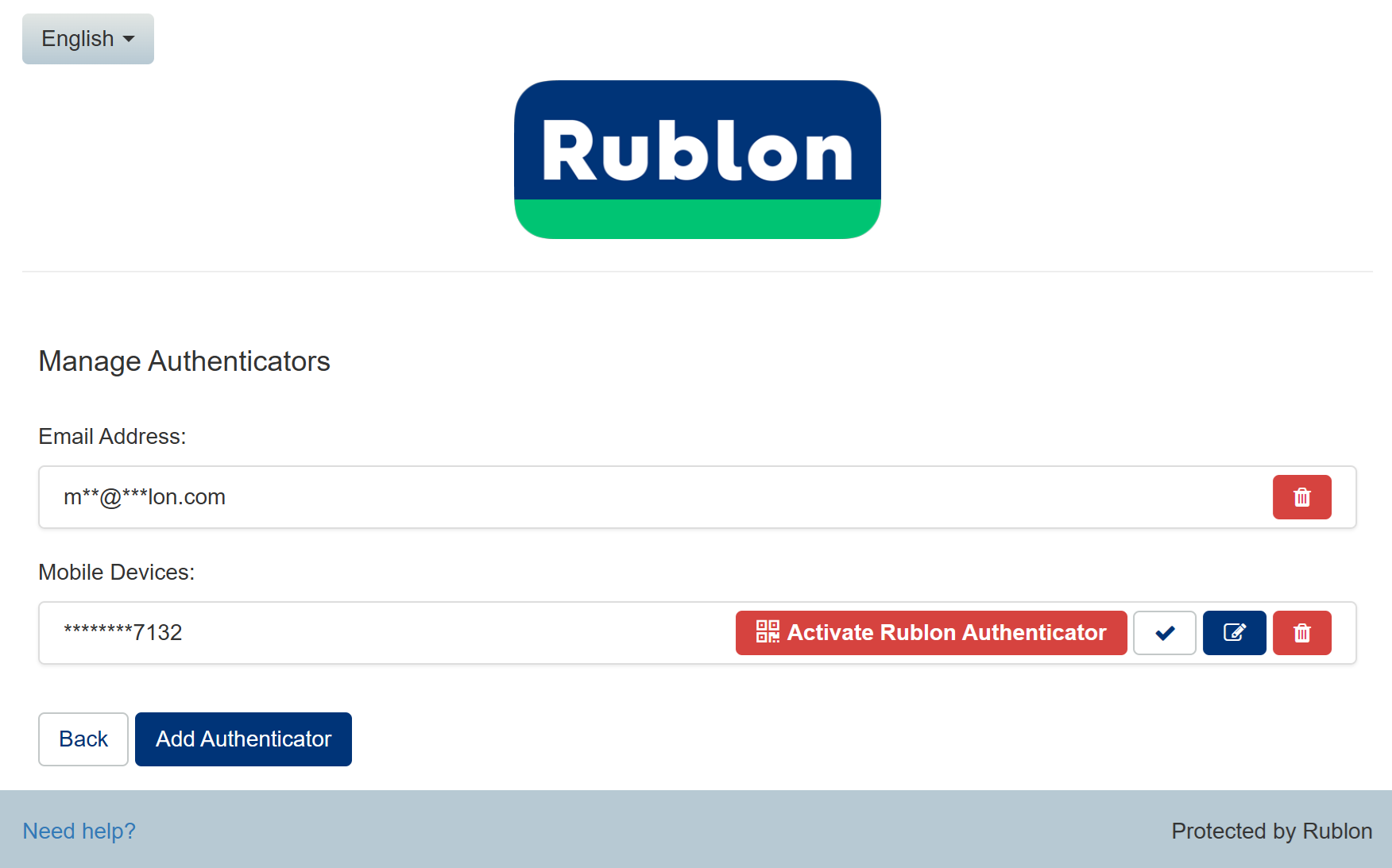
5. Depending on the device you are using:
- If you opened the activation page on a computer, scan the displayed QR code using the scanner in Rublon Authenticator on your mobile device.
- If you opened the activation page on the mobile device you want to activate, tap Open in Rublon Authenticator to activate the app on that device. Alternatively, display the QR code and scan it using Rublon Authenticator on another mobile device.
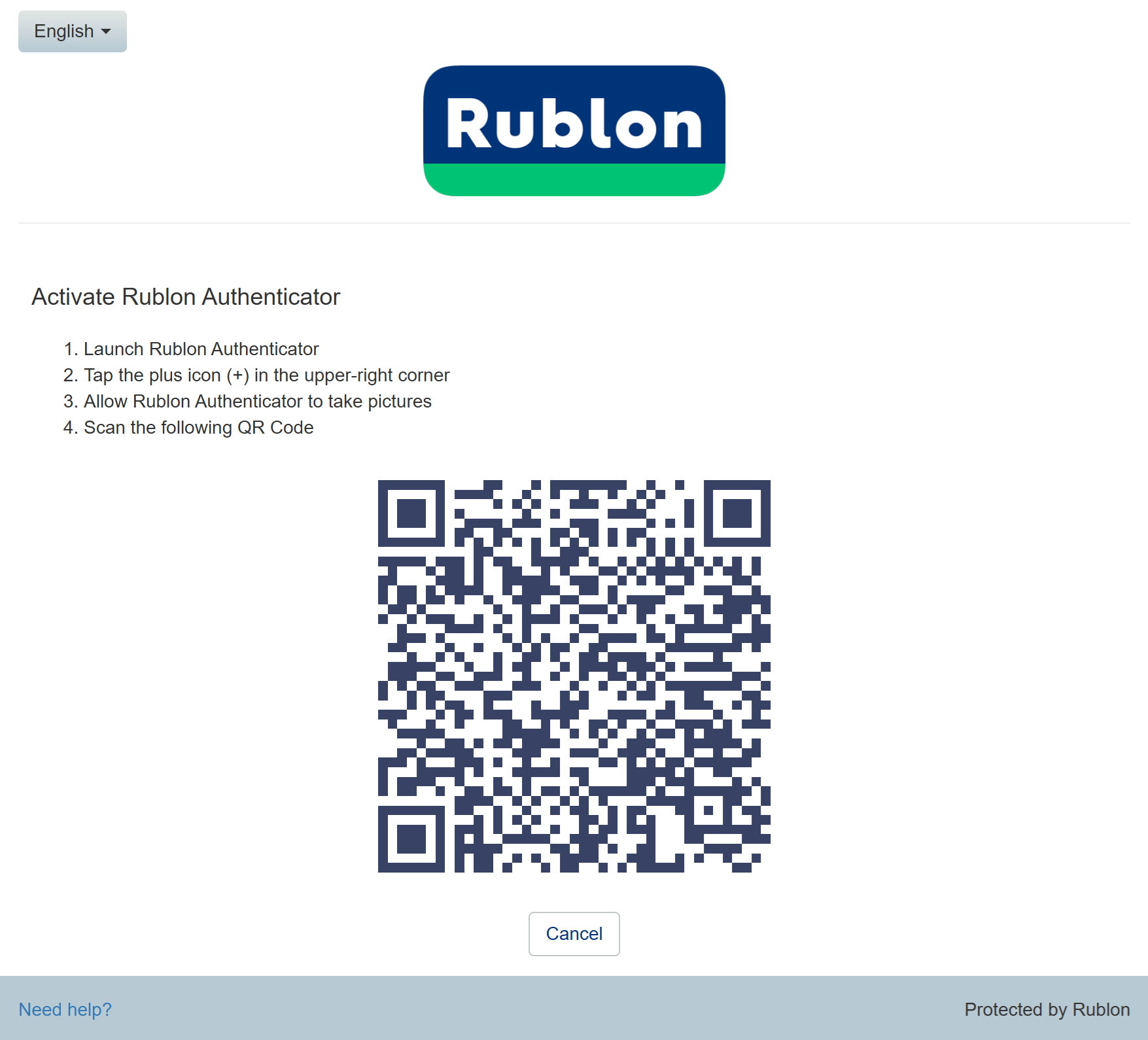
6. Congratulations! You have just activated your Rublon Authenticator.
Next time you log in, you will be able to verify your identity using Mobile Push.
Enroll Rublon Authenticator
If your administrator has sent you an Enrollment Email or Enrollment SMS using the Rublon Admin Console, you must now enroll Rublon Authenticator.
1. Open the Enrollment Email and click the Enroll Your Authenticator button, or open the link from the text message.
2. Follow the instructions in Enroll Your Account.