
Last updated on October 13, 2026
Rublon MFA supports RFID authenticators, like smart cards, wristbands, key fobs, tags, and tokens, and allows using them during multi-factor authentication for a convenient login experience. Refer to the instructions below to learn how to enroll your RFID authenticator and how to use it to sign in to your applications.
An RFID authenticator can be a smart card, employee badge, contactless access card, proximity card, key fob, wristband, tag, or token. In many organizations, the same physical access credential used for door access can also serve as a possession factor for MFA, helping users confirm their identity during Windows Logon and RDP authentication with Rublon MFA.
Enroll your RFID Authenticator
Note
RFID authenticators are also commonly described as physical access badges, PACS credentials, contactless access cards, contactless writable cards, passive proximity cards, or RFID-enabled smart cards. The exact name depends on the card technology and access control system used in your organization.
Note
Before attempting to add your RFID authenticator, ensure that your authenticator is on the list of supported RFID authenticators.
Note
To sign in using your RFID authenticator, you must first self-enroll your authenticator using the Manage Authenticators view available during Windows login. RFID authenticators cannot currently be enrolled via an Enrollment Email, Enrollment SMS, or during sign-in to services other than Windows.
1. Initiate login to your application.
To check if your application integrated with Rublon MFA supports RFID, refer to the list of supported applications.
2. Provide your username and password.
3. Rublon Prompt appears.

4. Click Manage Authenticators.
5. If you have any other authentication method already enrolled, you need to confirm your identity before proceeding. Choose one of the available authentication methods.
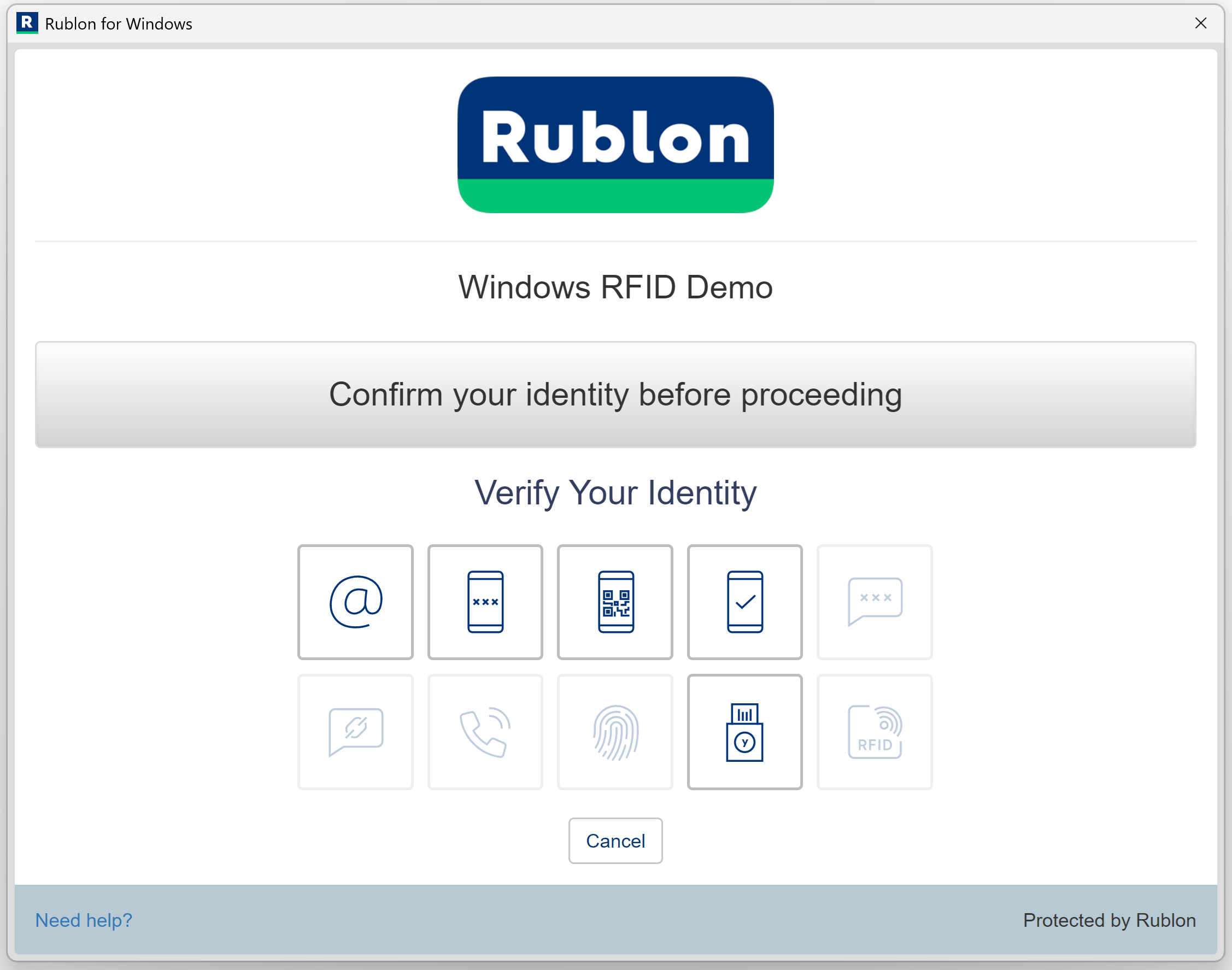
6. The Rublon Prompt will display the Manage Authenticators view. Click Add Authenticator.
7. Select RFID Authenticator as your authenticator type and click Next.
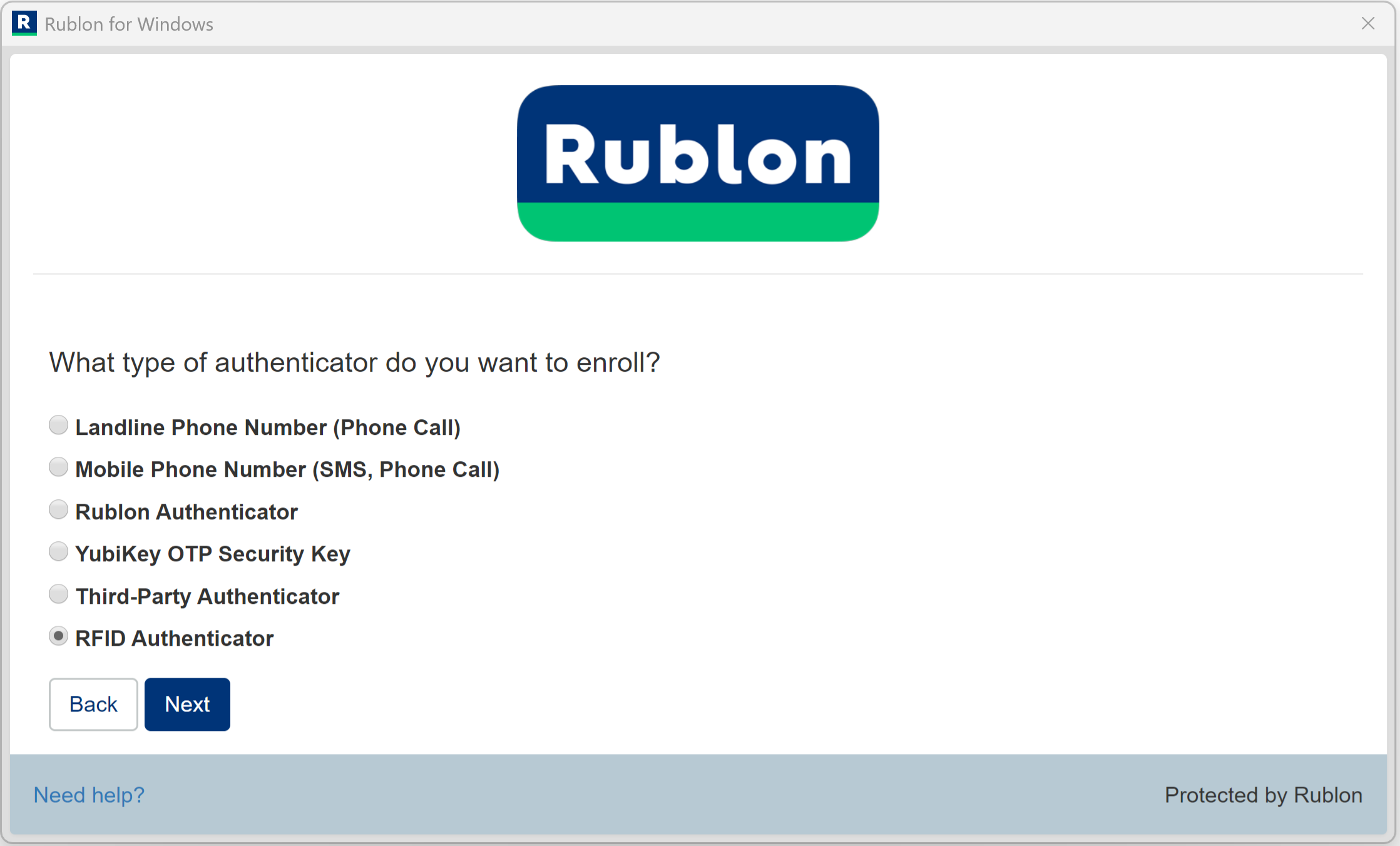
8. Connect an RFID reader if you have not already, and then hold your RFID authenticator to the reader.

9. Enter the RFID authenticator name and click OK.

10. You will be redirected to the Rublon Prompt. Note that the RFID icon is no longer greyed out.

11. Congratulations! You have successfully enrolled your RFID authenticator.
You can now sign in using your RFID authenticator.
Sign In With Your RFID Authenticator
The following example illustrates signing in to Windows using an RFID smart card. The same flow applies to other supported RFID authenticators, including contactless physical access cards, passive proximity cards, key fobs, wristbands, tags, and tokens. After enrollment, the RFID authenticator becomes a possession-based MFA method: you sign in with your username and password, then present the RFID credential to the reader.
1. To sign in using your RFID authenticator, choose the RFID authentication method from the Rublon Prompt.
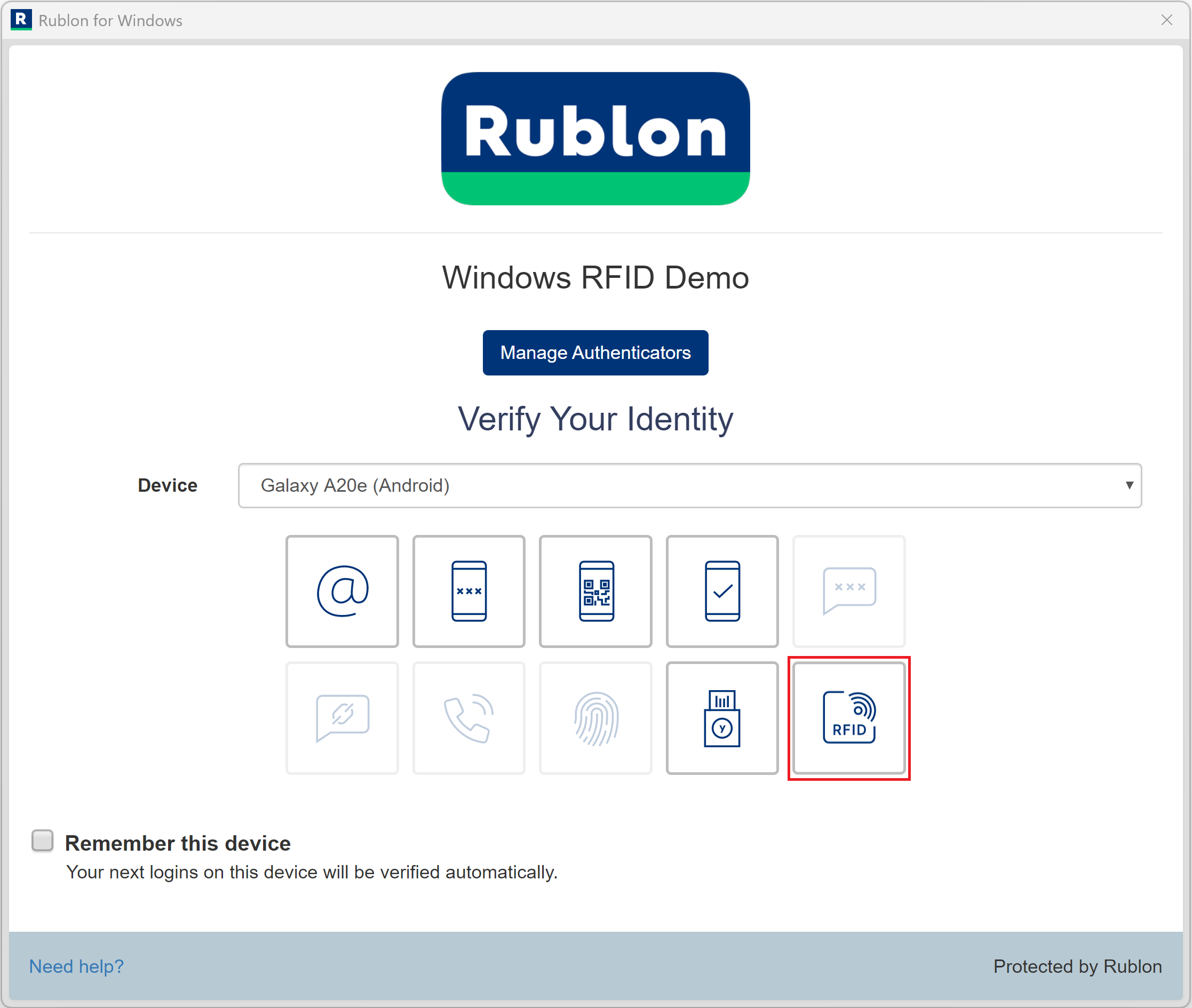
2. Connect your RFID reader if you have not already, and then hold your RFID authenticator to the reader.
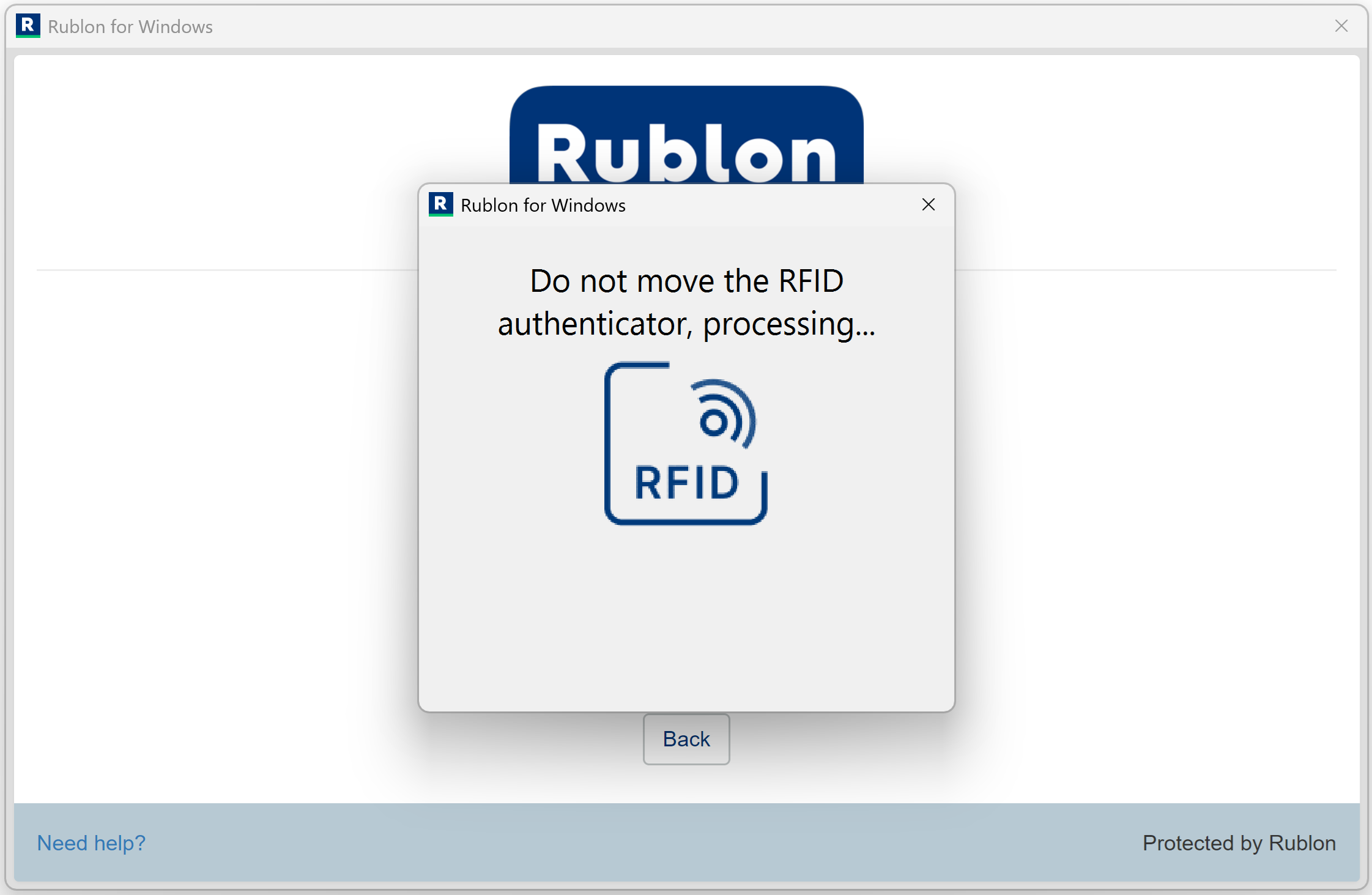
3. You will be successfully signed in to your application.