
• Skip to primary navigation
  • Skip to main content
  • Skip to primary sidebar
  • Skip to footer

Company · Blog · Newsletter · Events · Partner Program

Downloads Support
  • English
    • Deutsch
    • Polski
Login
Rublon

Rublon

Secure Remote Access

  • Product
    • Regulatory Compliance
    • Use Cases
    • Rublon Reviews
    • Deployment Model
    • What is MFA?
    • User Experience
    • Authentication Methods
    • Rublon Authenticator
    • Rublon App Shield
    • Rublon Identity Bridge
    • Remembered Devices
    • Logs
    • Single Sign-On
    • Access Policies
    • Directory Sync
  • Solutions
    • MFA for Remote Desktop
    • MFA for Remote Access Software
    • MFA for Windows Logon
    • MFA for Linux
    • MFA for On-Premise Active Directory
    • MFA for LDAP
    • MFA for RADIUS
    • MFA for SAML
    • MFA for RemoteApp
    • MFA for Workgroup Accounts
    • MFA for Entra ID
    • MFA for Windows Server Core
  • Customers
  • Industries
    • Financial Services
    • Investment Funds
    • Retail
    • E-Commerce
    • Technology
    • Healthcare
    • Legal
    • Education
    • Government
    • Utilities
    • Manufacturing
  • Pricing
  • Docs
Contact us Free Trial

How to add a FIDO2/U2F Security Key?

September 13, 2021 By Rublon Authors

Last updated on April 9, 2026

Rublon MFA supports FIDO2 and FIDO U2F security keys, such as YubiKey, to allow a seamless login experience with top security. Refer to the instructions below to learn how to enroll your FIDO2/U2F security key and use this key to sign in to your applications.

Enroll Your FIDO2/U2F Security Key

Note

To sign in using your FIDO2/U2F Security Key, you must first self-enroll your key using the Manage Authenticators view or ask your administrator to send you an Enrollment Email.

• If you prefer to self-enroll your security key, start from Step 1 of the following guide.
• If you received an Enrollment Email from your administrator, open the email and click Enroll Your Authenticator. Then, you can jump to Step 8 of the following guide.

1. Initiate login to your application.

To check if your application integrated with Rublon MFA supports FIDO2/U2F Security Keys, refer to the list of supported applications.

2. Provide your username and password.

3. Rublon Prompt appears.
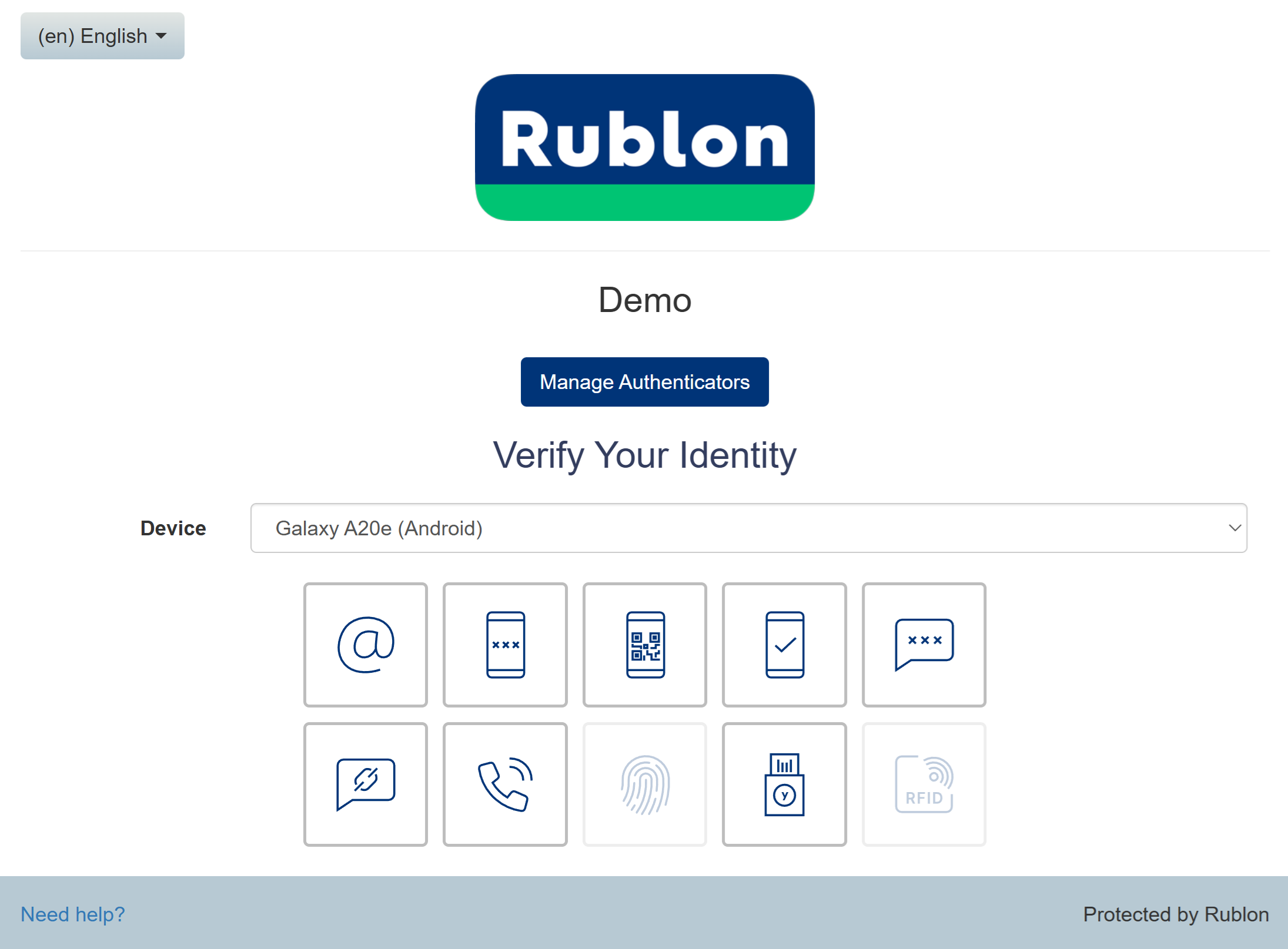
4. Click Manage Authenticators.

5. To confirm your identity before proceeding, choose one of the available authentication methods.
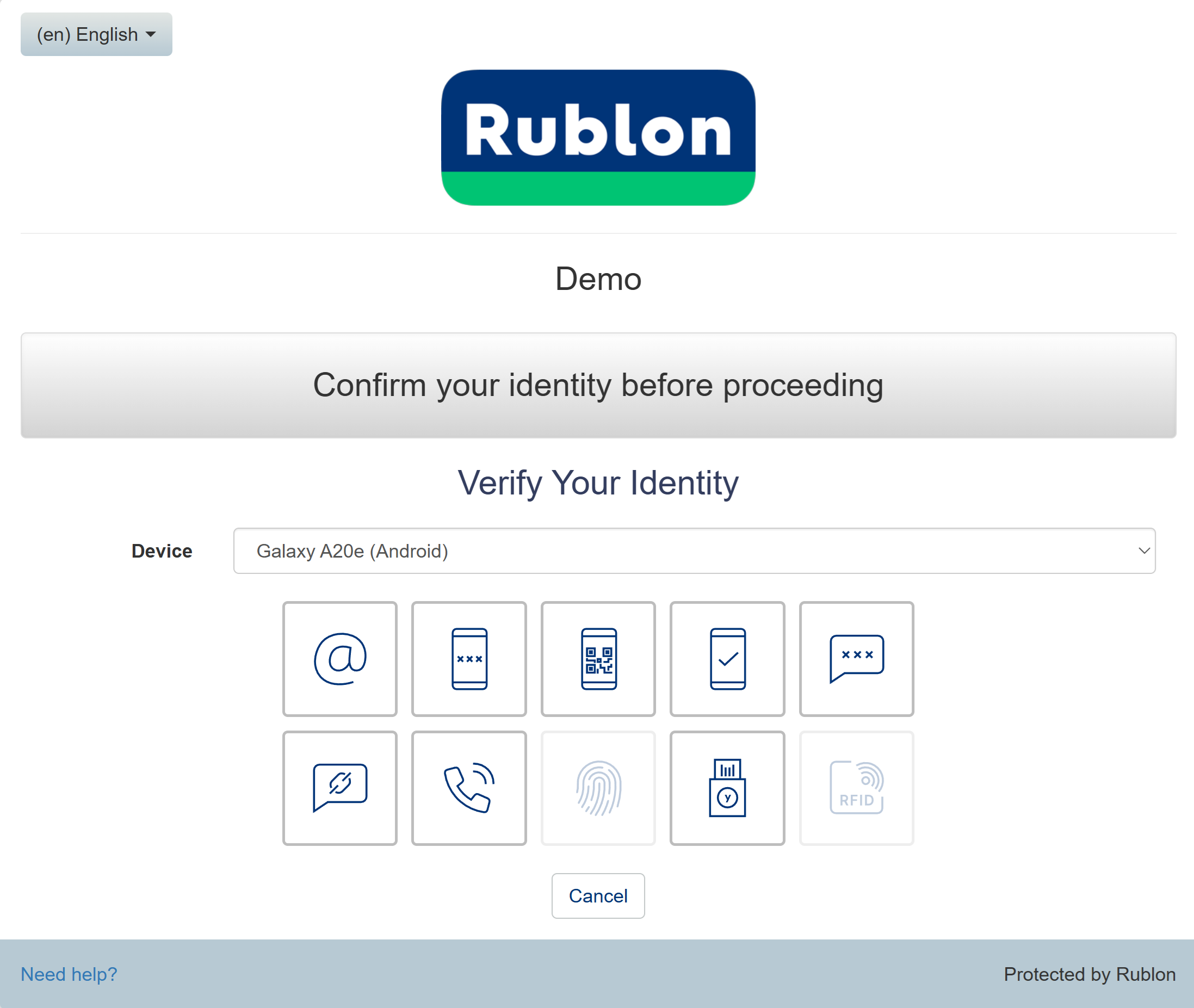
6. After you confirm your identity with one of the available methods (e.g., Mobile Push), the Rublon Prompt will display the Manage Authenticators view.

7. Click Add Authenticator.

8. Select FIDO Authenticator as your authenticator type and click Next.

9. Insert your FIDO2/U2F Security Key into the USB port of your computer and touch your key.

10. Enter a name for your FIDO2/U2F Security Key and click Save.

11. You will be redirected to the Rublon Prompt.

12. Congratulations! You have successfully enrolled your FIDO2/U2F Security Key.

You can now sign in using your FIDO2/U2F Security Key.

Sign In With Your FIDO2/U2F Security Key

1. To sign in using your security key, choose the FIDO2/U2F Security Key authentication method from the Rublon Prompt.
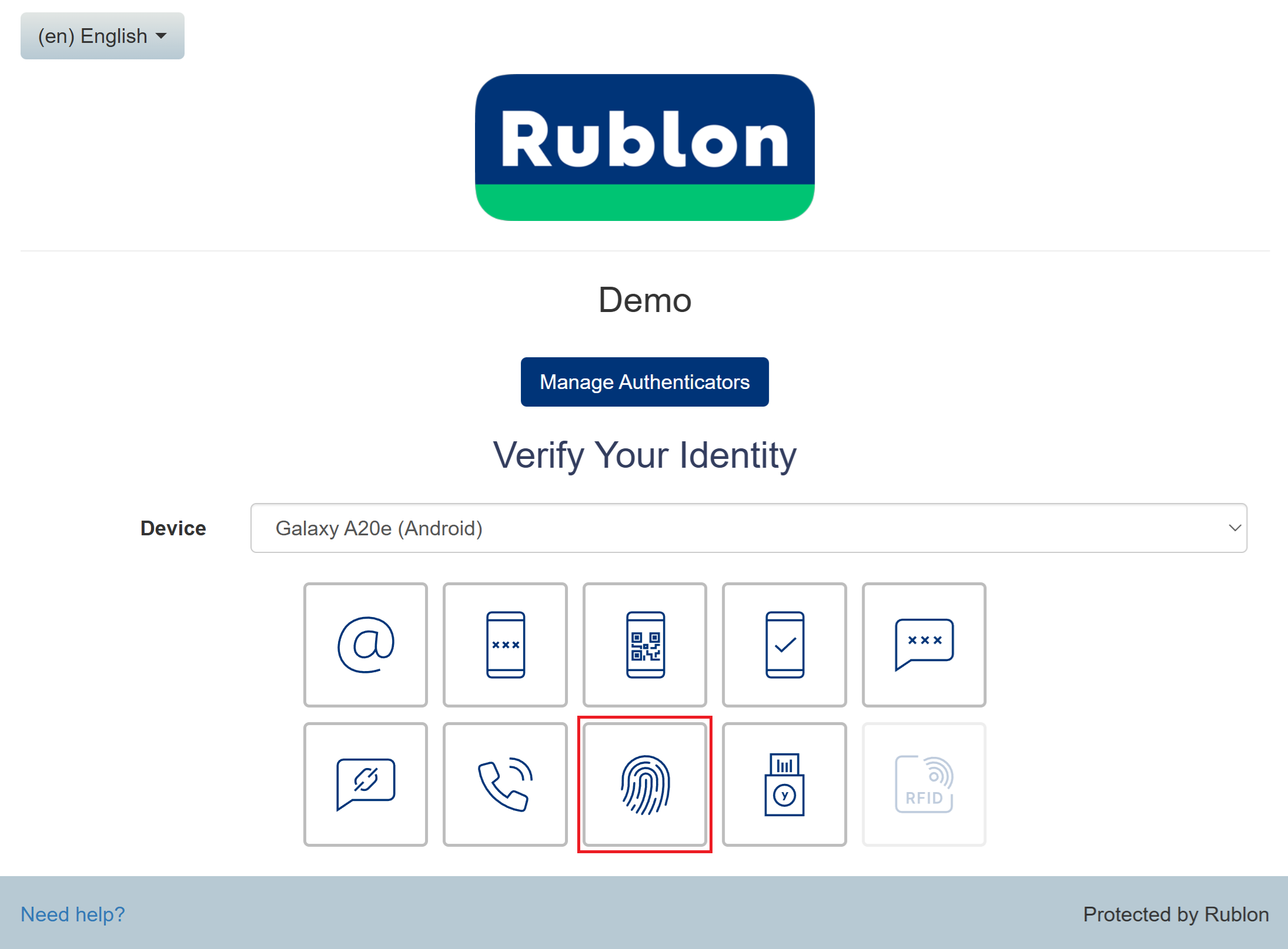
2. Plug in your key if you have not already, and then touch your FIDO2/U2F Security Key.
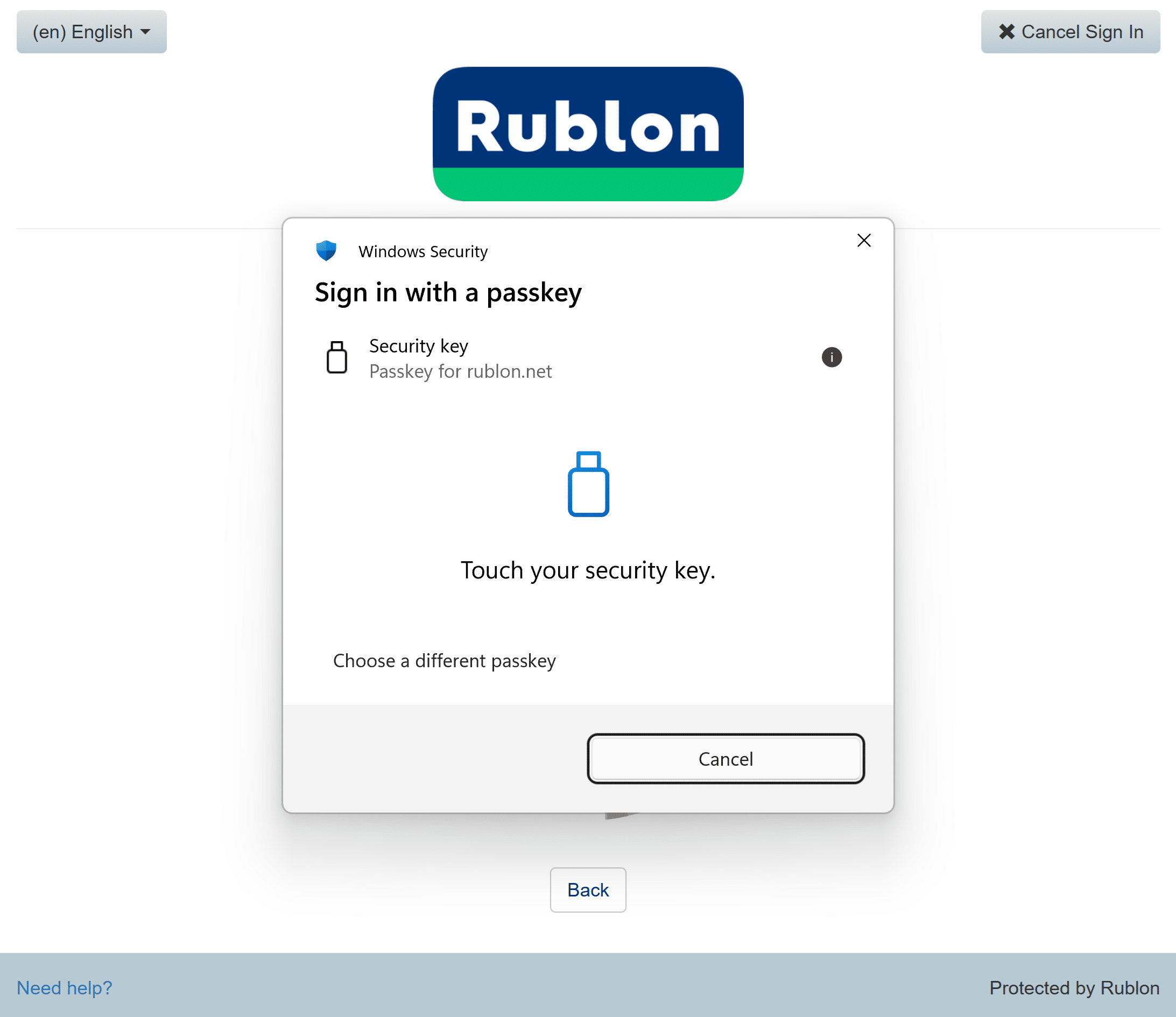
3. You will be successfully signed in to your application.

Related Posts

  • Rublon User Guide
  • How to add a landline phone number?
  • How to add a mobile phone number?
  • How to enroll a mobile device with Rublon Authenticator?
  • How to enroll a third-party authenticator app?
  • How to add a YubiKey OTP Security Key?
  • How to enroll a FIDO2 Passkey for MFA?
  • How to add an RFID authenticator?

Filed Under: User Guide

Primary Sidebar

Contents

  • Enroll Your FIDO2/U2F Security Key
  • Sign In With Your FIDO2/U2F Security Key
  • Related Posts
Try Rublon for Free
Start your 30-day Rublon Trial to secure your employees using multi-factor authentication.
No Credit Card Required
Rublon 5 star reviews on Gartner Peer Insights

Footer

Product

  • Regulatory Compliance
  • Rublon Reviews
  • Use Cases
  • Deployment Model
  • What is MFA?
  • User Experience
  • Authentication Methods
  • Rublon Authenticator
  • Rublon App Shield
  • Rublon Identity Bridge
  • Remembered Devices
  • Logs
  • Single Sign-On
  • Access Policies
  • Directory Sync

Solutions

  • MFA for Remote Desktop
  • MFA for Windows Logon
  • MFA for Remote Access Software
  • MFA for Linux
  • MFA for On-Premise Active Directory
  • MFA for LDAP
  • MFA for RADIUS
  • MFA for SAML
  • MFA for RemoteApp
  • MFA for Workgroup Accounts
  • MFA for Entra ID
  • MFA for Windows Server Core

Industries

  • Financial Services
  • Investment Funds
  • Retail
  • E-Commerce
  • Technology
  • Healthcare
  • Legal
  • Education
  • Government
  • Utilities
  • Manufacturing

Documentation

  • 2FA for Windows & RDP
  • 2FA for RDS
  • 2FA for RD Gateway
  • 2FA for RD Web Access
  • 2FA for SSH
  • 2FA for OpenVPN
  • 2FA for SonicWall VPN
  • 2FA for Cisco VPN
  • 2FA for Office 365

Support

  • Knowledge Base
  • FAQ
  • System Status

About

  • About Us
  • AI Info
  • Blog
  • Events
  • Careers
  • Co-funded by the European Union
  • Contact Us

  • Facebook
  • GitHub
  • LinkedIn
  • Twitter
  • YouTube

© 2026 Rublon · Imprint · Legal & Privacy · Security