
• Skip to primary navigation
  • Skip to main content
  • Skip to footer

Company Â· Blog Â· Newsletter Â· Events Â· Partner Program

Downloads Support
  • English
Login
Rublon

Rublon

Secure Remote Access

  • Product
    • Regulatory Compliance
    • Use Cases
    • Rublon MFA Reviews
    • Deployment Model
    • What is MFA?
    • User Experience
    • Authentication Methods
    • Rublon Authenticator
    • Rublon App Shield
    • Rublon Identity Bridge
    • Remembered Devices
    • Logs
    • Single Sign-On
    • Access Policies
    • Directory Sync
  • Solutions
    • MFA for Remote Desktop
    • MFA for Remote Access Software
    • MFA for Windows Logon
    • MFA for Linux
    • MFA for On-Premise Active Directory
    • MFA for LDAP
    • MFA for RADIUS
    • MFA for SAML
    • MFA for RemoteApp
    • MFA for Workgroup Accounts
    • MFA for Entra ID
    • MFA for Windows Server Core
  • Customers
  • Industries
    • Financial Services
    • Investment Funds
    • Retail
    • E-Commerce
    • Technology
    • Healthcare
    • Legal
    • Education
    • Government
    • Utilities
    • Manufacturing
  • Pricing
  • Docs
Contact us Free Trial

Enable XRDP and GNOME Logins Using Microsoft Entra ID Credentials and Rublon MFA

August 4, 2026 By Rublon Authors

Microsoft Entra ID is often an organization’s central identity platform, but Linux desktop environments like Debian cannot normally use Entra ID credentials directly for XRDP, GDM, or GNOME screen unlock.

XRDP and GDM rely on Pluggable Authentication Modules (PAM) to authenticate users. However, Microsoft Entra ID is not a traditional LDAP directory that a Linux PAM configuration can query directly.

Rublon Authentication Proxy can bridge this gap. A Debian server can send an LDAP authentication request to Rublon Authentication Proxy, which verifies the user’s password against Microsoft Entra ID and requires Rublon MFA before desktop access is granted. This extends the same Entra ID credentials and MFA flow to Linux services that do not support SAML, OAuth 2.0, or OpenID Connect natively.

This guide shows how to configure Debian 13 so users can authenticate with Microsoft Entra ID credentials and Rublon MFA when:

  • connecting to a GNOME desktop through XRDP,
  • signing in locally through GDM,
  • unlocking the GNOME screen,
  • unlocking a GNOME session opened through XRDP.

The resulting desktop session still belongs to an existing local Linux account. Microsoft Entra ID verifies the primary password, Rublon MFA provides the additional authentication step, and Debian continues to supply the account’s UID, GID, home directory, shell, permissions, and file ownership.

Important

This configuration does not join Debian to Microsoft Entra ID and does not automatically create Linux accounts from Entra ID. Every user must have a corresponding Linux account that can be resolved through the system NSS user database.

Protect XRDP and GNOME Access With Entra ID Credentials and Rublon MFA

Use Microsoft Entra ID for primary password authentication and require Rublon MFA before users can access or unlock Debian desktop sessions.

Start Your Free Trial (No Credit Card Required)

Use Microsoft Entra ID Credentials for XRDP and GNOME Logins

Organizations that use Microsoft Entra ID as their primary identity platform may still operate Debian workstations, administrative desktops, development environments, and Linux servers with graphical interfaces.

These systems often authenticate users through local Linux passwords or an on-premises directory. As a result, users may need a separate password for Linux desktop access even when Microsoft Entra ID is already used throughout the rest of the organization.

With Rublon Authentication Proxy, selected Debian desktop login paths can use Microsoft Entra ID as their primary authentication source.

Users sign in with:

  • a local Linux username,
  • the password associated with the mapped Microsoft Entra ID account,
  • an additional authentication step provided by Rublon MFA.

This approach can help organizations:

  • enable XRDP logins using Microsoft Entra ID credentials,
  • add multi-factor authentication to remote Debian desktop access,
  • use Entra ID credentials for local GDM logins,
  • require MFA when users unlock GNOME sessions,
  • avoid maintaining a separate password for the selected desktop login paths,
  • keep Linux account ownership and permissions unchanged,
  • apply the integration only to selected PAM services,
  • avoid modifying authentication globally for every service on the system.

Rublon Authentication Proxy acts as the LDAP endpoint used by the Debian server and uses Microsoft Entra ID as the underlying authentication source. Microsoft Entra ID performs primary credential verification, while Rublon MFA protects the same login flow with an additional authentication step.

Add MFA to XRDP Remote Desktop Access

XRDP enables users and administrators to access a Linux graphical desktop through the Remote Desktop Protocol.

Remote desktop access can expose interactive Linux sessions to internal networks, administrative networks, VPN users, or other remote access paths. When XRDP relies only on a password, anyone who obtains that password may be able to start or reconnect to the user’s desktop session.

Rublon MFA adds another authentication requirement to the XRDP login process.

In the configuration described in this guide:

  1. The user connects to the Debian server with an RDP client.
  2. The user enters a local Linux username and the password associated with the mapped Microsoft Entra ID account.
  3. XRDP passes the authentication request to PAM.
  4. PAM starts an example mapping script.
  5. The script maps the local username to the corresponding Microsoft Entra ID UPN.
  6. Rublon Authentication Proxy verifies the password against Microsoft Entra ID.
  7. Rublon MFA requires additional authentication.
  8. XRDP starts or reconnects the user’s graphical session after the flow completes successfully.

XRDP is available as a Debian 13 package and uses the PAM service configuration stored in /etc/pam.d/xrdp-sesman. The standard XRDP configuration listens on TCP port 3389 unless the administrator changes it.

Add MFA to GDM and GNOME Screen Unlock

Remote desktop login is only one part of the desktop authentication lifecycle.

After a user starts a GNOME session, the session may later be locked manually or automatically. A user may also sign in directly through the local GDM login screen. Without a consistent authentication configuration, the initial XRDP login and subsequent screen unlock can use different identity sources.

In the tested Debian 13 configuration, the PAM service file /etc/pam.d/gdm-password handles:

  • local graphical login through GDM,
  • GNOME screen unlock,
  • unlocking a GNOME session started through XRDP.

By connecting this PAM service to the same mapping script and Rublon Authentication Proxy, the user can authenticate with the Microsoft Entra ID password and Rublon MFA during both initial login and later screen unlock.

The GNOME lock screen normally asks the user to enter a password before the session can be resumed. In this integration, PAM validates the password through Microsoft Entra ID and Rublon Authentication Proxy instead of using the local Debian password for that login path.

Extend an Entra-First Identity Strategy to Debian Desktops

Organizations moving toward an Entra-first identity architecture may still have Linux services that cannot authenticate directly through modern identity protocols.

XRDP, GDM, and GNOME screen unlock do not operate like browser-based applications that can redirect users to an OpenID Connect or SAML identity provider. They instead rely on the authentication facilities available locally through PAM.

Rublon Authentication Proxy provides a compatibility layer between these PAM-based login paths and Microsoft Entra ID.

This approach is especially relevant when:

  • Microsoft Entra ID is the organization’s main identity source,
  • Debian 13 systems provide graphical remote access through XRDP,
  • users should use their Entra ID password for desktop access,
  • remote desktop logins should require MFA,
  • GDM and GNOME screen unlock should use the same authentication source,
  • local Linux accounts must remain responsible for operating-system identity,
  • the organization does not want to modify /etc/pam.d/common-auth,
  • other services such as sudo, su, and local TTY login should remain unchanged.

Rublon Authentication Proxy uses the same general architecture to let LDAP and RADIUS clients use Microsoft Entra ID credentials when they cannot integrate with Entra ID directly.

What This XRDP and GNOME Integration Does

This configuration changes password verification for selected desktop-related PAM services. It does not replace the local Linux user database.

For every user, two identities remain involved:

IdentityExamplePurpose
Local Linux accountaliceProvides the UID, GID, home directory, shell, file ownership, permissions, and desktop session identity
Microsoft Entra ID accountalice@example.comProvides the password used for primary authentication

The example mapping script converts:

alice

to:

alice@example.com

Authentication succeeds only when:

  1. The local Linux account exists.
  2. The Microsoft Entra ID password is valid.
  3. The Rublon MFA authentication succeeds.
  4. The PAM account and session checks allow access.
  5. XRDP or GDM can start or unlock the graphical session.

This configuration does not:

  • join Debian to Microsoft Entra ID,
  • automatically create local Linux accounts,
  • retrieve UID or GID values from Entra ID,
  • create home directories from Entra ID data,
  • change Linux file permissions,
  • change authentication globally for every PAM service,
  • automatically protect SSH, sudo, su, or local TTY authentication.

The implementation deliberately leaves /etc/pam.d/common-auth unchanged. Only the PAM configurations for XRDP and GDM are modified.

How XRDP and GNOME Login With Microsoft Entra ID Credentials and MFA Works

The user enters a local Linux username, such as alice. An example PAM helper converts that username into the corresponding Microsoft Entra ID User Principal Name, such as alice@example.com.

The authentication process consists of the following steps:

  1. The user starts an XRDP login, GDM login, or GNOME screen unlock.
  2. The service invokes its PAM authentication configuration.
  3. PAM starts the example mapping script and passes the username and password to it.
  4. The script confirms that the local Linux account exists.
  5. The script maps the local username to the corresponding Microsoft Entra ID UPN.
  6. The script establishes an LDAPS connection to Rublon Authentication Proxy.
  7. Rublon Authentication Proxy verifies the password against Microsoft Entra ID.
  8. Rublon MFA requires the user to complete an additional authentication step.
  9. The result is returned through Rublon Authentication Proxy, the script, and PAM.
  10. XRDP or GDM starts or unlocks the session as the local Linux user.

XRDP and GNOME Login Flow With Microsoft Entra ID Credentials and Rublon MFA Diagram
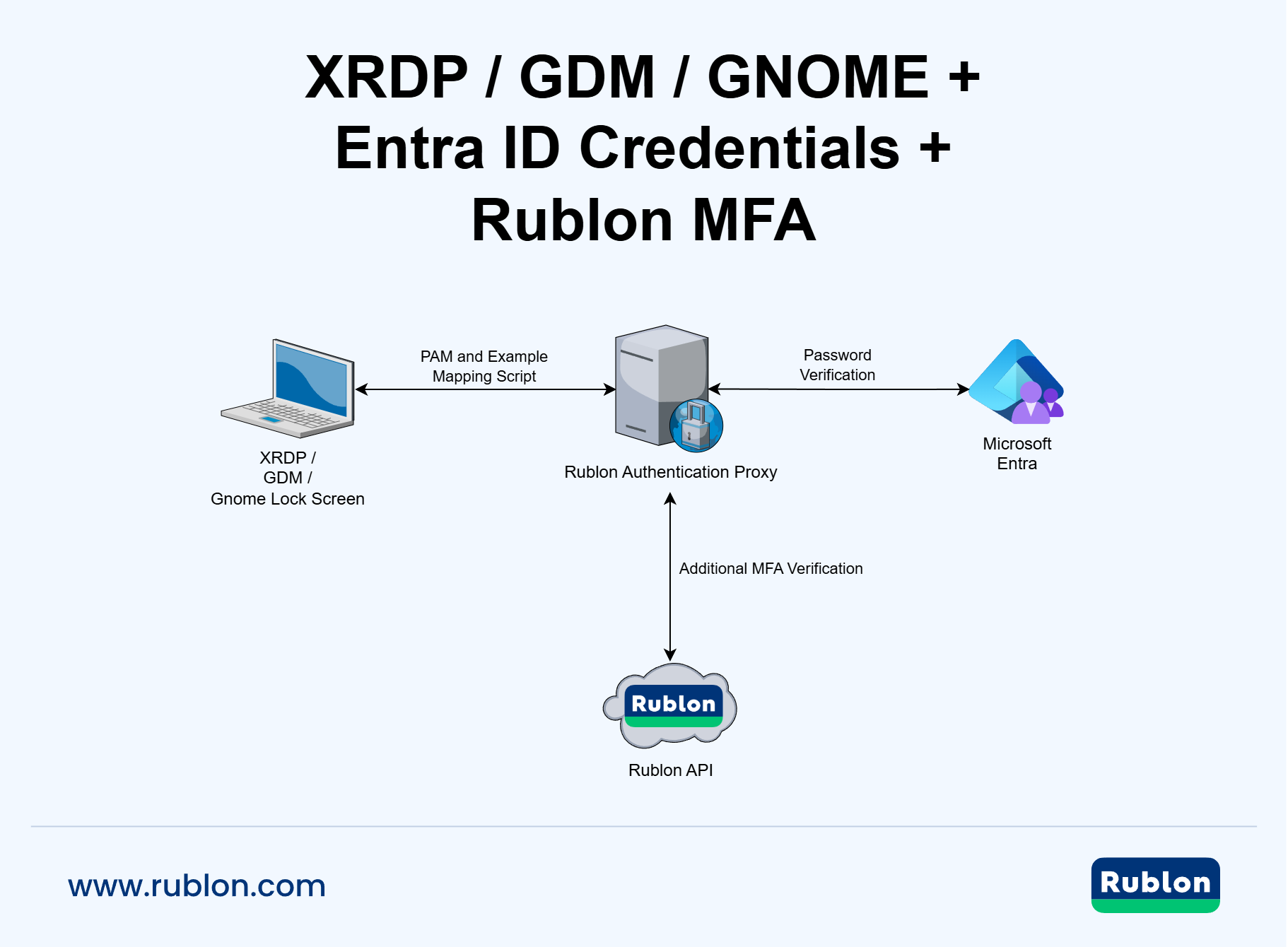
Diagram showing an XRDP, GDM, or GNOME login passing through Debian PAM, an example mapping script, Rublon Authentication Proxy, Microsoft Entra ID password verification, and Rublon MFA before desktop access is granted.
Rublon Authentication Proxy connects PAM-based XRDP and GNOME authentication to Microsoft Entra ID and requires Rublon MFA before granting desktop access.

Before You Start

You need:

  • a system running Debian 13,
  • the GNOME desktop environment and GDM,
  • XRDP installed or permission to install it,
  • an existing local Linux account for every user who needs access,
  • a deployed Rublon Authentication Proxy,
  • an LDAP Proxy configured in Rublon Authentication Proxy,
  • Microsoft Entra ID configured as an ENTRA authentication source,
  • an application registered in Microsoft Entra ID for Rublon Authentication Proxy,
  • network connectivity between the Debian server and Rublon Authentication Proxy,
  • a trusted certificate for the LDAPS endpoint,
  • an enabled Rublon MFA method that matches the auth_method setting in Rublon Authentication Proxy, such as Mobile Push configured with auth_method: push, 
  • ensure that the method configured in auth_method is allowed for the Rublon Authentication Proxy application in the Rublon Admin Console and that the user has enrolled the required authenticator,
  • root or equivalent administrative permissions,
  • console or administrative SSH access for recovery.

The Microsoft Entra ID configuration for Rublon Authentication Proxy requires an app registration, tenant and client identifiers, a client secret, appropriate Microsoft Graph permissions, and a Conditional Access configuration that allows Rublon Authentication Proxy to perform primary credential verification before applying Rublon MFA. The Rublon Authentication Proxy application must be excluded from Microsoft Entra MFA requirements so that Rublon MFA can perform the secondary authentication step.

Configure Rublon Authentication Proxy

Configure an LDAP Proxy that uses Microsoft Entra ID as its authentication source.

The relevant configuration includes:

  • an LDAP Proxy Server,
  • an ENTRA authentication source,
  • the Microsoft Entra tenant ID,
  • the application client ID,
  • the application client secret,
  • a virtual LDAP base DN,
  • an authentication method compatible with the users’ Entra ID UPNs,
  • a certificate and private key for LDAPS.

The example helper in this guide performs a direct bind as the actual Entra ID user:

alice@example.com

It does not perform an initial technical bind or search for the user before authentication. Because the corresponding Linux account already exists and the helper performs a direct bind as the mapped Microsoft Entra ID user, an LDAP access user is not required for this configuration.

Keep the Entra application client secret in the secured Rublon Authentication Proxy configuration or in a supported Secret Source. Do not place the client secret in the PAM helper script. Rublon Authentication Proxy supports external secret storage mechanisms so the credential does not have to remain directly in the configuration file.

Use LDAPS Between Debian and Rublon Authentication Proxy

The Microsoft Entra ID password is passed from PAM to the helper and then used for the bind to Rublon Authentication Proxy. Protect this connection with LDAPS and validate the certificate presented by the proxy.

The examples below assume:

Protocol: LDAPS
Port: 636
Rublon Authentication Proxy host: rap.example.com
CA certificate: /etc/ssl/certs/rap-internal-ca.pem

Applications connecting to Rublon Authentication Proxy over LDAPS must trust the certificate presented by the proxy.

Install XRDP and the Required Packages

1. Update the package index:

apt update

2. Install XRDP, the Python LDAP library, and the PAM testing utility:

apt install -y \
  xrdp \
  python3-ldap3 \
  pamtester

3. The Debian 13 package provides XRDP together with its PAM service configuration at:

/etc/pam.d/xrdp-sesman

4. Enable and start XRDP:

systemctl enable --now xrdp

Check its status:

systemctl status xrdp --no-pager

Confirm that the session manager is also operational:

systemctl status xrdp-sesman --no-pager

Restrict Network Access to XRDP

XRDP normally listens on TCP port 3389. Do not expose this port more broadly than required. Restrict it to the trusted administrative, internal, or VPN network that needs remote desktop access.

For example, if UFW is enabled:

ufw allow from 10.0.0.0/8 to any port 3389 proto tcp

Replace 10.0.0.0/8 with the actual trusted network. A narrower subnet is preferable whenever possible.

Review the resulting firewall rules:

ufw status numbered

Create or Verify the Linux Account

Before authentication can begin, the user must be resolvable through the system NSS user database. XRDP requires a valid UID, GID, home directory, shell, and account ownership information.

1. Check whether NSS can resolve the account:

getent passwd alice

Expected output resembles:

alice:x:1001:1001:Alice:/home/alice:/bin/bash

2. Review the account identity and group membership:

id alice

3. Confirm that the configured home directory exists:

ls -ld /home/alice

If getent passwd alice returns no result, XRDP cannot obtain the UID, GID, home directory, or shell required to start the user session.

If the account is intended to be stored locally in /etc/passwd, create it with:

adduser alice

If the account is supplied by SSSD, LDAP, or another NSS provider, ensure that the provider is configured correctly and verify that:

getent passwd alice

returns a complete user record.

The Linux username does not need to include the Entra ID domain. The user enters:

alice

The example mapping script converts it to:

alice@example.com

A successful Microsoft Entra ID authentication alone is not sufficient to start a Linux desktop session. Debian must also be able to resolve the corresponding Linux account through NSS.

Prepare an Example PAM Mapping Script

PAM does not natively perform the required mapping from a local Linux username to an Entra ID UPN and then authenticate that user through Rublon Authentication Proxy.

For this integration pattern, an administrator can prepare a small helper program that:

  1. Receives the username from PAM.
  2. Confirms that the local Linux account exists.
  3. Reads the password supplied by PAM.
  4. Maps the local username to an Entra ID UPN.
  5. Establishes a certificate-validated LDAPS connection to Rublon Authentication Proxy.
  6. Performs a bind as the mapped Entra ID user.
  7. Waits for the Microsoft Entra ID and Rublon MFA result.
  8. Returns success or failure to PAM.

The pam_exec module can execute an external program, provide PAM variables such as PAM_USER and PAM_SERVICE through the process environment, and pass the authentication token through standard input when expose_authtok is enabled.

Important

The code below is provided solely as an illustrative example of how an administrator might connect a PAM authentication flow to Rublon Authentication Proxy. It is not a Rublon product, an officially supported Rublon MFA integration component, a security-reviewed reference implementation, or production-ready software.

Rublon does not provide support, maintenance, warranties, or guarantees for this example code and does not represent that it is complete, secure, error-free, or suitable for any particular environment.

The administrator using or modifying this code is solely responsible for its independent security review, testing, adaptation, deployment, maintenance, monitoring, compatibility, and regulatory compliance.

Rublon assumes no responsibility for security vulnerabilities, unauthorized access, service interruption, data loss, configuration errors, or other consequences resulting from the use or modification of this example. Do not deploy it in a production environment without appropriate technical and security review.

Create:

/usr/local/sbin/pam-rap-entra.py

Use the following code as a starting point:

#!/usr/bin/env python3

import os
import pwd
import ssl
import sys
import syslog

from ldap3 import (
    AUTO_BIND_NO_TLS,
    SIMPLE,
    Connection,
    Server,
    Tls,
)
from ldap3.core.exceptions import LDAPException


# Replace these values with settings for your environment.
RAP_HOST = "rap.example.com"
RAP_PORT = 636
RAP_CA_CERT = "/etc/ssl/certs/rap-internal-ca.pem"
UPN_SUFFIX = "example.com"

CONNECT_TIMEOUT = 10
AUTH_TIMEOUT = 180
MAX_PASSWORD_BYTES = 512


def log_error(message: str) -> None:
    syslog.openlog("pam-rap-entra")
    syslog.syslog(
        syslog.LOG_AUTHPRIV | syslog.LOG_ERR,
        message,
    )
    syslog.closelog()


def log_info(message: str) -> None:
    syslog.openlog("pam-rap-entra")
    syslog.syslog(
        syslog.LOG_AUTHPRIV | syslog.LOG_INFO,
        message,
    )
    syslog.closelog()


def main() -> int:
    pam_user = os.environ.get("PAM_USER", "").strip()
    pam_service = os.environ.get("PAM_SERVICE", "unknown").strip()

    if not pam_user:
        log_error("PAM_USER is empty")
        return 1

    # Debian needs a Linux account resolvable through NSS to provide
    # the UID, GID, home directory, shell, file ownership,
    # and process ownership.
    try:
        pwd.getpwnam(pam_user)
    except KeyError:
        log_error(
            f"Local Linux user does not exist: {pam_user}"
        )
        return 1

    # pam_exec.so with expose_authtok passes the authentication
    # token to the command through standard input.
    raw_password = sys.stdin.buffer.read(MAX_PASSWORD_BYTES)

    try:
        password = raw_password.rstrip(
            b"\x00\r\n"
        ).decode(
            "utf-8",
            errors="strict",
        )
    except UnicodeDecodeError:
        log_error(
            f"Password decoding failed for user: {pam_user}"
        )
        return 1

    if not password:
        log_error(
            f"Empty password received for user: {pam_user}"
        )
        return 1

    # Map the local Linux username to the Microsoft Entra ID UPN.
    if "@" in pam_user:
        entra_upn = pam_user
    else:
        entra_upn = f"{pam_user}@{UPN_SUFFIX}"

    tls_config = Tls(
        validate=ssl.CERT_REQUIRED,
        ca_certs_file=RAP_CA_CERT,
    )

    server = Server(
        RAP_HOST,
        port=RAP_PORT,
        use_ssl=True,
        tls=tls_config,
        connect_timeout=CONNECT_TIMEOUT,
    )

    connection = None

    try:
        connection = Connection(
            server,
            user=entra_upn,
            password=password,
            authentication=SIMPLE,
            auto_bind=AUTO_BIND_NO_TLS,
            receive_timeout=AUTH_TIMEOUT,
            raise_exceptions=True,
        )

        log_info(
            "Authentication successful: "
            f"service={pam_service}, "
            f"local={pam_user}, "
            f"entra={entra_upn}"
        )
        return 0

    except LDAPException as exc:
        log_error(
            "Authentication failed: "
            f"service={pam_service}, "
            f"local={pam_user}, "
            f"entra={entra_upn}, "
            f"error={exc}"
        )
        return 1

    except Exception as exc:
        log_error(
            "Unexpected authentication error: "
            f"service={pam_service}, "
            f"local={pam_user}, "
            f"entra={entra_upn}, "
            f"error={exc}"
        )
        return 1

    finally:
        if connection is not None:
            try:
                connection.unbind()
            except Exception:
                pass


if __name__ == "__main__":
    sys.exit(main())

Note

The example script assumes a one-to-one naming convention in which the local Linux username matches the part of the Microsoft Entra ID UPN before the @ character. It also uses one shared UPN suffix for all users. If local usernames differ from Entra ID usernames, or the organization uses multiple UPN suffixes, the administrator must implement and independently review an appropriate mapping mechanism.

Adapt the Example Script

1. Replace:

RAP_HOST = "rap.example.com"

with the hostname included in the certificate presented by Rublon Authentication Proxy.

2. Set:

UPN_SUFFIX = "example.com"

to the domain used in the users’ Microsoft Entra ID UPNs.

3. Set:

RAP_CA_CERT = "/etc/ssl/certs/rap-internal-ca.pem"

to the certificate authority file that Debian should use to validate the LDAPS certificate.

Do not add the Microsoft Entra application client secret to this script. The secret belongs in the secured Rublon Authentication Proxy configuration or its configured Secret Source.

The example script receives the password through standard input. It does not intentionally write the password to a file or include it in its log messages. The implementation and all related security properties must nevertheless be reviewed independently before deployment.

Secure the Script

1. Set the owner:

chown root:root /usr/local/sbin/pam-rap-entra.py

2. Set the permissions:

chmod 0755 /usr/local/sbin/pam-rap-entra.py

3. Validate the Python syntax:

python3 -m py_compile /usr/local/sbin/pam-rap-entra.py

No output indicates that the syntax check completed successfully.

Test the Example Helper Before Modifying XRDP or GDM

Do not connect the script to XRDP, GDM, or the GNOME lock screen before testing it independently.

1. Create a dedicated PAM test service:

cat > /etc/pam.d/rap-entra-test <<'EOF'
#%PAM-1.0
auth required pam_exec.so expose_authtok quiet /usr/local/sbin/pam-rap-entra.py
account required pam_permit.so
EOF

2. Run:

pamtester rap-entra-test alice authenticate

3. When prompted for a password, enter the password for alice@example.com.

4. Complete the Rublon MFA authentication. The expected result is:

pamtester: successfully authenticated

5. Do not continue until this test succeeds.

A successful test confirms that:

  • PAM can start the example script,
  • the local Linux account exists,
  • the username mapping works,
  • Debian can connect to Rublon Authentication Proxy,
  • the LDAPS certificate is trusted,
  • Microsoft Entra ID accepts the password,
  • Rublon MFA completes successfully.

Configure XRDP Authentication

XRDP uses:

/etc/pam.d/xrdp-sesman

for session authentication on the Debian 13 package used in this configuration.

Back Up the XRDP PAM Configuration

1. Create a timestamped backup:

cp -a \
  /etc/pam.d/xrdp-sesman \
  "/root/xrdp-sesman.before-entra-$(date +%F-%H%M%S)"

2. Review the existing file before changing it:

nl -ba /etc/pam.d/xrdp-sesman

Package updates or local modifications may cause the existing file to differ from the example below. Review any differences before replacing it.

Connect XRDP to the Example Helper

1. In the tested configuration, /etc/pam.d/xrdp-sesman contains:

#%PAM-1.0

auth required pam_env.so readenv=1
auth required pam_env.so readenv=1 envfile=/etc/default/locale

# Authenticate with Microsoft Entra ID credentials and Rublon MFA.
auth required pam_exec.so expose_authtok quiet /usr/local/sbin/pam-rap-entra.py

-auth optional pam_gnome_keyring.so
-auth optional pam_kwallet5.so

@include common-account
@include common-password
@include common-session

-session optional pam_gnome_keyring.so auto_start
-session optional pam_kwallet5.so auto_start

You can write the file with:

cat > /etc/pam.d/xrdp-sesman <<'EOF'
#%PAM-1.0

auth required pam_env.so readenv=1
auth required pam_env.so readenv=1 envfile=/etc/default/locale

# Authenticate with Microsoft Entra ID credentials and Rublon MFA.
auth required pam_exec.so expose_authtok quiet /usr/local/sbin/pam-rap-entra.py

-auth optional pam_gnome_keyring.so
-auth optional pam_kwallet5.so

@include common-account
@include common-password
@include common-session

-session optional pam_gnome_keyring.so auto_start
-session optional pam_kwallet5.so auto_start
EOF

2. Review the resulting file:

nl -ba /etc/pam.d/xrdp-sesman

PAM configuration is read for subsequent authentication attempts. A complete system reboot is not required.

3. You can restart XRDP and its session manager to ensure that the related services are operating normally:

systemctl restart xrdp xrdp-sesman

Check both services:

systemctl status xrdp xrdp-sesman --no-pager

Test the XRDP PAM Configuration

Test the actual XRDP PAM service before opening a remote desktop session:

pamtester xrdp-sesman alice authenticate

The test should proceed as follows:

  1. pamtester prompts for a password.
  2. Enter the password associated with alice@example.com.
  3. Rublon MFA starts.
  4. Complete the Rublon MFA authentication method configured in auth_method.
  5. PAM returns a successful authentication result.

Expected output:

pamtester: successfully authenticated

Connect Through an RDP Client

Open Remmina, Microsoft Remote Desktop, FreeRDP, or another compatible RDP client.

Use:

Protocol: RDP
Server: 192.0.2.10
Username: alice
Password: Microsoft Entra ID password
Domain: Leave empty

Replace 192.0.2.10 with the address or hostname of the Debian server.

Enter the local Linux username:

alice

Note: Do not enter example.com\alice or the full Entra ID UPN: alice@example.com.

The RDP client and XRDP should receive the local Linux username. The example helper performs the mapping to alice@example.com.

The XRDP login process should proceed as follows:

  1. The RDP client connects to the Debian server.
  2. XRDP receives the local username and password.
  3. xrdp-sesman invokes its PAM service.
  4. PAM starts the example mapping script.
  5. The script maps alice to alice@example.com.
  6. Rublon Authentication Proxy verifies the password against Microsoft Entra ID.
  7. Rublon MFA requires additional authentication.
  8. XRDP starts or reconnects the graphical session as the local Linux user alice.

Manage an Existing XRDP Session

XRDP may reconnect a user to an existing graphical session instead of creating a new one. If the existing GNOME session is locked or has become unusable, the user may appear to authenticate successfully but still encounter a locked, blank, or stale session.

List the active sessions:

loginctl list-sessions

Check graphical processes for the user:

pgrep -a -u alice \
  'Xorg|gnome-session|gnome-shell|xrdp-chansrv'

To terminate a specific session:

loginctl terminate-session SESSION_ID

Replace SESSION_ID with the actual session identifier.

If the session remains active:

loginctl kill-session SESSION_ID

After the previous session has ended, reconnect through XRDP. A new graphical session should be created.

Caution: Do not terminate the session that provides your current administrative access. Keep an independent administrative SSH or console session available while diagnosing XRDP sessions.

Configure GDM and GNOME Screen Unlock

XRDP authentication protects the initial remote desktop connection, but a GNOME session may later be locked. The user must then authenticate through the PAM service responsible for GDM and screen unlock.

In the tested Debian 13 configuration, that service is:

/etc/pam.d/gdm-password

The same file applies to:

  • local GDM login,
  • GNOME screen unlock,
  • unlocking a GNOME session started through XRDP.

Back Up the GDM PAM Configuration

Create a timestamped backup:

cp -a \
  /etc/pam.d/gdm-password \
  "/root/gdm-password.before-entra-$(date +%F-%H%M%S)"

Review the existing file:

nl -ba /etc/pam.d/gdm-password

Replace the Primary Authentication Entry

Locate:

@include common-auth

Replace only that line with:

auth required pam_exec.so expose_authtok quiet /usr/local/sbin/pam-rap-entra.py

Do not remove or replace the existing account, password, or session sections.

The beginning of the resulting file should resemble:

#%PAM-1.0

auth requisite pam_nologin.so
auth required pam_succeed_if.so user != root quiet_success

# Authenticate with Microsoft Entra ID credentials and Rublon MFA.
auth required pam_exec.so expose_authtok quiet /usr/local/sbin/pam-rap-entra.py

auth optional pam_gnome_keyring.so

@include common-account

The remaining entries may differ depending on the installed Debian and GDM packages. Preserve them unless the configuration has been reviewed and there is a specific reason to change them.

Review the result:

nl -ba /etc/pam.d/gdm-password

Test the GDM PAM Configuration

Before locking a real graphical session, test the PAM service from an administrative terminal:

pamtester gdm-password alice authenticate

The test should proceed as follows:

  1. pamtester prompts for a password.
  2. Enter the password associated with alice@example.com.
  3. Rublon MFA starts.
  4. Complete the selected authentication method.
  5. PAM reports successful authentication.

Expected result:

pamtester: successfully authenticated

Do not test the real lock screen until this command succeeds.

Test a Local GDM Login

To test local graphical login:

  1. Sign out of the existing GNOME session.
  2. Select the local Linux account alice at the GDM login screen.
  3. Enter the password associated with alice@example.com.
  4. Complete the Rublon MFA authentication.
  5. Wait for the GNOME desktop session to start.

The username remains the local Linux username. The example script performs the mapping to the Microsoft Entra ID UPN.

Test GNOME Screen Unlock

Keep an independent administrative session available before testing.

In the GNOME session:

  1. Open the system menu.
  2. Select Lock Screen.
  3. Return to the password prompt.
  4. Enter the password associated with alice@example.com.
  5. Complete the Rublon MFA authentication.
  6. Wait for GNOME to unlock the existing session.

The local Debian password is not used by the modified gdm-password authentication path.

Note

GNOME Keyring is separate from PAM authentication. A successful login with Microsoft Entra ID credentials and Rublon MFA does not necessarily unlock an existing GNOME Keyring.

If the keyring was previously created using a different local Linux password, GNOME may display an additional prompt asking the user to unlock the keyring. The desktop login or screen unlock can still succeed, but applications may not be able to access passwords, certificates, SSH keys, or other secrets stored in the keyring until it is unlocked.

The keyring password is not automatically synchronized with the user’s Microsoft Entra ID password. If the Entra ID password changes, an existing keyring may continue to use its previous password.

Depending on the organization’s requirements, the administrator may need to reset or recreate the user’s keyring, change its password separately, or define another keyring management policy. Recreating a keyring removes secrets previously stored in it.

The screen unlock process consists of the following steps:

  1. GNOME displays the unlock prompt.
  2. The user enters the Microsoft Entra ID password.
  3. gdm-password invokes PAM.
  4. PAM starts the example mapping script.
  5. Rublon Authentication Proxy validates the password against Microsoft Entra ID.
  6. Rublon MFA requires additional authentication.
  7. GNOME unlocks the session after the complete flow succeeds.

Authentication Behavior After Configuration

Service or access methodUsername enteredPrimary authenticationAdditional authentication
XRDPLocal Linux usernameMicrosoft Entra ID passwordRublon MFA
Local GDM loginLocal Linux usernameMicrosoft Entra ID passwordRublon MFA
GNOME screen unlockExisting local Linux userMicrosoft Entra ID passwordRublon MFA
GNOME session opened through XRDPExisting local Linux userMicrosoft Entra ID passwordRublon MFA during the XRDP login and again when the session is unlocked
sudoLocal Linux usernameExisting local PAM configurationUnchanged
suLocal Linux usernameExisting local PAM configurationUnchanged
Local TTY loginLocal Linux usernameExisting local PAM configurationUnchanged
SSHLocal Linux usernameExisting SSH configurationUnchanged by this guide

The separation is possible because the procedure changes only:

/etc/pam.d/xrdp-sesman

and:

/etc/pam.d/gdm-password

It does not modify:

/etc/pam.d/common-auth

Logs and Troubleshooting

View Example Helper Logs

Display all entries generated by the script:

journalctl -t pam-rap-entra

Follow them in real time:

journalctl -f -t pam-rap-entra

View XRDP Logs

Follow the XRDP and session manager services:

journalctl -u xrdp -u xrdp-sesman -f

Review the standard XRDP log files:

tail -f /var/log/xrdp.log

tail -f /var/log/xrdp-sesman.log

View GDM Logs

Follow the GDM service:

journalctl -u gdm3 -f

Test the LDAPS Connection

Verify network connectivity:

nc -vz rap.example.com 636

Inspect and validate the certificate:

openssl s_client \
  -connect rap.example.com:636 \
  -servername rap.example.com \
  -CAfile /etc/ssl/certs/rap-internal-ca.pem \
  </dev/null

Look for:

Verify return code: 0 (ok)

Repeat the PAM Tests

Test the isolated helper:

pamtester rap-entra-test alice authenticate

Test XRDP:

pamtester xrdp-sesman alice authenticate

Test GDM and GNOME screen unlock:

pamtester gdm-password alice authenticate

XRDP Rejects the Login Before Rublon MFA Starts

Confirm that:

  • XRDP is running,
  • xrdp-sesman is running,
  • the PAM service file is syntactically correct,
  • the helper path is correct,
  • the script is executable,
  • the local Linux account exists,
  • the password reaches the helper through expose_authtok.

Review:

systemctl status xrdp xrdp-sesman --no-pager
journalctl -u xrdp -u xrdp-sesman --since "10 minutes ago"

Rublon MFA Does Not Start

Confirm that:

  • the LDAP Proxy uses the correct Entra authentication source,
  • the mapped UPN is correct,
  • the user exists in Microsoft Entra ID,
  • the Entra app registration is configured correctly,
  • the required Conditional Access exclusion is active,
  • the Rublon integration and access policy permit authentication,
  • the user has an available Rublon authentication method.

Certificate Validation Fails

Confirm that:

  • RAP_HOST matches a name in the certificate,
  • the CA file is correct,
  • the certificate has not expired,
  • the full certificate chain is available,
  • the LDAP Proxy presents the intended certificate,
  • the Debian system time is correct.

XRDP Displays a Previous Locked or Blank Session

Check the user’s active sessions:

loginctl list-sessions

Check the graphical processes:

pgrep -a -u alice \
  'Xorg|gnome-session|gnome-shell|xrdp-chansrv'

Terminate only the affected stale session and reconnect.

GNOME Cannot Be Unlocked

From an independent administrative terminal:

  1. Test pamtester gdm-password alice authenticate.
  2. Review journalctl -t pam-rap-entra.
  3. Review journalctl -u gdm3.
  4. Check connectivity to Rublon Authentication Proxy.
  5. Confirm that the user is entering the Microsoft Entra ID password rather than the old local password.

Do not repeatedly lock the session until the underlying PAM test succeeds.

Restore the Previous Configuration

Restore XRDP Authentication

List the backups:

ls -1t /root/xrdp-sesman.before-entra-* | head

Restore the selected file:

cp -a \
  /root/xrdp-sesman.before-entra-YYYY-MM-DD-HHMMSS \
  /etc/pam.d/xrdp-sesman

Restart XRDP:

systemctl restart xrdp xrdp-sesman

Test:

pamtester xrdp-sesman alice authenticate

Do not end the recovery session until a new XRDP connection or graphical login has been tested successfully.

Availability and Failure Behavior

XRDP, GDM, and GNOME authentication depend on the following components:

  1. Debian and the relevant graphical services must be operational.
  2. PAM must be able to start the example mapping script.
  3. The Linux account must be resolvable through NSS before authentication starts.
  4. The script must be able to resolve and connect to Rublon Authentication Proxy.
  5. The LDAPS certificate must pass validation.
  6. Rublon Authentication Proxy must be available.
  7. Microsoft Entra ID must accept the primary credentials.
  8. Rublon MFA must complete successfully.
  9. The PAM account and session stages must allow access.
  10. XRDP, GDM, and GNOME must be able to create or unlock the desktop session.

If a required component is unavailable:

  • new XRDP password logins fail,
  • local GDM logins using the modified service fail,
  • GNOME screen unlock using the modified service fails,
  • an existing locked session may remain inaccessible until authentication is restored or the PAM configuration is rolled back.

Possible causes include:

  • network connectivity failures,
  • DNS resolution failures,
  • an unavailable Rublon Authentication Proxy server,
  • an expired or untrusted LDAPS certificate,
  • unavailable Microsoft Entra ID services,
  • invalid Microsoft Entra ID credentials,
  • unavailable Rublon services,
  • an expired authentication timeout,
  • an error in the example script,
  • an invalid PAM configuration,
  • a failure in XRDP, xrdp-sesman, GDM, or GNOME.

Because this integration fails closed, maintain an independent administrative recovery method such as SSH public key access or virtual machine console access.

Security Considerations

Before deploying this configuration in production:

  • use LDAPS and validate the Rublon Authentication Proxy certificate,
  • restrict TCP port 3389 to trusted networks,
  • avoid exposing XRDP directly to the public internet,
  • keep the example script owned by root,
  • prevent unprivileged users from modifying the script,
  • do not hardcode passwords or Entra client secrets in the script,
  • test each PAM service separately before using it for real login,
  • keep an independent recovery session open during PAM changes,
  • preserve backups of all modified PAM files,
  • avoid changing /etc/pam.d/common-auth unless every affected service has been reviewed,
  • monitor PAM, XRDP, GDM, and Rublon authentication failures,
  • document the mapping between local Linux accounts and Entra ID UPNs,
  • define a process for creating and removing the corresponding local accounts,
  • reassess the implementation after Debian, XRDP, GDM, PAM, Python, or ldap3 updates,
  • obtain an independent security review of the example code.

The helper should be treated as environment-specific integration code prepared and maintained by the administrator, not as a supported Rublon MFA component.

Summary

Rublon Authentication Proxy can enable XRDP, GDM, and GNOME authentication with Microsoft Entra ID credentials and Rublon MFA on Debian 13.

A service-specific example PAM helper:

  1. Receives the local Linux username.
  2. Confirms that the local account exists.
  3. Maps the username to an Entra ID UPN.
  4. Sends the password to Rublon Authentication Proxy over LDAPS.
  5. Waits for Microsoft Entra ID verification and Rublon MFA.
  6. Returns the authentication result to PAM.
  7. Allows XRDP or GDM to start or unlock the local user’s session.

The graphical session still runs as the local Linux account. Only the selected XRDP and GDM authentication services are changed. Services that continue to use the unchanged common PAM stack remain independent.

FAQ: XRDP, Microsoft Entra ID, and Rublon MFA

Can XRDP use Microsoft Entra ID credentials?

XRDP cannot normally authenticate directly against Microsoft Entra ID. With a PAM helper and Rublon Authentication Proxy, XRDP can pass the user’s mapped Entra ID UPN and password to a virtual LDAP endpoint. Rublon Authentication Proxy verifies the primary credentials against Microsoft Entra ID and requires Rublon MFA before access is granted.

Does this configuration add MFA to XRDP?

Yes. XRDP invokes its PAM configuration, which starts the example helper. Rublon Authentication Proxy verifies the password and requires Rublon MFA before PAM returns a successful result.

Which username should users enter in the RDP client?

Users enter their local Linux username, such as: alice. They should not enter example.com\alice or alice@example.com. The example helper maps the local username to the corresponding Microsoft Entra ID UPN.

Which password should users enter?

Users enter the password associated with their mapped Microsoft Entra ID account. The local Linux password is not used by the modified XRDP and GDM authentication paths.

Does this configuration create Linux accounts from Entra ID?

No. The local Linux account must already exist. Debian uses it to determine the UID, GID, home directory, shell, permissions, and ownership of the desktop session.

Can Rublon MFA protect GNOME screen unlock?

Yes. In the tested Debian 13 setup, GNOME screen unlock uses the gdm-password PAM service. Connecting that service to the same helper enables Microsoft Entra ID password verification and Rublon MFA during screen unlock.

Does this affect sudo, su, SSH, or TTY login?

Not when the procedure is implemented exactly as described. It changes /etc/pam.d/xrdp-sesman and /etc/pam.d/gdm-password without modifying /etc/pam.d/common-auth.

What happens if Microsoft Entra ID or Rublon Authentication Proxy is unavailable?

XRDP login, GDM login, and GNOME screen unlock using the modified PAM services fail. Maintain an independent administrative recovery method before deploying the configuration.

Is the example PAM script an official Rublon MFA component?

No. It is an illustrative, administrator-maintained example code. It is not an officially supported, security-reviewed, or production-ready Rublon MFA component. The administrator is responsible for reviewing, testing, securing, and maintaining it.

Can the same script also be used for SSH authentication?

The same general helper pattern can be connected separately to the OpenSSH PAM service. That configuration should be implemented and tested independently.

Learn More

  • Authenticate LDAP and RADIUS With Microsoft Entra ID Credentials and MFA
  • Enable SSH Logins Using Microsoft Entra ID Credentials and MFA
  • Rublon Authentication Proxy documentation
  • How to Set Up LDAPS Certificates in Rublon Authentication Proxy
  • MFA for Linux
  • MFA for Remote Desktop

Filed Under: Blog

Try Rublon MFA for Free
Start your 30-day Rublon MFA Trial to secure your employees using multi-factor authentication.
No Credit Card Required
Rublon 5 star reviews on Gartner Peer Insights

Footer

Product

  • Regulatory Compliance
  • Rublon MFA Reviews
  • Use Cases
  • Deployment Model
  • What is MFA?
  • User Experience
  • Authentication Methods
  • Rublon Authenticator
  • Rublon App Shield
  • Rublon Identity Bridge
  • Remembered Devices
  • Logs
  • Single Sign-On
  • Access Policies
  • Directory Sync

Solutions

  • MFA for Remote Desktop
  • MFA for Windows Logon
  • MFA for Remote Access Software
  • MFA for Linux
  • MFA for On-Premise Active Directory
  • MFA for LDAP
  • MFA for RADIUS
  • MFA for SAML
  • MFA for RemoteApp
  • MFA for Workgroup Accounts
  • MFA for Entra ID
  • MFA for Windows Server Core

Secure Your Entire Infrastructure With Ease!

Experience Rublon MFA
Free for 30 Days!

Free Trial
No Credit Card Required

Need Assistance?

Ready to Buy?

We're Here to Help!

Contact

Industries

  • Financial Services
  • Investment Funds
  • Retail
  • E-Commerce
  • Technology
  • Healthcare
  • Legal
  • Education
  • Government
  • Utilities
  • Manufacturing

Documentation

  • 2FA for Windows & RDP
  • 2FA for RDS
  • 2FA for RD Gateway
  • 2FA for RD Web Access
  • 2FA for SSH
  • 2FA for OpenVPN
  • 2FA for SonicWall VPN
  • 2FA for Cisco VPN
  • 2FA for Office 365

Support

  • Knowledge Base
  • FAQ
  • System Status

About

  • About Us
  • AI Info
  • Blog
  • Events
  • Careers
  • Co-funded by the European Union
  • Contact Us

  • Facebook
  • GitHub
  • LinkedIn
  • Twitter
  • YouTube

© 2026 Rublon · Imprint · Legal & Privacy · Security