Last updated on July 1, 2026
Overview of MFA for SonicWall SSL VPN
Enable Entra ID logins to SonicWall SSL VPN using Rublon MFA
If SonicWall SSL VPN authenticates users through LDAP or RADIUS, you can use Rublon Authentication Proxy to validate primary credentials against Microsoft Entra ID and then enforce Rublon MFA. This allows users to sign in to SonicWall SSL VPN with Microsoft Entra ID credentials, even when SonicWall SSL VPN does not support Microsoft Entra ID, SAML, OAuth 2.0, or OpenID Connect natively.
See how to authenticate LDAP and RADIUS with Microsoft Entra ID credentials and MFA, or explore the related use case: Microsoft Entra ID logins for LDAP and RADIUS applications with MFA.
Supported Authentication Methods
Before you start
You need to install and configure Rublon Authentication Proxy itself before configuring SonicWall SSL VPN to work with it. Please read the Rublon Authentication Proxy documentation and follow the steps in the Installation and Configuration sections. Afterward, follow the Configuration section in this document.
Ensure that you have properly set up your authentication source, that is an external Identity Provider (IdP) like RADIUS, OpenLDAP, or Microsoft Active Directory.
Configuration of MFA for SonicWall SSL VPN
1. Log in to the SonicWall management GUI.
2. Click MANAGE in the top navigation menu.
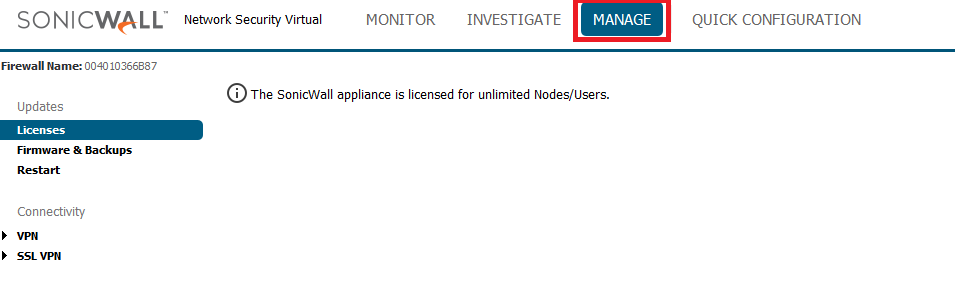
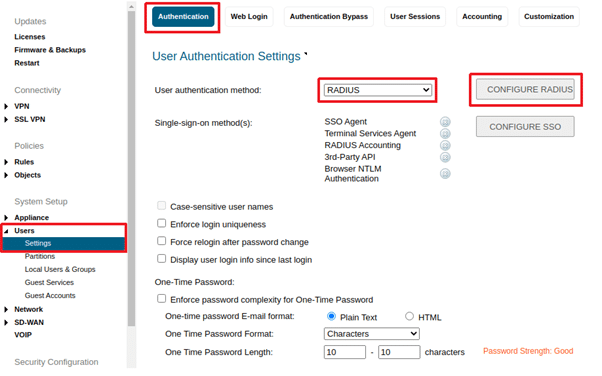
3. Navigate to the left menu. Expand Users and select Settings. Afterwards, switch to the Authentication tab.
4. Set User Authentication Method to RADIUS.
5. Click CONFIGURE RADIUS on the right. Clicking the button opens the RADIUS Configuration window.
6. Click ADD… to add a new server. This opens the Add server window.

7. Enter the FQDN or IP address of the RADIUS server used for primary authentication.
8. Enter the RADIUS Secret set in Rublon Authentication Proxy as the Shared Secret in this window.
9. Click SAVE to add the new server.

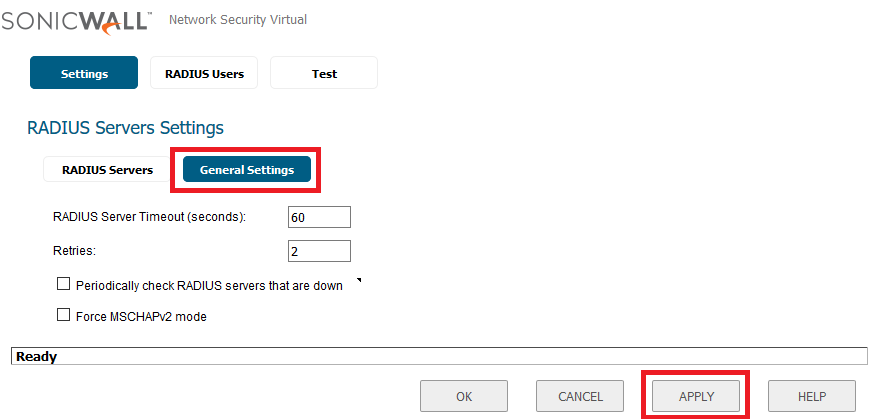
10. While still in RADIUS Servers Settings, switch to General Settings.
11. Set RADIUS Server Timeout to 60 seconds.
12. Set Retries to 2.
13. Click APPLY to save these changes.


Log in to SonicWall SSL VPN with Rublon 2FA enabled
1. Provide your login and password, and click Connect.