
Smart card authentication is a certificate-based, cryptographic method that uses a physical card (with a secure chip) + PIN to establish identity. It enables strong, phishing-resistant multi-factor authentication login and access control across systems, applications, and networks.
- Why Smart Card Authentication Matters
- What You’ll Learn in This Article
- Why This Guide Is Worth Your Time
- Mobile & Standard Foundations: Trust Model & Validation in Smart Card Authentication
- Where RFID Cards Fit Into Smart Card Authentication
- How Smart Card Authentication Works (Step by Step)
- Platform Coverage: Windows, Entra ID, macOS, Linux & NetScaler
- Deployment & Configuration: How To Enable Smart Card Authentication
- Security, Usability & Operational Considerations
- Real-World Smart Card Authentication Use Cases & Examples
- Frequently Asked Questions About Smart Card Authentication
Why Smart Card Authentication Matters
- It acts as a possession factor embedded in hardware, combined with knowledge (PIN) for robust two-factor authentication.
- It supports non-repudiation and digital signatures, because the private key is protected inside a tamper-resistant device.
- It is widely deployed in regulated sectors (e.g., government PIV and CAC), and aligns with standards like FIPS 201 and NIST SP 800-73 for interoperability.
- Organizations can enforce access control policies, certificate validation (CRL/OCSP), and lifecycle management to maintain security.
What You’ll Learn in This Article
- What is smart card authentication & validation – core definitions and trust architecture
- How smart card authentication works (step by step) – cryptographic flows that power login
- Platform coverage – guides for Windows / Active Directory, macOS, Linux, NetScaler / web apps, and Entra ID / Office 365
- Deployment & configuration – real examples of how to configure smart card authentication on each system
- Security trade-offs & best practices – pros and cons, biometric smart cards, revocation, usability
- Troubleshooting & FAQ – direct answers to commonly asked questions about smart card authentication
- Architect’s & buyer’s guidance – design decisions, CA options, scaling, migration, operations
Why This Guide Is Worth Your Time
Smart card authentication is a critical part of secure identity management. This guide is built on trusted sources like Microsoft’s Smart Card Technical Reference and NIST’s digital identity guidelines. This guide covers smart card authentication from setup to integration, including NetScaler Gateway and Active Directory, with real-world examples and clear instructions.
Mobile & Standard Foundations: Trust Model & Validation in Smart Card Authentication
Smart card authentication does not work by magic. It follows a precise trust model and validation flow to ensure that the card, certificate, and user are all legitimate. In this section, you will understand how smart card validation works, the trust assumptions behind it, and key standards that underpin secure deployments.
Why Smart Card Validation Is Needed
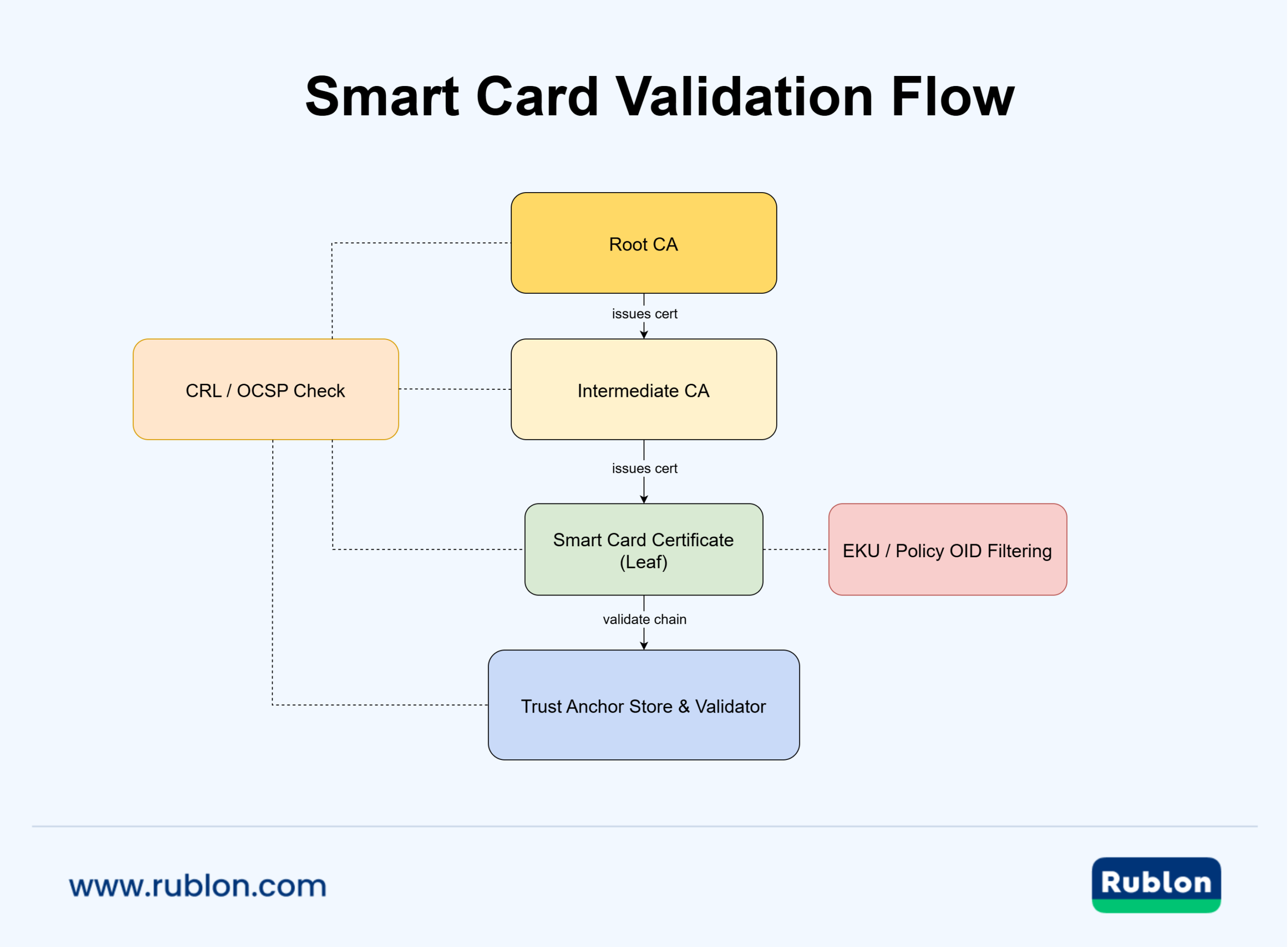
A smart card may present a certificate, but without validation, that certificate could be expired, revoked, or fake. The relying system must confirm:
- The certificate is within its validity period
- It was issued by a trusted certificate authority (CA).
- It hasn’t been revoked (via CRL or OCSP)
- It meets policy requirements (e.g., correct EKU, issuer OIDs)
If any of those checks fail, authentication is rejected.
Trust Architecture & Smart Card Validation Flow
- The relying system reads the card authentication certificate from the smart card application.
- It performs certificate path building (chain from that certificate to a known root CA) and path validation under RFC 5280 rules (checking expiry, revocation, key usage).
- The system issues a cryptographic challenge (nonce) to the card; the card uses its private key to sign it.
- The system verifies the signature using the public key in the certificate.
- If valid, the system extracts a user identifier (e.g., subject name or user principal name) for authorization.
In the U.S. government’s Personal Identity Verification (PIV) systems, this is called PKI-AUTH or CTE authentication. The system ensures the certificate is neither expired nor revoked, and that the signature on the challenge is correct.
Root Trust, Policy, and Constraints
Root and intermediate CA trust
For validation to work, the Certificate Authority (CA) that issued the card certificate must be in the trust store (root or intermediate). If it is not, the system will mark the certificate as “not trusted.”
Certificate Policy / OID constraints
You can restrict certificates by policy OIDs or require specific certificate extensions (e.g., Enhanced Key Usage (EKU) containing “Smart Card Logon” or “Client Authentication”). The system may reject certificates that don’t include the expected OID(s).
Revocation checking (CRL vs OCSP)
Validation includes checking whether the certificate has been revoked. Common methods:
- CRL (Certificate Revocation List): download a full list of revoked certs
- OCSP (Online Certificate Status Protocol): query an OCSP responder
- Some deployments use OCSP stapling to reduce latency
- In constrained environments, revocation latency and availability become design factors
Standards That Govern Smart Card Validation & Interfacing
FIPS 201 & NIST SP 800-73
- FIPS 201 mandates that for U.S. Federal PIV systems, identity credentials must reside on smart cards.
- NIST SP 800-73 defines the card interfaces (APDUs, data model, command sets) by which the system communicates with the card.
ISO/IEC 7816
- ISO/IEC 7816 defines low-level command/response interaction with smart cards (electrical, protocol, file system, security operations).
- Part 8 of ISO/IEC 7816 covers cryptographic operations (signing, authentication) on smart cards.
PKI / RFC 5280 certificate path rules
- The validation logic (chain building, revocation, extension processing) is guided by RFC 5280 rules for X.509 certificates.
- If the certificate fails those rules (improper key usage, invalid chain, unknown critical extensions), it will be rejected.
Where RFID Cards Fit Into Smart Card Authentication
RFID cards are often discussed separately from smart cards, but the two categories can overlap. Many modern access cards are contactless smart cards: they use radio-frequency communication to talk to a reader, while the card itself may contain memory, a secure chip, or application logic depending on the technology. This is why terms such as RFID card, proximity card, contactless smart card, and access card are sometimes used interchangeably in enterprise environments.
However, it is important to be precise. An RFID card is not automatically equivalent to a certificate-based smart card used for Windows domain logon. Some RFID cards only transmit an identifier. Others support stronger cryptographic operations and can behave more like traditional smart cards. The security level depends on the card technology, reader, authentication protocol, and how the credential is bound to the user.
RFID Cards vs. Contactless Smart Cards
ISO/IEC 14443 defines proximity cards used as contactless objects for personal identification. In practice, these cards communicate with a reader over a short-range radio interface instead of using physical electrical contacts. This makes them suitable for access control, employee badges, payment cards, public transport cards, and other tap-based workflows.
A contactless smart card is a more specific concept. It is a smart card that communicates without contact. Depending on its design, it may support secure storage, cryptographic applications, and application-level protocols. Microsoft’s Smart Card Technical Reference describes smart cards as tamper-resistant portable storage devices that can protect private keys and isolate security-critical computations from the rest of the computer.
The practical takeaway is simple: RFID describes the communication method, while smart card describes the card’s capability. A card can be RFID-enabled and smart, but a basic RFID proximity card may only act as an identifier unless the surrounding system adds stronger authentication controls.
How RFID Card Authentication Usually Works
In a typical RFID authentication flow, the user presents a card, badge, key fob, wristband, or token to a compatible reader. The reader communicates with the RFID credential and passes the result to the authentication system. In physical access control, this may unlock a door. In digital access scenarios, the same possession-based interaction can be used as part of multi-factor authentication.
This differs from classic certificate-based smart card logon. In PKI-based smart card authentication, the system validates a certificate chain, checks revocation status through CRL or OCSP, and verifies that the card can perform a private-key operation. In many RFID-based MFA workflows, the card instead serves as a possession factor that is combined with another factor, such as a password.
That distinction matters for security architecture. A basic proximity card can be convenient and fast, but it may not provide the same cryptographic assurance as a PKI smart card, FIDO security key, or other cryptographic authenticator. Organizations should match the card technology to the risk level of the system being protected.
When RFID Cards Make Sense for MFA
RFID cards are especially useful when employees already carry physical access credentials. Instead of issuing a separate token to every user, an organization can reuse supported RFID cards, proximity cards, contactless access cards, key fobs, or employee badges as possession factors in an MFA flow.
This model is often practical for:
- Windows workstations where users need a fast second factor during sign-in.
- RDP access where remote desktop sessions need protection beyond passwords.
- Shared workstations in manufacturing, healthcare, warehouses, service desks, and labs.
- Frontline environments where mobile-based MFA may be less convenient or not always allowed.
- Organizations with existing badge infrastructure that want to connect physical and digital access workflows.
From an MFA perspective, the RFID card acts as “something you have.” When combined with a password, PIN, or another knowledge factor, it can reduce reliance on password-only access. This aligns with the broader multi-factor model described in NIST SP 800-63B, where authentication strength depends on the authenticator type, binding, activation, and verifier requirements.
Security Considerations for RFID Smart Cards
RFID card deployments should not be evaluated only by convenience. The most important questions are what the card stores, how it communicates, whether it supports cryptographic protection, and how the system binds the credential to the user identity.
Before using RFID cards for workforce authentication, assess:
- Card technology: Determine whether the card is a basic proximity card, contactless access card, or cryptographic smart card.
- Reader compatibility: Confirm that the reader supports the card type and the authentication workflow you intend to deploy.
- Cloning resistance: Avoid assuming that all RFID cards provide the same resistance to copying or replay attacks.
- Credential lifecycle: Define how cards are enrolled, assigned, replaced, disabled, and audited.
- Fallback and recovery: Plan what happens when a card is lost, damaged, forgotten, or not readable.
For high-assurance use cases, a cryptographic smart card, FIDO security key, or certificate-based authentication may be more appropriate than a simple RFID identifier. For lower-friction workforce access, supported RFID cards can still provide a practical possession factor when combined with passwords and central MFA policies.
Using RFID Cards With Rublon MFA
Rublon MFA supports RFID authentication as a possession-based method for multi-factor authentication. Supported RFID authenticators include RFID cards, smart cards, contactless access cards, proximity cards, key fobs, wristbands, tags, tokens, and employee badges, depending on the card and reader in use.
For Windows environments, Rublon MFA can help organizations protect Windows Logon and RDP with an RFID-based second factor. The user signs in with a username and password, selects RFID in the Rublon Prompt, and presents the RFID credential to a compatible reader. This gives organizations a familiar “tap the card” workflow while keeping passwords from being the only barrier to access.
For a deeper implementation-focused overview, see MFA for Windows Logon & RDP With RFID Cards.

How Smart Card Authentication Works (Step by Step)
This section describes the cryptographic and system flow behind smart card authentication: how systems verify identity using a certificate, a card, and a PIN. It covers both Windows domain logon and cross-platform (e.g., Linux with PKINIT) workflows.
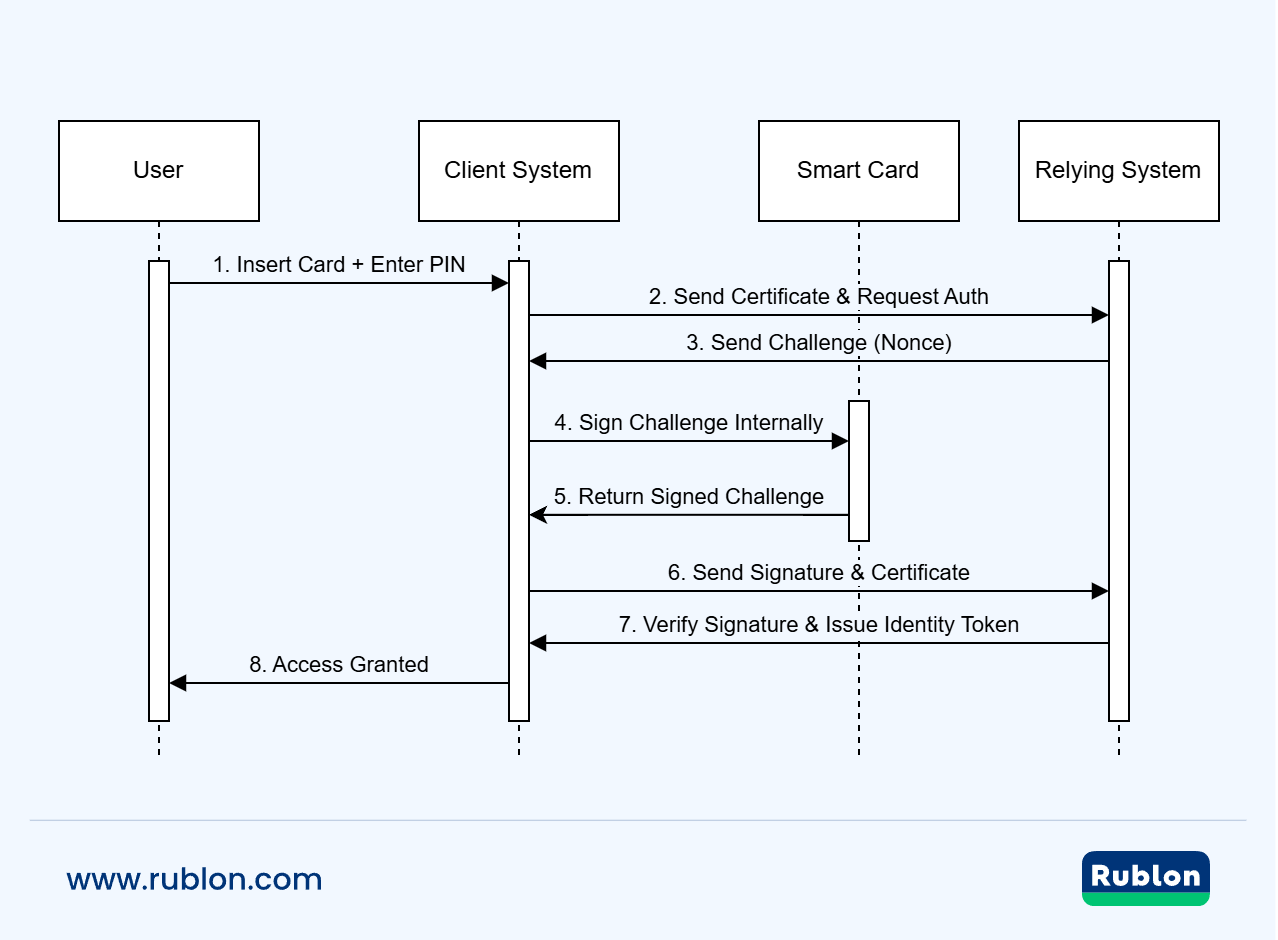
Overview of Smart Card Authentication Flow
- Card Inserted & PIN Entered
- The user inserts a smart card into a reader and enters their PIN.
- The PIN unlocks access to the smart card’s secure cryptographic module.
- Certificate Selection & Challenge Issued
- The client system reads the card’s authentication certificate (public key + metadata).
- The relying system (domain controller, server, or KDC) sends a nonce or cryptographic challenge to the client.
- Client Signs Challenge
- The smart card signs the challenge internally using its private key.
- This proves that the card and the holder of the PIN have the private key associated with the certificate.
- Server Verifies Signature & Certificate
- The server checks the cryptographic signature using the public key in the certificate.
- It then performs certificate path validation, revocation checks (CRL / OCSP), and policy/extension checks.
- Identity Assertion & Session Initiation
- After successful validation, the server extracts the user identity (e.g., from the certificate’s subject or SAN) for authorization.
- In Windows AD, this often leads to obtaining a Kerberos ticket for access to services.
Windows Domain Logon Using Smart Card
Kerberos + PKINIT in Windows
- Windows uses the Kerberos v5 protocol, extended with PKINIT (Public Key Cryptography for Initial Authentication), to accept smart card logon instead of passwords.
- PKINIT enables a client to authenticate to the Key Distribution Center (KDC) using an X.509 certificate instead of a shared secret.
- Microsoft’s Smart Card Technical Reference provides a detailed description of this architecture.
Credential Provider & Smart Card Subsystem
- Windows includes a Smart Card credential provider in the Winlogon / LogonUI stack; this is how smart card login replaces password UI.
- The smart card subsystem (via CryptoAPI, CSP, or minidriver) handles reader communication, certificate enumeration, and PIN prompting.
- After successful smart card authentication, Windows uses the Kerberos infrastructure to issue a Ticket Granting Ticket (TGT) for single sign-on (SSO) to services.
Certificate Requirements & Trust Chains
- The smart card certificate must meet certain criteria: proper Key Usage / Enhanced Key Usage (EKU) that allows client authentication or smart card logon.
- The issuing CA must be in the NTAuth store (for Active Directory) to be accepted for smart card logon.
- If using a third-party CA, domain controllers and workstations must trust it and have it properly added.
Linux & Cross-Platform via PKINIT
Smart Card Authentication Using PKINIT (Linux / AD)
- In cross-platform environments, Linux or Unix clients can leverage PKINIT to use smart card authentication against an AD or Kerberos realm.
- In Red Hat’s guide, the client uses kinit -X X509_user_identity=’PKCS11:…’ to obtain a TGT via certificate-based login.
- The AD KDC must trust the CA, and users must have smart card login enabled in their AD account mappings.
- Some workarounds for revocation checking (e.g., ignoring unknown CRL errors) may be required depending on certificate constraints.
Challenge / Response Details & Secure Operations
- Some smart cards support challenge/response APIs like Windows-specific CardGetChallenge to generate a challenge used in authentication flows.
- In addition to login, some cards support PIN unblocking via challenge/response by an administrator, assuming the card stores an admin key.
- Smart card minidriver architectures define how your card interacts with the Base CSP / KSP to provide cryptographic operations, caching, and unlocking logic.
Platform Coverage: Windows, Entra ID, macOS, Linux & NetScaler
In this section, you will see how smart card authentication is implemented across different ecosystems. We compare Windows & Active Directory, Entra ID (CBA), macOS, Linux, and NetScaler to help you choose and configure the right platform for your needs.
Windows & Active Directory Smart Card Authentication
Deployment Requirements & Trust Setup
- The issuing Certificate Authority (root and intermediate) must be trusted by domain controllers and member machines.
- The CA must be present in the NTAuth store in Active Directory so smart card logon is accepted.
- Domain controllers require smart card–compatible certificates (e.g., Kerberos Authentication templates) to support PKINIT.
- Windows clients must have the correct cryptographic middleware, card reader drivers, and configured policies (via Group Policy or registry) for smart card use.
Smart Card Group Policy & Registry Settings
- Microsoft exposes configurable settings under Computer Configuration → Windows Components → Smart Card (e.g., allow ECC certificates, force root propagation, certificate filtering).
- Registry keys support forcing CRL checking, handling invalid time certificates, and enabling certificate propagation.
Windows Smart Card Sign-In with Entra ID (Certificate-Based Authentication, CBA)
- Windows supports smart card sign-in directly to Microsoft Entra ID using certificate-based authentication (CBA). No client alteration is needed; the system sends the certificate UPN or subject hint to Entra ID.
- Devices must be either Entra-joined or hybrid-joined for this flow to work.
macOS Smart Card Authentication
- macOS supports smart card login through pairing of certificates stored on the card with login accounts.
- Administrators manage trust via configuration profiles or mobile device management (MDM) tools.
- The user authenticates by inserting the card and entering the PIN at login, unlocking the private key stored on the card.
- For certificate selection, macOS uses standards like PKCS#11 and CryptoTokenKit to interface with smart cards.
Linux Smart Card Authentication
- On Linux, authentication is often achieved via PAM modules that integrate with PKCS#11 smart card drivers, as demonstrated in the Ubuntu Smart Card Setup Guide.
- The smart card communicates via libraries like OpenSC (which support PKCS#11) to enable signing operations.
- Users can request tickets (Kerberos) via kinit with certificate parameters, enabling smart card authentication in a Kerberos realm.
- Trust of CAs and CRLs / OCSP must be configured in Linux trust stores, matching how servers validate certificates.
NetScaler & Citrix Smart Card Support
Client Cert + Smart Card Authentication
- NetScaler (Citrix ADC) supports smart card–based authentication by validating client certificates presented from the smart card.
- In the management GUI, smart card authentication can be required (mandatory) or optional (fallback to password).
Smart Card in Gateway & ICA Scenarios
- When connecting via NetScaler Gateway using Secure ICA or SSL, smart card PIN prompts may appear twice (at login and at resource launch). To mitigate, adjust settings: disable client authentication on the virtual server and enable SSL renegotiation.
- You can also enable pass-through smart card authentication (single sign-on) from NetScaler to StoreFront so users do not re-enter the PIN repeatedly.

Deployment & Configuration: How To Enable Smart Card Authentication
This section provides concrete guidance and best practices for how to configure smart card authentication across environments. You will learn recommended settings, key registry & policy options, and integration tips for NetScaler and Windows deployments.
Windows Configuration Checklist & Key Policies
Must-Do Setup Steps
- Import CA root and intermediate certificates into Trusted Root Authorities on clients and domain-joined machines.
- Add the smart card CA into the NTAuth store in Active Directory so that domain controllers accept smart card logons.
- Deploy and test smart card readers and middleware (CSP / KSP drivers) on endpoints.
- Configure cert templates for smart card logon or client authentication with correct EKU, key usage, and validity periods.
- Apply Group Policy settings under Computer Configuration → Windows Components → Smart Card per Microsoft’s guidance.
Key Group Policies & Registry Settings to Watch
- Allow ECC Certificates: Enable use of ECC (elliptic curve) certs in logon scenarios.
- Allow Certificates With No EKU: Optionally allow certificates without explicit EKU if required.
- Enable Root Certificate Propagation: Automatically trust root / intermediate certs present on the smart card.
- CRL Checking Registry Keys: Force revocation checking behavior via registry.
- Interactive Logon Policy: Enable “Require smart card logon” (or smart card + Windows Hello) in local security policy.
Tips & Warnings
- If time synchronization is off between the client and the domain controller, validation may fail.
- Use Event Viewer → System & Security logs to catch smart card errors (e.g., missing CA trust, signature failure).
- For Offline or cached logon, ensure cached credential policies include smart card support.
NetScaler & Citrix Gateway Smart Card Configuration
Core Setup Steps
- Upload the issuing CA root and intermediate certs into NetScaler’s certificate store.
- Create a certificate authentication policy and bind it to a virtual server.
- On the virtual server’s SSL parameters, set Client Authentication to Optional (not mandatory) when doing single sign-on to Web Interface components, to prevent multiple PIN prompts.
- In the certificate auth policy, set User Name Field to SubjectAltName:PrincipalName to handle users in multiple AD groups.
- Enable SSL renegotiation and disable client auth on VPN virtual servers to avoid double PIN prompts.
Advanced Configuration Options
- Use client certificate pass-through so that the smart card’s certificate is carried through to backend applications.
- In LDAP + certificate two-factor setups, prioritize certificate policy over LDAP and extract usernames from the certificate.
Version and Feature Notes
- Smart card authentication for NetScaler management GUI is supported in FIPS releases from 13.1-37.219 onward.
- Certificate chains must be properly bound: root + intermediates must be present so NetScaler can validate client cert chains.
Smart Card Redirection & Remote Desktop Environments
- For Remote Desktop (RDP / Azure Virtual Desktop), enable smart card redirection policies so the card on the local device is available in remote sessions.
- On RD Session Host servers, ensure the KDC certificate is trusted on the client to allow credential pass-through.
- Use certutil -scroots update to refresh smart card root stores on client machines in multi-domain or cross-domain setups.
Security, Usability & Operational Considerations
When deploying smart card authentication, the technical flow is only part of the story. This section explores common security threats, usability trade-offs, and operational best practices to maintain robust, user-friendly systems.
Smart Card Authentication Security Risks & Attack Vectors
Card Theft, Duplication & Side-Channel Attacks
- A stolen smart card paired with the correct PIN allows token misuse unless revoked promptly.
- Side-channel attacks (e.g., timing, electromagnetic analysis) can expose private key operations on weak smart card chips.
- A study titled ”Beware of Pickpockets: A Practical Attack against Blocking Cards” found that 8 out of 11 tested blocking cards could be bypassed, allowing attackers to read smart card data despite protective measures.
Credential Binding Weaknesses
- Not all deployments properly bind the card, the certificate, and the cardholder identity. According to NIST’s taxonomy, authentication strength depends on the binding between token, secret, user, and identifier.
- Misconfiguration (e.g., weak EKU settings or missing certificate policy checks) may allow unauthorized certificates to be accepted.
Revocation Failures & Latency
- If OCSP or CRL endpoints are unreachable or outdated, revoked certificates may still pass validation.
- Relying systems must tolerate partial failures but also securely fail closed if revocation cannot be checked.
Malware & Trusted Path Spoofing
- Malware on the host system may hijack the communication channel, intercept PIN entry, or perform signature operations.
- Without a trusted path, even a valid smart card can be misused in a compromised environment.
Usability Trade-Offs & Adoption Challenges
PIN Entry Friction
- Frequent PIN prompts (especially in SSO and multi-hop workflows) can degrade user experience.
- Balancing security (PIN length, retry limits) with user convenience is critical.
Reader, Middleware, and Driver Issues
- Inconsistent reader compatibility, driver bugs, and firmware mismatches frequently cause deployment headaches.
- Users may perceive the system as unreliable if cards do not work reliably or require reinstallation.
Onboarding & Recovery
- Lost, broken, or expired smart cards should be promptly replaced through streamlined workflows, as delays can lead to user frustration and disruption
- Provisioning new cards often requires identity revalidation and CA enrollment steps that create an operational burden.
Platform Inconsistencies
- Smart card behavior varies across Windows, macOS, and Linux. Certain features, such as certificate prompting or reuse of credentials across login sessions, may be limited or unavailable depending on the platform.
Operational Best Practices for Smart Card Verification
Robust Audit & Logging
- Log smart card login attempts, failures, revocation checks, and certificate validation results.
- Correlate logs with account changes or card issuance events.
Tiered Authentication Modes
- Use smart card authentication as a baseline, combining possession (the card) with knowledge (a PIN) to establish multi-factor authentication.
- For high-risk operations, add a third factor (biometrics) to strengthen identity assurance.
- Maintain fallback paths to ensure access continuity when smart card systems fail or in exceptional cases.
Health Monitoring of PKI & Revocation Services
- Continuously monitor OCSP / CRL availability, performance, and freshness.
- Failover revocation services to backups when primary endpoints are down.
Regular Card Firmware & Middleware Updates
- Patch card firmware and middleware (mini-drivers, CSP/KSP modules) to mitigate known vulnerabilities.
- Test updates in pilot environments before broad deployment.
Card Lifecycle & Key Archival Policies
- Define clear retention, archival, destruction, and key recovery policies.
- Use card management systems (CMS) integrated with identity management to track card status (issued, revoked, suspended).
- According to NIST’s Infrastructure Standards for Smart ID card Deployment, credential issuance and status management are essential to smart ID card systems.
User Training & Support
- Educate users on secure card handling, PIN selection, reporting loss, and best practices.
- Provide responsive helpdesk support for card issues.
Real-World Smart Card Authentication Use Cases & Examples
Enterprise Workstation Logon + Single Sign-On
Many organizations deploy smart card logon in conjunction with Active Directory, enabling users to insert a card, enter a PIN, and receive Kerberos tickets that allow seamless access to network resources, email, file shares, and apps.
Certificate-Based Authentication in Applications
Applications (e.g., custom internal apps or VPN gateways) can validate smart card-based certificates presented by users. For instance, a C# web app may read the client certificate, then verify it and issue a session token.
Smart Card Authentication for MFA and Passwordless Desktop Access
Smart cards act as a “something you have” factor in a multi-factor authentication system. Some deployments use smart cards to eliminate passwords for desktop login. Some deployments use smart cards to eliminate passwords for desktop login. When paired with a PIN or biometric verification, they form a strong MFA chain that ensures only authenticated users can access corporate resources.
Smart Card Login in Mixed Environments (macOS / Linux / Windows)
Certain enterprises allow single credential smart card login across macOS, Linux, and Windows systems, often via PKINIT or Kerberos integrations. Red Hat’s documentation describes how smart cards store credentials and enable personal authentication comparable to passwords.
NetScaler & Citrix Gateway Smart Card Access
In remote access scenarios, users authenticate to Citrix Gateway using smart card certificates. NetScaler validates the certificate and forwards the user session to internal apps without requiring further credentials.
Frequently Asked Questions About Smart Card Authentication
How to enable smart card authentication in Windows 10 and Windows 11?
You need to install the smart card reader and middleware, add the issuing CA into Trusted Root and NTAuth stores, configure Group Policy for smart card logon, and test with a card + PIN.
Why do I see “Smart Card Authentication Active Directory” errors?
This typically means the domain controller does not trust the CA (missing from NTAuth), the certificate lacks appropriate EKU for logon, or revocation checks failed.
What should I do when a smart card used for authentication was not trusted?
If a smart card used for authentication is not trusted, begin by ensuring that the issuing certificate authority (CA) and any intermediate CAs are properly trusted by the system, typically through the Trusted Root store. Next, confirm that the certificate chain is complete and correctly configured. You should also check that the Extended Key Usage (EKU) and certificate policies explicitly permit client authentication. Finally, verify that revocation endpoints are reachable and that certificate revocation lists (CRLs) or Online Certificate Status Protocol (OCSP) responses are valid and accessible
Is smart card authentication a true two-factor method?
Yes. A typical smart card login requires something you have (the card) and something you know (the PIN). This is consistent with the standard definition of two‑factor authentication, and also qualifies as multi‑factor authentication.
Can I use smart card authentication with Entra ID / Office 365?
Yes, in some configurations via Certificate-Based Authentication (CBA). The certificate is mapped to user identities in Azure AD. However, browser and app support may vary.