
Last updated on October 12, 2026
Rublon User Guide is meant for users who want to learn more about Rublon MFA. If you are an administrator looking for deployment instructions, refer to our Documentation.
Demo Video

Log in to Windows with Rublon 2FA
1. Provide your username and password.

2. A window will appear with a selection of various 2FA options from Rublon.

3. We recommend Mobile Push but the choice is yours. Note that your administrator might have deactivated one or more authentication methods. Deactivated methods are grayed out.
Rublon MFA offers the following authentication methods:
Email Link is a simple way to verify your identity. Email Link does not require any software installation or additional hardware. Just click the link sent by Rublon MFA to your email address and get signed in on the device that started the login process.
Passcode. The Rublon Authenticator (or another third-party app) generates a new Mobile Passcode every 30 seconds, even when offline. Verify your identity by entering a passcode on Rublon Prompt. You can also use a Bypass Code generated by your admin.
QR Code. Rublon MFA generates a QR code which appears on Rublon Prompt. Verify your identity by scanning this QR code. Use a phone with the Rublon Authenticator app.
Mobile Push is a fast and secure way to verify your identity. A push notification is sent to your phone. Use a phone with the Rublon Authenticator app to approve or deny the login attempt with a single tap.
SMS Passcode. Rublon MFA sends you a message with a passcode. Verify your identity by entering the passcode on Rublon Prompt.
FIDO. Rublon MFA supports FIDO2 & FIDO U2F industry standards for security keys and passkeys.
YubiKey OTP. A long one-time password (OTP) entered by the YubiKey hardware key upon touch.
SMS Link. A one-time link sent to the phone number in the form of an SMS, with buttons to approve or reject access.
Phone Call. Rublon MFA calls you and provides a one-time passcode you must enter when logging.
RFID. Rublon MFA supports RFID authenticators, allowing users to log in to applications by placing their card against an RFID reader.
4. Let’s say you selected Mobile Push. You will be sent a push notification. Tap APPROVE.
5. You will be successfully logged in to Windows.
Log in to Windows When Your Computer Is Offline
If Offline Mode is enabled and your authentication data has previously been synchronized on this computer, you can sign in using a Passcode from Rublon Authenticator or an enrolled, supported FIDO authenticator. For supported connector versions and sign-in scenarios, see the Offline Mode documentation. In the 5.x branch, FIDO authentication is available only for local Windows sign-ins in Offline Mode.
Using a Passcode
- Enter your Windows sign-in credentials.
- Select Passcode in the offline authentication window.
- Open Rublon Authenticator and enter the current code for your account.
Using a FIDO Security Key
- Enter your Windows sign-in credentials.
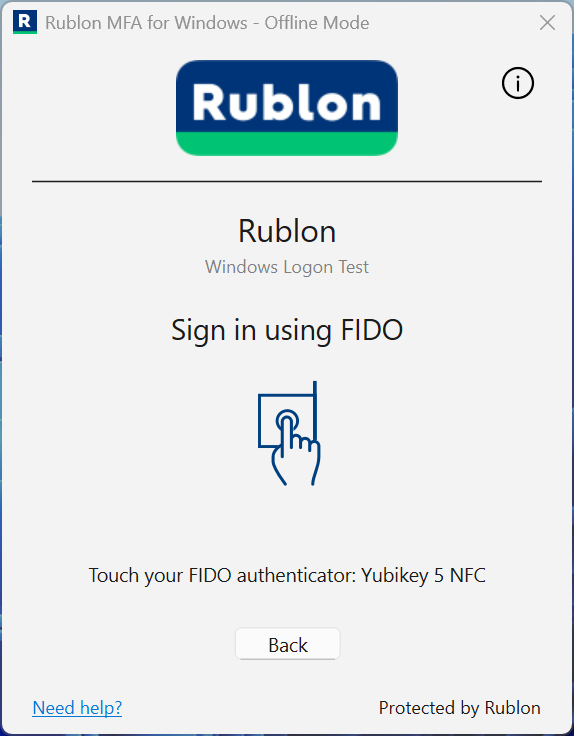
- Select FIDO in the offline authentication window.
- Connect a FIDO security key enrolled with your Rublon MFA account to a USB port.
- Follow the on-screen instructions to touch the key, enter its PIN, or verify your fingerprint using the key’s built-in sensor.
If the key becomes temporarily locked after incorrect PIN attempts, unplug it and reconnect it. If all PIN attempts are exhausted, contact your administrator before resetting the key: a reset deletes its FIDO2 credentials.
For offline FIDO authentication over RDP, follow the instructions in the Windows Security window on your client computer, outside the remote session. You can use a supported security key or passkey enrolled with your Rublon MFA account. If you use a USB security key, connect it to the client computer.
For setup requirements and troubleshooting, see the Offline Mode documentation.