
An administrator needs to sign in during an internet outage. A traveling employee opens a laptop without Wi-Fi. A workstation operates on an internal network with restricted external connectivity. In each case, the organization still needs to verify who is signing in.
Offline FIDO MFA lets users complete multi-factor authentication with an enrolled FIDO2 security key or another supported FIDO authenticator without an internet connection. The computer checks the authenticator’s cryptographic response locally, so it does not need to contact the cloud MFA service during that sign-in.
For organizations that use phishing-resistant authentication online, this provides a way to retain that protection when cloud connectivity is unavailable.
Rublon MFA supports offline FIDO MFA through Offline Mode in its Rublon MFA for Windows Logon and RDP connector.
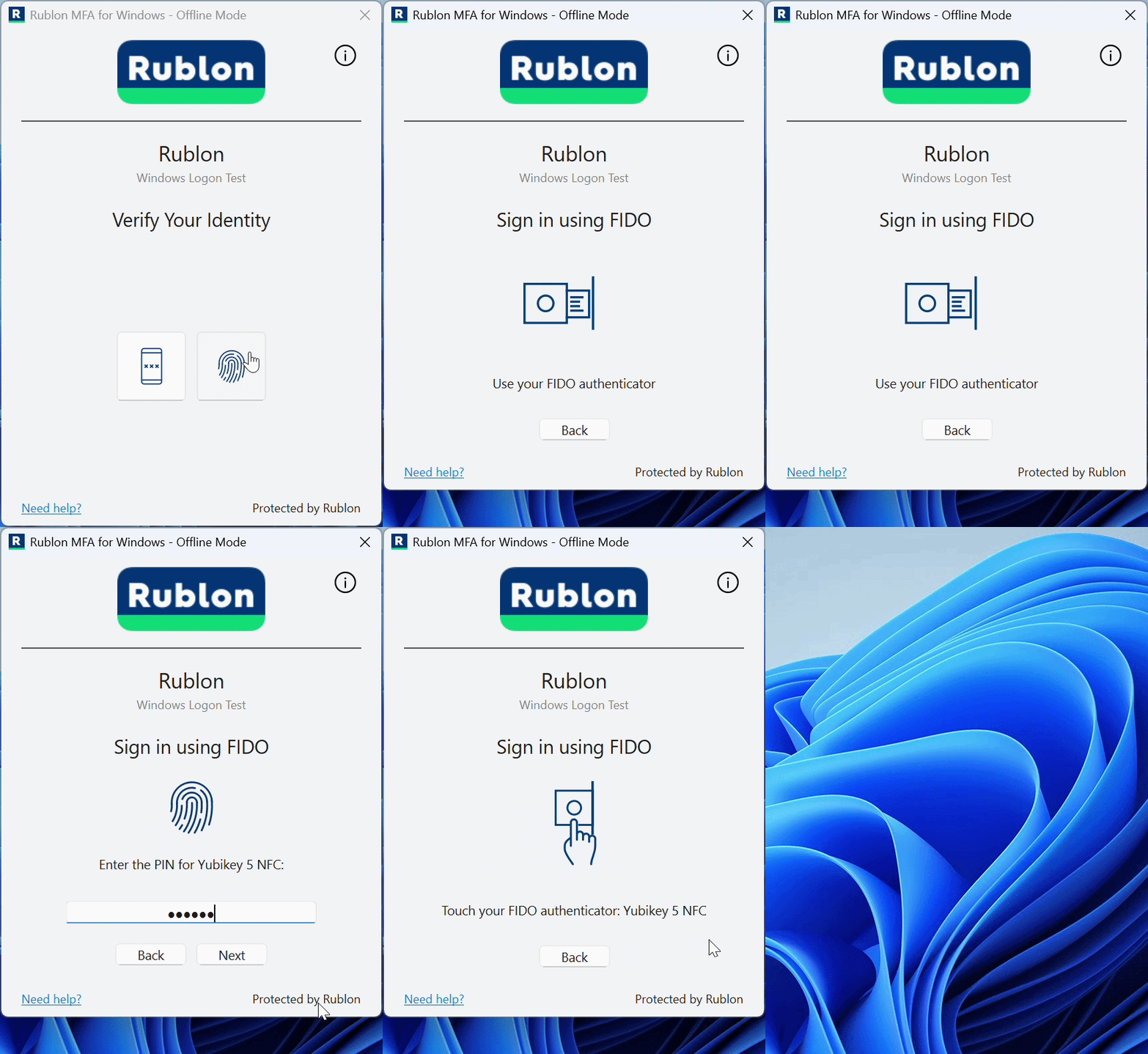
Phishing-Resistant MFA for Offline Windows Sign-Ins
Start Rublon MFA’s 30-Day Free Trial and protect supported Windows sign-ins with FIDO security keys, even when the computer has no internet connectivity.
What Is Offline FIDO MFA?
Offline FIDO MFA is multi-factor authentication in which a local component verifies a FIDO authentication response without requiring a live connection to the cloud MFA service.
A common example is a Windows sign-in that requires the user’s password followed by an enrolled FIDO security key. The password provides one factor, and the key provides another. Depending on the authenticator and authentication request, using the key may also require a PIN or biometric verification.
FIDO authentication uses public-key cryptography: the security key holds a private key, while the system uses a matching public key to verify it. During sign-in, the security key digitally signs a response to the system’s request. The system checks that signature to confirm that the enrolled key is being used for this login.
The FIDO2 security key does not need its own internet connection. However, the application or operating system must explicitly support offline verification. Plugging a FIDO2 key into a disconnected computer does not automatically enable offline MFA.
What Is the Difference Between Online and Offline FIDO Authentication?
The main difference is where the authentication response is verified and which services must be reachable.
| Aspect | Online FIDO Authentication | Offline FIDO Authentication |
| Verification | A reachable authentication service verifies the response | A local component performs verification |
| Network Dependency | The client must reach the relevant service | The MFA step can complete without reaching the cloud service |
| Preparation | The authenticator must be enrolled, and network and firewall settings must allow connections to the cloud MFA service on the required ports | The authenticator must be enrolled, and the computer must already be configured for offline MFA and have the required verification data |
| Account Changes | The reachable service can use its current account information | The endpoint depends on locally available information |
| Supported Resources | Logins to applications and systems integrated with the cloud MFA service | Logins to applications and systems that support local FIDO verification |
How Does Offline FIDO MFA Work?
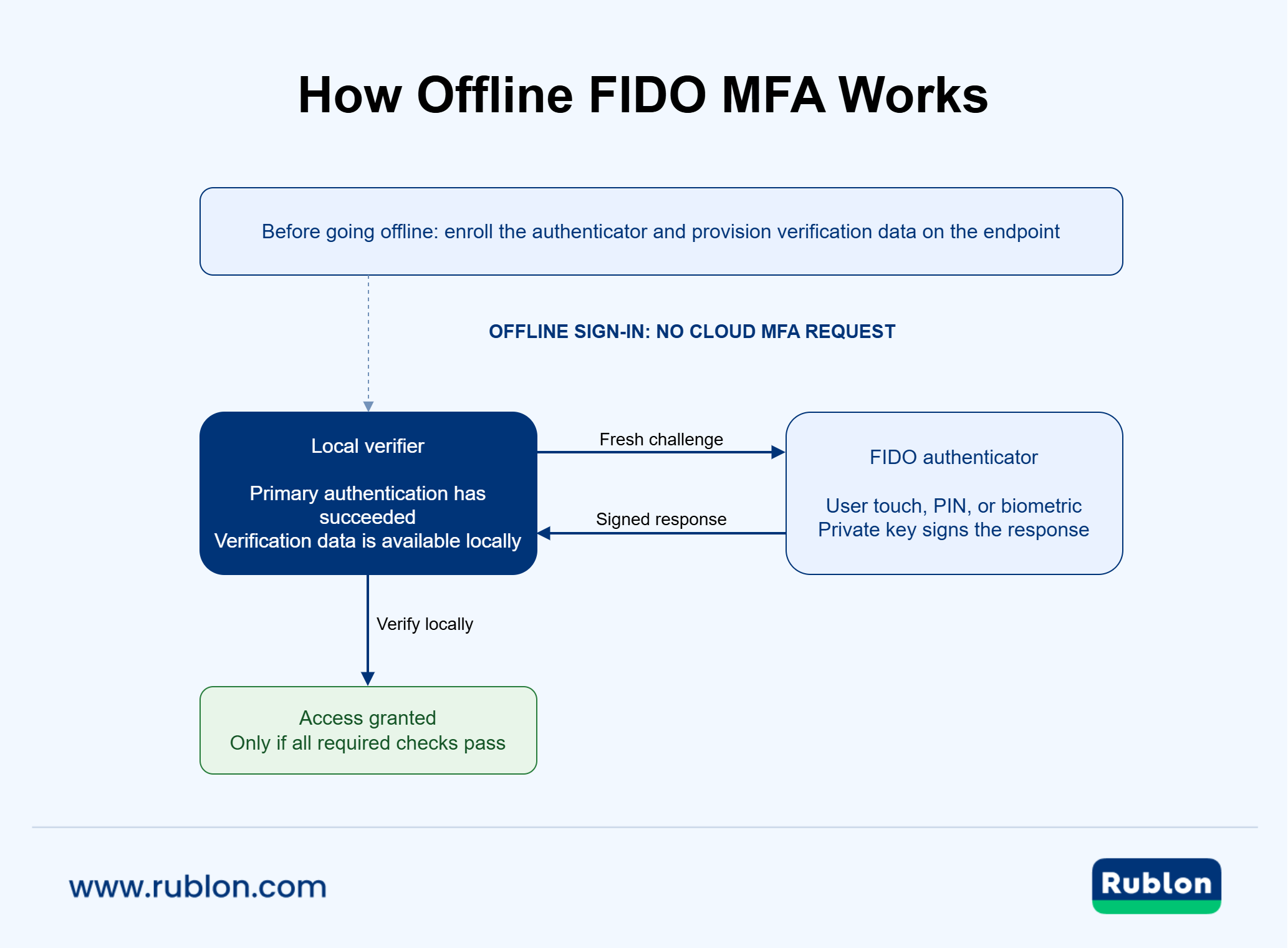
The exact setup depends on the MFA product. For a FIDO security key, the process typically looks like this:
- Register the key. Enroll the security key with the user’s account in the MFA system.
- Set up offline authentication on this computer. Follow your MFA product’s setup instructions. The software must store the data needed to verify your key locally before you can use it without a connection to the cloud service.
- Start signing in. Complete the required first step, such as entering your password.
- Use the security key. The computer sends a new authentication request, called a challenge. The key signs a response after the user completes the required touch, PIN, or biometric verification.
- Wait for verification. The computer automatically checks that the response comes from your enrolled key and matches the current sign-in attempt. If all required checks succeed, you are signed in.
This process protects against replay attacks: an attacker cannot sign in by reusing a response captured during an earlier login. Each attempt uses a new challenge, and the computer checks that the signed response matches it. This protection is part of the WebAuthn authentication model.
The private key used to sign responses remains on the security key. The computer stores verification data, including the corresponding public key. Stealing those verification data alone does not let an attacker generate valid signed responses or impersonate the security key.
Does Enrolling a FIDO Key Enable Offline MFA on Every Computer?
No. Enrollment links the security key to the user’s account. Each computer must also support offline FIDO authentication and have the data needed to verify that key locally.
For example, an employee may already use a FIDO key on their office computer. Before they can use the same key offline on a new laptop, that laptop must receive the authentication data needed to verify it without the cloud service.
Prepare each computer the user will need to access offline. If they have a backup key, make sure its authentication data is available on those computers too, and test both keys before an outage.
Offline MFA Still Verifies the User
Offline MFA requires a supported second factor even when the cloud service cannot be reached. An MFA bypass skips that verification.
Configure and test the connector’s Fail Mode for situations where offline authentication is unavailable or its requirements are not met.
Why Use FIDO for Phishing-Resistant Offline MFA?
With one-time passcodes (e.g., TOTP defined in RFC 6238), an impostor can collect a typed code and relay it to the legitimate service. In contrast, FIDO authentication uses cryptographic credentials associated with the relying party, which is the service requesting authentication. This ensures phishing resistance that most other multi-factor authentication methods lack.
NIST’s guidance on phishing resistance distinguishes cryptographic authentication from methods that require manually entering an authenticator output. The latter do not bind the code to the intended authentication session.
Offline FIDO verification makes that cryptographic approach available during supported disconnected sign-ins. The endpoint must still enforce the correct authentication context and protect the component making the access decision.
Note
Phishing resistance does not make a compromised computer trustworthy. Endpoint hardening, disk encryption, restricted administrator access, and protection of the sign-in component remain necessary.
How Does Offline FIDO Compare With Offline TOTP?
Time-based one-time passwords can be generated without internet access. To verify them offline, the protected system must also support local verification and have the required shared secret.
FIDO provides a different model: the verifier uses public-key information rather than a shared secret that can generate valid authentication codes.
| Property | Offline TOTP | Offline FIDO |
| User Interaction | Enter a changing code | Use an enrolled authenticator, with a touch, PIN, or biometric as required |
| Verification Material | A shared secret | The credential’s public key and registration data, including its ID and associated user account |
| Phishing Resistance | Manually entered codes are not phishing-resistant | Provides phishing-resistant authentication by cryptographically binding authentication to the intended service |
| Smartphone Requirement | Common for app-based TOTP, but hardware TOTP tokens also exist | A hardware security key can work without a smartphone |
| Recovery Planning | A separate recovery method is needed | A backup authenticator or another approved recovery method is needed |
Tip
Offline Mode in Rublon MFA for Windows supports both FIDO authentication and passcodes from Rublon Authenticator. This gives organizations flexibility to use FIDO for phishing-resistant offline MFA while retaining app-generated passcodes as an alternative for users with different authentication needs.
Does Offline FIDO MFA Automatically Meet NIST AAL3?
No. FIDO support alone does not establish an Authentication Assurance Level.
NIST SP 800-63B-4 requirements for AAL3 include phishing resistance, a non-exportable private key, approved cryptography, and requirements for authenticators, verifiers, and the authentication process. This distinction matters when choosing between a hardware security key and a synced passkey. Passkeys that can be synchronized across devices do not meet the non-exportable private key requirement, so they cannot be used at AAL3. This is different from synchronizing public-key verification data to a computer for offline MFA.
A suitable hardware authenticator can support a high-assurance design, but the complete implementation must be assessed. An offline FIDO feature is not, by itself, an AAL3 compliance claim.
FIDO Standards and Security Guidance
- W3C Web Authentication: credential creation and authentication verification w3.org
- FIDO Alliance specifications: FIDO2, WebAuthn, CTAP, and U2F fidoalliance.org
- CISA fact sheet: implementing phishing-resistant MFA cisa.gov
When is Offline FIDO MFA Useful?
Offline FIDO MFA is useful wherever a supported sign-in must remain protected while the cloud authentication service is unreachable. The need extends beyond industrial or military environments.
Internet outages and business continuity
An office can lose internet access while its workstations and internal network remain operational.
Prepared endpoints can continue verifying supported sign-ins locally. An administrator can use an enrolled FIDO authenticator to access a protected system without waiting for cloud connectivity to return.
Traveling Employees and Unreliable Connectivity
A laptop used on a train, aircraft, or customer site may spend hours without a reliable connection.
A prepared offline FIDO flow lets the employee use a security key without receiving a push notification or opening a phone app. The organization can retain a cryptographic second MFA factor for the supported sign-in instead of relying solely on cached primary credentials.
Workplaces Where Smartphones Are Prohibited
Some facilities restrict phones because of operational, privacy, or security requirements.
An individually assigned FIDO security key provides a practical way to use MFA without a smartphone. Users carry the authenticator and complete the required touch, PIN, or biometric interaction.
Hardware TOTP tokens can also work without phones, but they do not provide the same phishing-resistant authentication model.
Shared Workstations
At a shared workstation, each person can use an individual account and an individually assigned security key.
Preparation matters here: every user who needs offline access must have the required authentication data available on that workstation. A key that works at one desk should not be assumed to work offline at every other desk.
Individual authenticators also preserve accountability better than sharing one key and one account across a team.
Restricted Networks and Disconnected Endpoints
Offline-capable authentication can help protect endpoints whose external connectivity is restricted or available only during controlled maintenance.
However, offline sign-in and a permanently air-gapped deployment have different requirements. A system that never connects to external services needs an enrollment, provisioning, revocation, recovery, and maintenance model that works within that boundary.
Note
Rublon MFA combines central management with offline protection for supported Windows sign-ins, allowing organizations to protect computers used both online and offline.
Initial setup, including installation, FIDO authenticator enrollment, and user data synchronization, requires an internet connection. Prepared computers can then locally verify supported FIDO sign-ins without internet access. This deployment model is not intended for permanently air-gapped environments that cannot connect to the Rublon API at any stage.
How Rublon MFA Supports Offline FIDO Authentication
Rublon MFA’s FIDO authentication method supports security keys and passkeys in compatible integrations. For offline FIDO authentication, the implementation described here is Rublon MFA for Windows Logon and RDP.
The connector adds an MFA step to supported Windows sign-ins. When the computer cannot reach the Rublon API, Offline Mode can verify a supported, enrolled FIDO authenticator using data previously synchronized on that computer.
This extends phishing-resistant MFA to supported offline Windows access while keeping the organization’s wider MFA deployment under the same two-factor authentication platform.
Free Trial of Rublon MFA →
Local Windows Sign-Ins and UAC Prompts
For local Windows sign-ins, Rublon MFA supports offline authentication with FIDO2 and FIDO U2F security keys, including supported keys protected by a PIN or built-in fingerprint verification.
The same capability is available for User Account Control (UAC) prompts protected by Rublon MFA. An administrator can therefore complete the additional authentication step for a protected elevation request while the computer is offline.
Primary authentication must still succeed. Offline MFA does not replace Windows account validation or grant permissions that the account does not have.
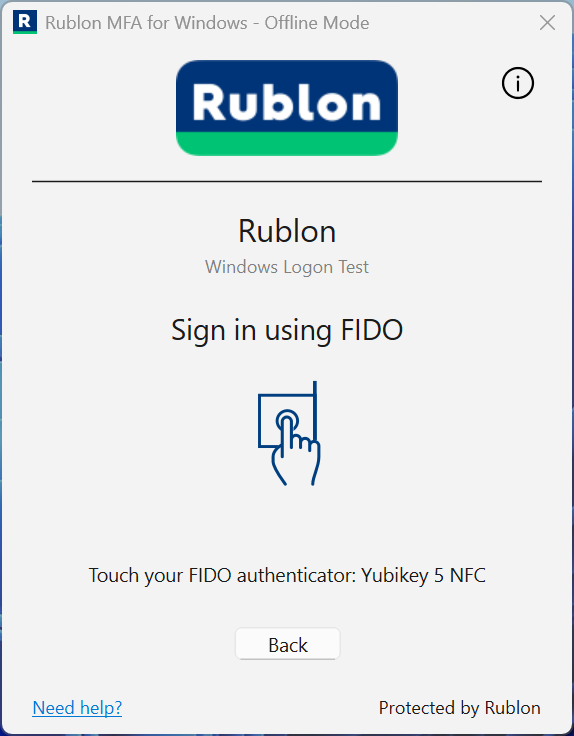
Offline FIDO Authentication for RDP Connections
For an RDP sign-in, Rublon MFA completes FIDO authentication through WebAuthn redirection. The authentication window appears on the client computer, outside the remote session.
Supported options include security keys and compatible FIDO2 passkeys available on the client. The authenticator must be enrolled with the user’s Rublon MFA account, and its authentication data must already be synchronized on the remote Windows computer.
The RDP environment must support and allow WebAuthn redirection. If you wish to learn more about this specific process, Microsoft documents how WebAuthn requests are redirected between a remote session and the local device.
Note
Here, “offline” means the remote computer cannot reach the Rublon API. The RDP connection itself can run over a local network without internet access. Available FIDO passkey options depend on the passkey provider and the client environment.
Preparing Windows Endpoints for Offline FIDO MFA
Prepare and test the actual computers and accounts that will need offline access:
- Install a supported connector version. Follow the Rublon MFA for Windows Logon and RDP documentation, including its current operating system and authenticator requirements.
- Enable Offline Mode. Confirm that the connector is configured to protect the required sign-in scenario.
- Enroll the user’s FIDO authenticator. Users can enroll their own authenticators, or use admin-enrolled FIDO authenticators.
- Synchronize authentication data on each target computer. After enrollment, a successful online sign-in using any Rublon MFA method can synchronize the data. The user does not have to authenticate online with that particular FIDO key first.
- Test with Rublon API connectivity unavailable. Verify the intended local sign-in, UAC, or RDP flow and confirm that MFA is actually required.
- Prepare recovery. Synchronize and test a backup authenticator or establish another approved recovery procedure.
For Offline Mode setup instructions, requirements, and supported FIDO authenticators, refer to:
Combining Offline Windows Protection With Other MFA Integrations
An organization may need FIDO offline for Windows administrators, mobile authentication for other employees, and different authentication methods for additional applications.
Rublon MFA supports such a broader deployment through its MFA integrations and access policies. Administrators can select supported methods for different applications and groups rather than designing the entire environment around a single offline scenario.
Offline capabilities remain integration-specific. Support for FIDO offline in Windows should not be interpreted as support for offline authentication in every connected application.
Keep Windows MFA Working During an Outage
Prepare your Windows endpoints for offline FIDO authentication and test local sign-ins, protected UAC prompts, and supported RDP connections before connectivity fails.
What Should Administrators Test Before Deploying Offline FIDO MFA?
A successful demonstration with one key and one laptop is a useful starting point. But a production rollout also needs predictable behavior when credentials, connectivity, or hardware are unavailable.
| Test | What to Verify |
| Prepared user and enrolled key | Offline MFA succeeds on the intended endpoint |
| User without synchronized authentication data | The configured deny or bypass behavior matches the organization’s requirements |
| Unenrolled or incorrect key | Authentication is rejected |
| Backup key | It works offline after its data has been synchronized |
| Shared workstation | Each authorized user can authenticate with their own credential |
| UAC elevation | The required account and elevation scenario are protected |
| RDP | Authentication appears on the client and works with the permitted redirection settings |
| Incorrect PIN or locked key | Users receive understandable instructions and have a recovery path |
| Reconnected endpoint | Relevant account and authenticator changes are reflected before the next planned offline period |
Plan for Delayed Revocation
A disconnected endpoint cannot immediately retrieve an account suspension, a deleted authenticator, or a new policy from the cloud.
Plan how devices receive updated authentication information and what happens when a user leaves the organization or loses a key. Do not assume that removing an authenticator centrally instantly invalidates every disconnected copy of its verification data.
For long disconnected periods, evaluate the product’s documented limits and the organization’s ability to update or physically control the endpoint.
Keep Recovery Consistent With the Security Requirement
An enrolled backup FIDO authenticator can preserve the same authentication approach when the primary key is unavailable.
Other recovery methods may provide a different assurance level. If a system must always use phishing-resistant MFA, evaluate the permitted fallback paths and failure behavior as carefully as the normal sign-in.
Protect the Endpoint and the Authentication Path
Offline MFA relies on the integrity of the local system performing verification. Keep the connector and operating system updated, protect local authentication data, restrict administrative changes, and use appropriate disk encryption and boot protections.
Also identify which access paths the connector covers. Protection of interactive Windows sign-in should not be assumed to protect every service, management protocol, or application running on that computer.
These controls help make strong authentication effective throughout the deployment.
Frequently Asked Questions About Offline FIDO MFA
Does a FIDO2 security key work without an internet connection?
Yes. A FIDO2 security key can generate a signed authentication response without an internet connection. To complete the sign-in, the application or operating system must also support offline verification and already have the data needed to recognize the key.
For example, Offline Mode in Rublon MFA for Windows Logon and RDP supports FIDO authentication when the computer has no internet connection, provided that Offline Mode is enabled and the user’s authentication data has been synchronized beforehand.
Can I sign in to a website with a passkey while offline?
A normal sign-in to an internet-hosted website requires communication with that website or its identity provider. The key or passkey may be available locally, but the remote service still needs to issue the request and verify the response.
A locally hosted application or an application explicitly designed for offline verification is a different scenario where offline FIDO passkey authentication may be possible depending on the settings and specific features of that application.
Can offline FIDO MFA work with Active Directory or Entra ID accounts?
Yes, provided that the MFA integration supports the account type and Windows can first verify the user’s sign-in credentials.
For example, Rublon MFA for Windows Logon and RDP can protect sign-ins with on-premises Active Directory accounts. Windows can verify the account through a domain controller on the local network without public internet access, while Rublon MFA verifies the FIDO authenticator offline using previously synchronized data.
For a fully disconnected computer, including one used with an Entra ID account, Windows must already have the information and configuration required for offline sign-in. The MFA step does not replace this requirement.
Can Windows Hello passkeys be used for offline MFA?
They can be used where the integration and sign-in scenario support them.
In Rublon MFA for Windows’ supported RDP flow, compatible FIDO passkeys available on the client can be used through WebAuthn redirection. This is because Microsoft’s Windows WebAuthn APIs support Windows Hello and FIDO2 security keys, among other supported authenticator options.
How can a user regain access after losing a FIDO security key?
Use a previously enrolled backup authenticator whose data is already available on the offline endpoint, or follow the organization’s approved recovery process.
Report the loss and remove the missing authenticator from the relevant accounts. Revoking its registration and deleting a passkey from a security key are separate operations. A lost key cannot be made safe merely by deleting a local record elsewhere, and disconnected endpoints require consideration during revocation.
What happens if the security key’s PIN is locked?
Follow the authenticator’s displayed instructions. A temporary lock may require disconnecting and reconnecting the key before retrying.
If the PIN retry limit is exhausted, resetting the FIDO authenticator may be necessary. A reset deletes its FIDO credentials and requires re-enrollment. Contact the administrator or use a prepared backup before resetting a key that provides access to multiple accounts.
Is YubiKey PIV logon the same as FIDO2 offline MFA?
No. A compatible YubiKey can support several protocols, but Personal Identity Verification (PIV)-based smart card authentication and FIDO2 are different authentication mechanisms.
PIV uses certificates and a corresponding certificate management infrastructure. FIDO uses relying-party credentials. Both can support phishing-resistant designs, but their deployment and lifecycle requirements differ.
Does offline FIDO2 authentication require the hmac-secret extension?
Not universally. The FIDO2 hmac-secret extension enables a credential-scoped symmetric secret, which can support functions such as encryption and decryption.
It is distinct from verifying a standard signed FIDO authentication response. Whether a product requires the extension depends on its implementation. It should not be assumed to be a prerequisite for every offline FIDO deployment.
Get Started With Phishing-Resistant Offline MFA
Choose a Windows endpoint and an account that must remain accessible during an outage. Prepare a FIDO authenticator, synchronize the required data, and test the complete sign-in with cloud connectivity unavailable. Then test the backup key, failure behavior, and recovery process.
Rublon MFA lets organizations add offline FIDO protection to supported Windows access while continuing to use the same MFA platform for their wider environment.